Querying ClickHouse Parameterized Views as a Graph
Private Preview
Support for modeling ClickHouse parameterized views as graph elements is currently in private preview. This is an experimental feature and subject to change in future releases. Please contact us if you need access.
Summary
In this tutorial, you will:
- Create a ClickHouse database, populate it with example data, and define parameterized views;
- Start a PuppyGraph Docker container and model the parameterized views as a graph schema;
- Query the graph using Cypher and Gremlin by passing parameters to the views.
Prerequisites
Please ensure that docker compose is available. The installation can be verified by running:
See https://docs.docker.com/compose/install/ for Docker Compose installation instructions and https://www.docker.com/get-started/ for more details on Docker.
Accessing the PuppyGraph Web UI requires a browser. However, the tutorial offers alternative instructions for those who wish to exclusively use the CLI.
Deployment
 Create a file
 docker-compose.yaml with the following content:
docker-compose.yaml
version: "3"
services:
  puppygraph:
    image: puppygraph/puppygraph-dev:preview-20260212
    pull_policy: always
    container_name: puppy
    environment:
      - PUPPYGRAPH_USERNAME=puppygraph
      - PUPPYGRAPH_PASSWORD=puppygraph123
    networks:
      ch_net:
    ports:
      - "8081:8081"
      - "8182:8182"
      - "7687:7687"
  clickhouse-server:
    image: clickhouse/clickhouse-server:25.12
    container_name: clickhouse-server
    environment:
      - CLICKHOUSE_USER=ch_user
      - CLICKHOUSE_PASSWORD=ch_pwd
    networks:
      - ch_net
    ports:
      - "8123:8123"
      - "9000:9000"
      - "9004:9004"
networks:
  ch_net:
    name: puppy-ch
Update password
Ensure to modify your password environment variables, particularly when your machine is publicly accessible.
Then run the following command to start ClickHouse and PuppyGraph:
[+] Running 3/3
 ✔ Network puppy-ch             Created
 ✔ Container clickhouse-server  Started
 ✔ Container puppy              Started
Data Preparation
This tutorial is designed to be comprehensive and standalone, so it includes steps to populate data in ClickHouse. In practical scenarios, PuppyGraph can query data directly from your existing ClickHouse databases.
Run the following command to start a ClickHouse shell to access the database:
The shell will be as follows:
ClickHouse client version 25.12.1.649 (official build).
Connecting to localhost:9000 as user ch_user.
Connected to ClickHouse server version 25.12.1.

Warnings:
 * Delay accounting is not enabled, OSIOWaitMicroseconds will not be gathered. You can enable it using `sudo sh -c 'echo 1 > /proc/sys/kernel/task_delayacct'` or by using sysctl.

0e925fdc2d47 :)
Then execute the following SQL statements in the shell to create tables and insert data.
ClickHouse SQL Script
-- Drop databases if they exist
DROP DATABASE IF EXISTS modern;
DROP DATABASE IF EXISTS modern_view;


-- Create primary database and its tables
CREATE DATABASE IF NOT EXISTS modern;

CREATE TABLE modern.person
(
    id   String,
    name String,
    age  Int32
) ENGINE = MergeTree()
ORDER BY id;

INSERT INTO modern.person (id, name, age) VALUES
    ('v1','marko',29),
    ('v2','vadas',27),
    ('v4','josh',32),
    ('v6','peter',35);

CREATE TABLE modern.software
(
    id   String,
    name String,
    lang String
) ENGINE = MergeTree()
ORDER BY id;

INSERT INTO modern.software (id, name, lang) VALUES
    ('v3','lop','java'),
    ('v5','ripple','java');

CREATE TABLE modern.created
(
    id      String,
    from_id String,
    to_id   String,
    weight  Float64
) ENGINE = MergeTree()
ORDER BY id;

INSERT INTO modern.created (id, from_id, to_id, weight) VALUES
    ('e9','v1','v3',0.4),
    ('e10','v4','v5',1.0),
    ('e11','v4','v3',0.4),
    ('e12','v6','v3',0.2);

CREATE TABLE modern.knows
(
    id      String,
    from_id String,
    to_id   String,
    weight  Float64
) ENGINE = MergeTree()
ORDER BY id;

INSERT INTO modern.knows (id, from_id, to_id, weight) VALUES
    ('e7','v1','v2',0.5),
    ('e8','v1','v4',1.0);


/* 1) Create view database */
CREATE DATABASE IF NOT EXISTS modern_view;

/* 2) Parameterized view for `person` */
CREATE OR REPLACE VIEW modern_view.person AS
SELECT
    id, name, age
FROM modern.person
WHERE
    ({id:String} = '' OR id = {id:String})
    AND ({name:String} = '' OR name = {name:String})
    AND (age >= {min_age:Int32})
    AND (age <= {max_age:Int32});

/* 3) Parameterized view for `software` */
CREATE OR REPLACE VIEW modern_view.software AS
SELECT
    id, name, lang
FROM modern.software
WHERE
    ({lang:String} = '' OR lang = {lang:String})
    AND ({name:String} = '' OR name = {name:String});

/* 4) Parameterized view for `created` */
CREATE OR REPLACE VIEW modern_view.created AS
SELECT
    id, from_id, to_id, weight
FROM modern.created
WHERE
    ({from_id:String} = '' OR from_id = {from_id:String})
    AND ({to_id:String} = '' OR to_id = {to_id:String})
    AND (weight >= {min_w:Float64})
    AND (weight <= {max_w:Float64});

/* 5) Parameterized view for `knows` */
CREATE OR REPLACE VIEW modern_view.knows AS
SELECT
    id, from_id, to_id, weight
FROM modern.knows
WHERE
    ({from_id:String} = '' OR from_id = {from_id:String})
    AND ({to_id:String} = '' OR to_id = {to_id:String})
    AND (weight >= {min_w:Float64})
    AND (weight <= {max_w:Float64});


-- Example queries against parameterized views
SELECT * FROM modern_view.person(id='v1', name='', min_age=0, max_age=200);

SELECT * FROM modern_view.software(lang='java', name='');

SELECT * FROM modern_view.created(from_id='v4', to_id='', min_w=0.0, max_w=1.0);

SELECT * FROM modern_view.knows(from_id='v1', to_id='', min_w=0.0, max_w=1.0);
The above SQL script performs the following actions:
- Creates a database
modernand populates it with tablesperson,software,created, andknows. - Creates a database
modern_viewand defines parameterized views for each table to enable filtered access:modern_view.person: A view onmodern.personthat accepts parameters forid,name,min_age, andmax_age.modern_view.software: A view onmodern.softwarethat accepts parameters forlangandname.modern_view.created: A view onmodern.creatededge table that accepts parameters forfrom_id,to_id,min_w(minimum weight), andmax_w(maximum weight).modern_view.knows: A view onmodern.knowsedge table that accepts parameters forfrom_id,to_id,min_w(minimum weight), andmax_w(maximum weight).
The data populated in the modern database is as follows:
| id | name | age |
|---|---|---|
| v1 | marko | 29 |
| v2 | vadas | 27 |
| v4 | josh | 32 |
| v6 | peter | 35 |
| id | name | lang |
|---|---|---|
| v3 | lop | java |
| v5 | ripple | java |
| id | from_id | to_id | weight |
|---|---|---|---|
| e7 | v1 | v2 | 0.5 |
| e8 | v1 | v4 | 1.0 |
| id | from_id | to_id | weight |
|---|---|---|---|
| e9 | v1 | v3 | 0.4 |
| e10 | v4 | v5 | 1.0 |
| e11 | v4 | v3 | 0.4 |
| e12 | v6 | v3 | 0.2 |
We then define a graph on top of the data tables we just created. Actually, this is the "Modern" graph defined by Apache Tinkerpop.

Modern Graph
Modeling a Graph
Step 1: Connecting to ClickHouse Server
Log in to PuppyGraph with puppygraph as the username and puppygraph123 as the password.
PuppyGraph Login
Click on Create graph schema to create a new graph schema.
Fill in the fields as follows.
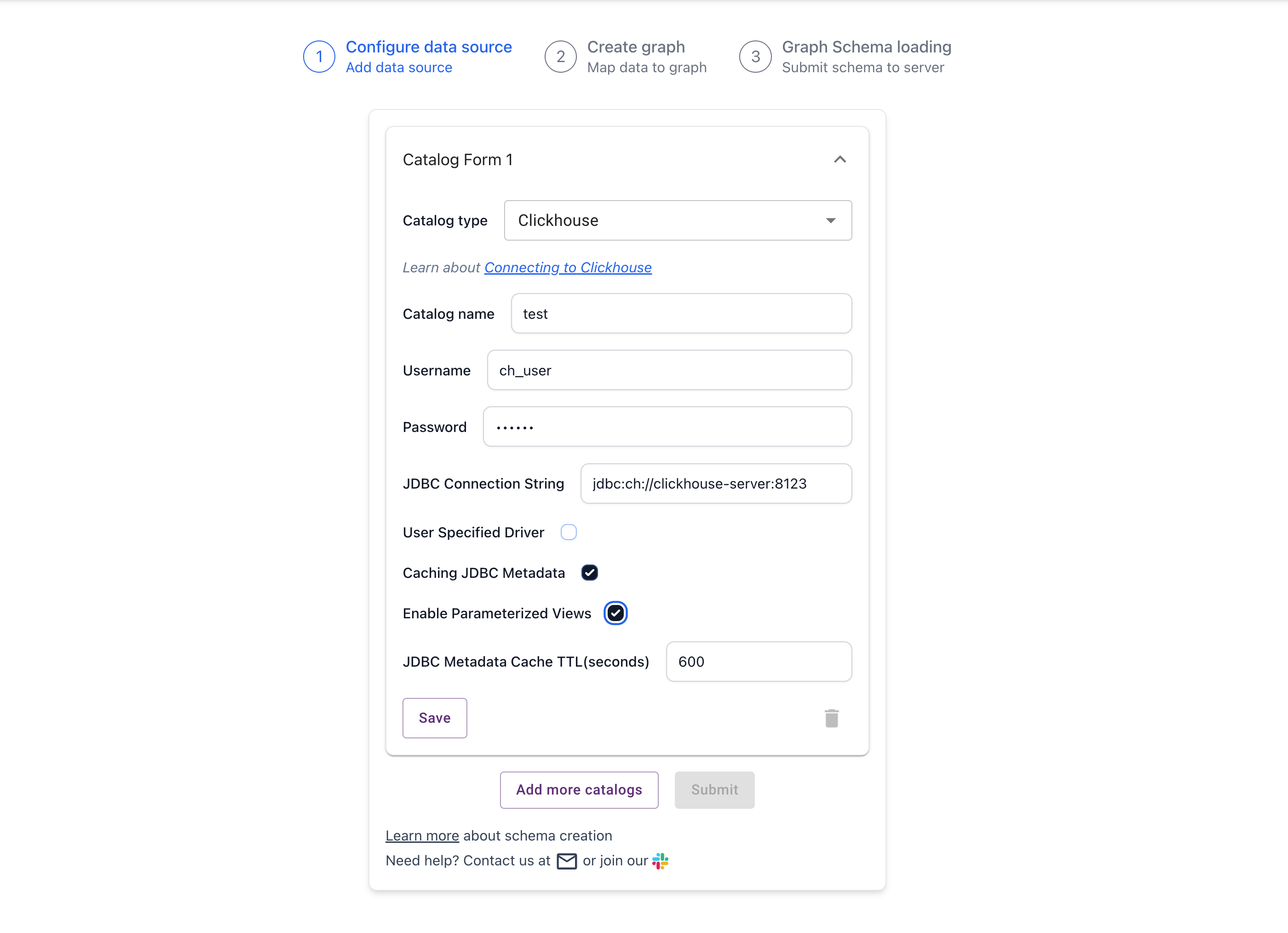
Create ClickHouse Catalog
| Parameter | Value |
|---|---|
| Catalog type | Clickhouse |
| Catalog name | test |
| Enable Parameterized Views | Toggle the switch to on |
| Username | Same as CLICKHOUSE_USER in docker-compose.yaml (default: ch_user) |
| Password | Same as CLICKHOUSE_PASSWORD in docker-compose.yaml (default: ch_pwd) |
| JDBC Connection String | jdbc:ch://clickhouse-server:8123 |
| Driver Class | The class name of the JDBC Driver. The default value is com.clickhouse.jdbc.ClickHouseDriver. |
Click on Save, then click on Submit to connect to ClickHouse Server.
Step 2: Building the Graph Schema
In the Schema Builder, we will map the views to vertices and edges.
First, let's create the person vertex from person view.
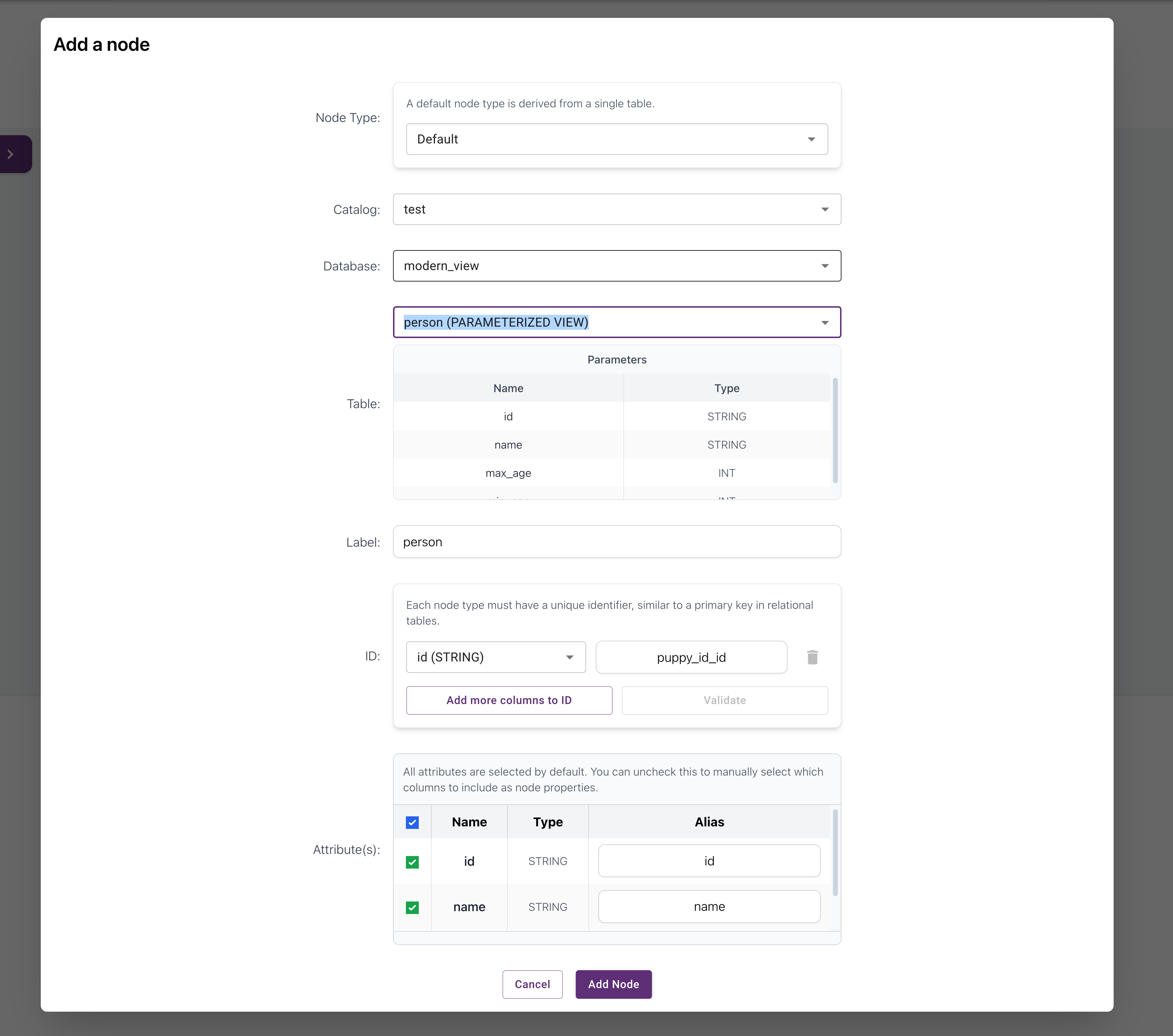
Then, create the software vertex from software view.
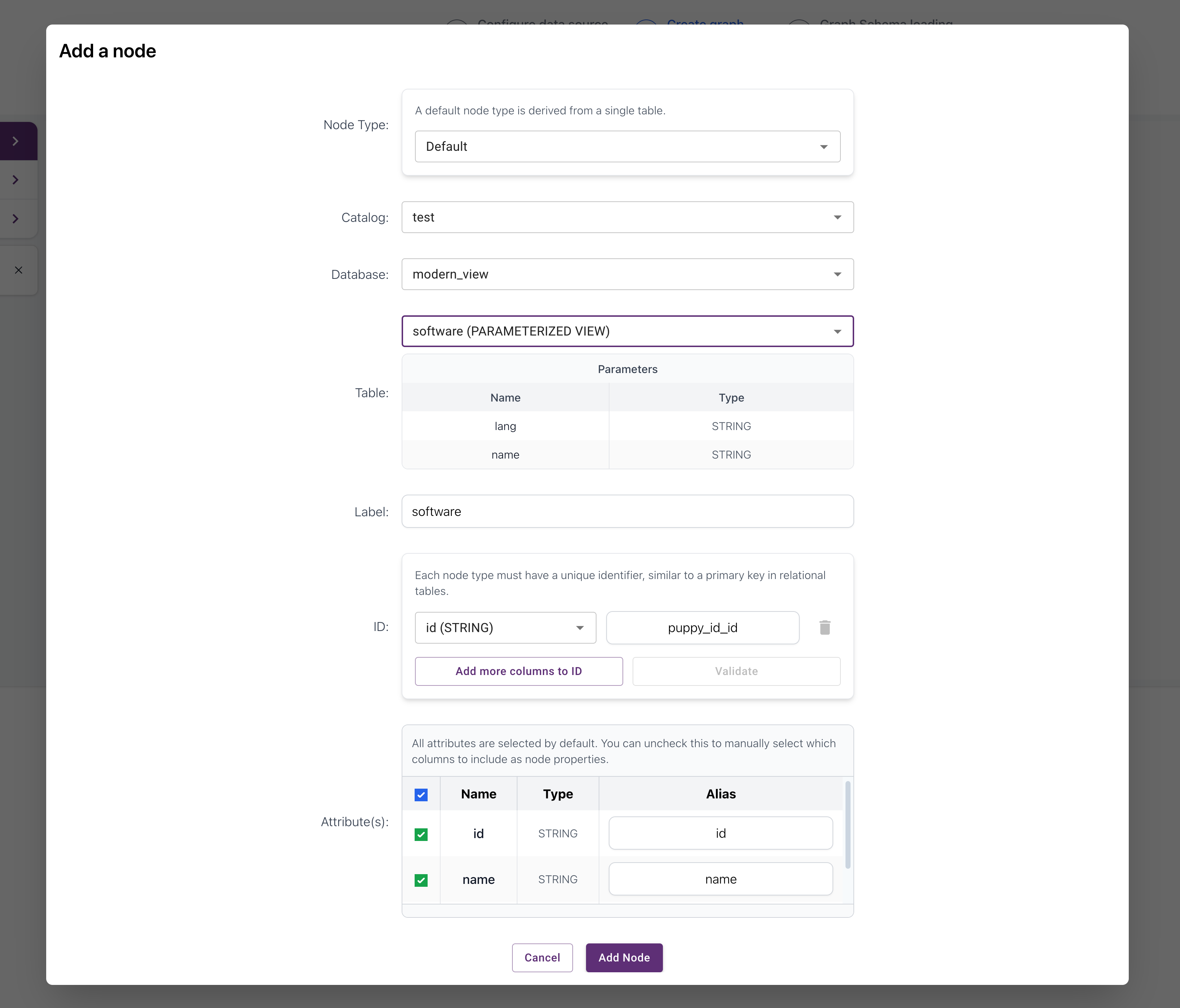
Next, create the created edge from created view.
This involves selecting the view and defining the source and target vertices.
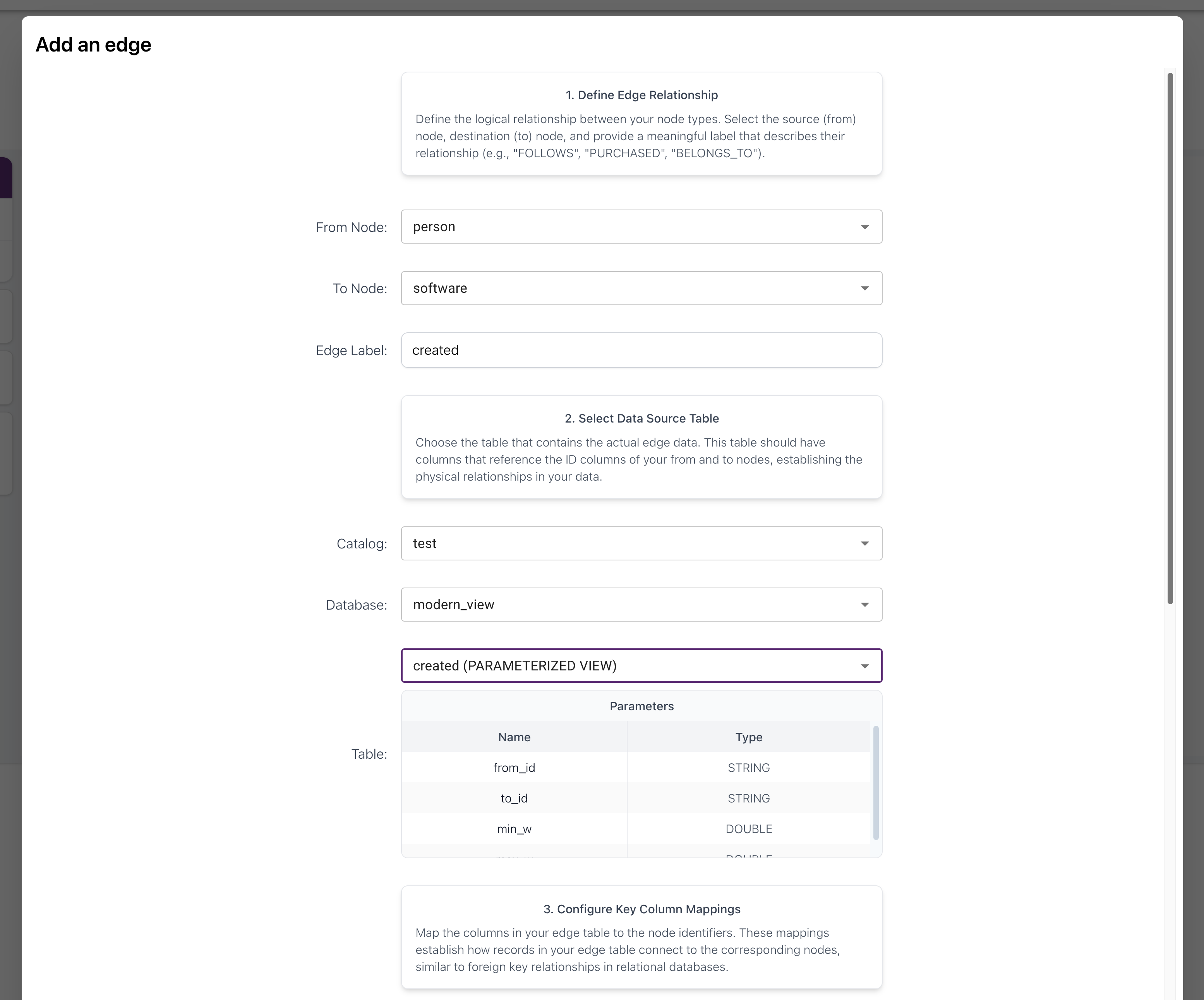
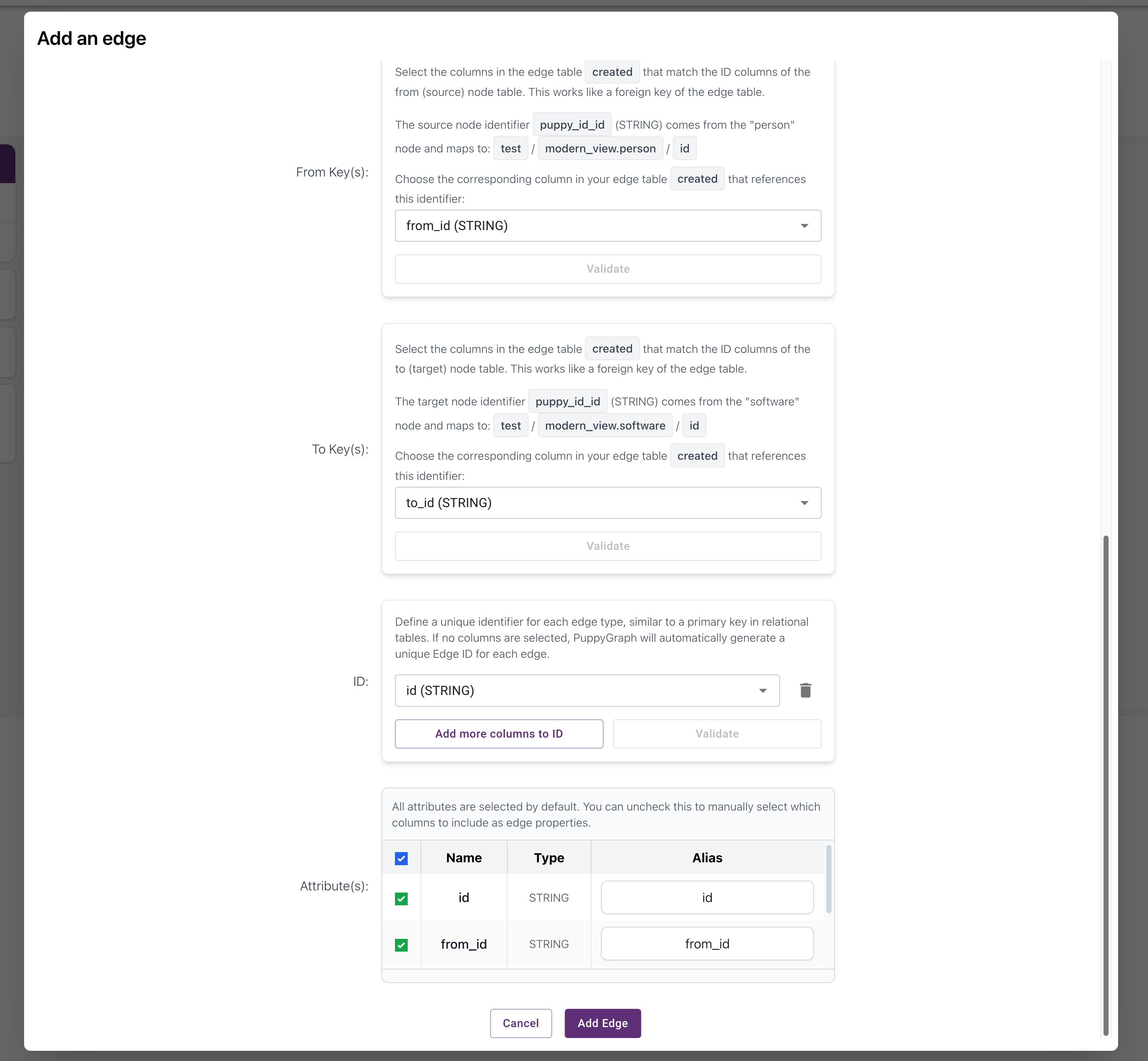
Finally, create the knows edge from knows view.
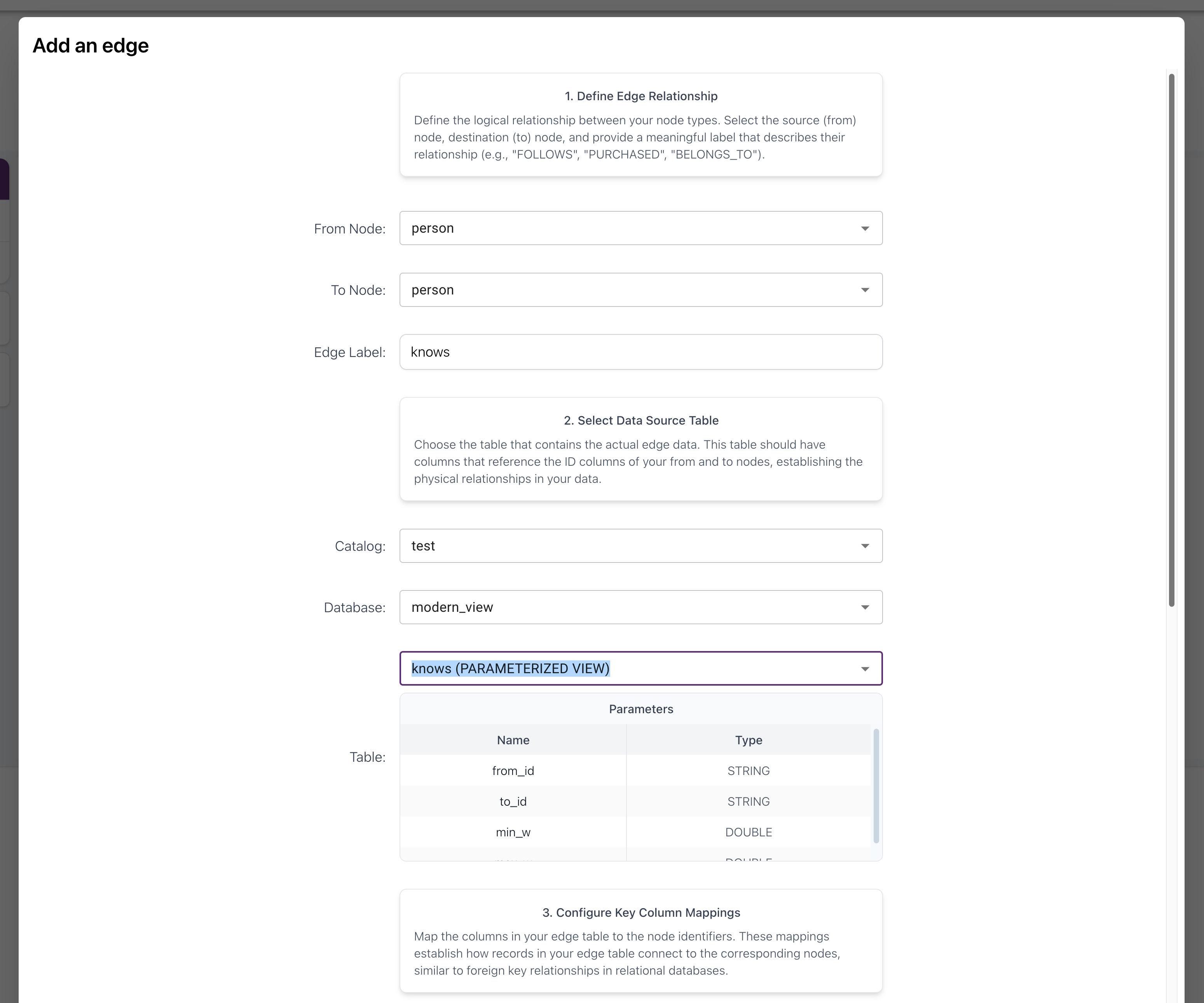
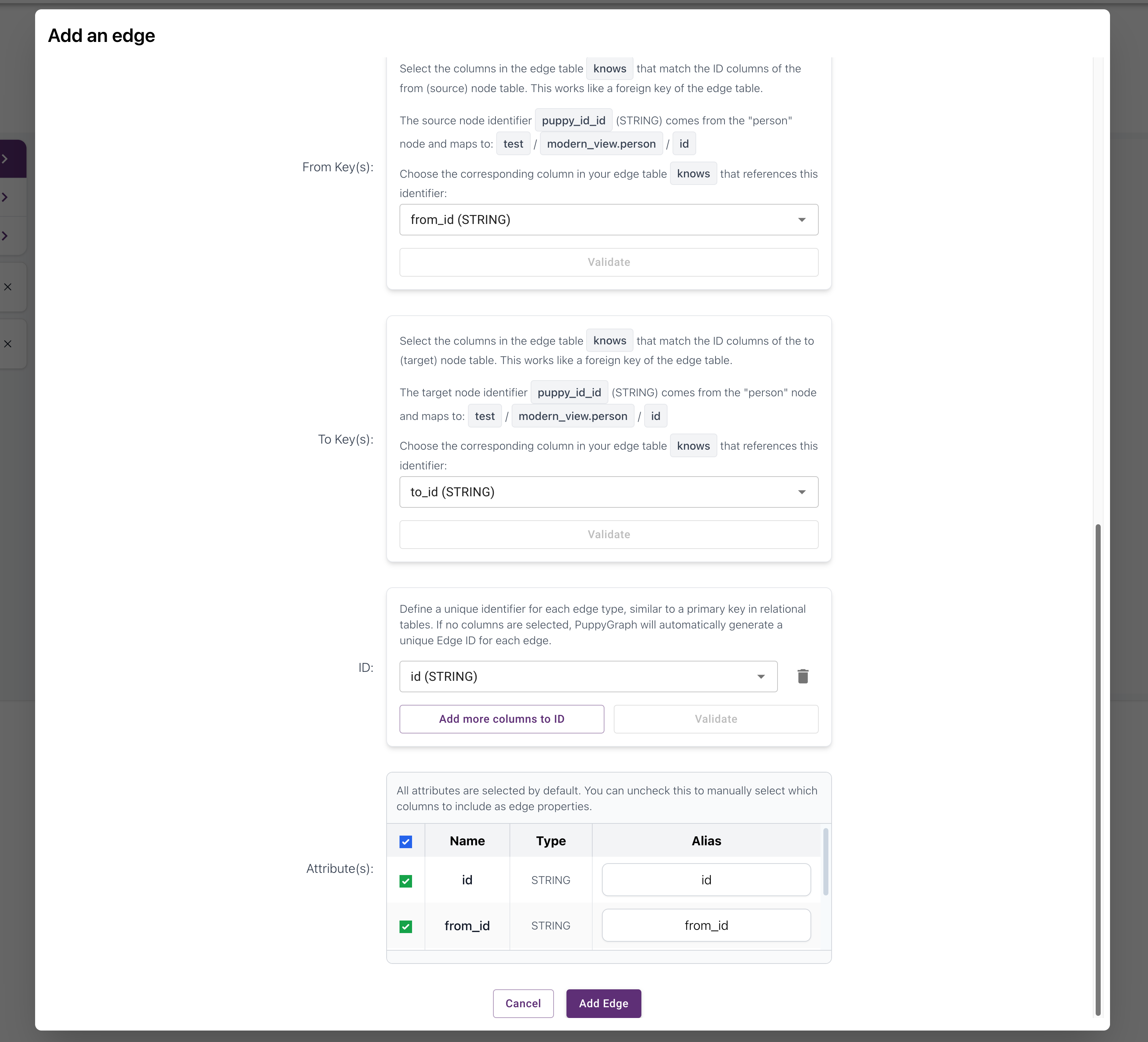
The graph schema works with parameterized views just like regular tables.
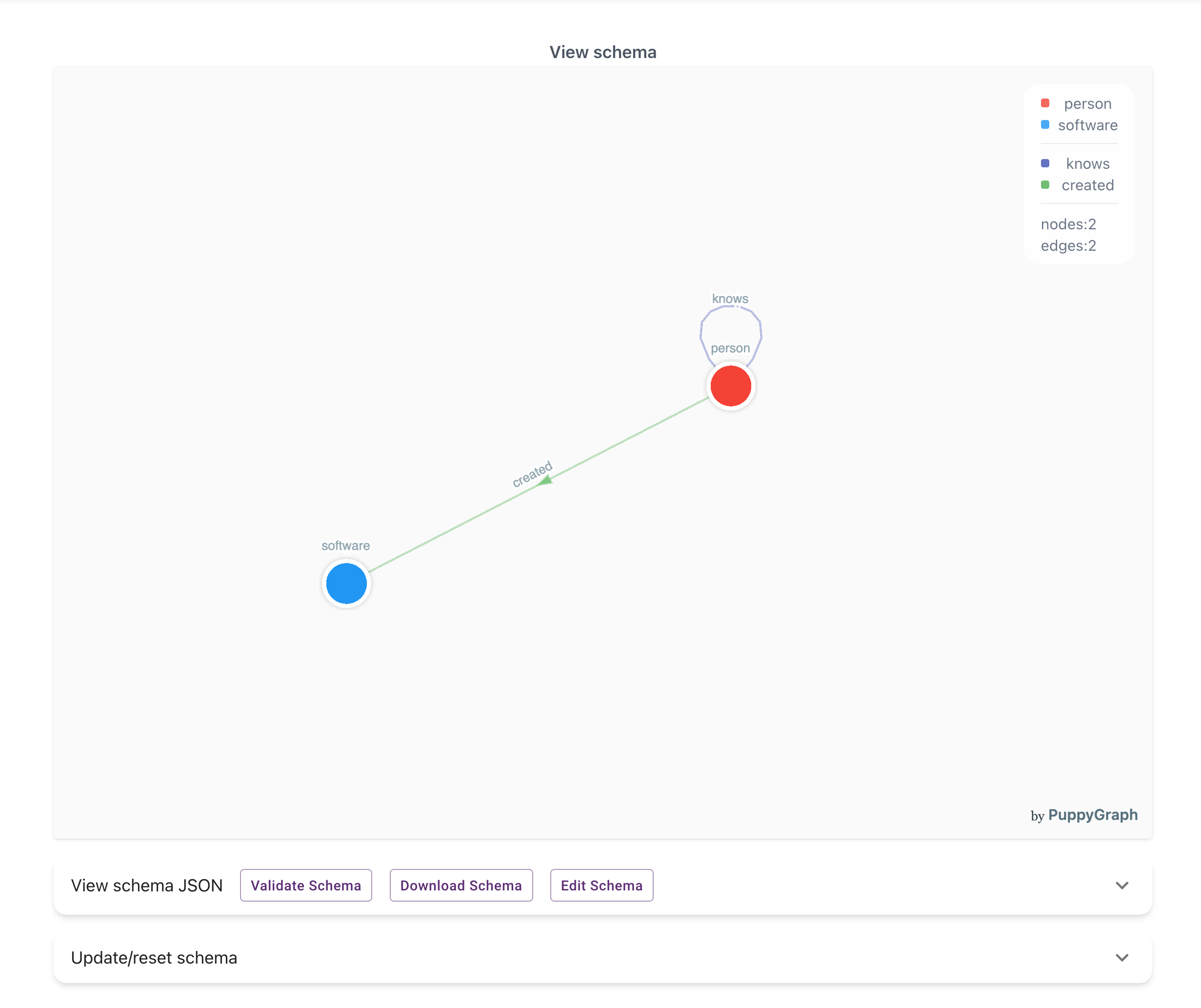 Submit the schema to create the graph.
Alternatively, you can upload the following schema.json to create the graph:
schema.json
{
  "catalogs": [
    {
      "name": "test",
      "type": "clickhouse",
      "jdbc": {
        "username": "ch_user",
        "password": "ch_pwd",
        "jdbcUri": "jdbc:ch://clickhouse-server:8123",
        "enableMetaCache": "true",
        "metaCacheExpireSec": "600"
      },
      "enableParameterizedViews": "true"
    }
  ],
  "graph": {
    "vertices": [
      {
        "label": "person",
        "oneToOne": {
          "tableSource": {
            "catalog": "test",
            "schema": "modern_view",
            "table": "person",
            "parameters": [
              {
                "name": "id",
                "type": "STRING"
              },
              {
                "name": "name",
                "type": "STRING"
              },
              {
                "name": "max_age",
                "type": "INT"
              },
              {
                "name": "min_age",
                "type": "INT"
              }
            ]
          },
          "id": {
            "fields": [
              {
                "type": "STRING",
                "field": "id",
                "alias": "puppy_id_id"
              }
            ]
          },
          "attributes": [
            {
              "type": "STRING",
              "field": "id",
              "alias": "id"
            },
            {
              "type": "STRING",
              "field": "name",
              "alias": "name"
            },
            {
              "type": "INT",
              "field": "age",
              "alias": "age"
            }
          ]
        }
      },
      {
        "label": "software",
        "oneToOne": {
          "tableSource": {
            "catalog": "test",
            "schema": "modern_view",
            "table": "software",
            "parameters": [
              {
                "name": "lang",
                "type": "STRING"
              },
              {
                "name": "name",
                "type": "STRING"
              }
            ]
          },
          "id": {
            "fields": [
              {
                "type": "STRING",
                "field": "id",
                "alias": "puppy_id_id"
              }
            ]
          },
          "attributes": [
            {
              "type": "STRING",
              "field": "id",
              "alias": "id"
            },
            {
              "type": "STRING",
              "field": "name",
              "alias": "name"
            },
            {
              "type": "STRING",
              "field": "lang",
              "alias": "lang"
            }
          ]
        }
      }
    ],
    "edges": [
      {
        "label": "knows",
        "fromVertex": "person",
        "toVertex": "person",
        "tableSource": {
          "catalog": "test",
          "schema": "modern_view",
          "table": "knows",
          "parameters": [
            {
              "name": "from_id",
              "type": "STRING"
            },
            {
              "name": "to_id",
              "type": "STRING"
            },
            {
              "name": "min_w",
              "type": "DOUBLE"
            },
            {
              "name": "max_w",
              "type": "DOUBLE"
            }
          ]
        },
        "id": {
          "fields": [
            {
              "type": "STRING",
              "field": "id",
              "alias": "puppy_id_id"
            }
          ]
        },
        "fromId": {
          "fields": [
            {
              "type": "STRING",
              "field": "from_id",
              "alias": "puppy_from_from_id"
            }
          ]
        },
        "toId": {
          "fields": [
            {
              "type": "STRING",
              "field": "to_id",
              "alias": "puppy_to_to_id"
            }
          ]
        },
        "attributes": [
          {
            "type": "STRING",
            "field": "id",
            "alias": "id"
          },
          {
            "type": "STRING",
            "field": "from_id",
            "alias": "from_id"
          },
          {
            "type": "STRING",
            "field": "to_id",
            "alias": "to_id"
          },
          {
            "type": "DOUBLE",
            "field": "weight",
            "alias": "weight"
          }
        ]
      },
      {
        "label": "created",
        "fromVertex": "person",
        "toVertex": "software",
        "tableSource": {
          "catalog": "test",
          "schema": "modern_view",
          "table": "created",
          "parameters": [
            {
              "name": "from_id",
              "type": "STRING"
            },
            {
              "name": "to_id",
              "type": "STRING"
            },
            {
              "name": "min_w",
              "type": "DOUBLE"
            },
            {
              "name": "max_w",
              "type": "DOUBLE"
            }
          ]
        },
        "id": {
          "fields": [
            {
              "type": "STRING",
              "field": "id",
              "alias": "puppy_id_id"
            }
          ]
        },
        "fromId": {
          "fields": [
            {
              "type": "STRING",
              "field": "from_id",
              "alias": "puppy_from_from_id"
            }
          ]
        },
        "toId": {
          "fields": [
            {
              "type": "STRING",
              "field": "to_id",
              "alias": "puppy_to_to_id"
            }
          ]
        },
        "attributes": [
          {
            "type": "STRING",
            "field": "id",
            "alias": "id"
          },
          {
            "type": "STRING",
            "field": "from_id",
            "alias": "from_id"
          },
          {
            "type": "STRING",
            "field": "to_id",
            "alias": "to_id"
          },
          {
            "type": "DOUBLE",
            "field": "weight",
            "alias": "weight"
          }
        ]
      }
    ]
  }
}
Querying Parameterized Views
When querying parameterized views, we need to pass parameters to the views. PuppyGraph supports passing these parameters using USING clause in Cypher and with() step in Gremlin.
Supported Parameter Types
The supported parameter types for the views are the ClickHouse types listed in Data Type Mapping, excluding UUID, Enum8 and Enum16.
Cypher Query Examples
In Cypher, use the USING clause at the beginning of the query to specify parameters for each view.
Query 1: Retrieve the person node with ID "v1" by passing specific parameters to the person view
USING {parameterizedView: {person: {id: "v1", name: "", min_age: 0, max_age: 200}}}
MATCH (p:person)
RETURN p;
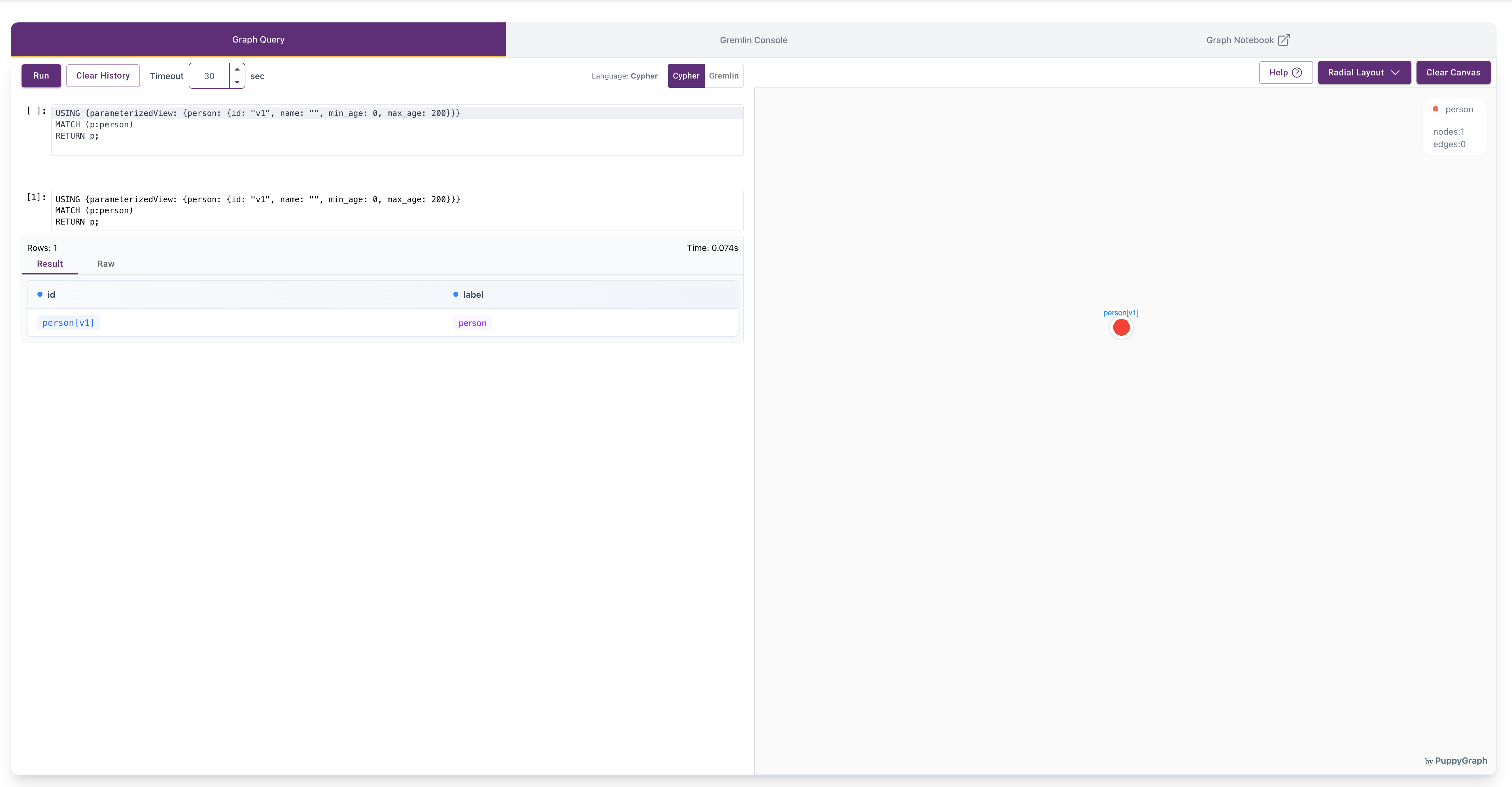
Query 2: Retrieve the name of the person with ID "v4", the software they created, and the weight of the creation edge
USING {parameterizedView: {person: {id: "v4", name: "", min_age: 0, max_age: 200},
                           created: {from_id: "v4", to_id: "", min_w: 0.0, max_w: 1.0},
                           software: {lang: "", name: ""}}}
MATCH (p:person)-[c:created]->(s:software)
RETURN p.name, s.name, c.weight;
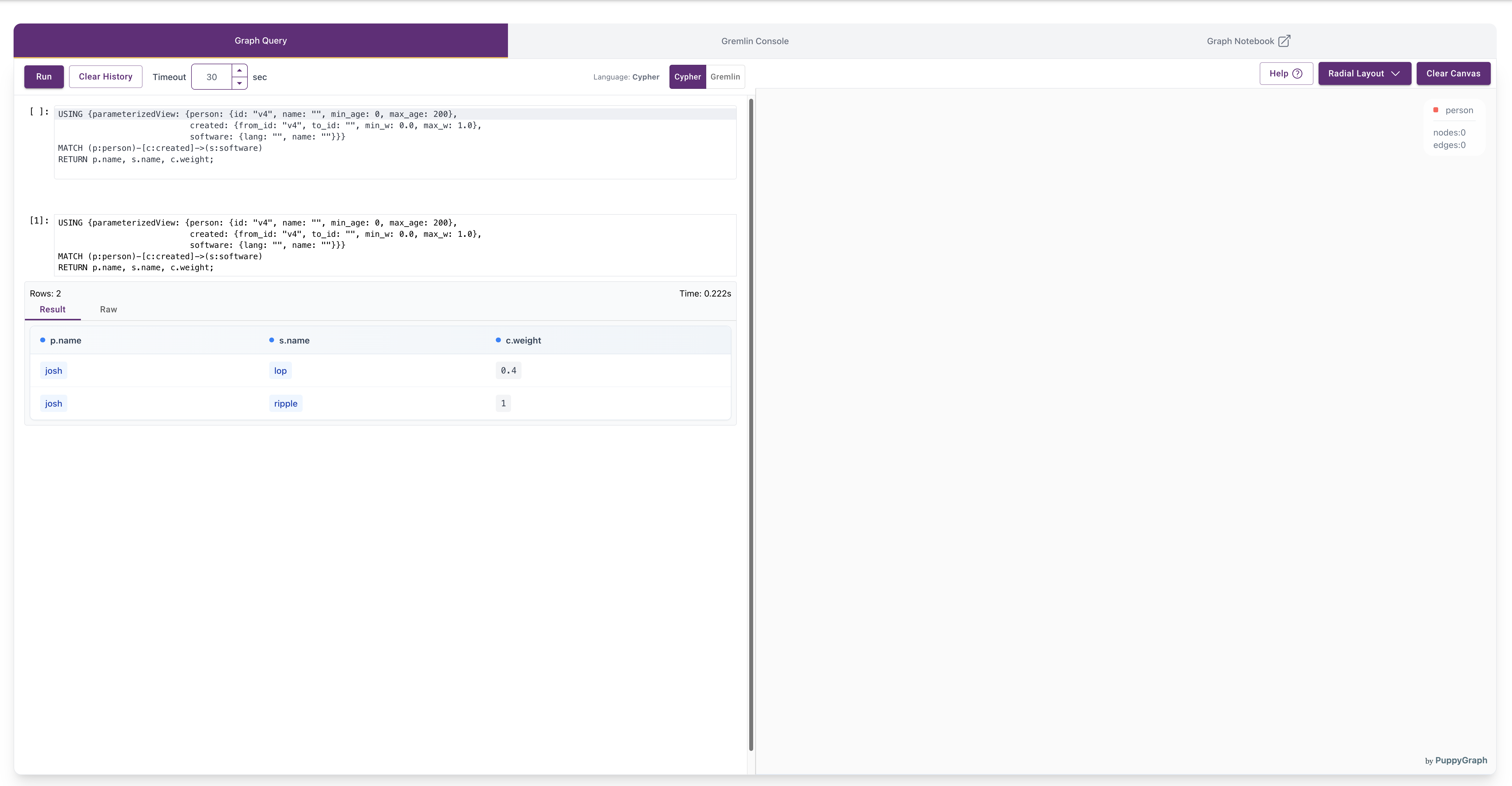
Query 3: Retrieve the path from person "v1" to the "java" software they created
USING {parameterizedView: {person: {id: "v1", name: "", min_age: 0, max_age: 100},
                           software: {lang: "java", name: ""},
                           created: {from_id: "", to_id: "", min_w: 0.0, max_w: 1.0}}}
MATCH p = (n:person)-[e:created]->(s:software)
RETURN p;
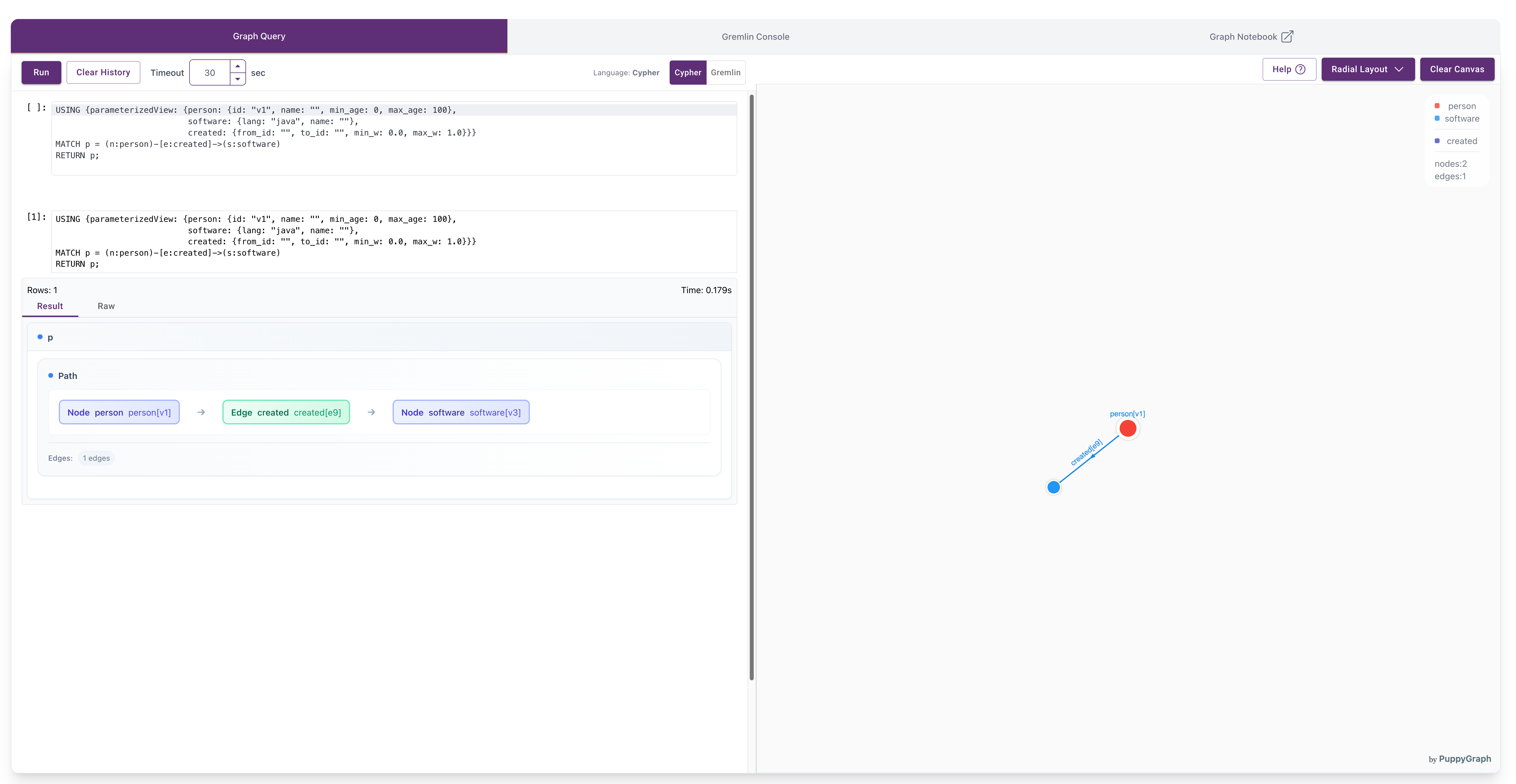
Gremlin Query Examples
In Gremlin, use the with step to configure the parameterizedView strategy with the parameters map.
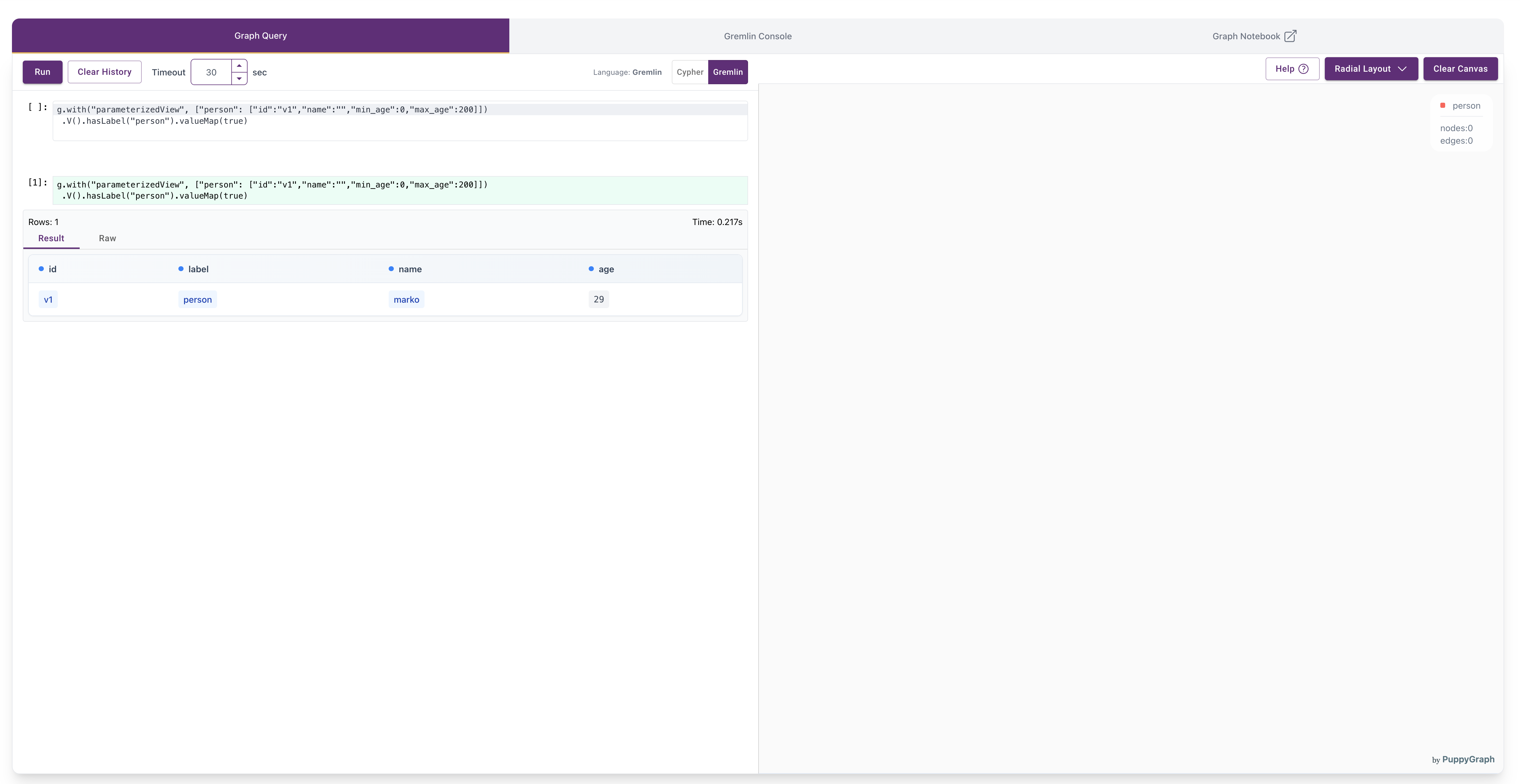
Query 1: Retrieve the person node with ID "v1" by passing specific parameters to the person view
g.with("parameterizedView", ["person": ["id":"v1","name":"","min_age":0,"max_age":200]])
 .V().hasLabel("person").valueMap(true)
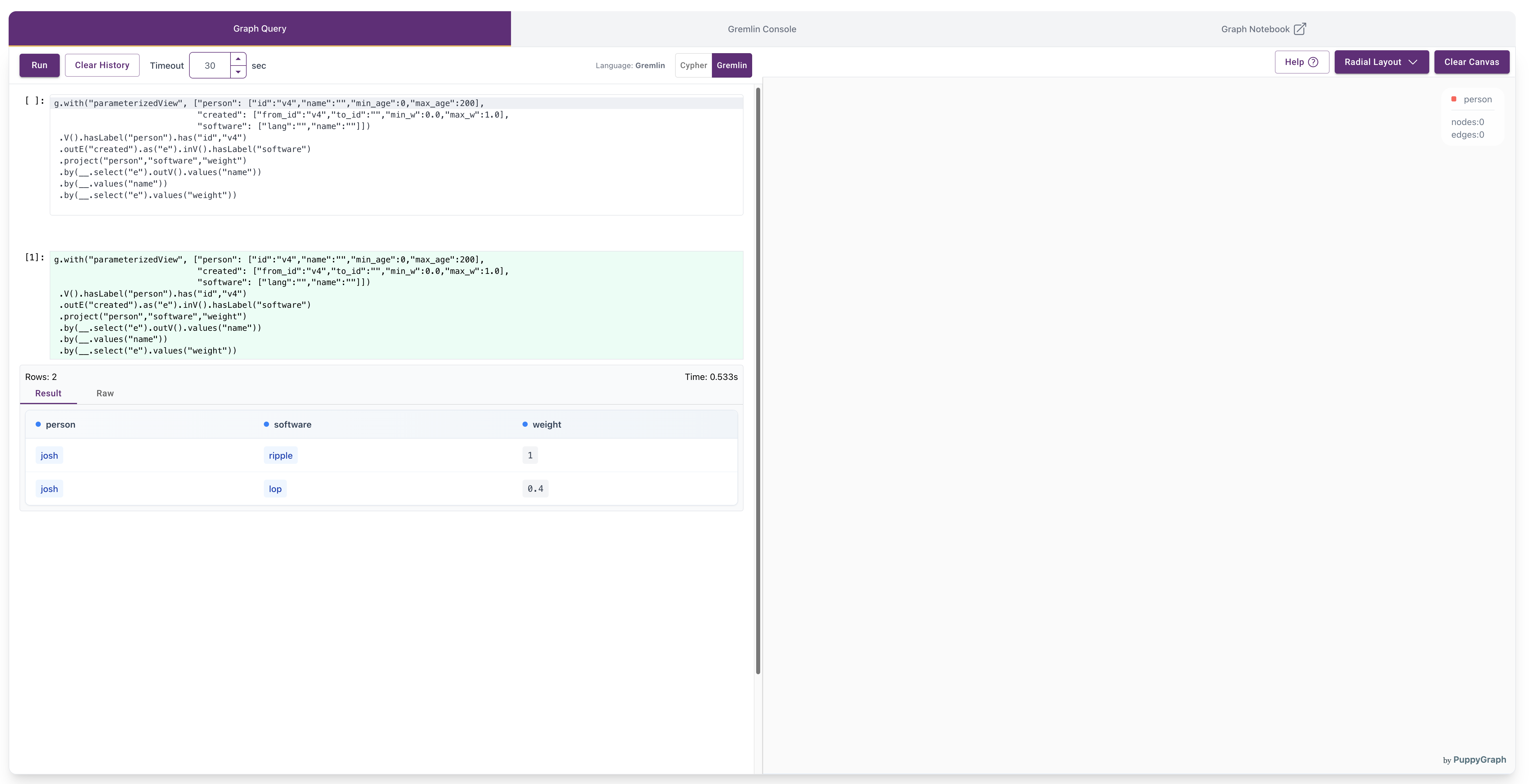
Query 2: Retrieve the name of the person with ID "v4", the software they created, and the weight of the creation edge
g.with("parameterizedView", ["person": ["id":"v4","name":"","min_age":0,"max_age":200],
                             "created": ["from_id":"v4","to_id":"","min_w":0.0,"max_w":1.0],
                             "software": ["lang":"","name":""]])
 .V().hasLabel("person").has("id","v4")
 .outE("created").as("e").inV().hasLabel("software")
 .project("person","software","weight")
 .by(__.select("e").outV().values("name"))
 .by(__.values("name"))
 .by(__.select("e").values("weight"))
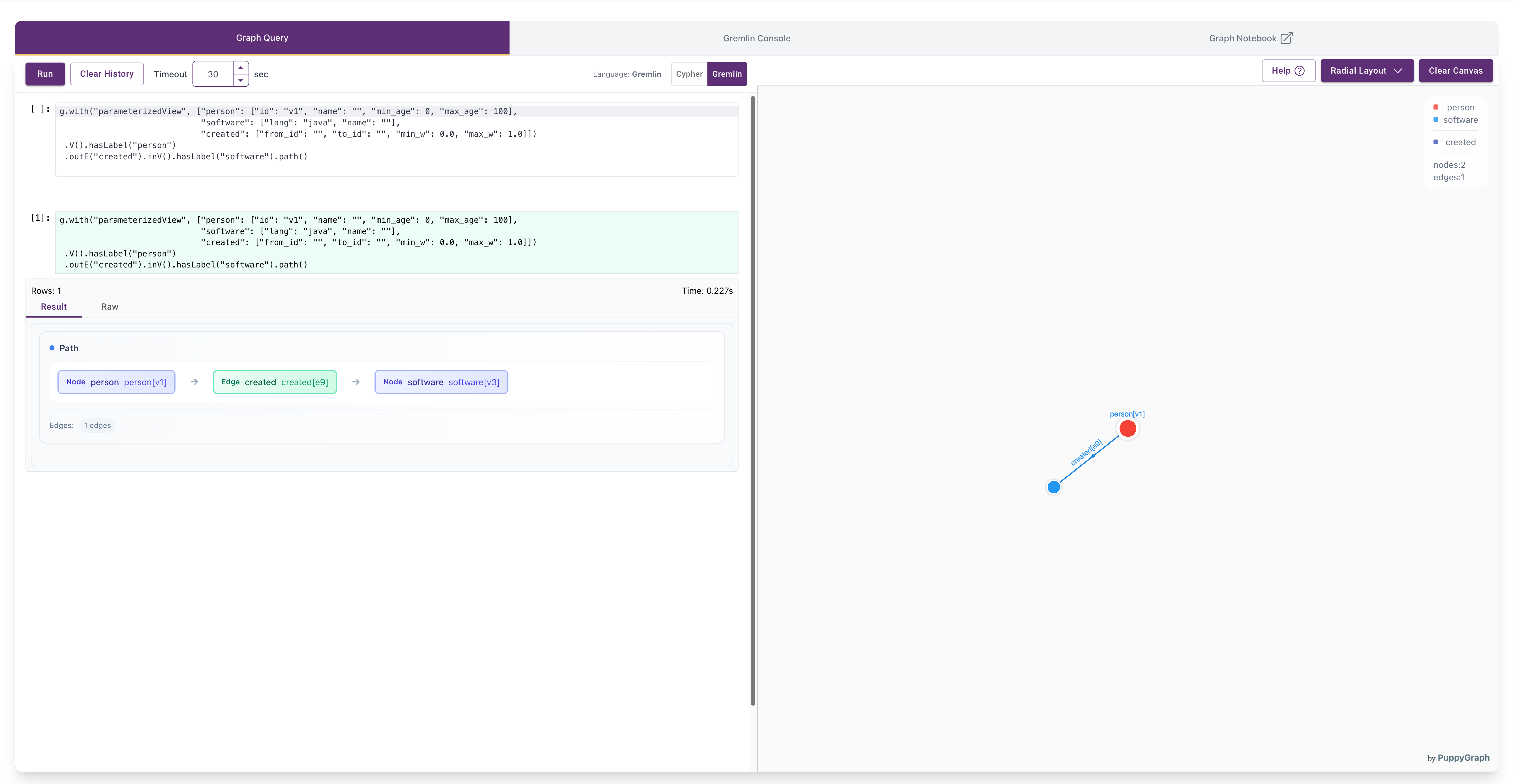
Query 3: Retrieve the path from person "v1" to the "java" software they created
g.with("parameterizedView", ["person": ["id": "v1", "name": "", "min_age": 0, "max_age": 100],
                             "software": ["lang": "java", "name": ""],
                             "created": ["from_id": "", "to_id": "", "min_w": 0.0, "max_w": 1.0]])
 .V().hasLabel("person")
 .outE("created").inV().hasLabel("software").path()
Cleaning up
Run the following command to shut down and remove the services: