Querying using openCypher
PuppyGraph supports openCypher, the widely used implementation of the Cypher graph query language.
Interactive Query UI
Open Query from the left navigation. The query editor opens in Cypher mode by default. If the language selector shows Gremlin, click it to switch to Cypher.
Enter a query and click Execute (or press Cmd+Enter on macOS or Ctrl+Enter on Windows and Linux). Use the controls beside the language selector to change the query timeout.
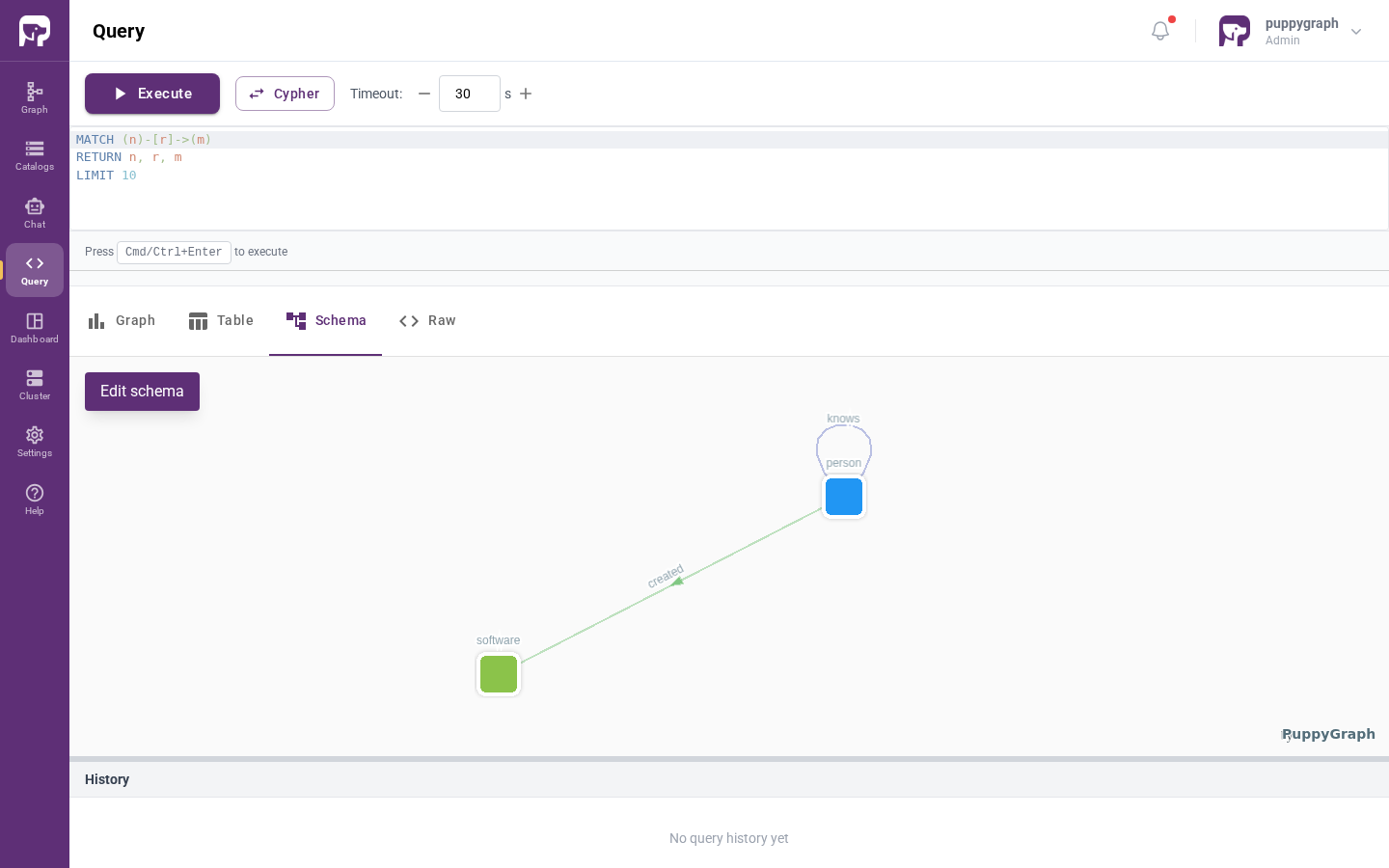
Results appear below the editor in four views: Graph, Table, Schema, and Raw. The history panel at the bottom records previous executions. See Query UI for details about the result views and graph visualization controls.
Graph Notebook
Graph Notebook is an open-source tool that enables users to interact with and visualize graph databases directly within a Jupyter Notebook environment.
To use Graph Notebook with PuppyGraph, you need to set up a separate JupyterLab environment. Follow these steps:
Prerequisites
- Docker installed and running
uvpackage manager (install from astral.sh)
Setup Graph Notebook Environment
- Create a Python environment and install required packages:
uv python install 3.11
uv venv --python 3.11 --seed
uv pip install "jupyterlab>=4.3.5,<5" graph-notebook
- Launch JupyterLab:
-
Open the URL displayed in the terminal output (typically
http://localhost:8888/?token=...) -
Create a new Python 3 notebook and initialize Graph Notebook (first run only):
Connecting to PuppyGraph
Configure the connection to use Cypher queries:
%%graph_notebook_config
{
  "host": "localhost",
  "port": 7687,
  "ssl": false,
  "neo4j": {
    "username": "your_username",
    "password": "your_password",
    "auth": true,
    "database": ""
  }
}
Note: Replace your_username and your_password with the same credentials you used when starting PuppyGraph.
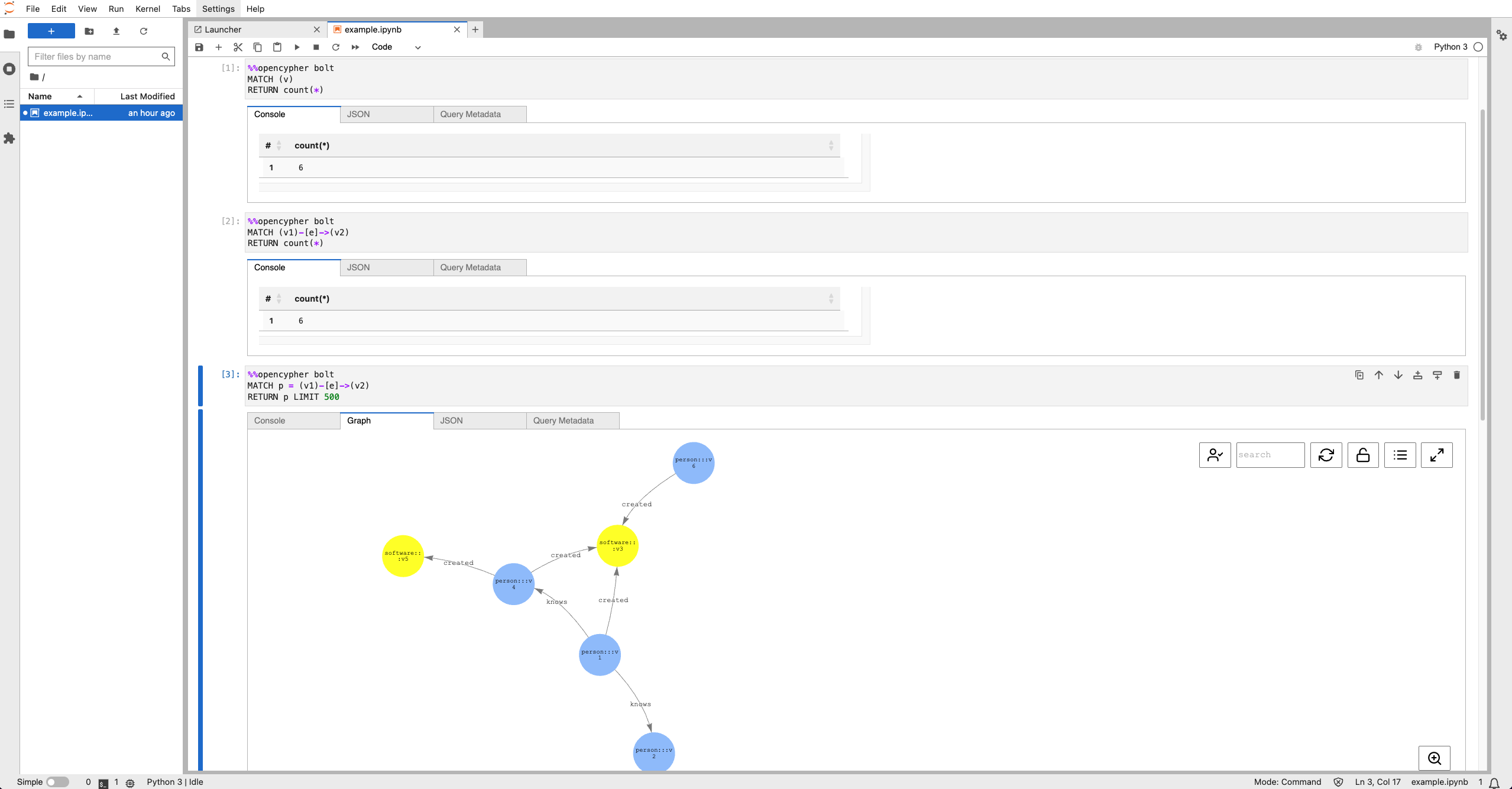
Example Cypher Queries:
Count all nodes:
Count all relationships:
Explore graph paths:
Client Drivers
PuppyGraph supports connecting and executing queries through the Bolt protocol.
See also Neo4j Drivers for more details on the drivers.
Python
Install the Neo4j Python Driver:
Here is an example of how to establish a connection to PuppyGraph and run a query:
from neo4j import GraphDatabase

# Initialize connection to the PuppyGraph.
uri = "bolt://localhost:7687"
username = "puppygraph"
password = "puppygraph123"
driver = GraphDatabase.driver(uri, auth=(username, password))
session = driver.session()

# Get all nodes from the graph.
query = "MATCH (n) RETURN n"
nodes = session.run(query)

print("All nodes in the graph:")
for record in nodes:
    node = record["n"]
    print({
        "id": node.element_id,
        "labels": list(node.labels),
        "properties": dict(node._properties)
    })
Here is another example that adds a timeout to the query execution:
from neo4j import GraphDatabase, unit_of_work

uri = "bolt://localhost:7687"
username = "puppygraph"
password = "puppygraph123"
driver = GraphDatabase.driver(uri, auth=(username, password))

query = """
MATCH (x) RETURN x LIMIT 10
"""

@unit_of_work(timeout=500)  # Timeout: 500 seconds
def run_query(tx):
  result = tx.run(query)
  return list(result)

with driver.session() as session:
    result = session.execute_read(run_query)

for record in result:
    print(record)
Also check here for the latest Neo4j Python Driver documentation.
Go
Install the Neo4j Go Driver:
Here is an example of how to establish a connection to PuppyGraph and run a query:
package main

import (
    "fmt"
    "github.com/neo4j/neo4j-go-driver/v4/neo4j"
)

func main() {
    // Creating the connection to the PuppyGraph.
    uri := "bolt://localhost:7687"
    username := "puppygraph"
    password := "puppygraph123"
    driver, err := neo4j.NewDriver(uri, neo4j.BasicAuth(username, password, ""))
    if err != nil {
        fmt.Println("Error creating driver:", err)
        return
    }
    defer driver.Close()

    // Open a new session using the driver
    sessionConfig := neo4j.SessionConfig{AccessMode: neo4j.AccessModeRead}
    session := driver.NewSession(sessionConfig)
    defer session.Close()

    // Get all the nodes (vertices) in the Graph.
    query := "MATCH (n) RETURN n"
    fmt.Println("All nodes (vertices) in the graph:")
    results, err := session.Run(query, nil)
    if err != nil {
        fmt.Println("Error executing query:", err)
        return
    }
    for results.Next() {
        fmt.Println(results.Record().Values)
    }
    if err = results.Err(); err != nil {
        fmt.Println("Error with query results:", err)
    }
}
Java
Install the Neo4j Java Driver:
The example uses Maven. You need to add the following dependencies to the pom.xml file of your project.
<dependency>
    <groupId>org.neo4j.driver</groupId>
    <artifactId>neo4j-java-driver</artifactId>
    <version>6.0.0</version>
</dependency>
Here is an example of how to establish a connection to PuppyGraph and run a query:
import org.neo4j.driver.AuthTokens;
import org.neo4j.driver.Driver;
import org.neo4j.driver.GraphDatabase;
import org.neo4j.driver.Record;
import org.neo4j.driver.Session;
import org.neo4j.driver.Result;
import org.neo4j.driver.types.Node;

public class Example {
    public static void main(String[] args) {
        // Connect to PuppyGraph
        Driver driver = GraphDatabase.driver("bolt://localhost:7687", AuthTokens.basic("puppygraph", "puppygraph123"));
        Session session = driver.session();
        // Get all the nodes (vertices) in the Graph.
        Result result = session.run("MATCH (n) RETURN n");
        System.out.println("All nodes (vertices) in the graph:");
        while (result.hasNext()) {
            Record record = result.next();
            Node node = record.get("n").asNode();
            System.out.println(String.format("Node elementId: %s, Labels: %s, Properties: %s",
                    node.elementId(), node.labels(), node.asMap()));
        }

        // Close resources.
        driver.close();
    }
}
Javascript
Install the Neo4j JavaScript Driver:
Here is an example of how to establish a connection to PuppyGraph and run a query:
const neo4j = require('neo4j-driver');

const uri = 'bolt://localhost:7687';
const user = 'puppygraph';
const password = 'puppygraph123';
// Connect to PuppyGraph
const driver = neo4j.driver(uri, neo4j.auth.basic(user, password));

// Create a session to run Cypher statements in
const session = driver.session();

// Get all the nodes (vertices) in the Graph
const query = 'MATCH (n) RETURN n';

// Run the Cypher query
session.run(query)
    .then(result => {
        result.records.forEach(record => {
            console.log(record.get('n'));
        });
    })
    .catch(error => {
        console.error('Error:', error);
    })
    .finally(() => {
        return session.close(); // Close the session
    })
    .then(() => {
        return driver.close(); // Close the driver connection
    });
Getting metadata and schema information
Procedures
You can retrieve schema and metadata details in PuppyGraph using these built-in procedures. Invoke them with the CALL statement:
| Procedure | Description |
|---|---|
db.labels() |
List all labels attached to nodes |
db.propertyKeys() |
List all property keys in the database |
db.relationshipTypes() |
List all relationship types |
db.schema.nodeTypeProperties() |
Show node property schema |
db.schema.relTypeProperties() |
Show relationship property schema |
For full signatures and descriptions, see Cypher Procedures.
Cypher Functions
PuppyGraph supports the following standard Cypher functions for retrieving metadata about nodes, relationships, and paths:
| Function | Description |
|---|---|
elementId(node_or_edge) |
Returns the element ID as a string |
properties(node_or_edge) |
Returns all properties as a map |
keys(node_or_edge) |
Returns a list of property key names |
labels(node) |
Returns the labels of a node as a list |
type(relationship) |
Returns the type of a relationship as a string |
nodes(path) |
Returns the nodes in a path |
relationships(path) |
Returns the relationships in a path |
Query Directives
PuppyGraph extends Cypher with a USING directive that configures query behavior. It must appear at the beginning of the query, before any Cypher clause. The directive supports two formats:
Directive Syntax
Key-Value Directive
Map Directive
Multiple options can be specified in a single USING clause using a map of key-value pairs:
Combining Multiple Options
Multiple options can be specified in a single USING clause with the Map Syntax or across several clauses. When the same key appears more than once, the last value takes effect.
USING {
  enableCypherEngineProperties: true,
  logicalPartition: {region: 'us-east'},
  allowUnpartitionedElements: true
}
MATCH (n)-[]->() RETURN n
USING {logicalPartition: {region: 'us-east'}}
USING {logicalPartition: {region: 'us-west'}}
MATCH (n) RETURN n
In the example above, logicalPartition resolves to {region: 'us-west'} because the second USING clause overrides the first.
Unrecognized Options
A USING key that PuppyGraph does not recognize is ignored, and the query returns one warning per ignored key, naming the key. The query still runs, and every recognized key in the same query still applies. This lets a query that uses an option from a newer PuppyGraph version run on an older one, for example during an upgrade or rollback.
An invalid value for a recognized key is still an error.
In the query below, noSuchOption is ignored with a warning, while enableCypherEngineProperties: true takes effect:
Bolt (Neo4j driver) clients receive the warnings as notifications. The Query page and the /submitCypher HTTP API also return them.
Note: The
USINGdirective is not compatible withEXPORT TO. This is a current limitation of the export feature. For more details about exporting results and related limitations, see Exporting query results.
Supported Directive Options
enableCypherEngineProperties
- Type: Boolean
- Default value:
false
Controls whether returned nodes and relationships include their properties.
- When
false: Returns only element structure (IDs, labels, types) without property data. - When
true: Returns full element data including all properties.
logicalPartition
- Type: Map or List
Applies filters to all nodes and relationships in the query. The partition value can be specified as a map of property names to values (using = comparison), or as a list of conditions with explicit operators.
For full documentation and examples, see Logical Partition.
allowUnpartitionedElements
- Type: Boolean
- Default value:
false - Requires:
logicalPartition
Determines whether elements that lack logical partition properties are permitted in query results.
- When
false: An exception is thrown if any element does not have the partition attributes. - When
true: Elements missing partition attributes are still included in the results.
For full documentation and examples, see Logical Partition.
logicalPartitionConsistency
- Type: Boolean
- Default value:
true - Requires:
logicalPartition
Controls whether logical partitioning assumes all connected elements belong to the same partition.
- When
true: All connected triples are assumed to share the same partition values, improving query efficiency. - When
false: Inter-partition connections are excluded from the result set, producing accurate results when data spans multiple partitions.
For full documentation and examples, see Logical Partition.
USING {
  logicalPartition: {region: 'us-east'},
  logicalPartitionConsistency: false
}
MATCH (n:A)-[r:R]->(m:B)
RETURN n, r, m
SnapShotTime
- Type: String or Number
Specifies the snapshot time for querying SCD Type 2 (Slowly Changing Dimension) data. When set, filters are automatically added to all SCD2-configured tables to return data valid at the given point in time.
Format guidelines:
- For
DATEorDATETIMEcolumns: use'yyyy-MM-dd'or'yyyy-MM-dd HH:mm:ss' - For numeric timestamp columns: provide the numeric value directly as a number or numeric string
- Use the special value
'current'to query the currently active records when explicitly specified - For the currently documented default behavior and any other supported special values, refer to Working with SCD Type 2 Tables
For full documentation and schema setup, see Working with SCD Type 2 Tables.