Querying MongoDB Atlas Data as a Graph
Summary
In this tutorial, you will:
- Load example data into a MongoDB Atlas cluster, then expose those collections as SQL tables through Atlas SQL.
- Start a PuppyGraph container and connect it to Atlas SQL over JDBC.
- Run Cypher and Gremlin queries against the MongoDB Atlas data as a graph.
Requires a MongoDB Atlas cluster
PuppyGraph reads MongoDB Atlas through the Atlas SQL Connection (the cloud-hosted variant of the MongoDB BI Connector). The Atlas SQL Connection exposes Mongo collections as SQL tables over the MySQL wire protocol; PuppyGraph then connects via the MongoDB JDBC driver.
Prerequisites
dockeris available on the host where you'll run PuppyGraph.- A MongoDB Atlas account with a cluster (free-tier "M0" is enough for this demo).
- An Atlas database user with read access to the demo data.
Setup
Data Preparation
 Connect to the Atlas cluster (via Compass, the Atlas web shell, or a local
 mongosh):
Switch to the modern database and create the four collections with JSON Schema validators:
modern.js
use modern;

db.createCollection("software", {
  validator: {
    $jsonSchema: {
      bsonType: "object",
      required: ["id", "name", "lang"],
      properties: {
        id:   { bsonType: "string" },
        name: { bsonType: "string" },
        lang: { bsonType: "string" }
      }
    }
  }
});
db.software.insertMany([
  { id: 'v3', name: 'lop',    lang: 'java' },
  { id: 'v5', name: 'ripple', lang: 'java' }
]);

db.createCollection("person", {
  validator: {
    $jsonSchema: {
      bsonType: "object",
      required: ["id", "name", "age"],
      properties: {
        id:   { bsonType: "string" },
        name: { bsonType: "string" },
        age:  { bsonType: "int" }
      }
    }
  }
});
db.person.insertMany([
  { id: 'v1', name: 'marko', age: 29 },
  { id: 'v2', name: 'vadas', age: 27 },
  { id: 'v4', name: 'josh',  age: 32 },
  { id: 'v6', name: 'peter', age: 35 }
]);

db.createCollection("created", {
  validator: {
    $jsonSchema: {
      bsonType: "object",
      required: ["id", "from_id", "to_id", "weight"],
      properties: {
        id:      { bsonType: "string" },
        from_id: { bsonType: "string" },
        to_id:   { bsonType: "string" },
        weight:  { bsonType: "double" }
      }
    }
  }
});
db.created.insertMany([
  { id: 'e9',  from_id: 'v1', to_id: 'v3', weight: Double(0.4) },
  { id: 'e10', from_id: 'v4', to_id: 'v5', weight: Double(1.0) },
  { id: 'e11', from_id: 'v4', to_id: 'v3', weight: Double(0.4) },
  { id: 'e12', from_id: 'v6', to_id: 'v3', weight: Double(0.2) }
]);

db.createCollection("knows", {
  validator: {
    $jsonSchema: {
      bsonType: "object",
      required: ["id", "from_id", "to_id", "weight"],
      properties: {
        id:      { bsonType: "string" },
        from_id: { bsonType: "string" },
        to_id:   { bsonType: "string" },
        weight:  { bsonType: "double" }
      }
    }
  }
});
db.knows.insertMany([
  { id: 'e7', from_id: 'v1', to_id: 'v2', weight: Double(0.5) },
  { id: 'e8', from_id: 'v1', to_id: 'v4', weight: Double(1.0) }
]);
The Double(...) wrappers force a BSON double type on integer-valued weights like 1.0; without them mongosh inserts ints, which the validator rejects.
| id | name | age |
|---|---|---|
| v1 | marko | 29 |
| v2 | vadas | 27 |
| v4 | josh | 32 |
| v6 | peter | 35 |
| id | name | lang |
|---|---|---|
| v3 | lop | java |
| v5 | ripple | java |
| id | from_id | to_id | weight |
|---|---|---|---|
| e9 | v1 | v3 | 0.4 |
| e10 | v4 | v5 | 1.0 |
| e11 | v4 | v3 | 0.4 |
| e12 | v6 | v3 | 0.2 |
| id | from_id | to_id | weight |
|---|---|---|---|
| e7 | v1 | v2 | 0.5 |
| e8 | v1 | v4 | 1.0 |
Set up Atlas SQL
PuppyGraph uses a JDBC driver against Atlas SQL, which is a MySQL-wire-protocol layer over your Mongo collections.
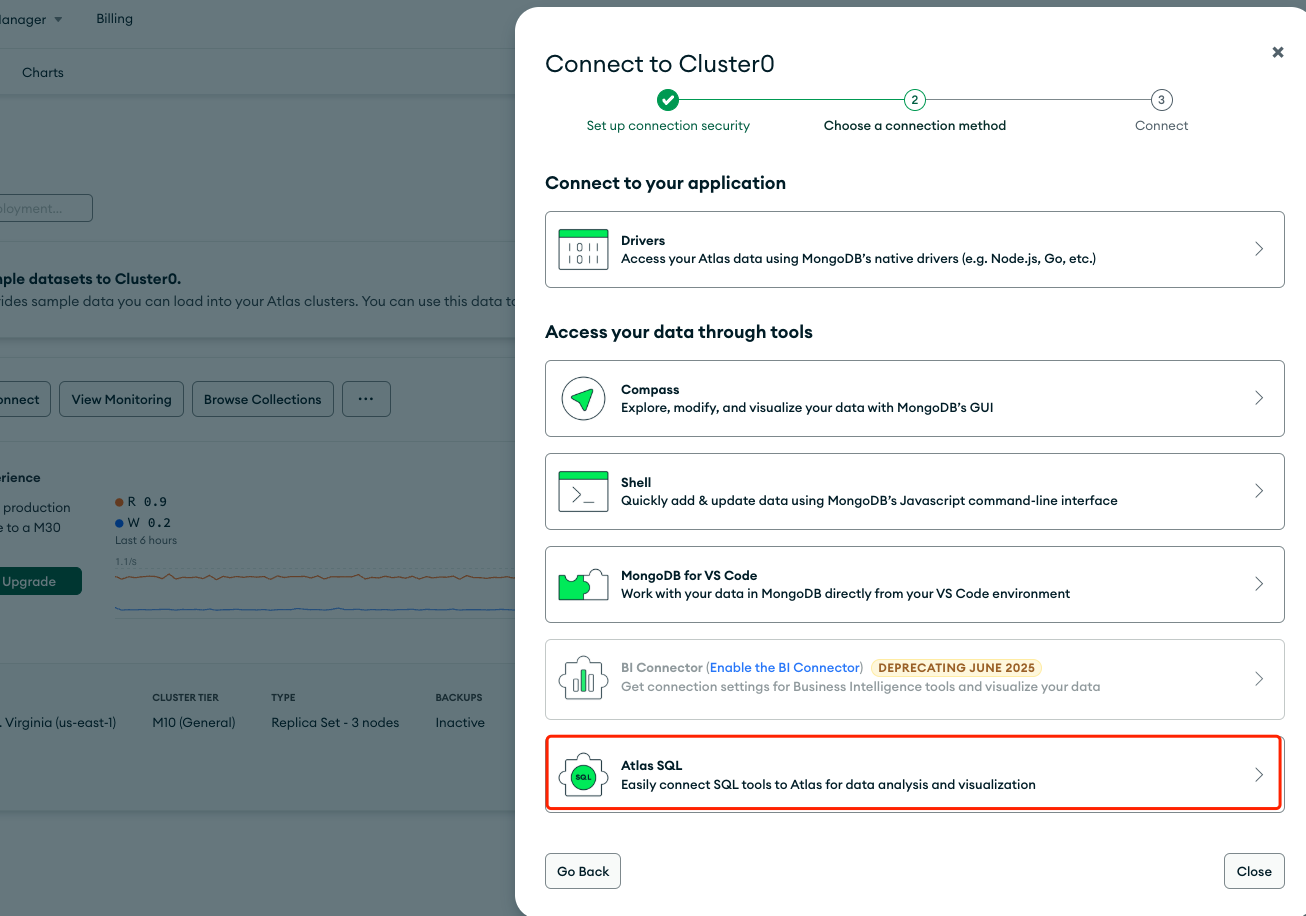
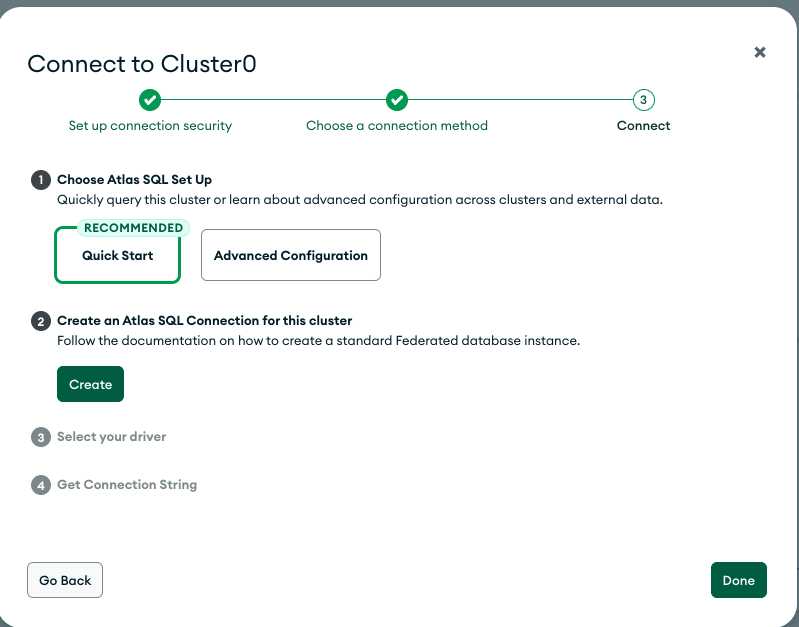
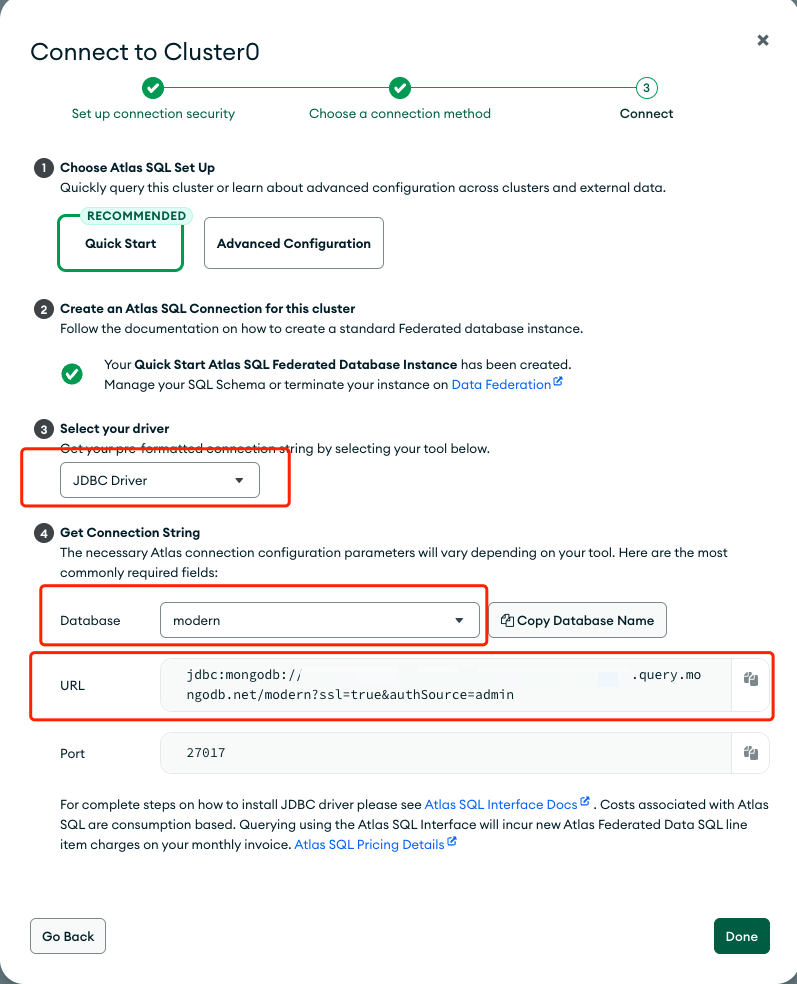
In the Atlas web console, open your cluster's Connect menu, choose Atlas SQL, and create an SQL connection instance. Save the JDBC URL Atlas shows you (looks like jdbc:mongodb://atlas-sql-...mongodb.net/modern?ssl=true&...).
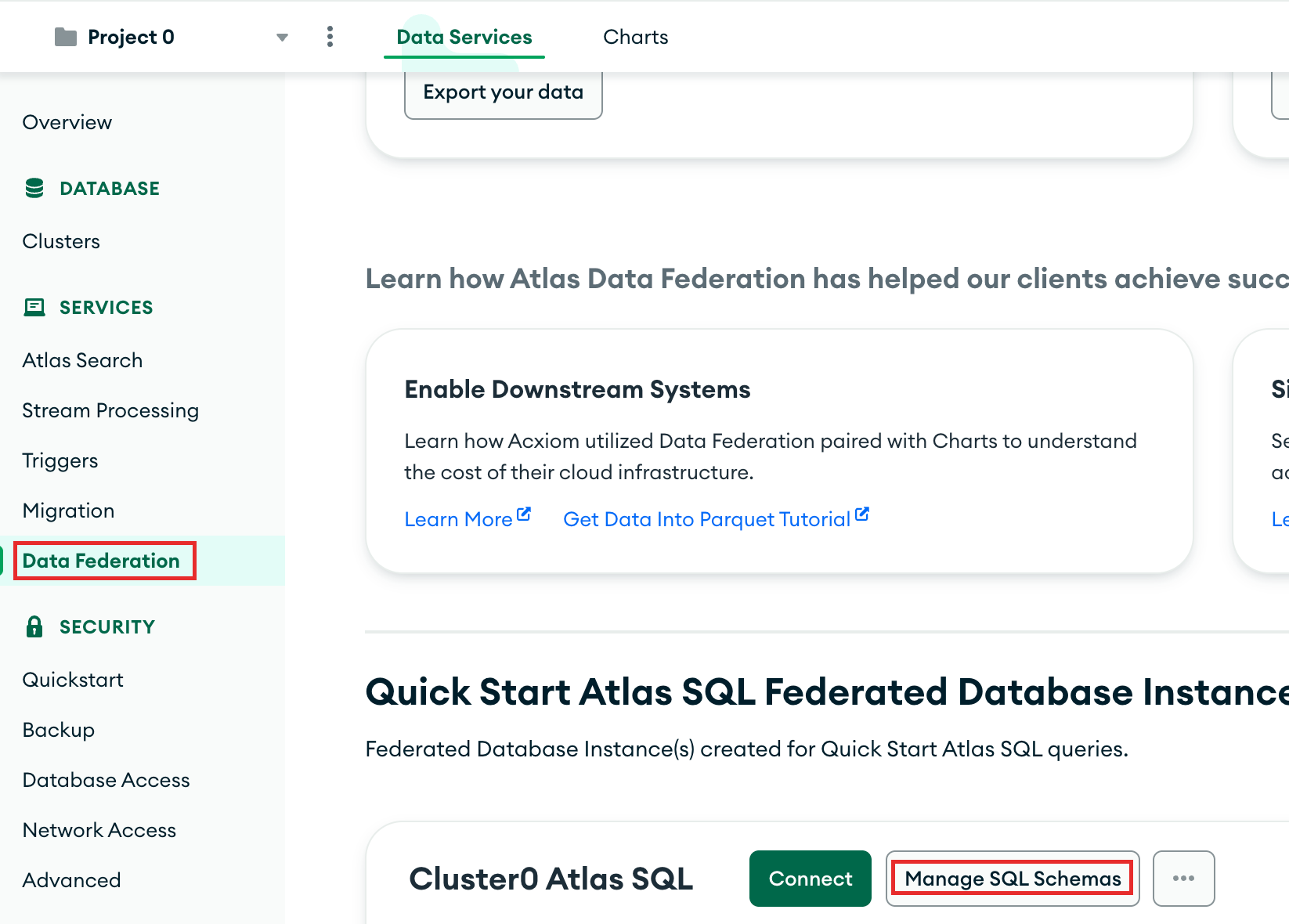
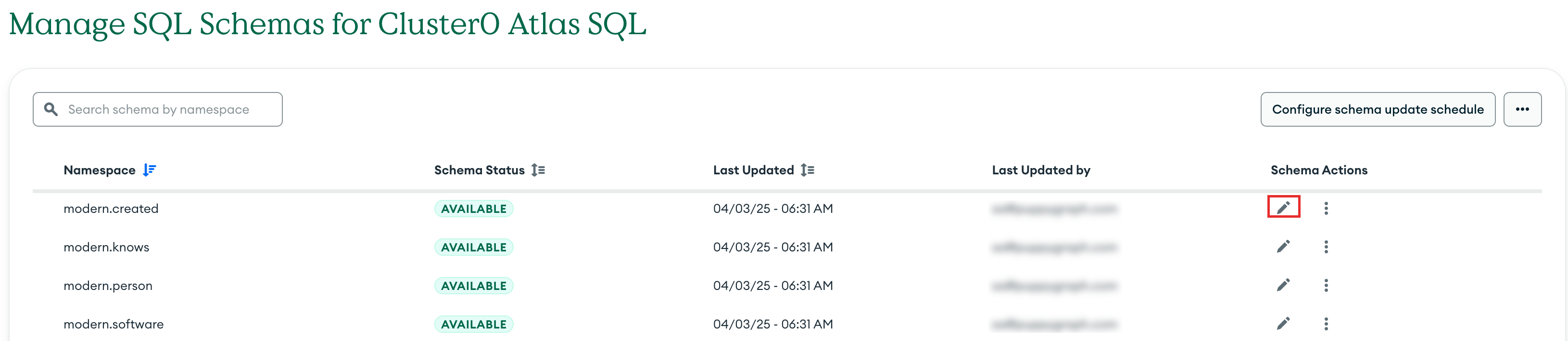
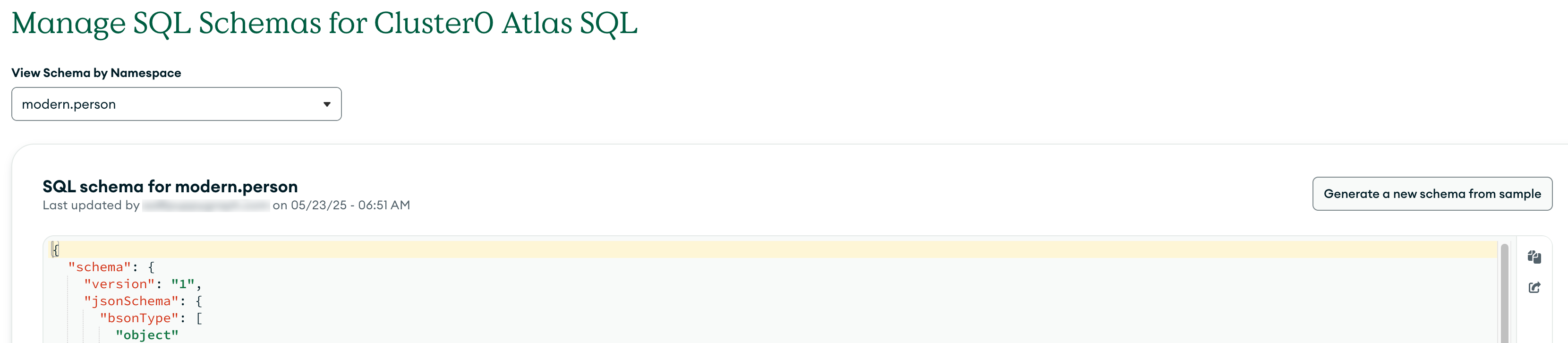
In the Atlas console, open Data Federation > Manage SQL Schemas. Make sure each of the four collections shows status Available. If not, click the pencil icon on a collection and pick Generate a new schema from sample so Atlas SQL learns the table layout.
Configure IP whitelisting
Atlas SQL connections are blocked unless the connecting IP address is in the cluster's allowlist.
In the Atlas web console, open Network Access under Security in the left sidebar. Click Add IP Address and add the IP address of the machine running the PuppyGraph container. If you are testing locally, you can use your public IP or select Allow Access from Anywhere (0.0.0.0/0) for convenience (not recommended for production).
Start PuppyGraph
Start the PuppyGraph container:
docker run -d --name puppygraph \
  -p 8081:8081 -p 8182:8182 -p 7687:7687 \
  -e PUPPYGRAPH_USERNAME=puppygraph \
  -e PUPPYGRAPH_PASSWORD=puppygraph123 \
  --pull=always puppygraph/puppygraph:latest
Modeling a Graph
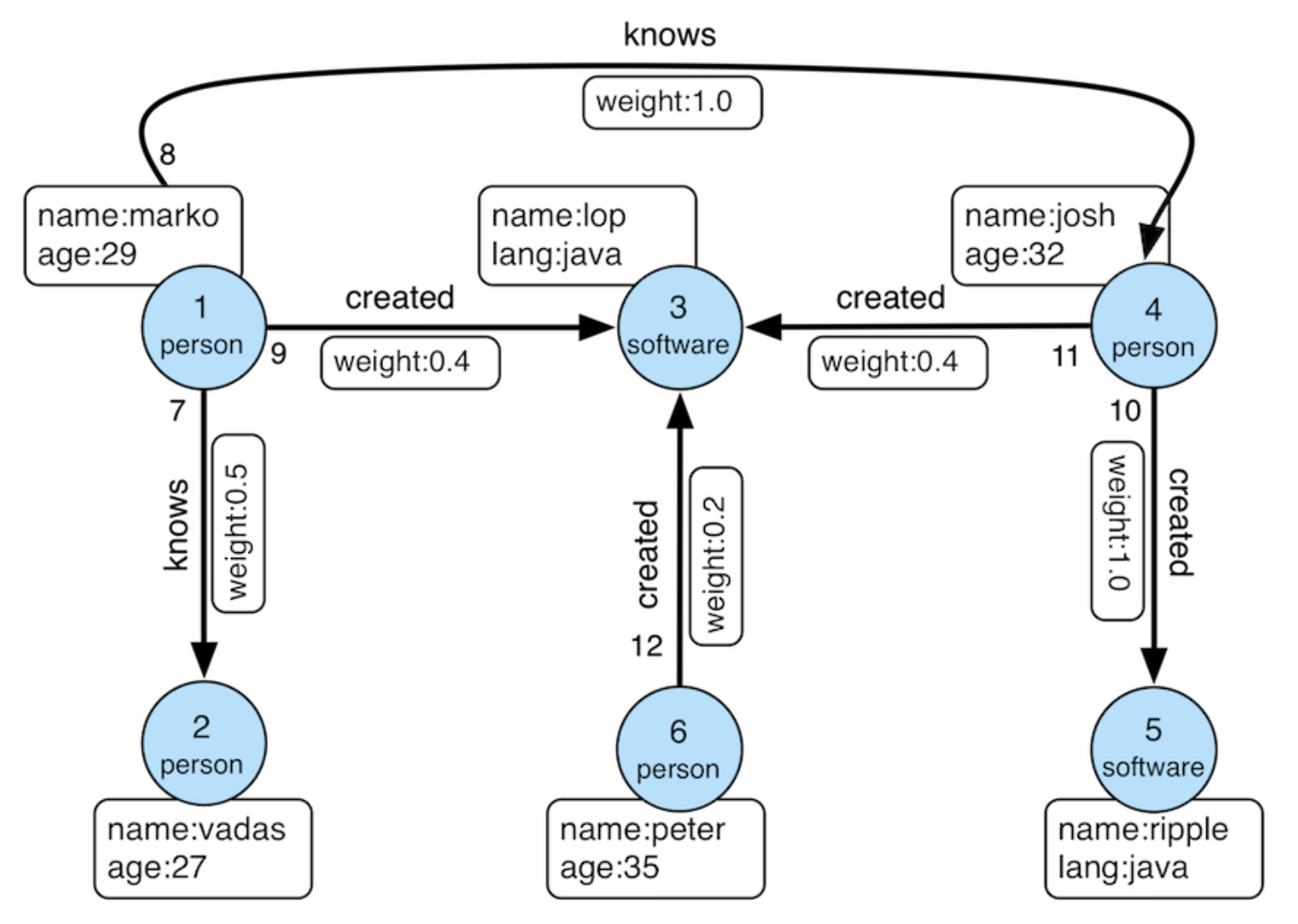
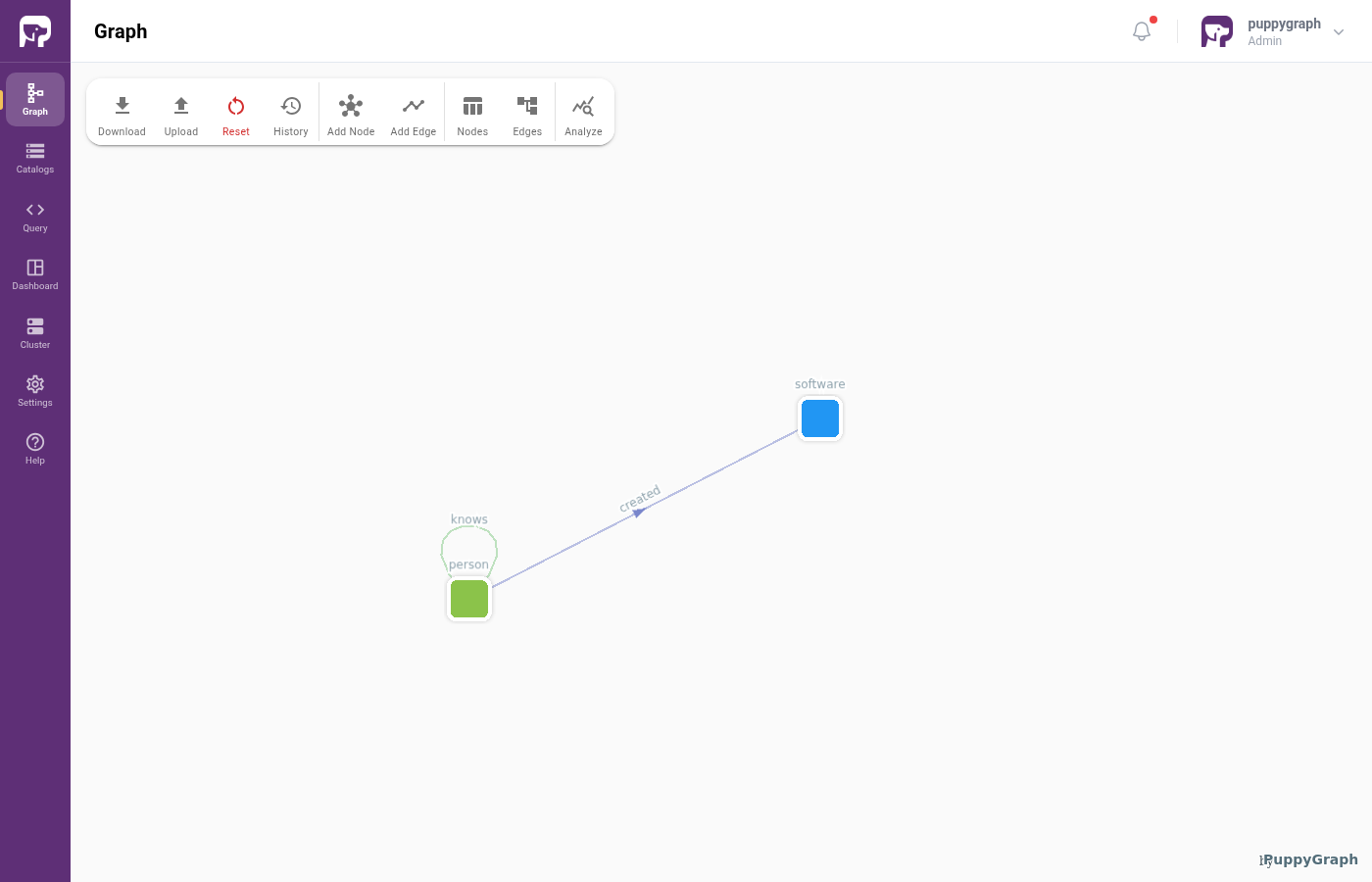
We model the data as the TinkerPop modern graph: two node types (person, software) and two edge types (knows, created).
Log into the PuppyGraph Web UI at http://localhost:8081 with puppygraph / puppygraph123.
Build the graph in the Schema Builder
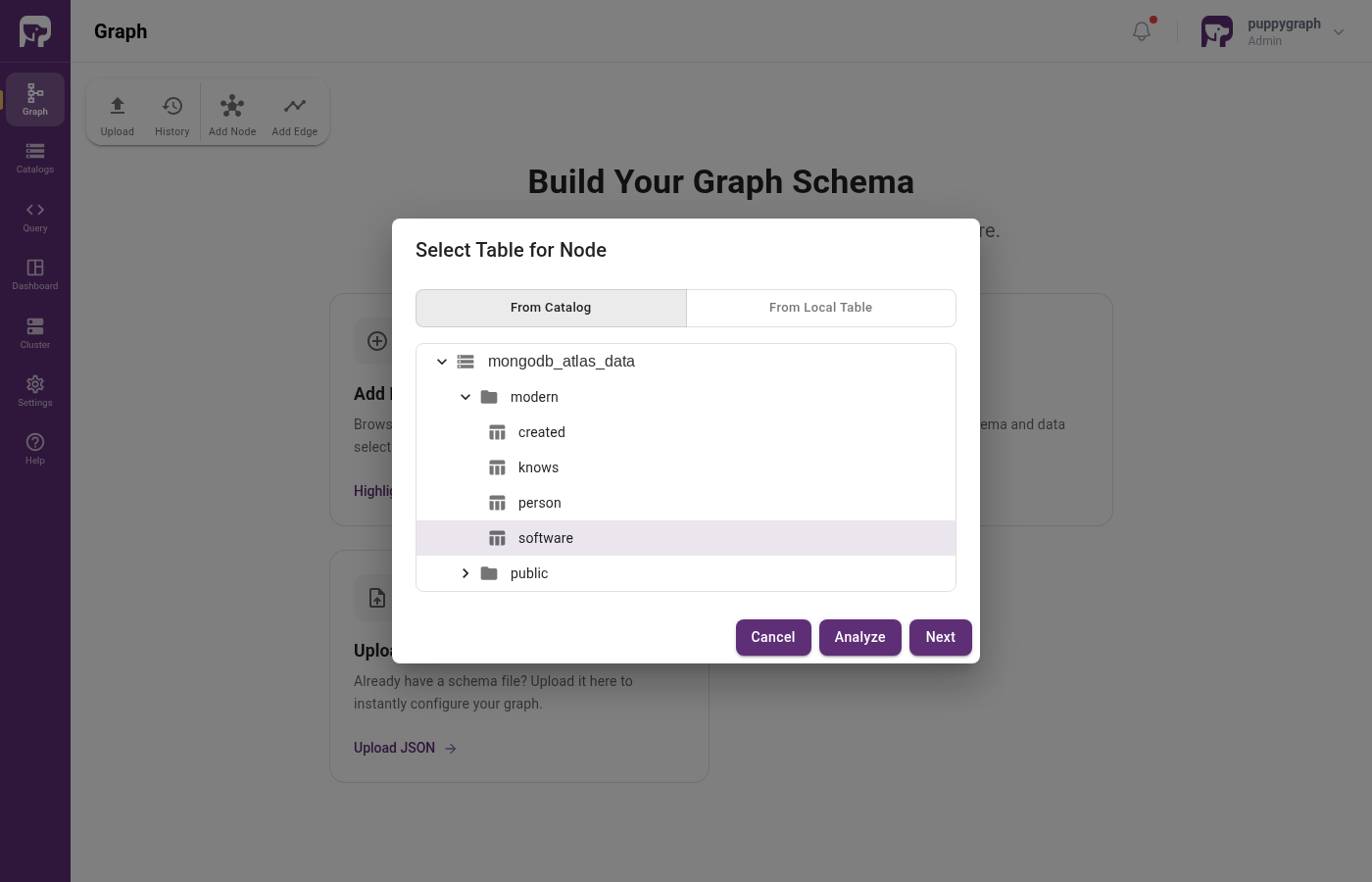
Click Create Catalog, then expand NoSQL & Search and pick MongoDB Atlas.
Fill in the connection form. The JDBC URL comes from the Atlas SQL Connection page you saved earlier.
| Field | Value |
|---|---|
| Catalog name | mongodb_atlas_data |
| Username | <atlas_db_user> |
| Password | <atlas_db_password> |
| JDBC Connection String | <atlas_sql_jdbc_uri> |
Check User Specified Driver and fill in:
| Field | Value |
|---|---|
| JDBC Driver Class | com.mongodb.jdbc.MongoDriver |
| JDBC Driver URL | https://repo1.maven.org/maven2/org/mongodb/mongodb-jdbc/2.2.4/mongodb-jdbc-2.2.4-all.jar |
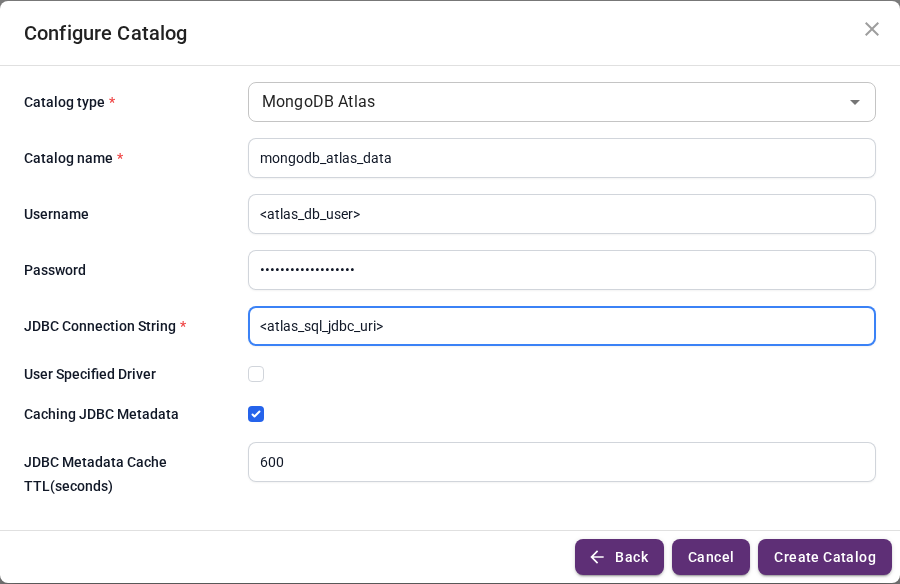
Click Create Catalog.
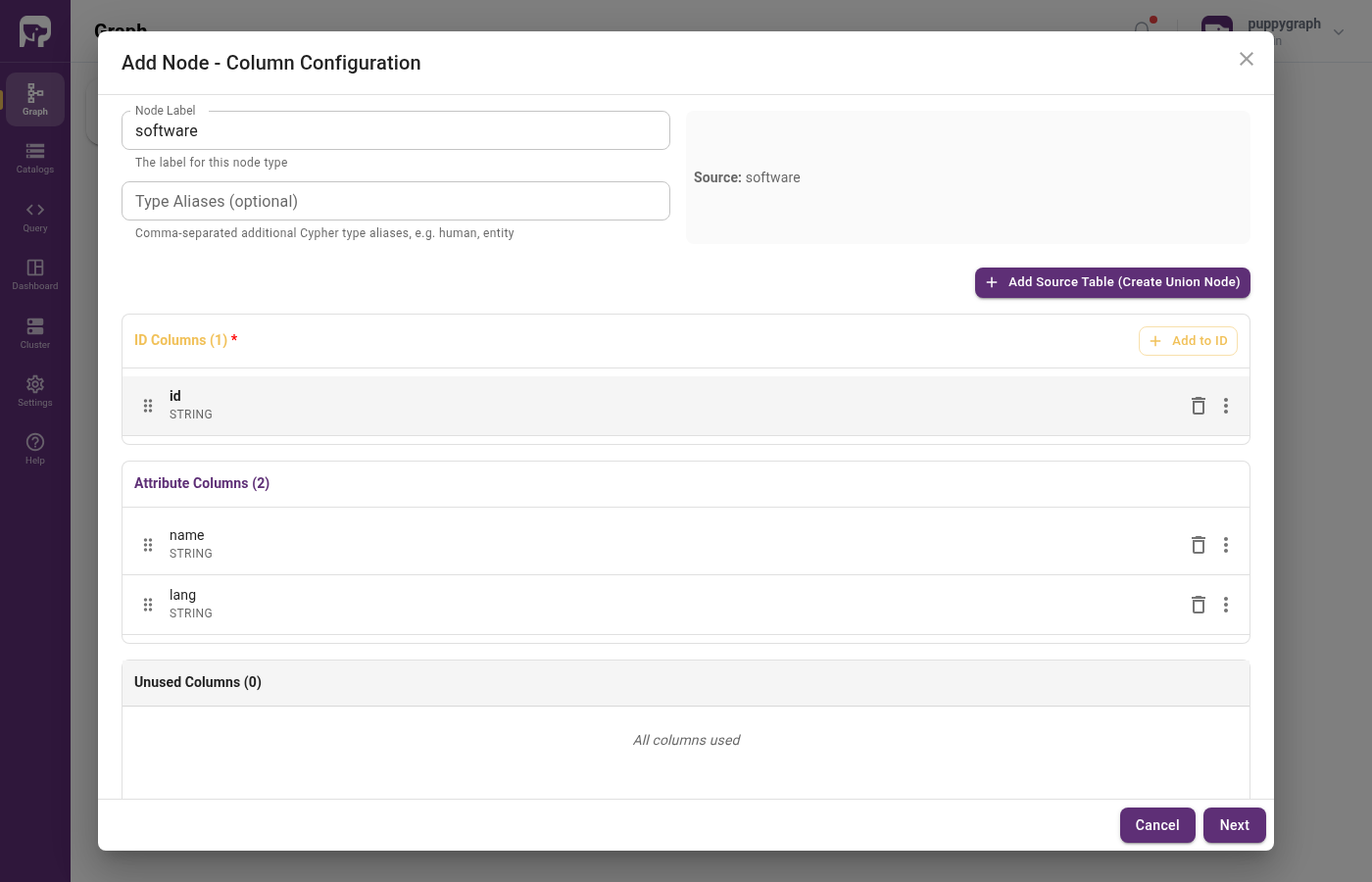
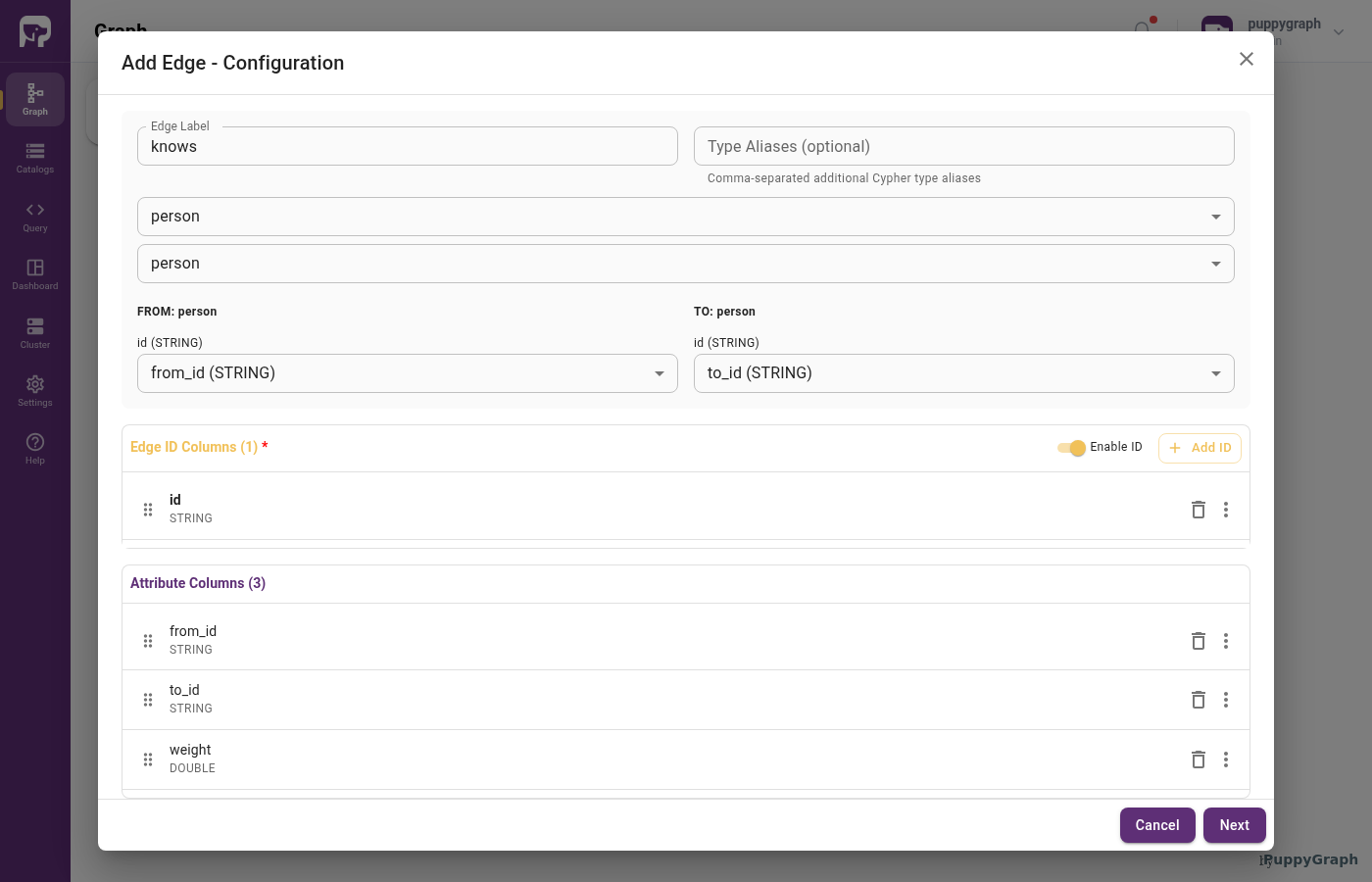
Add the software and person nodes, then the created and knows edges, the same way as in the MongoDB BI Connector tutorial.
Age is LONG, not INT
Atlas SQL exposes Mongo int fields as MySQL bigint(20), so the age property is declared as LONG (not INT) in the schema below. Without this, PuppyGraph raises a VT-01 Type mismatch on queries that touch age.
Upload a schema file
Create a file schema.json with the following content (replace the JDBC URI and credentials with your Atlas SQL details):
schema.json
{
  "catalog": [
    {
      "name": "mongodb_atlas_data",
      "type": "mongodbAtlas",
      "jdbc": {
        "username": "<atlas_db_user>",
        "password": "<atlas_db_password>",
        "jdbcUri": "<atlas_sql_jdbc_uri>",
        "driverClass": "com.mongodb.jdbc.MongoDriver",
        "driverUrl": "https://repo1.maven.org/maven2/org/mongodb/mongodb-jdbc/2.2.4/mongodb-jdbc-2.2.4-all.jar"
      }
    }
  ],
  "node": [
    {
      "label": "software",
      "dataSourceGroup": {
        "externalDataSource": {
          "enabled": true,
          "catalog": "mongodb_atlas_data",
          "schema": "modern",
          "table": "software",
          "mappedField": [
            { "sourceFieldName": "id",   "targetFieldName": "id"   },
            { "sourceFieldName": "name", "targetFieldName": "name" },
            { "sourceFieldName": "lang", "targetFieldName": "lang" }
          ]
        }
      },
      "id":        [{ "name": "id",   "type": "STRING" }],
      "attribute": [
        { "name": "name", "type": "STRING" },
        { "name": "lang", "type": "STRING" }
      ]
    },
    {
      "label": "person",
      "dataSourceGroup": {
        "externalDataSource": {
          "enabled": true,
          "catalog": "mongodb_atlas_data",
          "schema": "modern",
          "table": "person",
          "mappedField": [
            { "sourceFieldName": "id",   "targetFieldName": "id"   },
            { "sourceFieldName": "name", "targetFieldName": "name" },
            { "sourceFieldName": "age",  "targetFieldName": "age"  }
          ]
        }
      },
      "id":        [{ "name": "id",   "type": "STRING" }],
      "attribute": [
        { "name": "name", "type": "STRING" },
        { "name": "age",  "type": "LONG"   }
      ]
    }
  ],
  "edge": [
    {
      "label":         "created",
      "fromNodeLabel": "person",
      "toNodeLabel":   "software",
      "dataSourceGroup": {
        "externalDataSource": {
          "enabled": true,
          "catalog": "mongodb_atlas_data",
          "schema": "modern",
          "table": "created",
          "mappedField": [
            { "sourceFieldName": "id",      "targetFieldName": "id"      },
            { "sourceFieldName": "from_id", "targetFieldName": "from_id" },
            { "sourceFieldName": "to_id",   "targetFieldName": "to_id"   },
            { "sourceFieldName": "weight",  "targetFieldName": "weight"  }
          ]
        }
      },
      "id":        [{ "name": "id",      "type": "STRING" }],
      "fromKey":   [{ "name": "from_id", "type": "STRING" }],
      "toKey":     [{ "name": "to_id",   "type": "STRING" }],
      "attribute": [
        { "name": "from_id", "type": "STRING" },
        { "name": "to_id",   "type": "STRING" },
        { "name": "weight",  "type": "DOUBLE" }
      ]
    },
    {
      "label":         "knows",
      "fromNodeLabel": "person",
      "toNodeLabel":   "person",
      "dataSourceGroup": {
        "externalDataSource": {
          "enabled": true,
          "catalog": "mongodb_atlas_data",
          "schema": "modern",
          "table": "knows",
          "mappedField": [
            { "sourceFieldName": "id",      "targetFieldName": "id"      },
            { "sourceFieldName": "from_id", "targetFieldName": "from_id" },
            { "sourceFieldName": "to_id",   "targetFieldName": "to_id"   },
            { "sourceFieldName": "weight",  "targetFieldName": "weight"  }
          ]
        }
      },
      "id":        [{ "name": "id",      "type": "STRING" }],
      "fromKey":   [{ "name": "from_id", "type": "STRING" }],
      "toKey":     [{ "name": "to_id",   "type": "STRING" }],
      "attribute": [
        { "name": "from_id", "type": "STRING" },
        { "name": "to_id",   "type": "STRING" },
        { "name": "weight",  "type": "DOUBLE" }
      ]
    }
  ]
}
In the Web UI, click Graph in the sidebar, then Upload Schema, and select schema.json.
Upload via CLI
Querying the Graph
In the PuppyGraph Web UI, click Query in the sidebar. You can run graph queries in either Cypher or Gremlin.
The following query answers "What software was created by people that marko knows?"
There are two paths in the result: marko knows josh, who created lop and ripple.
Cleanup
Stop the PuppyGraph container:
Drop the demo collections from your Atlas cluster when you're done.