Launching PuppyGraph in Docker
Running PuppyGraph 0.x?
This page documents PuppyGraph 1.0. For the 0.x version, see the archived page.
Which image tag?
Use puppygraph/puppygraph:latest. To pin a version, use a full X.Y.Z tag, such as 1.15.0. The tag :1.0 does not exist on Docker Hub. The tag :stable is the 0.x deprecation stub. It does not start PuppyGraph.
Summary
In this tutorial, you will:
- Launch a PuppyGraph Docker container;
- Explore an example graph using PuppyGraph Web UI.
Prerequisites
Docker Installation
Please ensure that docker is available. The installation can be verified by running:
See https://www.docker.com/get-started/ for more details on Docker.
Make sure the container architecture aligns with the host system
PuppyGraph provides docker images for both amd64 and arm64 architecture. By default docker pulls the image based on host machine's architecture.
However, environment variables like DOCKER_DEFAULT_PLATFORM could override its default behavior.
If there is a mismatch, you will see warnings as follows when running PuppyGraph in Docker:
Hardware
Please see System Requirements for the minimum hardware requirements.
Start a PuppyGraph Container
Run the command below to start a PuppyGraph Docker container. This command will also download the PuppyGraph image if it hasn't been downloaded previously.
docker run \
  -p 8081:8081 -p 8182:8182 -p 7687:7687 \
  -e PUPPYGRAPH_USERNAME=puppygraph \
  -e PUPPYGRAPH_PASSWORD=puppygraph123 \
  -e QUERY_TIMEOUT=5m \
  -d --name puppy --rm --pull=always \
  puppygraph/puppygraph:latest
The flags:
| Flag | Purpose |
|---|---|
-p 8081:8081 |
Web UI and REST API. |
-p 8182:8182 |
Gremlin server. |
-p 7687:7687 |
openCypher over Bolt. |
-e PUPPYGRAPH_USERNAME |
Web UI username. |
-e PUPPYGRAPH_PASSWORD |
Web UI password. Change this in production. |
-e QUERY_TIMEOUT=5m |
Per-query timeout. |
-d |
Run detached. |
--name puppy |
Container name. |
--rm |
Remove the container when it exits. Drop this flag to keep it around between runs. |
--pull=always |
Pull the latest image matching the specified tag. |
puppygraph/puppygraph:latest |
Image and tag. To pin a specific version, replace latest with the desired tag (see Use a Specific Version). |
Use a Specific Version
Replace latest with a full release tag, such as 1.15.0. Tags use the full X.Y.Z version; there are no 1 or 1.14 shorthand tags.
docker run \
  -p 8081:8081 -p 8182:8182 -p 7687:7687 \
  -e PUPPYGRAPH_USERNAME=puppygraph \
  -e PUPPYGRAPH_PASSWORD=puppygraph123 \
  -e QUERY_TIMEOUT=5m \
  -d --name puppy --rm --pull=always \
  puppygraph/puppygraph:1.15.0
You can find available version tags on Docker Hub and check the release notes for version details.
Data Persistence Options
If you want to keep your schema data and configurations between container runs, you have two options:
Option 1: Simple Container Persistence
Remove the --rm flag to keep the container and its data:
docker run \
  -p 8081:8081 -p 8182:8182 -p 7687:7687 \
  -e PUPPYGRAPH_USERNAME=puppygraph \
  -e PUPPYGRAPH_PASSWORD=puppygraph123 \
  -e QUERY_TIMEOUT=5m \
  -d --name puppy --pull=always \
  puppygraph/puppygraph:latest
With this approach, all your data will be preserved within the container. No volumes or storage environment variables are needed for this simple approach.
-
To stop the container while keeping data: Use
docker stop puppy. Your data is preserved within the container. -
To restart with existing data: Use
docker start puppyto restart the same container with all your data intact.
Option 2: Docker Volumes
To keep your data from one run to the next, even when the container is removed and created again, store it on a Docker volume:
docker volume create puppygraph-data
docker run \
  -p 8081:8081 -p 8182:8182 -p 7687:7687 \
  -e PUPPYGRAPH_USERNAME=puppygraph \
  -e PUPPYGRAPH_PASSWORD=puppygraph123 \
  -e QUERY_TIMEOUT=5m \
  -e STORAGE_PATH_ROOT=/data/storage \
  -v puppygraph-data:/data/storage \
  --hostname puppygraph \
  -d --name puppy --pull=always \
  puppygraph/puppygraph:latest
The command keeps PuppyGraph's data on the puppygraph-data volume:
STORAGE_PATH_ROOTis where PuppyGraph stores its data: graph schemas and their history, catalogs, local tables, users, roles, service accounts and settings.--hostnamekeeps the node's identity the same each time the container is recreated.
Version requirement
The examples in this section need PuppyGraph 1.15.0 or later.
To manage the container:
- To stop it and keep your data, use
docker stop puppy. - To start the same container again, use
docker start puppy. - To recreate it, for example to change an option in the
docker runcommand, rundocker stop puppyanddocker rm puppy, then run thedocker runcommand again. Graph schemas, local tables, users and settings are kept on the volume.
Advanced Configuration
To use a different storage path, for example in Docker Compose, mount the volume there and set STORAGE_PATH_ROOT to it: -v puppygraph-data:/custom/storage/path and -e STORAGE_PATH_ROOT=/custom/storage/path.
Wait Until PuppyGraph Is Ready
PuppyGraph usually takes about a minute to start. The Web UI loads earlier, but queries and schema uploads work only once PuppyGraph is ready. Before you run queries or upload a schema from a script, poll the readiness endpoint. It needs no login and answers 200 once PuppyGraph can accept a graph schema and serve queries:
until curl -sf -o /dev/null http://localhost:8081/readyz; do
  sleep 3
done
echo "PuppyGraph is ready."
The image also has a built-in health check that uses the same endpoint, so docker ps shows the container as healthy once it is ready. In Docker Compose, other services can wait for it with depends_on: condition: service_healthy. See Monitoring for details.
Version requirement
The readiness endpoint and the built-in health check are available in PuppyGraph 1.15.0 and later.
Access the PuppyGraph
Access the PuppyGraph Web UI at http://localhost:8081.
Sign in to PuppyGraph with the username (puppygraph) and the password (puppygraph123) specified by the configuration environment variables.
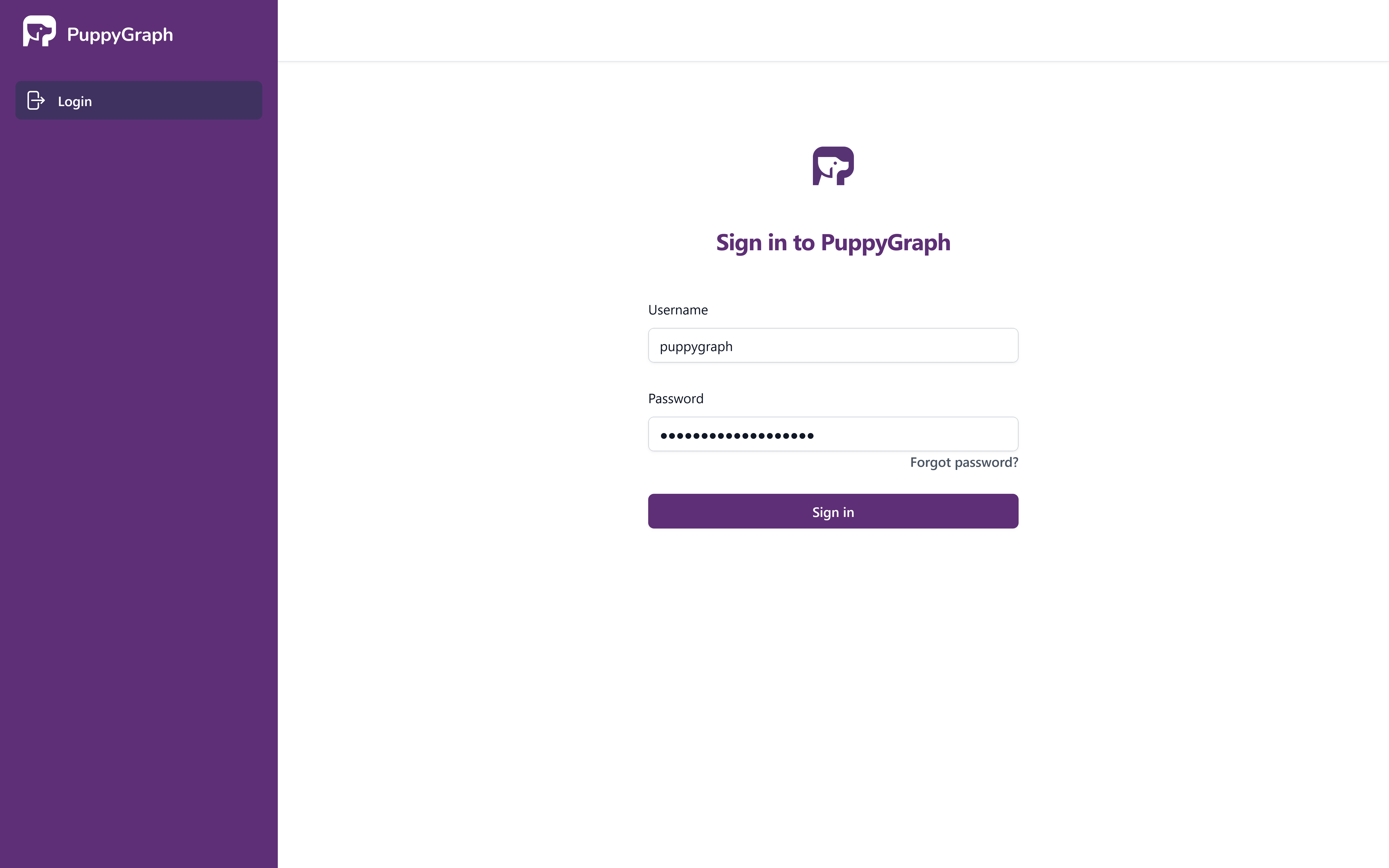
PuppyGraph Sign-In Page
Once signed in, the Graph page appears with three quick-start options: connect a data source, use a built-in example graph, or upload a schema JSON file.
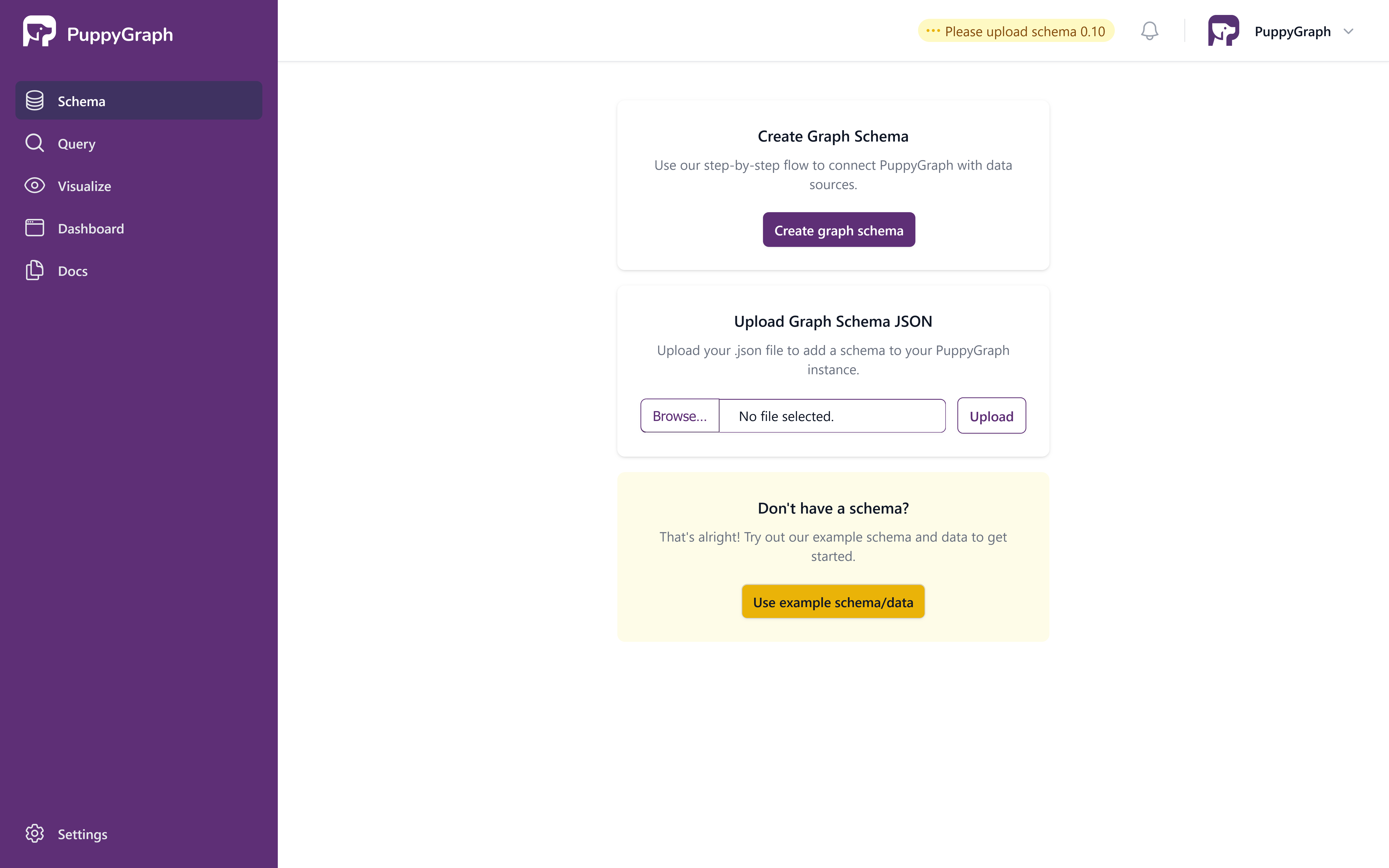
Graph page welcome screen
Which Address to Use
Here, the host is the machine where Docker runs, which may be your laptop or a remote server. The -p flags publish ports 8081, 8182 and 7687 on the host.
Accessing PuppyGraph
- From a browser or client on the host, use
localhost, for examplehttp://localhost:8081. - From another machine, use the host's name or IP, for example
http://<host>:8081. The host's firewall must allow the ports. - From another container, use the container name, for example
http://puppy:8081, with both containers on the same user-defined network.
Connecting PuppyGraph to a Data Source
Inside the container, localhost is the container itself, so a data source at localhost:5432 fails with service (host:localhost port:5432) is not reachable.
- For a database on the host, use
host.docker.internal. Docker Desktop resolves it automatically. With Docker Engine on Linux, add--add-host=host.docker.internal:host-gatewayto thedocker runcommand, and make sure the database listens on the Docker bridge address (usually172.17.0.1), not only on127.0.0.1, because the container reaches the host through the bridge. If you make it listen on0.0.0.0instead, use a firewall to keep the port closed to other networks. - For a database in another container, use that container's name, with both containers on the same user-defined network.
To put containers on the same user-defined network, create one with docker network create puppy-net and add --network puppy-net to the docker run command of each container. The default bridge network does not resolve container names.
Explore the Example Graph
In this tutorial, we'll be utilizing the demo data supplied by PuppyGraph. Under Use Example Graph, click Load Example and pick Modern Graph. The UI shows the loading progress.
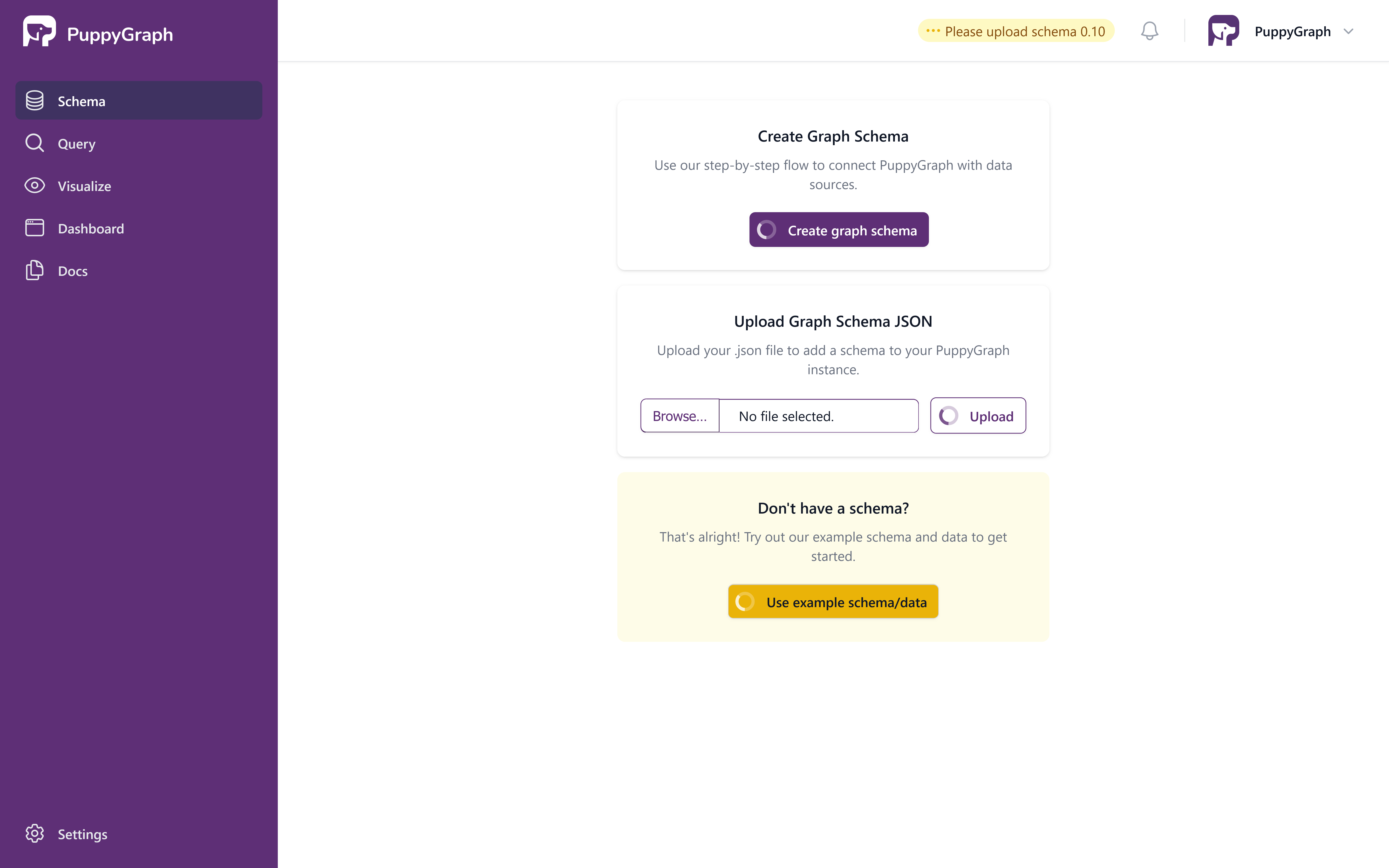
PuppyGraph Schema Loading in Progress
Once the schema is loaded, the Graph page visualizes it on the canvas.
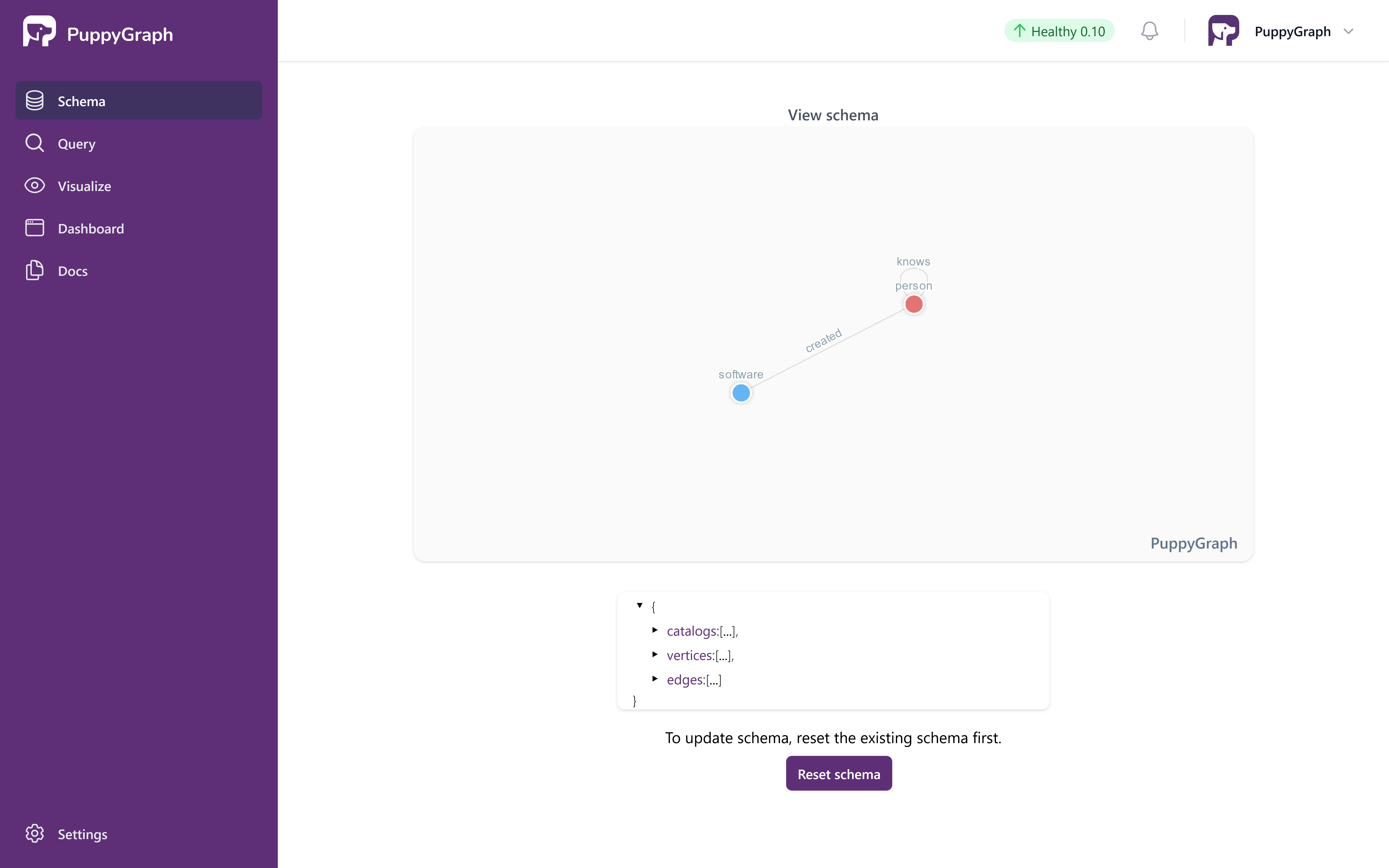
PuppyGraph Schema Loaded
PuppyGraph features a dashboard, enabling you to quickly access essential information from the graph right away.
The default tiles on the dashboard count the total number of nodes / edges and also display the sample data from the graph.
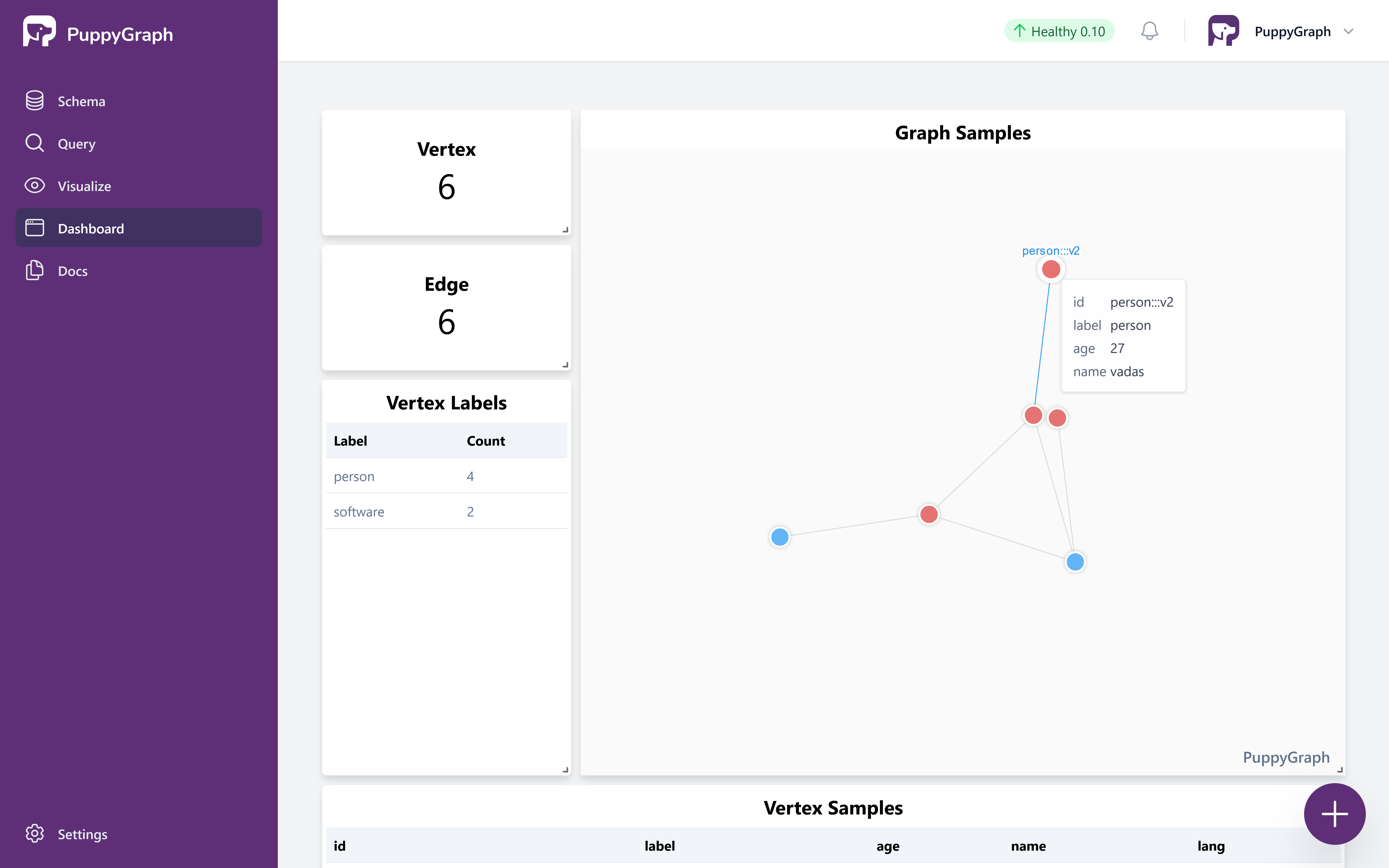
PuppyGraph Dashboard
Cleaning up
To sign out, click on the button located in the top right corner.
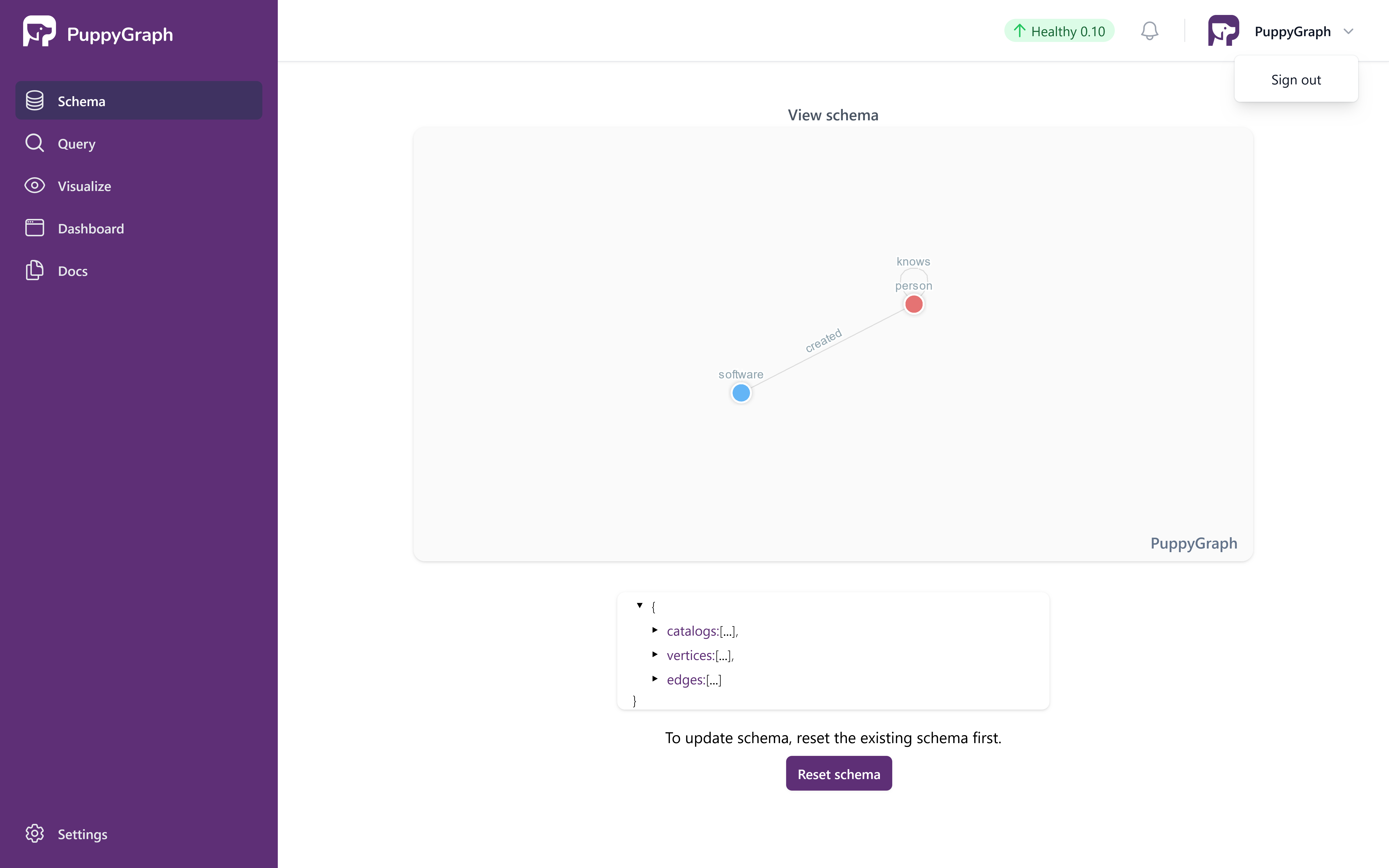
Sign Out
Run the following command to stop and clean up the container.
Managing Persistent Data
Here are the instructions for cleaning up based on the data persistence option you chose when starting the container.
Cleaning up a Persistent Container
If you used Option 1 (removed the --rm flag), remove the container:
Cleaning up Docker Volumes
If you used Option 2 (Docker volumes), first remove the container, then delete the volume:
Data Loss Warning
Removing the Docker volume will permanently delete all your schema configurations and graph data. Make sure to backup any important data before removing the volume.