Querying Trino Data as a Graph
Summary
In this tutorial, you will:
- Start a PuppyGraph container alongside a Trino cluster, wired up to an Iceberg REST catalog and RustFS object storage for this demo, and load example data through Trino.
- Connect Trino to PuppyGraph and define a graph schema.
- Run Cypher and Gremlin queries against the Trino-served data as a graph.
Self-contained Trino Data
This tutorial bundles a complete Trino stack, with Iceberg over RustFS as the backing tables, and seeds it with the TinkerPop modern graph sample data. PuppyGraph talks to Trino over JDBC, so any table reachable through your Trino cluster (Iceberg, Delta, Hive, etc.) works the same way.
In real deployments, PuppyGraph queries your existing Trino cluster directly. See Connecting to Trino for the connection reference.
Prerequisites
Please ensure that docker compose is available. The installation can be verified by running:
See https://docs.docker.com/compose/install/ for Docker Compose installation instructions and https://www.docker.com/get-started/ for more details on Docker.
Accessing the PuppyGraph Web UI requires a browser. The schema upload and query steps also have CLI alternatives via curl and the bundled Gremlin console.
Setup
Deployment
 Create a file
 docker-compose.yaml with the following content:
docker-compose.yaml
version: "3"
services:
  trino:
    image: trinodb/trino:479
    container_name: trino
    networks:
      - trino_net
    ports:
      - "8080:8080"
    volumes:
      - ./iceberg.properties:/etc/trino/catalog/iceberg.properties
  puppygraph:
    image: puppygraph/puppygraph:latest
    pull_policy: always
    container_name: puppygraph
    networks:
      - trino_net
    environment:
      - PUPPYGRAPH_USERNAME=puppygraph
      - PUPPYGRAPH_PASSWORD=puppygraph123
    ports:
      - "8081:8081"
      - "8182:8182"
      - "7687:7687"
  rest:
    depends_on:
      rustfs-init:
        condition: service_completed_successfully
    image: apache/iceberg-rest-fixture:1.10.1
    container_name: iceberg-rest
    networks:
      - trino_net
    ports:
      - "8181:8181"
    environment:
      - AWS_ACCESS_KEY_ID=admin
      - AWS_SECRET_ACCESS_KEY=password
      - AWS_REGION=us-east-1
      - CATALOG_WAREHOUSE=s3://warehouse/
      - CATALOG_IO__IMPL=org.apache.iceberg.aws.s3.S3FileIO
      - CATALOG_S3_ENDPOINT=http://rustfs:9000
  rustfs:
    image: rustfs/rustfs:latest
    container_name: rustfs
    environment:
      - RUSTFS_ACCESS_KEY=admin
      - RUSTFS_SECRET_KEY=password
      - RUSTFS_SERVER_DOMAINS=rustfs
      - RUSTFS_CONSOLE_ENABLE=true
    networks:
      trino_net:
        aliases:
          - warehouse.rustfs
    ports:
      - "9000:9000"
      - "9001:9001"
    healthcheck:
      test: ["CMD", "curl", "-fsS", "http://localhost:9000/health"]
      interval: 2s
      timeout: 5s
      retries: 30
      start_period: 10s
  rustfs-init:
    image: rustfs/rustfs:latest
    depends_on:
      rustfs:
        condition: service_healthy
    networks:
      - trino_net
    entrypoint:
      - /bin/sh
      - -ec
      - |
        curl -fsS --aws-sigv4 aws:amz:us-east-1:s3 --user admin:password \
          --head http://rustfs:9000/warehouse >/dev/null 2>&1 ||
        curl -fsS --aws-sigv4 aws:amz:us-east-1:s3 --user admin:password \
          -X PUT http://rustfs:9000/warehouse
networks:
  trino_net:
    name: puppy-trino
Create a file iceberg.properties (mounted into the Trino container) so Trino exposes the Iceberg REST catalog under a Trino catalog named iceberg:
iceberg.properties
Default credentials
The stack ships with default RustFS credentials (admin / password) baked into both compose and iceberg.properties. Change them before running on a publicly accessible machine.
Start the stack:
[+] Running 6/6
 ✔ Network puppy-trino     Created
 ✔ Container rustfs        Started
 ✔ Container rustfs-init   Exited
 ✔ Container iceberg-rest  Started
 ✔ Container trino         Started
 ✔ Container puppygraph    Started
The rustfs-init service creates the bucket with a signed S3 request before the catalog starts. The bucket stays private; the clients use the credentials configured above.
Data Preparation
Open a Trino shell:
Paste the following SQL into the trino> prompt to create the schema and insert data:
modern.sql
CREATE SCHEMA IF NOT EXISTS iceberg.modern;

CREATE TABLE iceberg.modern.software (
    id   VARCHAR(10),
    name VARCHAR(50),
    lang VARCHAR(50)
);
INSERT INTO iceberg.modern.software VALUES
    ('v3', 'lop',    'java'),
    ('v5', 'ripple', 'java');

CREATE TABLE iceberg.modern.person (
    id   VARCHAR(10),
    name VARCHAR(50),
    age  INTEGER
);
INSERT INTO iceberg.modern.person VALUES
    ('v1', 'marko', 29),
    ('v2', 'vadas', 27),
    ('v4', 'josh',  32),
    ('v6', 'peter', 35);

CREATE TABLE iceberg.modern.created (
    id      VARCHAR(10),
    from_id VARCHAR(10),
    to_id   VARCHAR(10),
    weight  DOUBLE
);
INSERT INTO iceberg.modern.created VALUES
    ('e9',  'v1', 'v3', 0.4),
    ('e10', 'v4', 'v5', 1.0),
    ('e11', 'v4', 'v3', 0.4),
    ('e12', 'v6', 'v3', 0.2);

CREATE TABLE iceberg.modern.knows (
    id      VARCHAR(10),
    from_id VARCHAR(10),
    to_id   VARCHAR(10),
    weight  DOUBLE
);
INSERT INTO iceberg.modern.knows VALUES
    ('e7', 'v1', 'v2', 0.5),
    ('e8', 'v1', 'v4', 1.0);
In Trino, iceberg is the catalog name (defined by iceberg.properties) and modern is the schema. PuppyGraph reaches the same tables via JDBC using the same iceberg/modern namespace.
| id | name | age |
|---|---|---|
| v1 | marko | 29 |
| v2 | vadas | 27 |
| v4 | josh | 32 |
| v6 | peter | 35 |
| id | name | lang |
|---|---|---|
| v3 | lop | java |
| v5 | ripple | java |
| id | from_id | to_id | weight |
|---|---|---|---|
| e9 | v1 | v3 | 0.4 |
| e10 | v4 | v5 | 1.0 |
| e11 | v4 | v3 | 0.4 |
| e12 | v6 | v3 | 0.2 |
| id | from_id | to_id | weight |
|---|---|---|---|
| e7 | v1 | v2 | 0.5 |
| e8 | v1 | v4 | 1.0 |
Exit the Trino shell with quit;.
Modeling a Graph
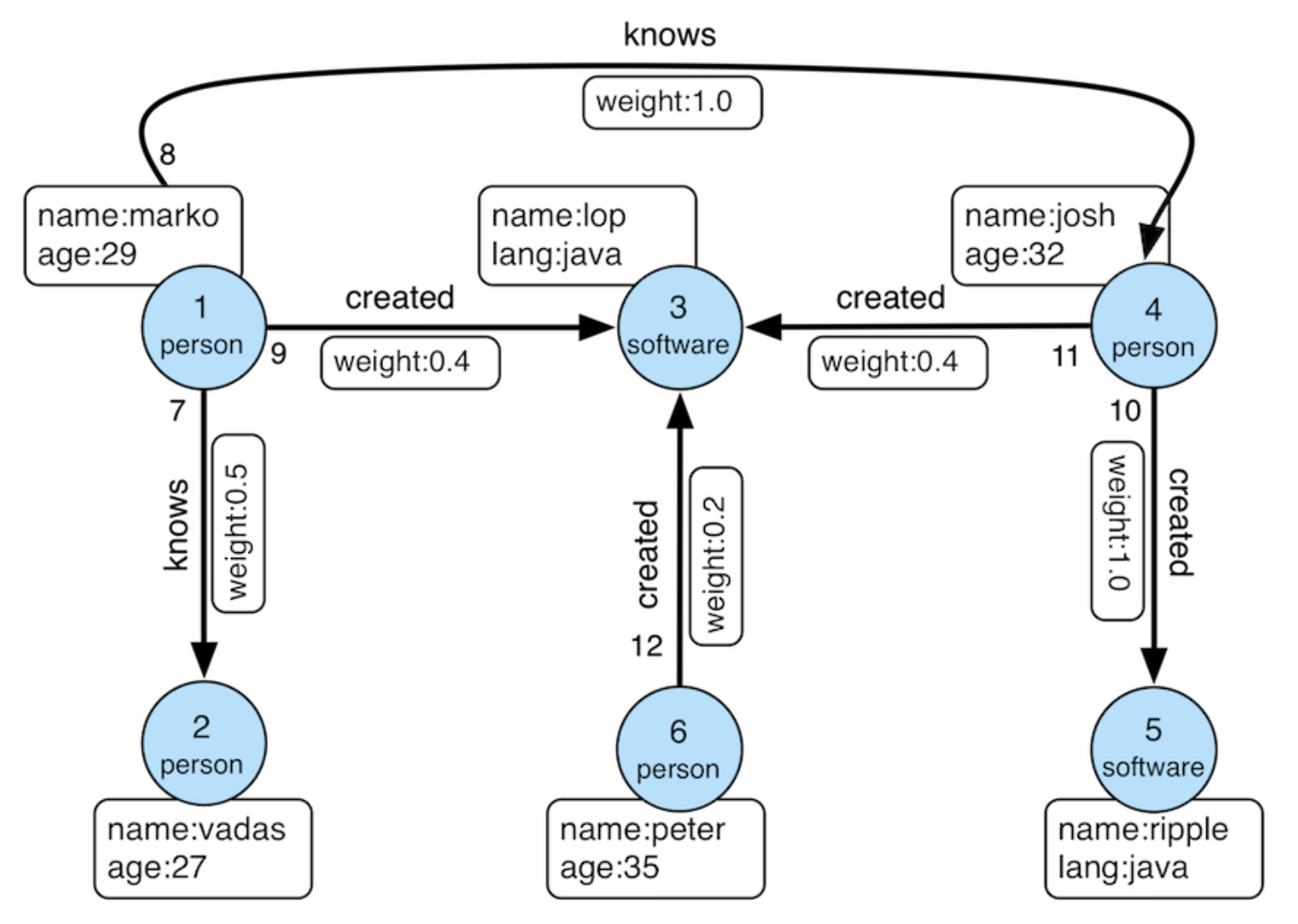
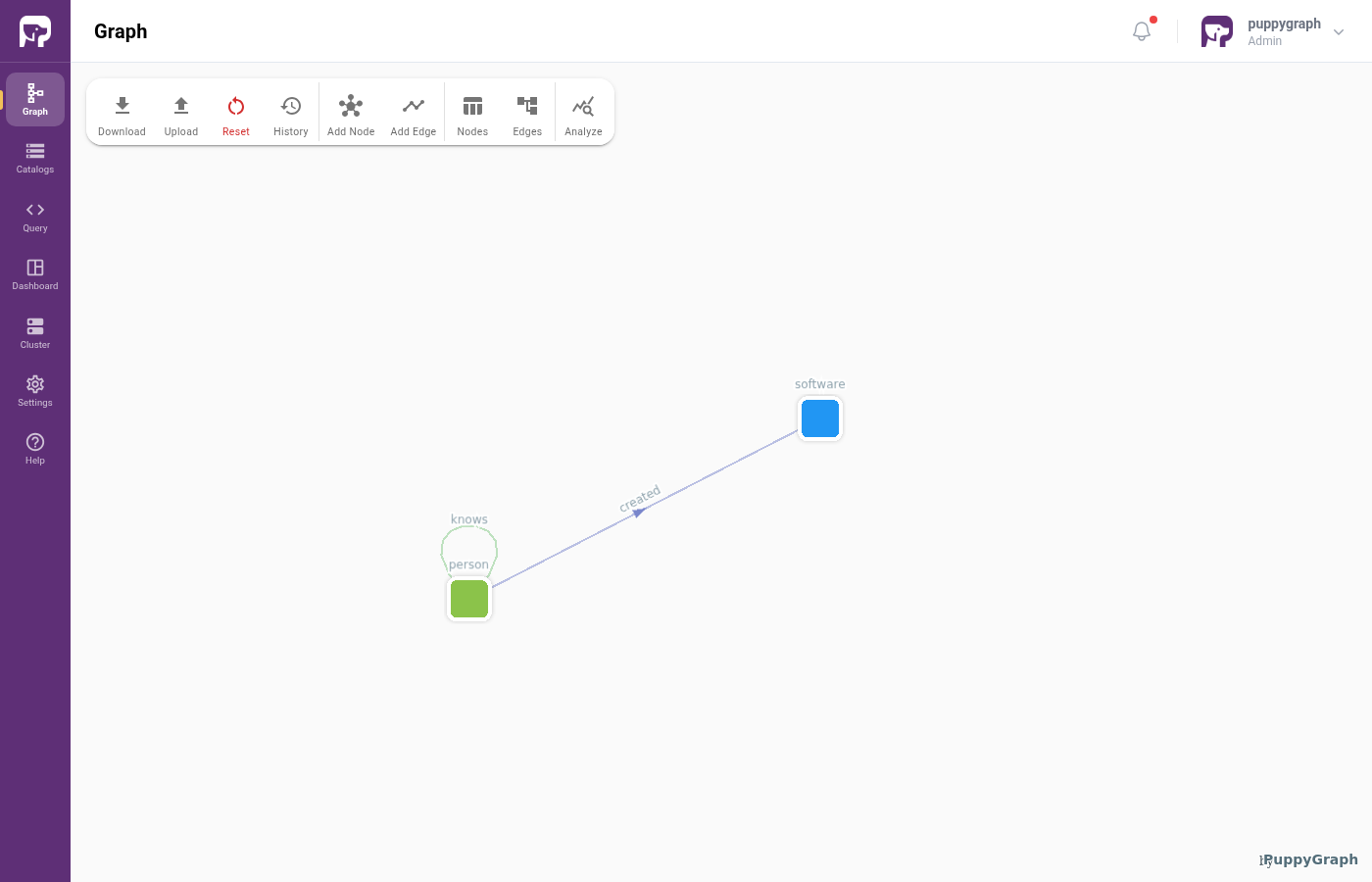
We model the data as the TinkerPop modern graph: two node types (person, software) and two edge types (knows, created).
First, log into the PuppyGraph Web UI at http://localhost:8081 with the credentials configured above:
| Field | Value |
|---|---|
| Username | puppygraph |
| Password | puppygraph123 |
There are two ways to define the schema in PuppyGraph: build it interactively in the Schema Builder, or upload a JSON file directly. Pick whichever you prefer; both produce the same graph.
Build the graph in the Schema Builder
The Schema Builder is the visual editor in the PuppyGraph Web UI for adding catalogs, nodes, and edges step by step. It's the recommended path when you're modeling a graph for the first time or want to inspect what each click produces. For a deeper visual walkthrough of every dialog and field, see Modeling a Graph through the Schema Builder. The summary below covers what's needed to build the modern graph against this tutorial's Trino-served Iceberg tables.
Connecting to Trino
Click Create Catalog, then expand Query Engines and pick Trino.
Fill in the connection form (Trino is configured without authentication in this demo; just supply the default trino user):
| Field | Value |
|---|---|
| Catalog name | trino_data |
| Username | trino |
| JDBC Connection String | jdbc:trino://trino:8080/iceberg |
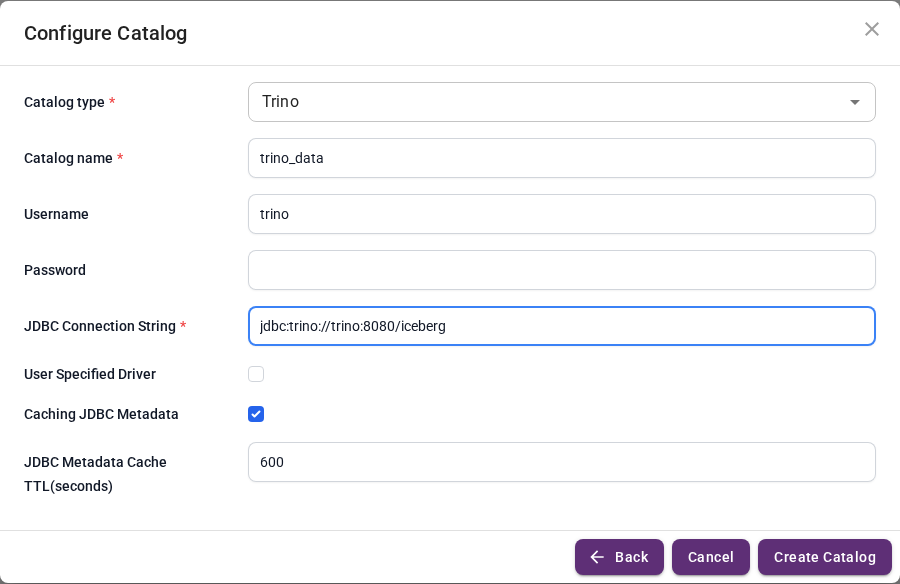
Click Create Catalog.
Adding nodes
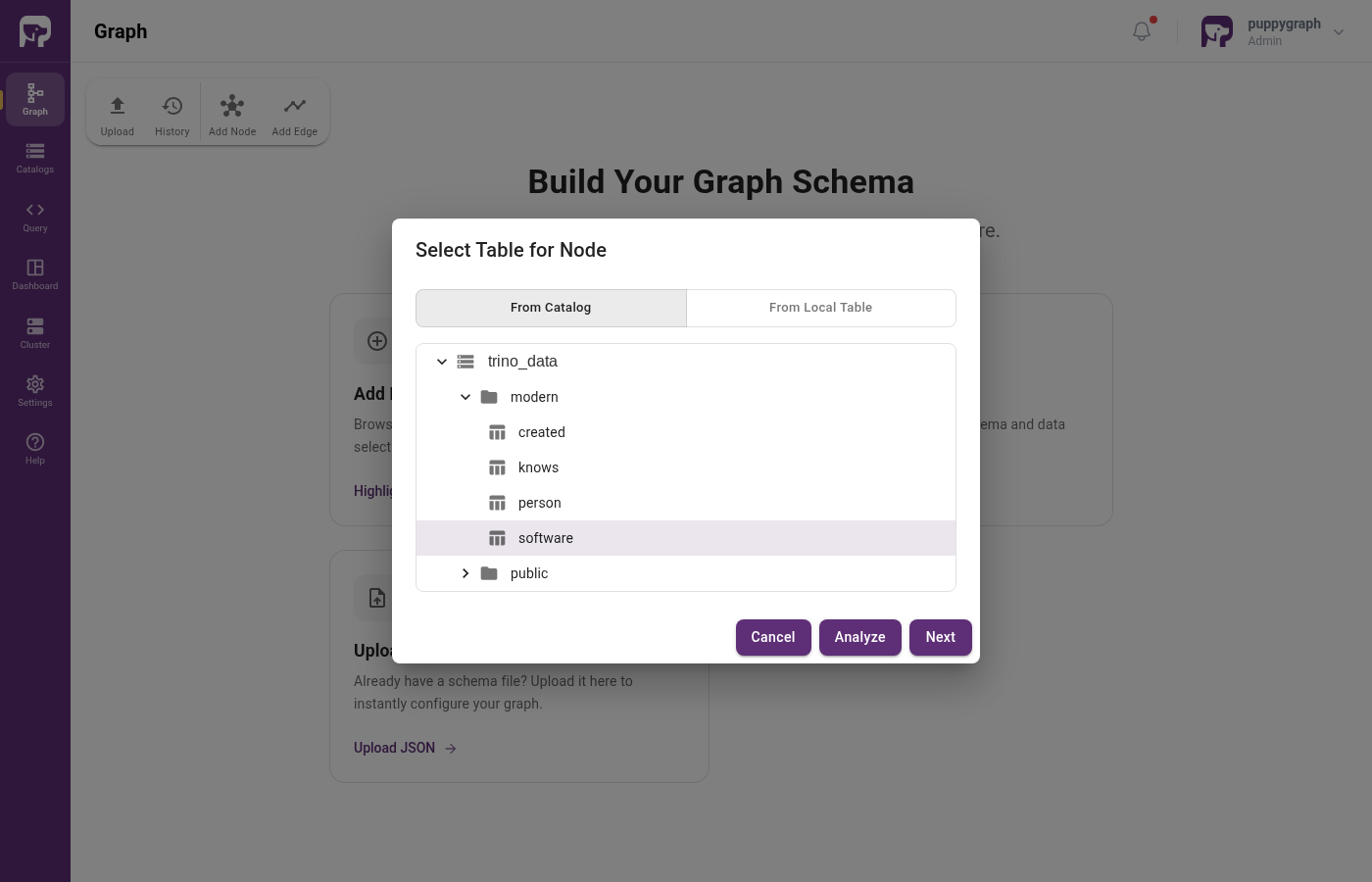
Click Add Node in the toolbar. The Select Table for Node dialog opens. Expand trino_data then modern, pick software, then click Next.
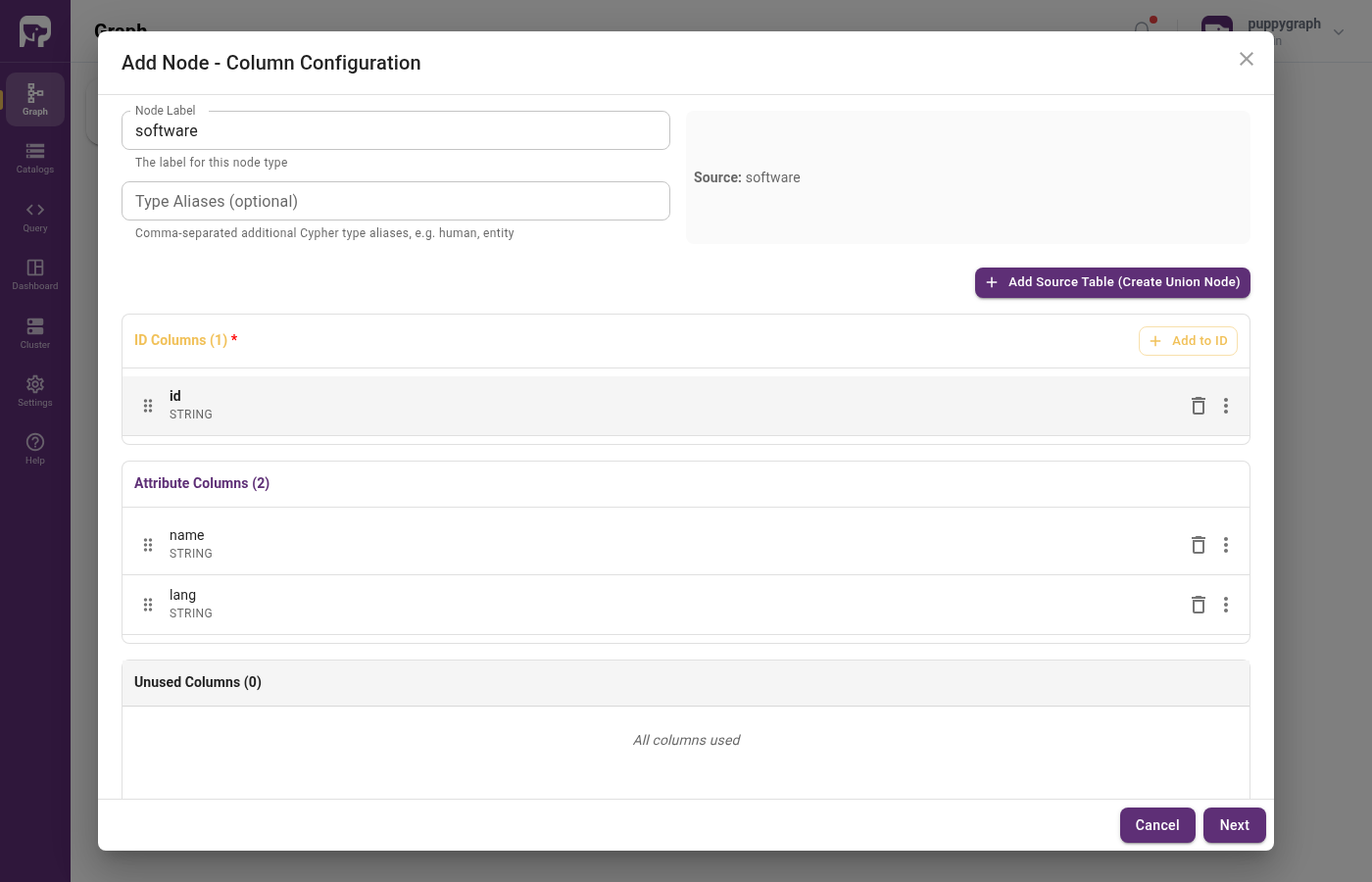
In the Add Node wizard, click Add to ID and select id from the dropdown. The wizard moves id into ID Columns, leaving name and lang as attributes. Click Next, leave Enable Local Replication off, then click Add Node.
Repeat for person. The flow is the same: click Add Node, pick the table, click Next, assign id to ID Columns, leave replication off, click Add Node.
Adding edges
Click Add Edge in the toolbar, pick created from the catalog tree, then click Next.
In the Add Edge wizard, set:
| Field | Value |
|---|---|
| From Node | person |
| To Node | software |
FROM Select Column |
from_id |
TO Select Column |
to_id |
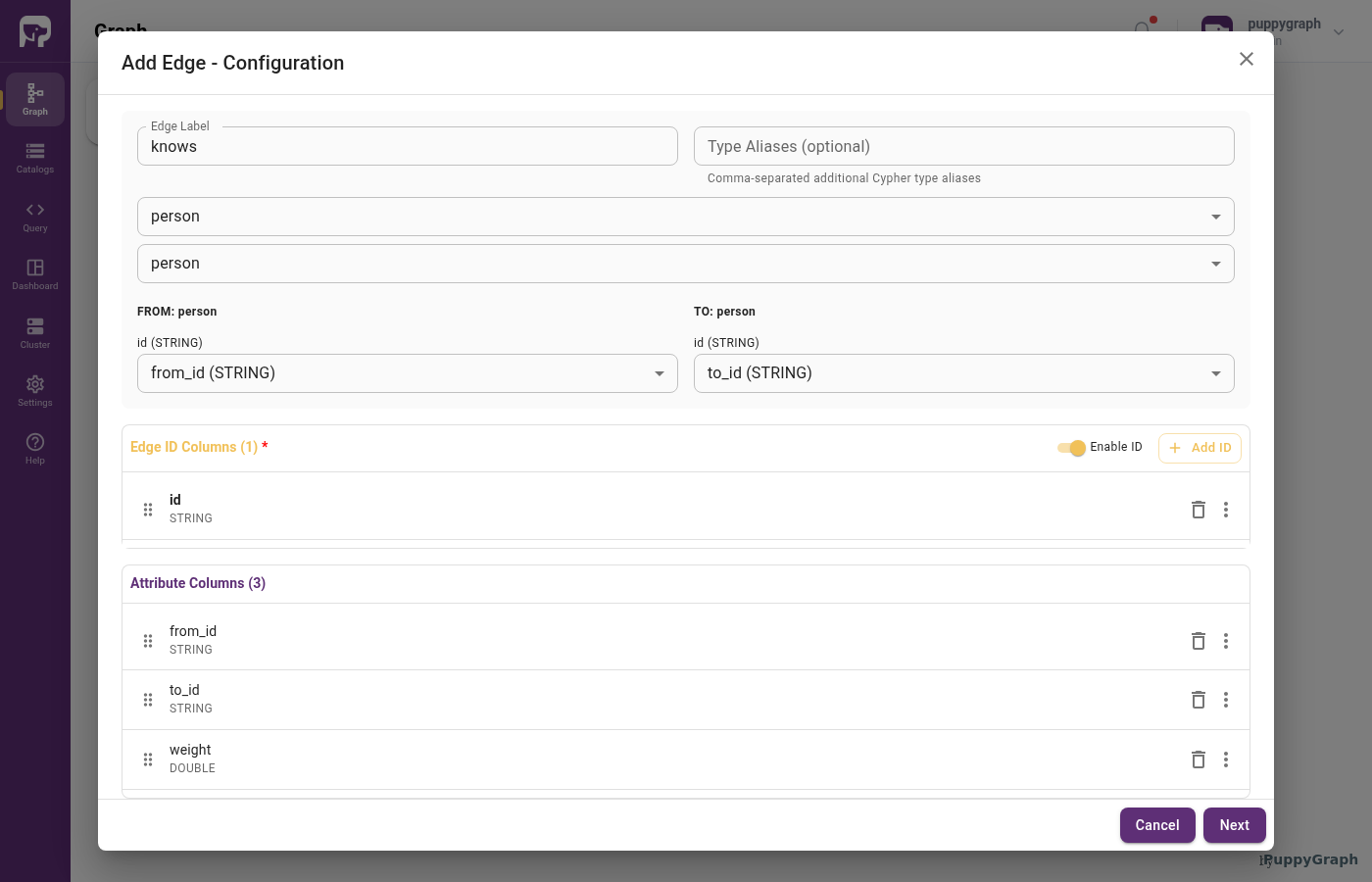
Click Add to ID and select id to set the edge identifier. Click Next, leave Enable Local Replication off, then click Add Edge.
Repeat for knows with both From Node and To Node set to person. The other settings are identical to created.
Upload a schema file
If you've already built the graph in the Schema Builder above, you can skip this section. The resulting schema is the same.
This method writes the full schema to a JSON file and uploads it directly. It's useful when you already have a schema for an environment and want to recreate it elsewhere (e.g. for CI, scripted setup, or copy-pasting between PuppyGraph instances).
Create a file schema.json with the following content:
schema.json
{
  "catalog": [
    {
      "name": "trino_data",
      "type": "trino",
      "jdbc": {
        "username": "trino",
        "jdbcUri": "jdbc:trino://trino:8080/iceberg"
      }
    }
  ],
  "node": [
    {
      "label": "software",
      "dataSourceGroup": {
        "externalDataSource": {
          "enabled": true,
          "catalog": "trino_data",
          "schema": "modern",
          "table": "software",
          "mappedField": [
            { "sourceFieldName": "id",   "targetFieldName": "id"   },
            { "sourceFieldName": "name", "targetFieldName": "name" },
            { "sourceFieldName": "lang", "targetFieldName": "lang" }
          ]
        }
      },
      "id":        [{ "name": "id",   "type": "STRING" }],
      "attribute": [
        { "name": "name", "type": "STRING" },
        { "name": "lang", "type": "STRING" }
      ]
    },
    {
      "label": "person",
      "dataSourceGroup": {
        "externalDataSource": {
          "enabled": true,
          "catalog": "trino_data",
          "schema": "modern",
          "table": "person",
          "mappedField": [
            { "sourceFieldName": "id",   "targetFieldName": "id"   },
            { "sourceFieldName": "name", "targetFieldName": "name" },
            { "sourceFieldName": "age",  "targetFieldName": "age"  }
          ]
        }
      },
      "id":        [{ "name": "id",   "type": "STRING" }],
      "attribute": [
        { "name": "name", "type": "STRING" },
        { "name": "age",  "type": "INT"    }
      ]
    }
  ],
  "edge": [
    {
      "label":         "created",
      "fromNodeLabel": "person",
      "toNodeLabel":   "software",
      "dataSourceGroup": {
        "externalDataSource": {
          "enabled": true,
          "catalog": "trino_data",
          "schema": "modern",
          "table": "created",
          "mappedField": [
            { "sourceFieldName": "id",      "targetFieldName": "id"      },
            { "sourceFieldName": "from_id", "targetFieldName": "from_id" },
            { "sourceFieldName": "to_id",   "targetFieldName": "to_id"   },
            { "sourceFieldName": "weight",  "targetFieldName": "weight"  }
          ]
        }
      },
      "id":        [{ "name": "id",      "type": "STRING" }],
      "fromKey":   [{ "name": "from_id", "type": "STRING" }],
      "toKey":     [{ "name": "to_id",   "type": "STRING" }],
      "attribute": [
        { "name": "from_id", "type": "STRING" },
        { "name": "to_id",   "type": "STRING" },
        { "name": "weight",  "type": "DOUBLE" }
      ]
    },
    {
      "label":         "knows",
      "fromNodeLabel": "person",
      "toNodeLabel":   "person",
      "dataSourceGroup": {
        "externalDataSource": {
          "enabled": true,
          "catalog": "trino_data",
          "schema": "modern",
          "table": "knows",
          "mappedField": [
            { "sourceFieldName": "id",      "targetFieldName": "id"      },
            { "sourceFieldName": "from_id", "targetFieldName": "from_id" },
            { "sourceFieldName": "to_id",   "targetFieldName": "to_id"   },
            { "sourceFieldName": "weight",  "targetFieldName": "weight"  }
          ]
        }
      },
      "id":        [{ "name": "id",      "type": "STRING" }],
      "fromKey":   [{ "name": "from_id", "type": "STRING" }],
      "toKey":     [{ "name": "to_id",   "type": "STRING" }],
      "attribute": [
        { "name": "from_id", "type": "STRING" },
        { "name": "to_id",   "type": "STRING" },
        { "name": "weight",  "type": "DOUBLE" }
      ]
    }
  ]
}
In the Web UI, click Graph in the sidebar, then Upload Schema, and select schema.json.
Upload via CLI
You can also POST the schema directly:
Querying the Graph
In the PuppyGraph Web UI, click Query in the sidebar. You can run graph queries in either Cypher or Gremlin.
The following query answers "What software was created by people that marko knows?"
There are two paths in the result: marko knows josh, who created lop and ripple.
Cleanup
Shut down the stack: