Launching PuppyGraph from Azure Marketplace
Summary
In this tutorial, you will:
- Launch a PuppyGraph VM instance from Azure Marketplace;
- Explore an example graph using PuppyGraph Web UI.
Prerequisites
An Azure account is needed, with the permissions to subscribe to PuppyGraph and launch a VM instance.
Launching a PuppyGraph VM Instance
PuppyGraph Professional is available at the Azure Marketplace. Click Get it now to open the offer in the Azure portal.
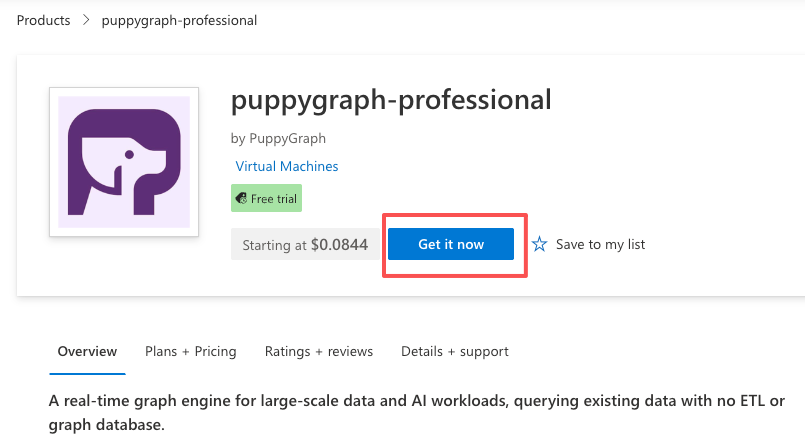
Launch from marketplace
Choose your Subscription and Plan, then click Create to open the deployment configuration page.
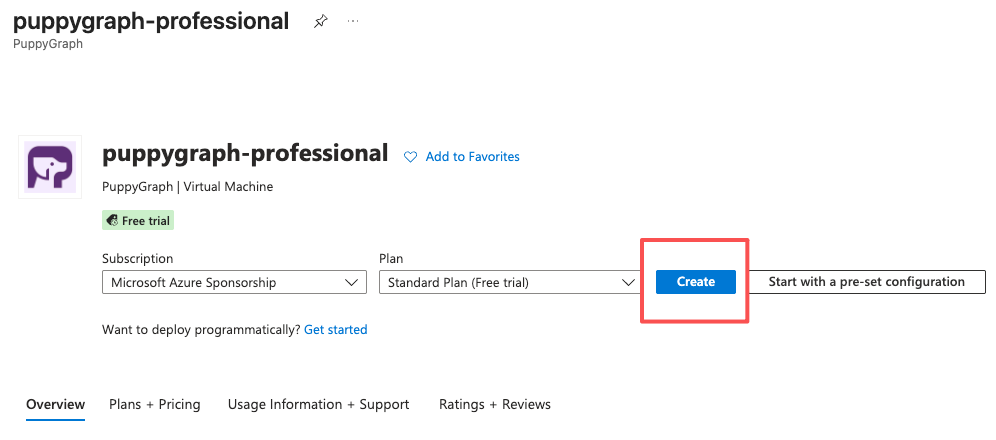
Create VM from marketplace
On the Basics tab, select a Resource group (or click Create new) and enter a Virtual machine name.
The remaining fields can keep their defaults. Note the Size default, Standard_D8s_v3 in this example, and change it if you need a different machine size.
Azure also requires an administrator account further down the tab. Keep the default SSH public key authentication and let Azure generate a key pair, or switch to a password.
Then click Review + create at the bottom of the page.
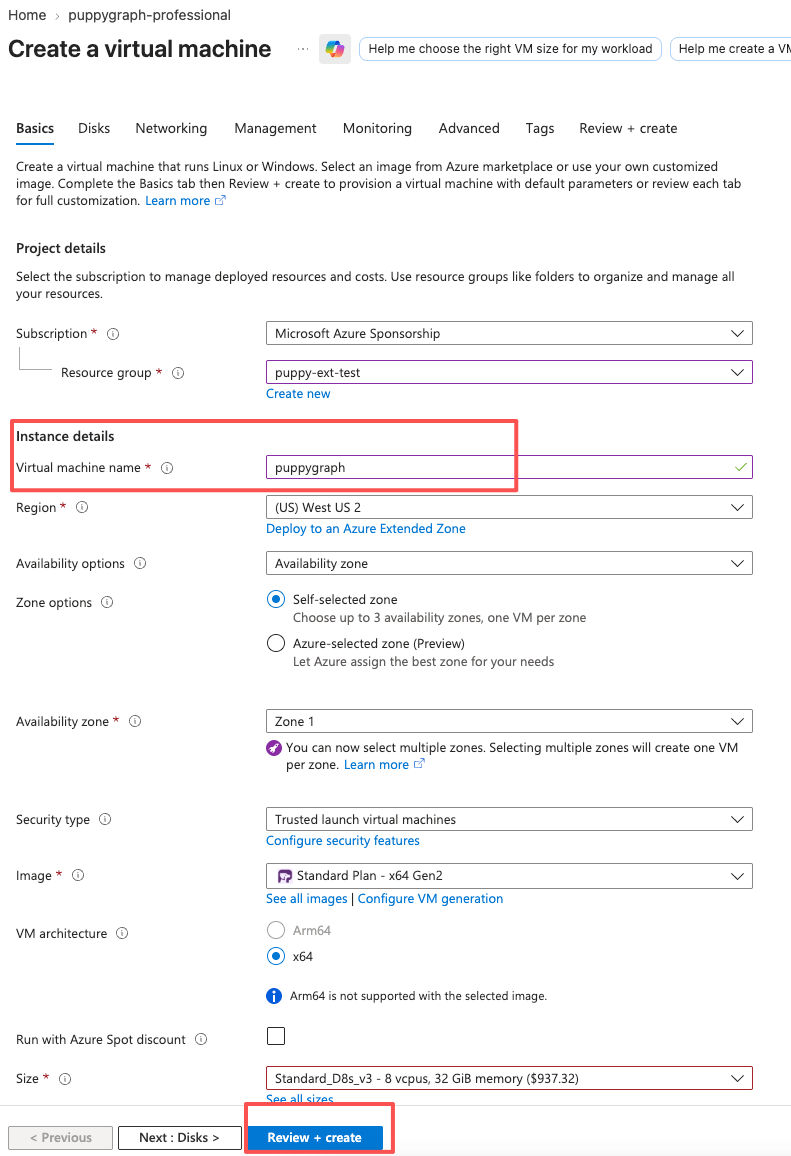
Create VM Basics
Review the price and the terms, then click Create at the bottom of the Review + create tab.
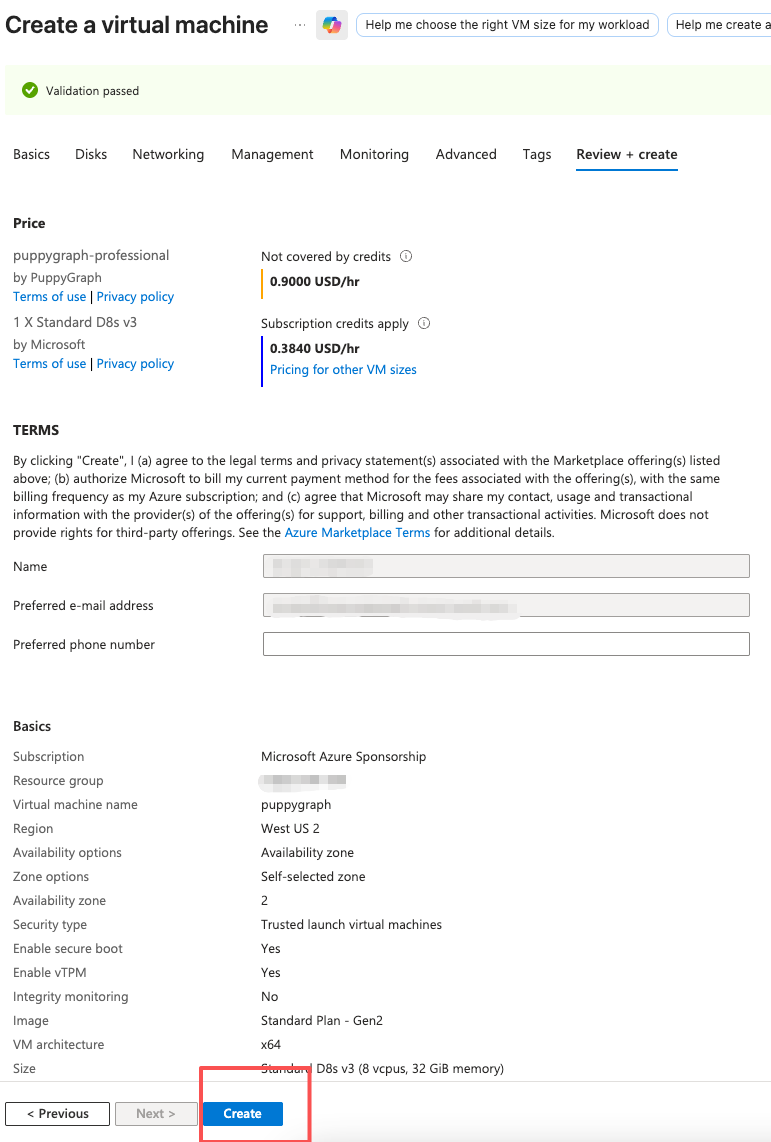
VM Review Create
Wait for the deployment to finish.
Network Access
The deployment template creates a network security group named after the VM, puppygraph-nsg in this example.
It allows inbound access to the ports PuppyGraph serves:
- 8081 for the Web UI
- 8182 for handling Gremlin queries
- 7687 for handling Cypher queries
No manual firewall configuration is needed.
Accessing the PuppyGraph Instance
After the deployment finishes, click Go to resource to open the VM Overview page.
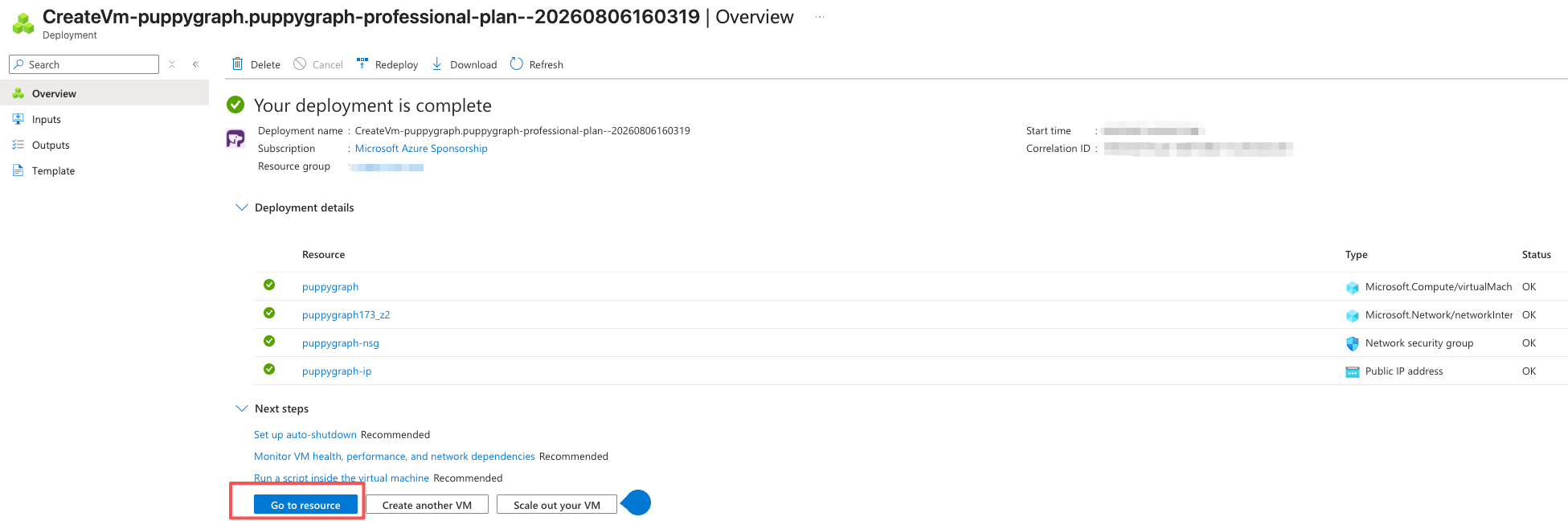
Deploy Success Detail
Record the address shown in Primary NIC public IP in the Essentials section, or in Public IP address under Properties, Networking.
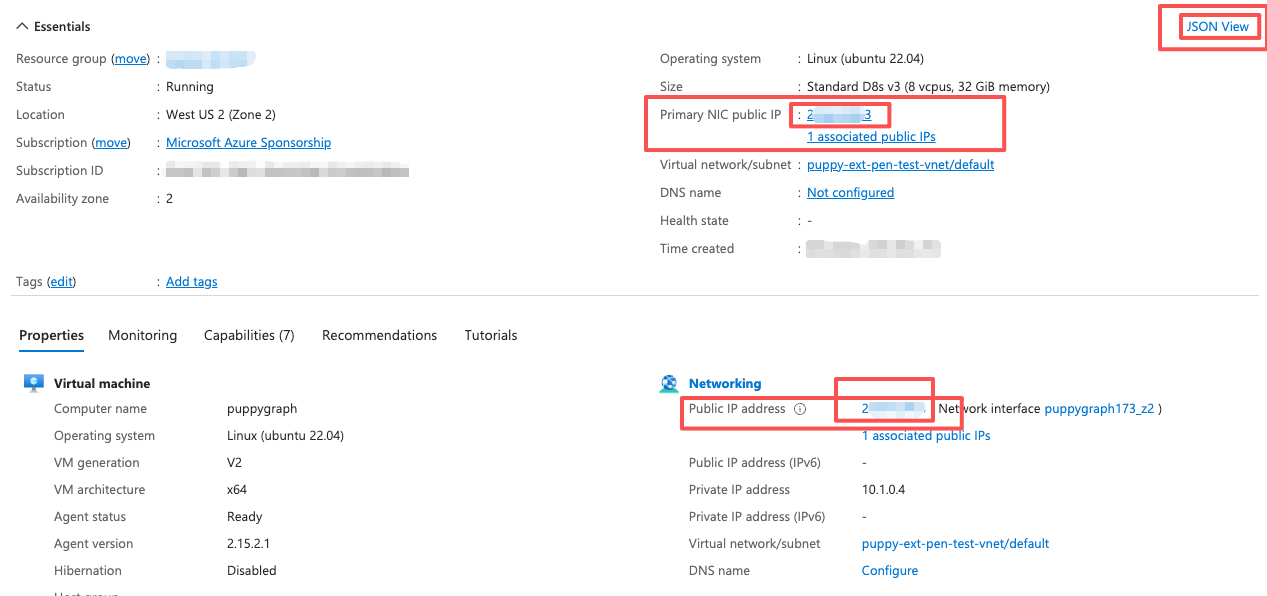
VM Overview
Then click JSON View on the right side of the Essentials section. Under properties, find vmId. This is the default password of the instance.
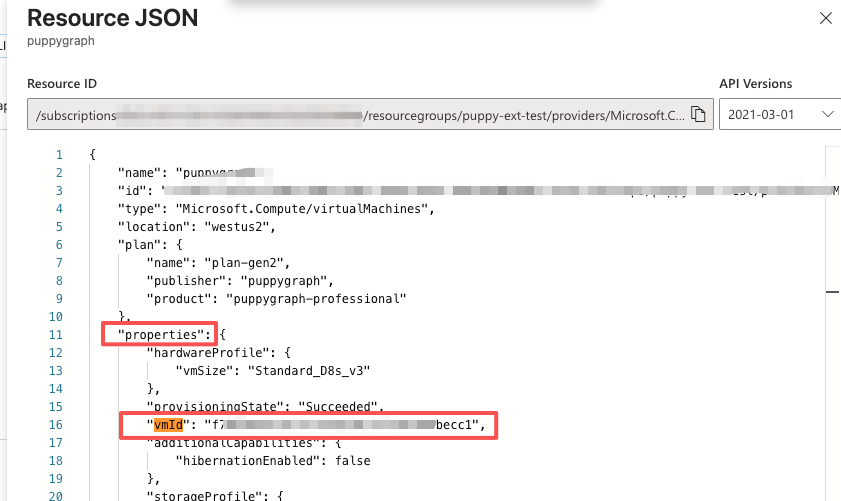
VM Json View
Access the PuppyGraph UI by navigating to the public address on port 8081. For example, if the VM's public IP address is 203.0.113.10, the address would be http://203.0.113.10:8081.
Sign into PuppyGraph using the default username puppygraph and the default password (the vmId value).
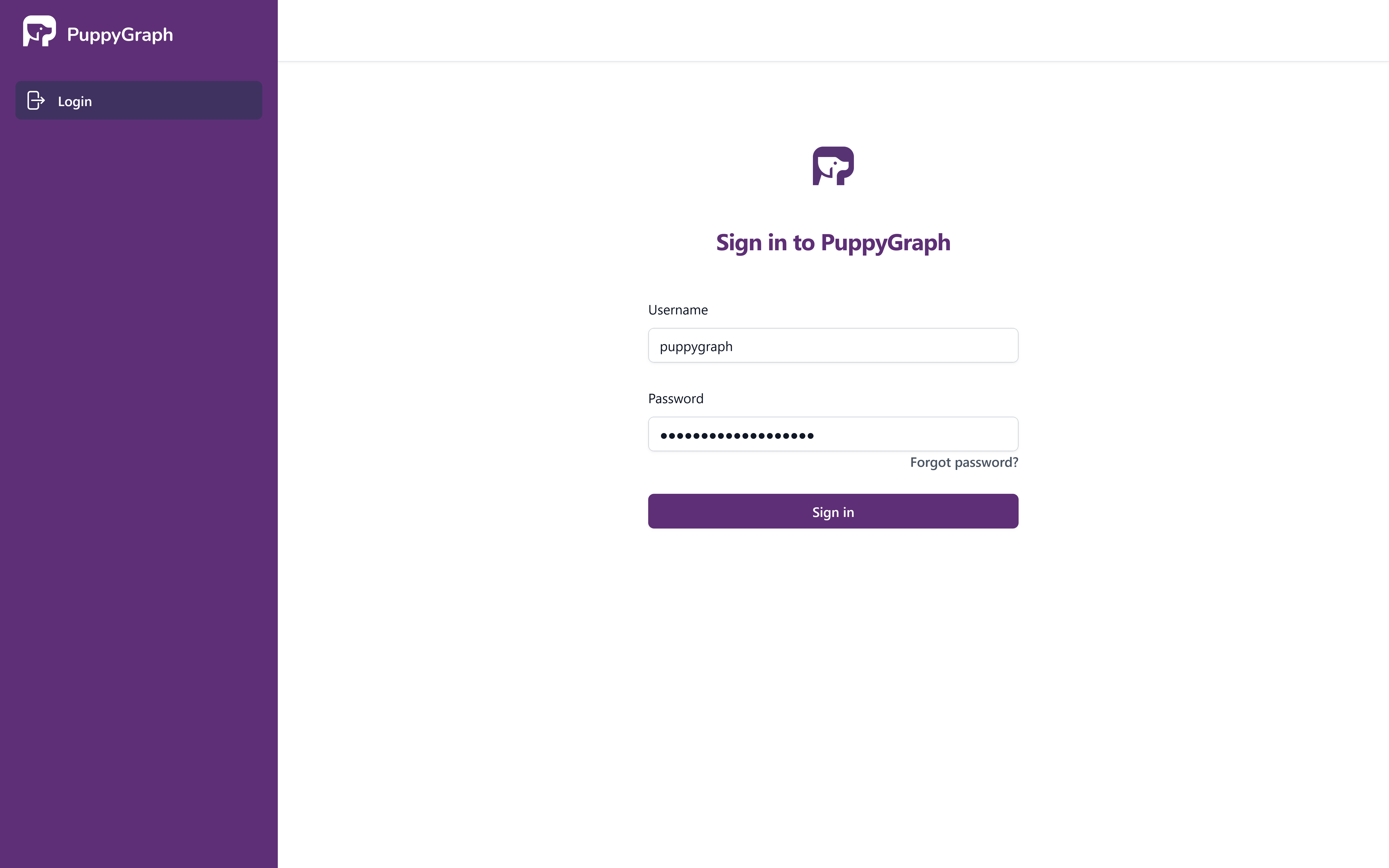
PuppyGraph Sign-In Page
If PuppyGraph is still initializing, the Graph page displays a waiting prompt. Refresh the page to check whether the server is ready.
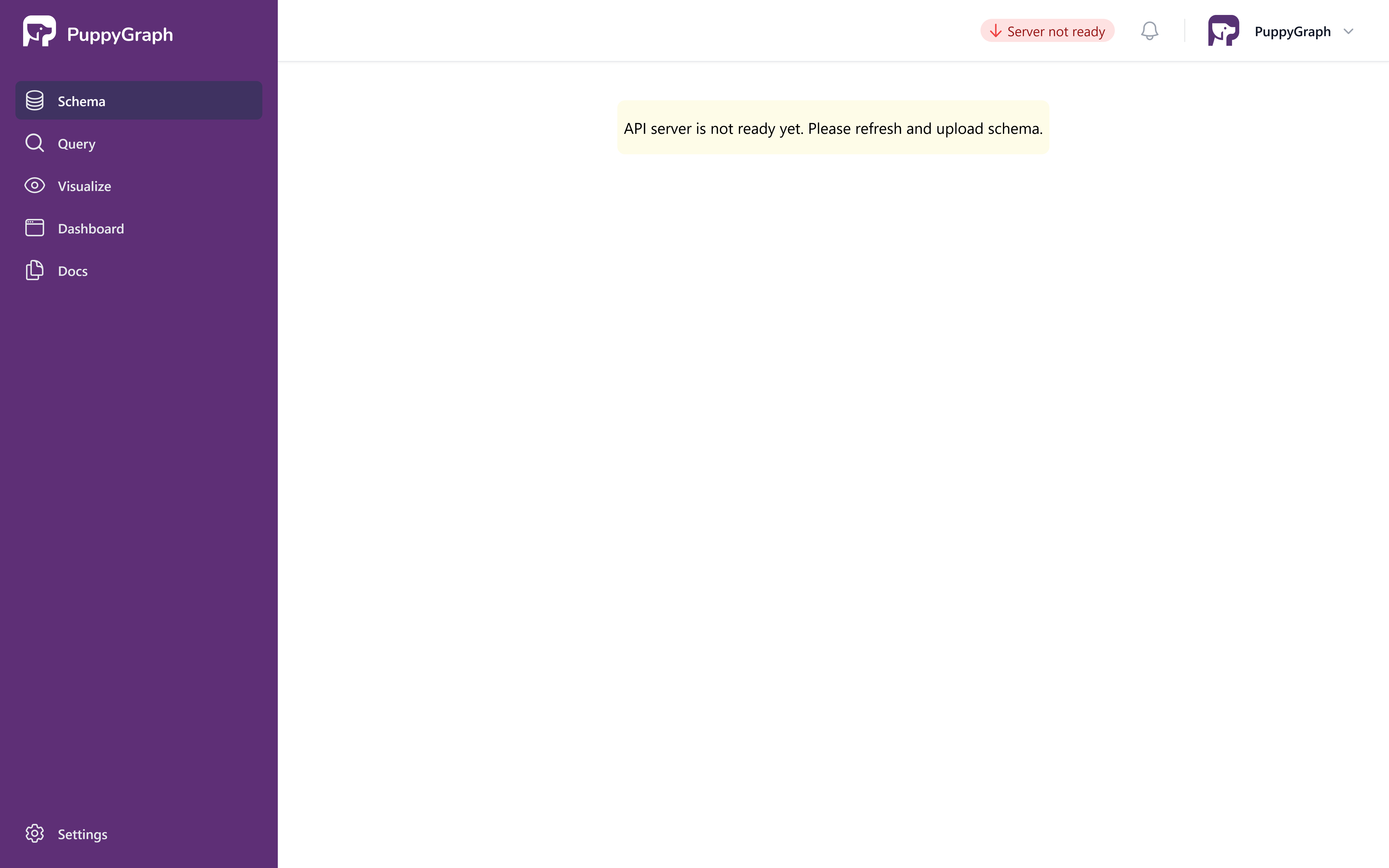
PuppyGraph Server Pending Page
Once the server is ready, the Graph page displays its quick-start options.
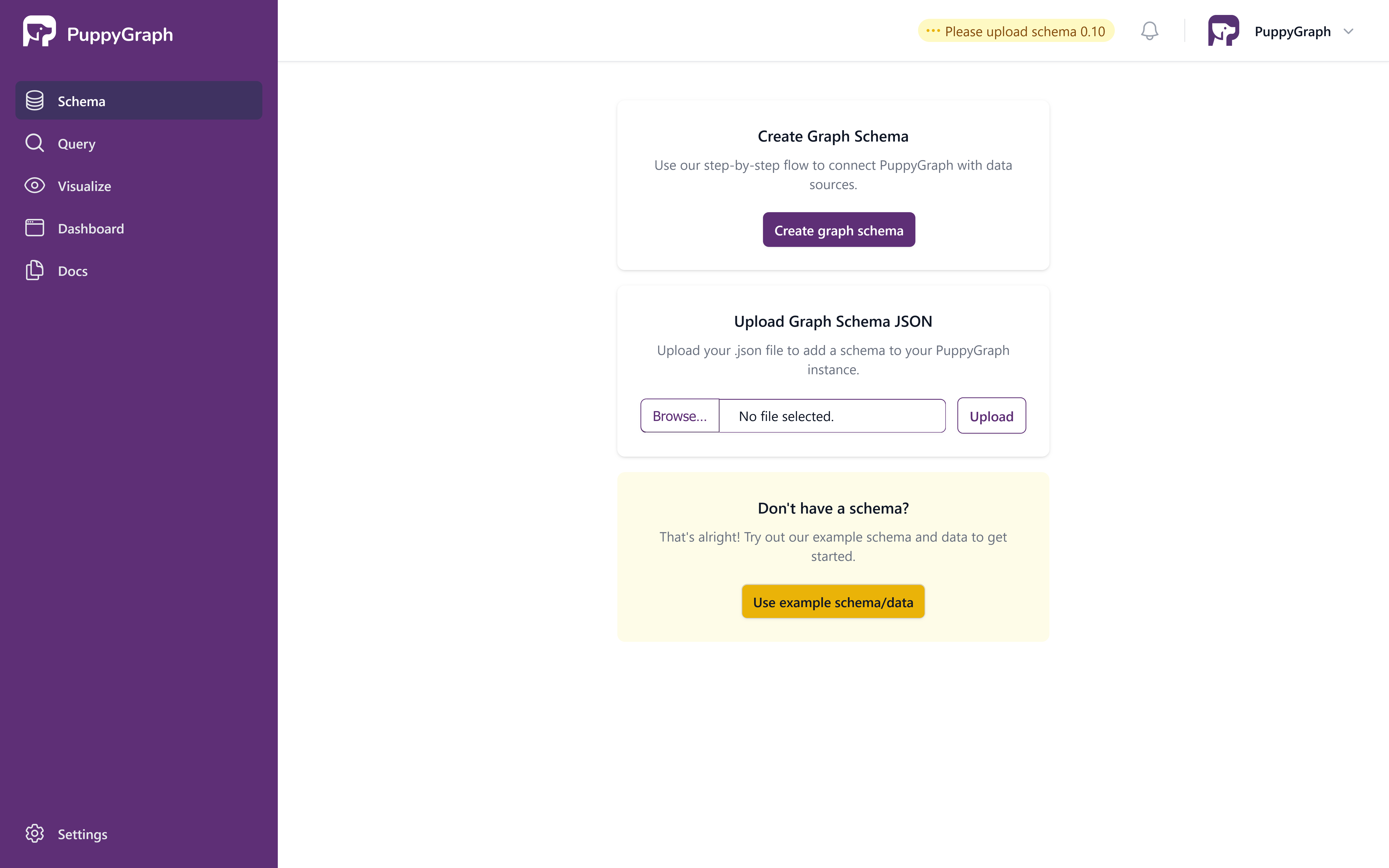
Graph page welcome screen
Exploring the Example Graph
In this tutorial, we'll be utilizing the demo data supplied by PuppyGraph.
Under Use Example Graph, click Load Example, then choose an example graph. The UI shows the loading progress.
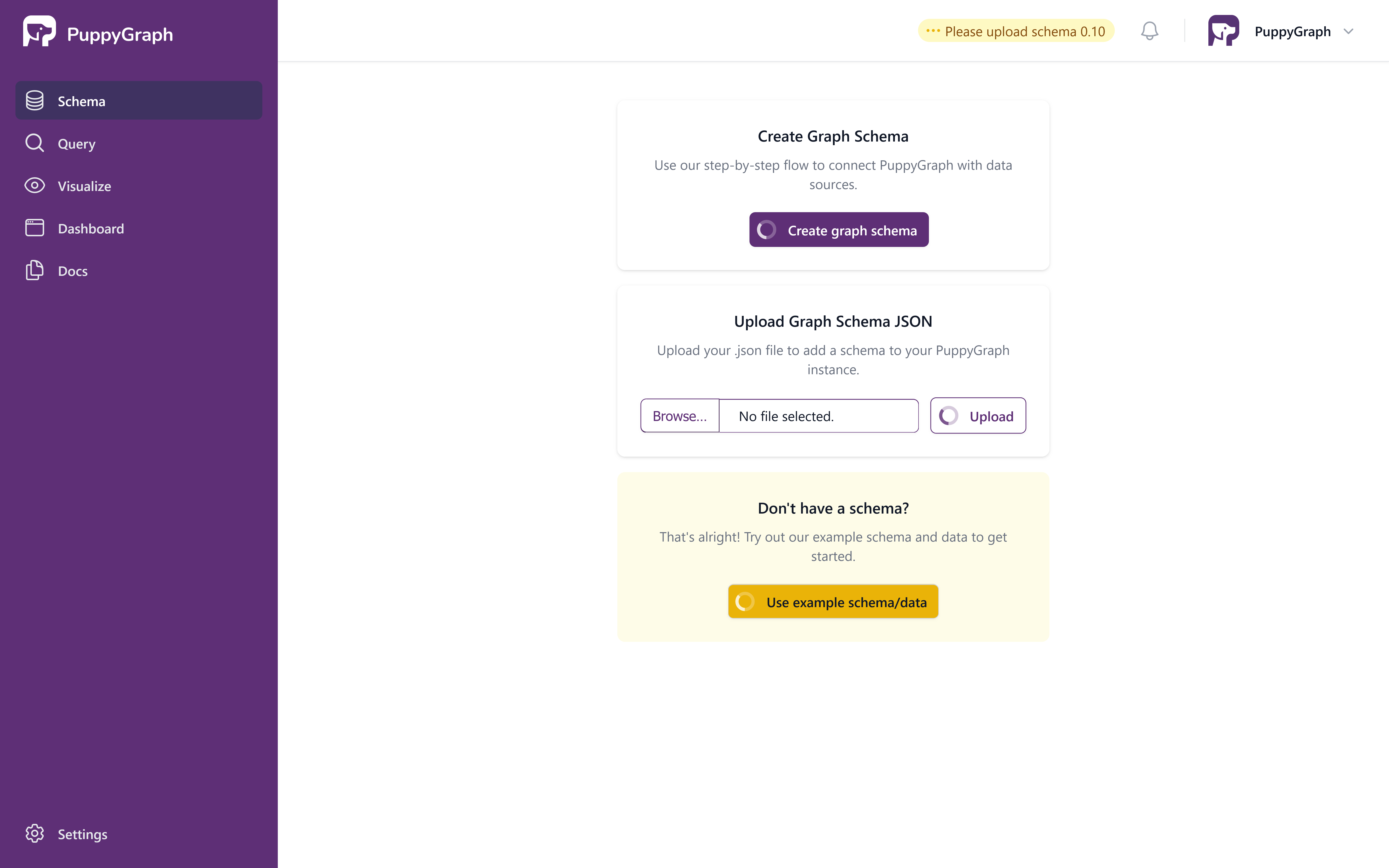
PuppyGraph Schema Loading in Progress
After the schema has been loaded, the page will display a visualization of the graph's schema.
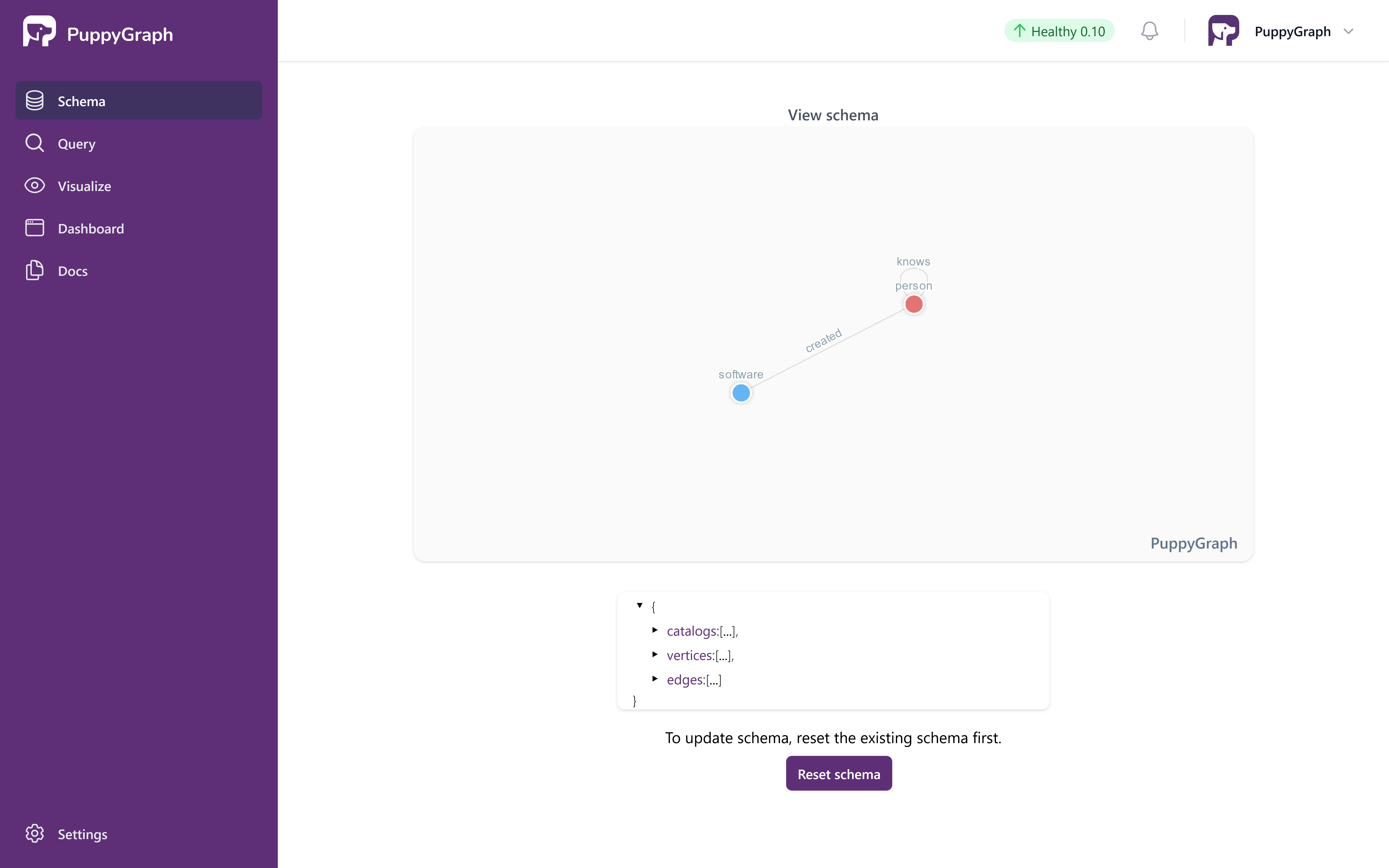
PuppyGraph Schema Loaded
PuppyGraph features a dashboard, enabling you to quickly access essential information from the graph right away.
The default tiles on the dashboard count the total number of nodes / edges and also display the sample data from the graph.
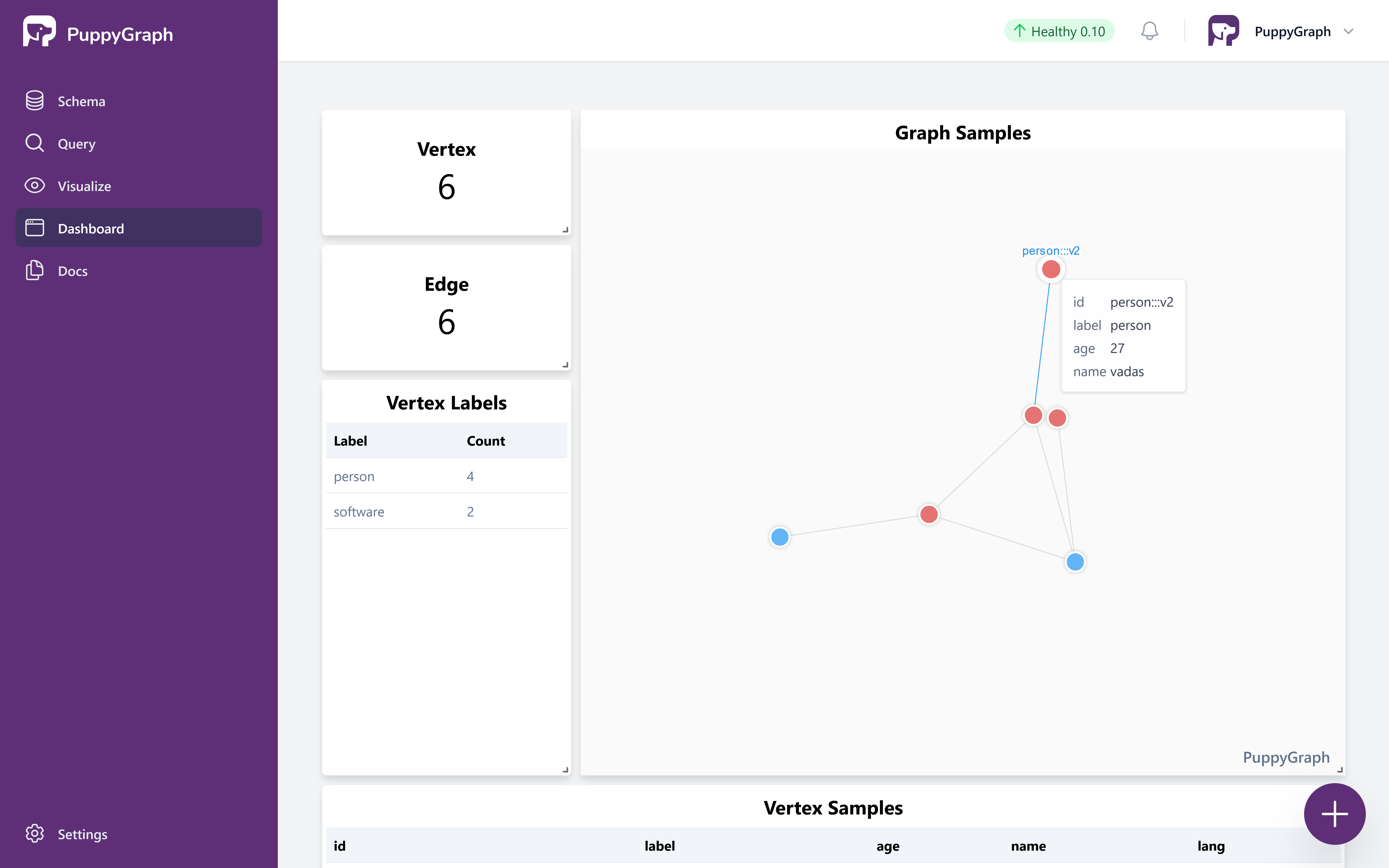
PuppyGraph Dashboard
Cleaning up
To sign out, click on the button located in the top right corner.
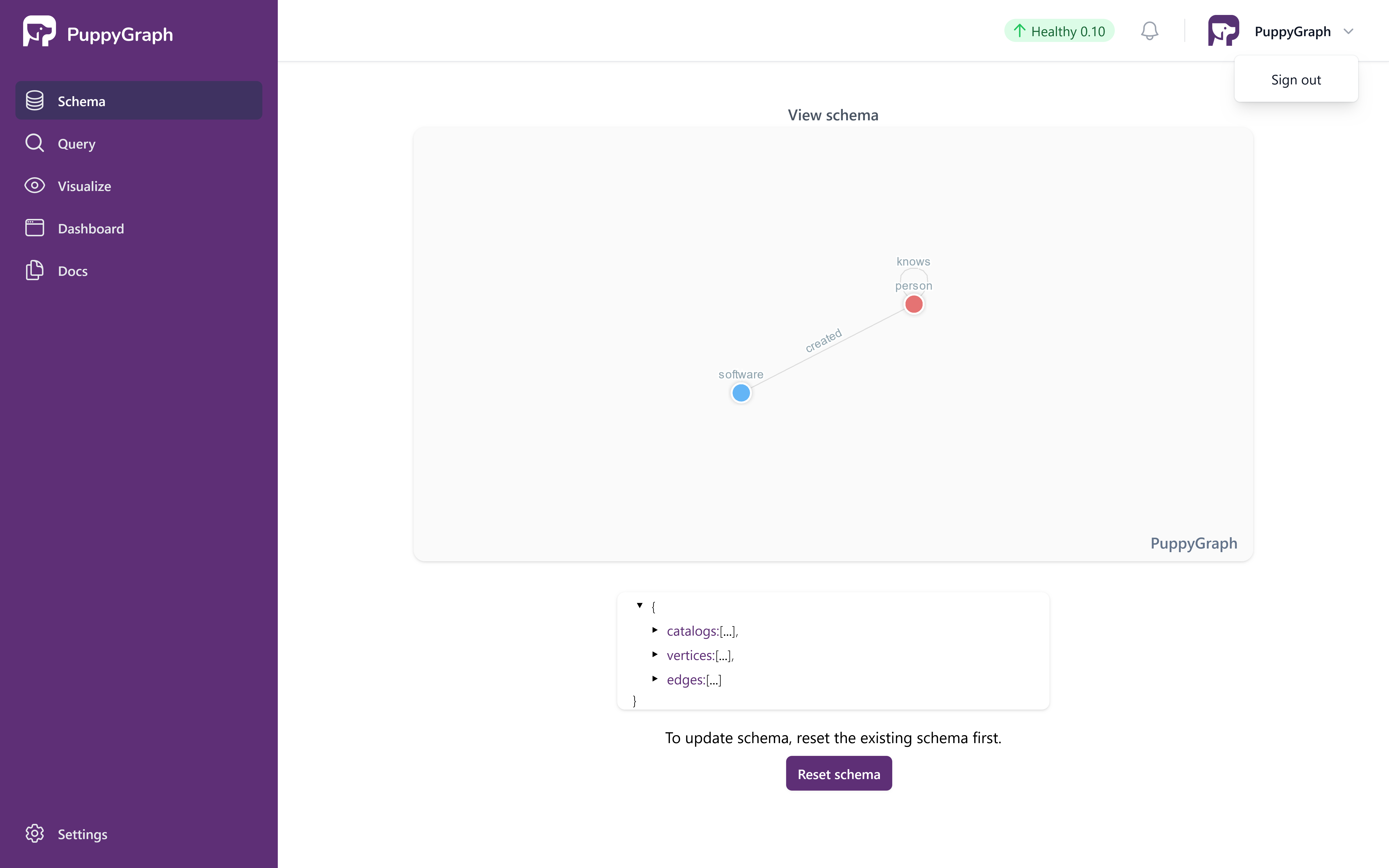
Sign Out
After completing the tutorial, you can proceed to safely terminate the VM instance.
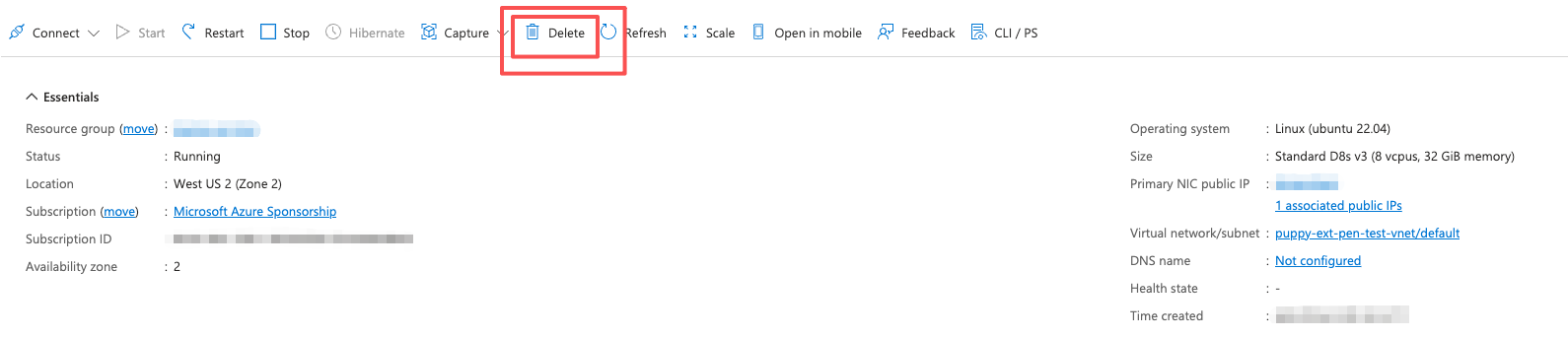
Terminate the VM Instance