Managing the Graph
Once a schema is active in PuppyGraph, you can inspect and modify it through the Web UI, or move it as JSON to back it up, version-control it, or migrate it between instances. This page covers both flows, plus local-table management.
Working with the active schema
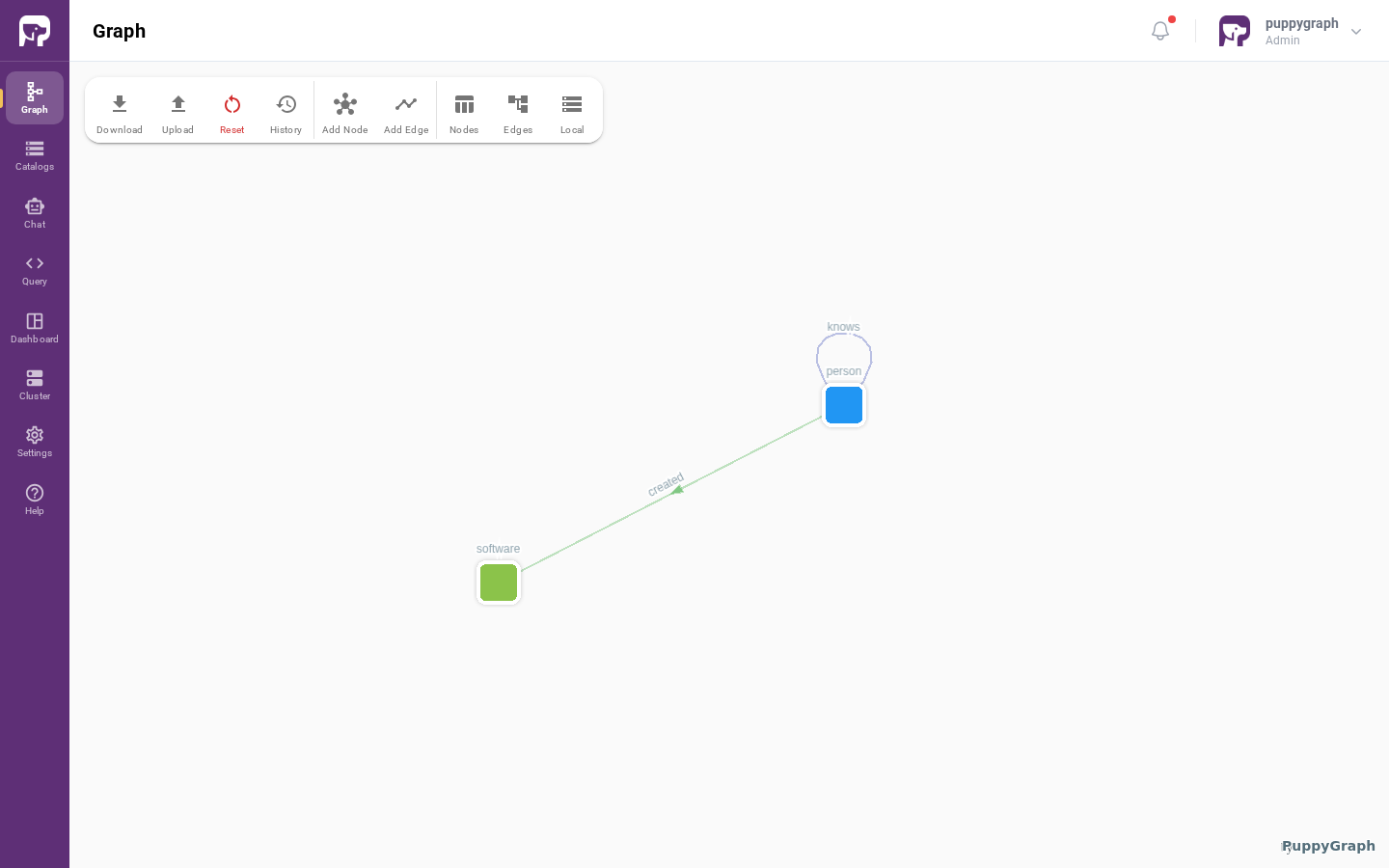
After a schema is uploaded or built, the Graph page displays it on an interactive canvas. The toolbar provides actions for importing, exporting, and resetting the schema; viewing schema history; adding nodes and edges; and opening the node, edge, and local-table views.
The Graph page
Open Graph from the left navigation. Select a node or edge on the canvas to open its menu, or use the toolbar to work with the complete schema:
- Download and Upload export and import schema JSON.
- Reset clears the active graph.
- History lists earlier schema versions.
- Add Node and Add Edge open the Schema Builder.
- Nodes and Edges open lists of the modeled graph elements.
- Local opens local-table management.
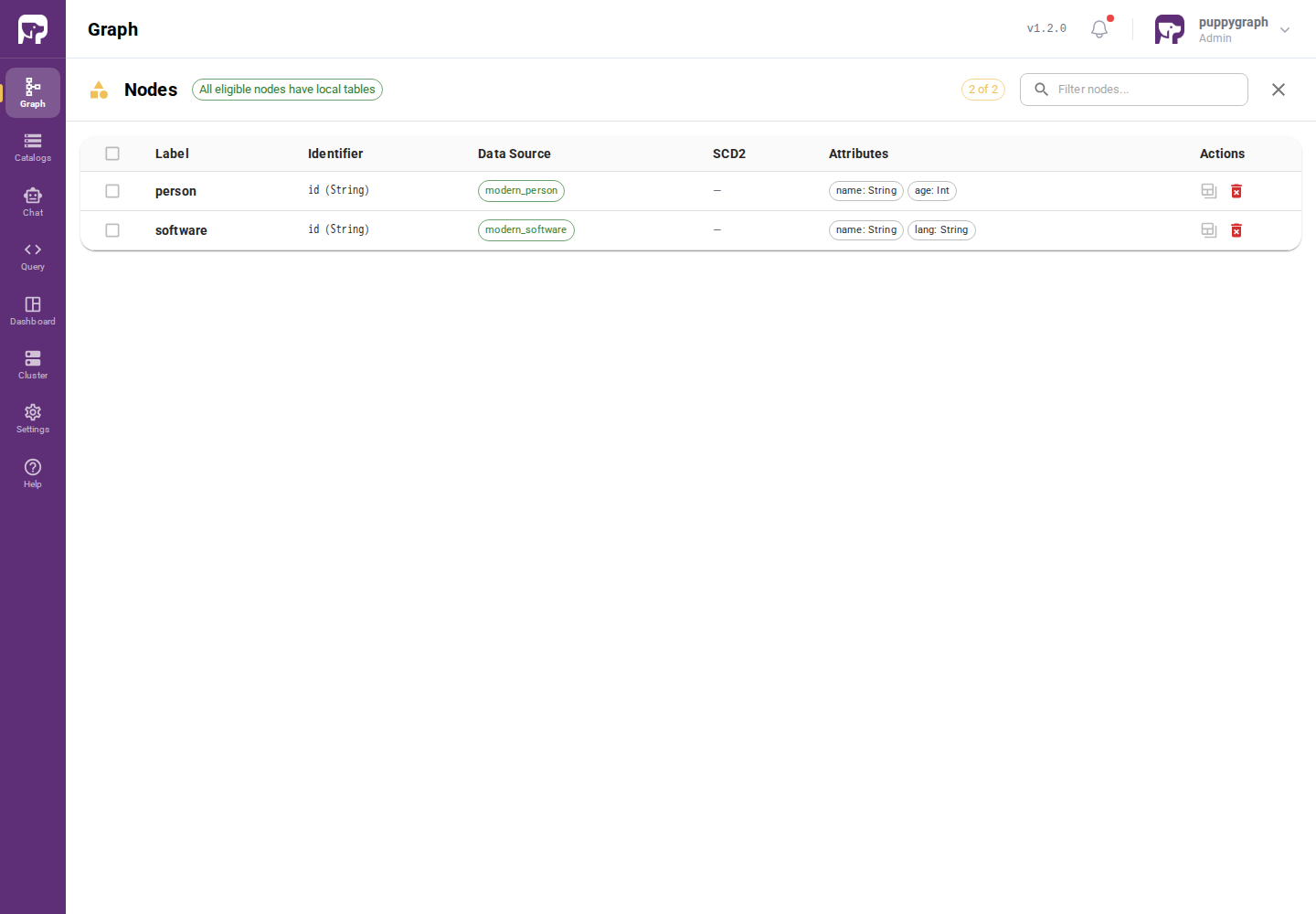
Use Nodes or Edges when a list is easier to inspect than the canvas. These views summarize identifiers, data sources, attributes, and available actions.
Inspecting a node or edge
The detail panel shows everything currently configured for the element:
- The label and any Cypher type aliases.
- The active data source. Nodes and edges can read from an external or local source; a node can also read from a union of multiple tables.
- ID columns, attribute columns, and for edges
fromKeyandtoKey. - Field mappings between source columns and graph fields.
- SCD2 configuration, if any. See Working with SCD Type 2 Tables.
Editing in place
Inside the detail panel, the same fields are editable:
| Field | Notes |
|---|---|
| Type aliases | Add, remove, or rename. |
| Data source | Switch between external and local. A node can also switch to a union if multiple sources are configured. |
| ID columns | Add or remove ID columns. Rename or retype them. |
| Attributes | Add or remove attribute columns. Rename or retype. |
| Field mappings | Remap which source columns correspond to which graph fields. |
| SCD2 | Enable, disable, or change the SCD2 configuration. |
fromKey and toKey |
Edges only. |
The panel shows an Unsaved Changes badge when you've made edits. Click Save to apply changes (they take effect immediately) or Discard to revert.
Removing a node or edge
To remove a node or edge, select it on the Graph canvas. The menu has two options:
- View Details opens the detail panel.
- Delete removes the element from the graph. You'll be asked to confirm before deletion.
Deletion takes effect immediately.
Adding a node or edge
Adding new elements uses the same flow as the initial Schema Builder. Click Add Node or Add Edge in the Graph toolbar, select a source table, and walk through the wizard. See Building a Graph for the per-step walkthrough.
Reset graph
To start over, click Reset in the Graph toolbar. This clears all nodes, edges, and local tables. You'll be asked to confirm before anything is deleted.
Schema serialization
A PuppyGraph schema is a single JSON document. The same JSON form is used to export the schema (for backup, version control, or migration to another instance) and to import one (to bootstrap a deployment or apply changes), through both the Web UI and a REST API.
Top-level shape
A schema JSON has up to five top-level keys:
See Building a Graph for nodes and edges, and Data Sources and Local Tables for localTable[]. The optional rowLevelSecurity block is documented in Row-Level Security.
Downloading a schema
Open the Download menu on the Graph page. Two options are available:
- Download Graph Schema includes the graph structure only (
node[],edge[],localTable[], androwLevelSecurity). Use this when sharing the model without exposing connection credentials. - Download Graph Schema with Catalog includes the same plus the
catalog[]connection details. Use this when migrating between instances or reproducing a setup. Secrets (passwords, access keys, tokens) are included only if you have theCATALOG:writepermission; otherwise each one is replaced with******.
Uploading a file with ****** placeholders back is fine: PuppyGraph recognizes an untouched placeholder and keeps the stored secret. Replace the placeholder only when you actually mean to change the secret — a value that is neither the placeholder nor the old secret is applied as a new one.
The GET /schemajson REST endpoint returns the active graph schema without catalog[]. Use Download Graph Schema with Catalog when you need the catalogs as well.
How an upload is applied
An upload describes the complete graph you want, not a patch. PuppyGraph compares the uploaded document against the current schema and applies the difference as an ordered sequence of steps. Objects that already match are left untouched, but a node, edge, or local table that is missing from the upload is removed. Catalogs are the exception, as described below. Keep every existing object in the document unless you mean to remove it. The upload report shows the computed diff, the planned steps, and the outcome of each one.
Because the changes are applied incrementally, some edits are not supported, and a changed catalog is applied only when you allow it. An upload containing such a change is rejected in full during planning, before any change is attempted, so nothing changes.
What a diff can do:
| Object | Add | Remove | Change |
|---|---|---|---|
catalog[] |
Yes | No, removing a catalog from the document leaves it registered | Only with allowCatalogUpdate, and never its type |
node[], edge[] |
Yes | Yes | Yes, including its attributes and data source |
localTable[] |
Yes | Yes | Its columns can be added and removed. Nothing else. |
Local tables are the most restricted, because their columns and storage layout map onto physical storage. An upload is rejected when it changes the type of an existing local-table column, reorders existing columns, adds an "autoIncrement": true column, changes storage settings such as indexColumn or partitionBy, or changes the table's dataSourceGroup. To make any of these changes, remove the local table and re-add it under a new name.
The dataSourceGroup case includes mappedField, which lists every column a local table loads. Adding a column to a local table that loads from an external source therefore also needs a new mapping entry, and adding the two together is not supported.
Catalogs are not redefined by an upload unless you ask for it. If the uploaded catalog[] contains a catalog whose name is already registered, its definition must match the registered one field for field, or the upload is rejected. This catches the common case where the catalog[] block was written by hand and omits fields the Catalogs form sets for you, which would otherwise silently rewrite a working connection.
To apply the difference to the running data source instead, re-upload with the opt-in: tick Allow changes to existing catalogs in the upload dialog, or add allowCatalogUpdate=true to the REST request. The catalog's type still cannot change — to use a different type, add it as a new catalog under a different name — and a catalog cannot turn on identityPropagation while a local copy of its data still exists — remove the local copy in a separate upload first.
When you only want to change the graph on top of data sources that already exist, omit catalog[] entirely.
Each rejected change is reported, in the Web UI upload dialog and in the REST error message, with the object it applies to, the fields involved, and whether the change is not supported or requires catalog updates to be allowed. Resolve each one as its reason describes and upload again.
Uploading via the Web UI
The upload dialog auto-detects the file format and adjusts.
Uploading a v1 schema
When you select a v1 schema file, the dialog shows a preview of how many catalogs, local tables, nodes, and edges will be created. If the schema includes local tables, you can choose what happens after upload:
| Choice | Effect |
|---|---|
| Cache and switch | Start loading data into local tables and read from the cache. |
| Cache data only | Start loading data, but keep reading from external sources. |
| Do not cache data | Define the structure now and load later from the Local view on the Graph page. |
Uploading a legacy (v0) schema
If you upload a schema from PuppyGraph 0.x, the dialog detects it automatically and offers conversion options.
For the data source for nodes and edges, choose one:
- Use external catalog: query data directly from external sources, with no local tables created.
- Use local tables: create local tables and optionally cache data.
If you chose local tables, decide whether to load data immediately:
- Cache data: start loading immediately.
- Do not cache data: define the structure only.
A progress dialog shows each conversion step with color-coded status. After upload, use Download Graph Schema to inspect the resulting v1 schema.
For details of the conversion, see Migrating from v0. If you want to convert a v0 schema to v1 without applying it (for batch conversion, pre-validation, or scripting), use the Converting via the REST API endpoint instead.
Uploading via the REST API
PuppyGraph exposes a REST endpoint for uploading the schema.
Requests use HTTP Basic Authentication. The username is your PuppyGraph username (default puppygraph); the password is your PuppyGraph password. If your deployment is exposed under a base path such as /graph, prepend that base path to the endpoints below.
| Field | Value |
|---|---|
| Method | POST |
| Endpoint | /schema |
| Headers | Content-Type: application/json |
| Body | The schema JSON |
curl -XPOST -H "content-type: application/json" \
  --data-binary @./schema.json \
  --user "puppygraph:puppygraph123" \
  "http://localhost:8081/schema?postUploadBehavior=none"
The endpoint accepts v1 JSON. To upload a legacy v0 schema, first convert it with /ui-api/convertSchema, then upload the converted v1 JSON.
Use the raw schema document as the request body. Do not wrap uploads in a schemaJson object. If the schema contains embedded catalog[] entries, the caller must also have catalog write permission. The Web UI uses /ui-api/uploadSchema internally, which shares the same handler as /schema; external automation should use /schema.
Use postUploadBehavior to control local-table loading after the schema is accepted:
| Value | Effect |
|---|---|
none |
Define the graph and local tables without loading data. This is the default. |
load |
Start loading data into local tables after upload. Graph elements keep their current external read path. |
switch |
Start loading data into local tables and switch graph elements to local tables when loading completes. |
The legacy loadData=true query parameter is still accepted for compatibility and maps to postUploadBehavior=switch. Prefer postUploadBehavior for new scripts.
Add allowCatalogUpdate=true to apply an embedded catalog[] entry whose definition differs from the registered one. Without it, such an entry is rejected. See How an upload is applied.
A 400 Bad Request from /schema means the schema was rejected during parsing, validation, local-table default validation, or diff planning. Nothing was applied in any of these cases. The response body carries an error string listing each problem (for a diff-planning rejection, up to five, followed by a count of the rest) and a report object; for a diff-planning rejection, report.diff.rejectedChanges holds the same list in structured form. See How an upload is applied for which changes a diff cannot express.
For legacy schema migrations, call /ui-api/convertSchema first to inspect the converted v1 schema without applying it.
Local table management
Open Graph, then click Local in the toolbar to open the local-table management view. Each row is one local table; the row exposes its current load and analyze status, and its actions let you trigger the operations listed below. Most of these operations are also reachable through REST endpoints under /ui-api/ for automation (loading data, inspecting status, reviewing load history, reviewing partitions, and dropping a partition); the remaining ones, including analyze and the standalone-table actions, are currently Web UI only. All REST endpoints use the same HTTP Basic authentication as /schema.
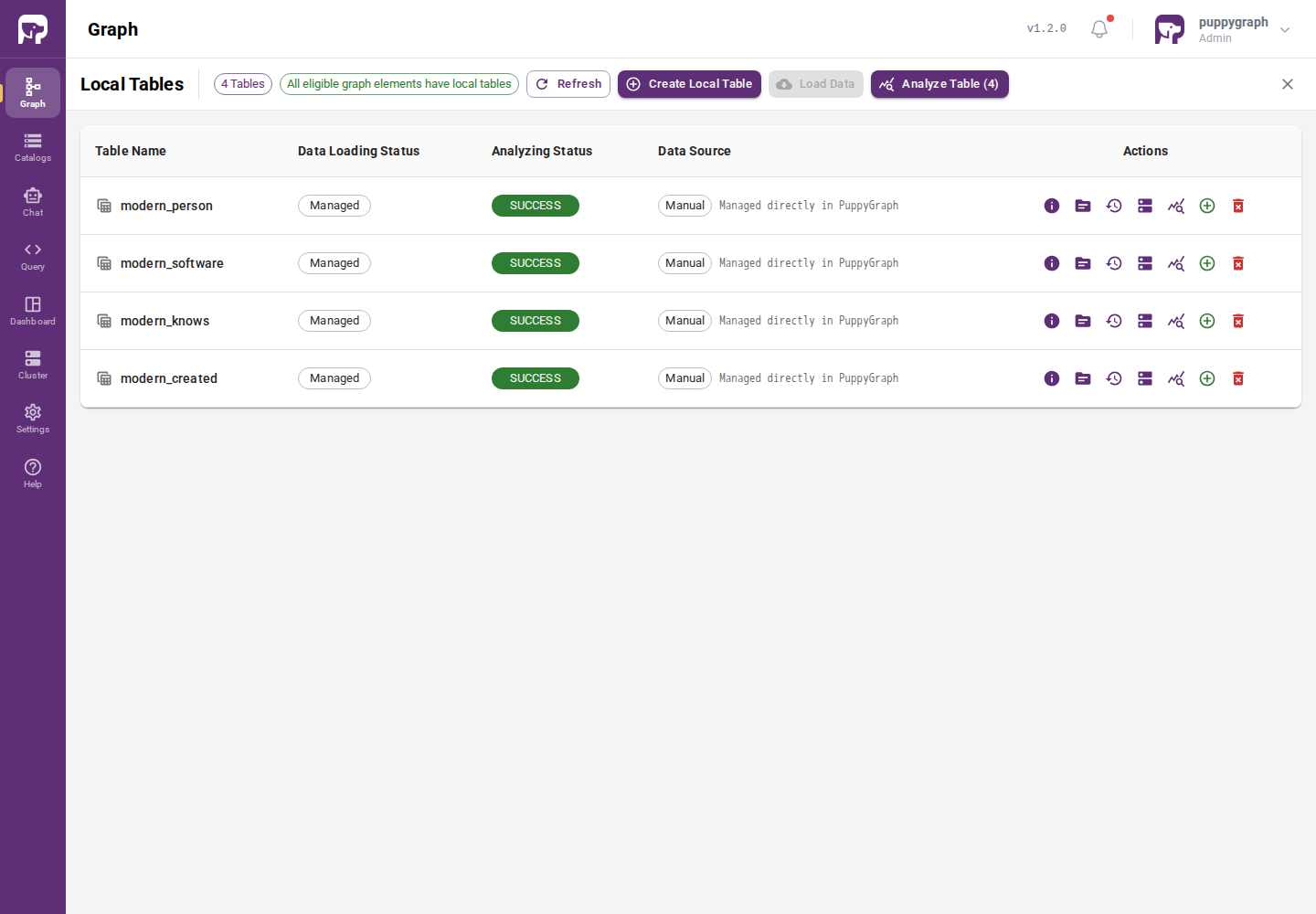
The operation-specific sections below each cover what the operation does, the Web UI affordance, and the REST endpoint with request and response shapes. The conventions that apply to every endpoint (envelope shape, status casing, int64 serialization, HTTP status codes) are factored out in Response envelope at the end of the section, so you only have to read them once.
Loading data
Loads data into a local table from its external or union source. The load is asynchronous: submission returns immediately with a tracking key, and the actual load runs in the background.
In the Web UI, the row's Import from Source action submits a load. The action is only available when the local table has an external or union source. Standalone local tables use Insert Rows instead. While a load is in progress, the row's Data loading status chip moves through the status vocabulary covered in Inspecting load status below.
The REST endpoint is POST /ui-api/loadLocalTable (RBAC DATA:write). The response returns a scopeKey that groups the submission and any retries. To track the load, poll getLocalTableLoadStatus by localTableName (the only query parameter it accepts) and match the returned tasks[] entries against your scopeKey to find the records for this submission.
Request body fields:
| Field | Required | Default | Description |
|---|---|---|---|
localTableName |
yes | Local table to load. Must have an external or union source. | |
partitionSpec |
no | Exact partition values as a JSON object, e.g. { "region": "us-east" }. |
|
partitionStartValue, partitionEndValue |
no | Time range for a time-partitioned local table. Provide both together. Start is inclusive, end is exclusive. | |
timeoutSeconds |
no | 43200 |
Per-task timeout. |
maxRetries |
no | 3 |
Retry attempts after failure. |
forceReload |
no | false |
Submit a new load even when a matching one may already be active. |
maxPartitions |
no | 1440 |
Cap on the number of partition-load tasks a time range can split into. |
Time-range example:
curl -X POST -u "puppygraph:puppygraph123" \
  -H "Content-Type: application/json" \
  -d '{
        "localTableName": "event_local",
        "partitionStartValue": "2025-01-01 00:00:00",
        "partitionEndValue":   "2025-01-02 00:00:00"
      }' \
  http://localhost:8081/ui-api/loadLocalTable
Full-table load (send only localTableName):
curl -X POST -u "puppygraph:puppygraph123" \
  -H "Content-Type: application/json" \
  -d '{"localTableName":"event_local"}' \
  http://localhost:8081/ui-api/loadLocalTable
Success response:
Common errors: 400 with "localTableName is required" when the field is missing from the request; 400 with "local table 'X' not found in schema" when no such local table exists in the active schema; 400 with "LocalTable 'X' does not have an external or union data source" when the named table is standalone and cannot be loaded from the API.
Data loading targets local tables, not node or edge labels. If an older refreshLocalCache payload used viewIds, look up the corresponding localTableName values in the schema (or in the Local view on the Graph page). You can then load them one at a time with loadLocalTable, or several at once with loadLocalTables (below).
Loading several tables in one call
POST /ui-api/loadLocalTables (RBAC DATA:write) submits a load for multiple local tables in a single request, applying one shared partition window and set of options to every table. It is the direct successor to v0's refreshLocalCache, which accepted a list of targets and a single partition window.
The request replaces the single localTableName with a localTableNames array; every other field is shared across all tables and behaves exactly as in the single-table request above:
| Field | Required | Default | Description |
|---|---|---|---|
localTableNames |
yes | Local tables to load. Blank entries are ignored; at least one non-blank name is required. | |
partitionSpec |
no | Exact partition values applied to every table. | |
partitionStartValue, partitionEndValue |
no | Shared time range applied to every table. Provide both together. | |
timeoutSeconds |
no | 43200 |
Per-task timeout. |
maxRetries |
no | 3 |
Retry attempts after failure. |
forceReload |
no | false |
Submit a new load even when a matching one may already be active. |
maxPartitions |
no | 1440 |
Cap on the number of partition-load tasks a time range can split into. |
Each table is submitted independently: a failure on one table does not abort the others. Once the batch is accepted the call returns 200 with a results entry for every requested table, each carrying its own ok and, on success: scopeKey, or on failure: errorMessage. Each table keeps its own scopeKey, so you track a batch by polling getLocalTableLoadStatus for each successfully submitted table exactly as you would for a single-table load.
curl -X POST -u "puppygraph:puppygraph123" \
  -H "Content-Type: application/json" \
  -d '{
        "localTableNames": ["person_local", "software_local"],
        "partitionStartValue": "2025-01-01 00:00:00",
        "partitionEndValue":   "2025-01-02 00:00:00"
      }' \
  http://localhost:8081/ui-api/loadLocalTables
When every table is submitted successfully, the top-level ok is true and each result carries ok: true and its scopeKey:
{
  "ok": true,
  "results": [
    { "localTableName": "person_local",   "ok": true, "scopeKey": "load_person_local_1779917406567_abc" },
    { "localTableName": "software_local", "ok": true, "scopeKey": "load_software_local_1779917406571_def" }
  ]
}
If some tables fail, the call still returns 200. The top-level ok is false, and each failing table's result carries ok: false with its own errorMessage, while the tables that succeeded still carry their scopeKey:
{
  "ok": false,
  "results": [
    { "localTableName": "person_local",   "ok": true,  "scopeKey": "load_person_local_1779917406567_abc" },
    { "localTableName": "software_local", "ok": false, "errorMessage": "local table 'software_local' not found in schema" }
  ]
}
A non-200 status is returned only for batch-level rejections — server unavailable, an invalid request body, or an empty table list — where no table was submitted and results is empty. Use loadLocalTables when a whole batch shares one partition window; use per-table loadLocalTable calls when you prefer a distinct HTTP call per table.
Inspecting load status
Reports the aggregate load state of every local table. This is the same view that drives the status chips in the Local view on the Graph page.
In the Web UI, every row shows its current Data loading status chip. The value summarises across all of the table's partitions and load tasks:
| Status | Meaning |
|---|---|
SUCCESS |
Data loading completed for every known partition. |
LOADING or RUNNING |
A load is in progress. |
PENDING |
Queued, not yet started. |
PARTIAL |
Some partitions succeeded; others are pending or failed. |
FAILED |
Hover the chip for the error details. |
NOT_LOADED |
No data has been loaded yet. |
The REST endpoint is GET /ui-api/localTableStatus (RBAC DATA:read). It takes no query parameters and returns one row per local table in the active schema.
Sample response:
{
  "event_local": {
    "status": "SUCCESS",
    "message": "",
    "detail": ""
  },
  "user_local": {
    "status": "NOT_LOADED",
    "message": "",
    "detail": ""
  }
}
This endpoint never returns an error envelope on the read path. It returns 200 with an empty object if no local tables are defined.
Reviewing load history
Returns the per-task history for one local table, ordered most-recent first. Useful for confirming the outcome of a specific submission (paired with the scopeKey from loadLocalTable) or for backfilling a UI history list.
In the Web UI, the row's View Import History action opens the history table for that local table.
The REST endpoint is GET /ui-api/getLocalTableLoadStatus?localTableName=<name> (RBAC DATA:read).
curl -u "puppygraph:puppygraph123" \
  "http://localhost:8081/ui-api/getLocalTableLoadStatus?localTableName=event_local"
Sample response:
{
  "ok": true,
  "errorMessage": "",
  "tasks": [
    {
      "id": "1",
      "localTableName": "event_local",
      "taskName": "load_event_local_1779917406567_abc_p0",
      "scopeKey": "load_event_local_1779917406567_abc",
      "status": "SUCCESS",
      "submittedAt": "2026-05-27T21:30:06Z",
      "startedAt":   "2026-05-27T21:30:06Z",
      "completedAt": "2026-05-27T21:30:07Z",
      "errorMessage": "",
      "progress": 100,
      "retryCount": 0,
      "maxRetries": 3,
      "partitionSpecJson": "",
      "partitionStartValue": "2025-01-01 00:00:00",
      "partitionEndValue":   "2025-01-02 00:00:00"
    }
  ]
}
Field notes:
idis a protoint64value serialized as a JSON string.progressis a number (0–100).statusis uppercase, one ofPENDING,RUNNING,SUCCESS,FAILED,RETRYING,CANCELLED.
If no records exist for the given localTableName, the endpoint returns 200 with {"ok": true, "tasks": []}.
Common errors: 400 with "localTableName is required" when the query parameter is missing.
Reviewing partition state
Returns the per-partition state for one local table: physical partition name, range, current state, most-recent load status, and last successful load timestamp.
In the Web UI, the row's View Partition Details action opens the partition table for that local table.
The REST endpoint is GET /ui-api/getLocalTablePartitionDetails?localTableName=<name> (RBAC DATA:read).
curl -u "puppygraph:puppygraph123" \
  "http://localhost:8081/ui-api/getLocalTablePartitionDetails?localTableName=event_local"
Sample response (partitioned table):
{
  "ok": true,
  "errorMessage": "",
  "partitions": [
    {
      "partitionName": "p20250101",
      "partitionRange": "2025-01-01 00:00:00 .. 2025-01-02 00:00:00",
      "partitionState": "NORMAL",
      "mostRecentLoadStatus": "SUCCESS",
      "mostRecentProgress": 100,
      "mostRecentErrorMessage": "",
      "lastSuccessTimestamp": "2026-05-27T21:30:07Z",
      "mostRecentTaskId": "2"
    }
  ]
}
mostRecentLoadStatus uses the same uppercase vocabulary as getLocalTableLoadStatus; an empty string means the partition has never been loaded. The partitionRange value is the literal string accepted as input to Dropping a partition below, so preserve it verbatim if you plan to chain the two calls.
For a non-partitioned local table the response carries exactly one row, with partitionName equal to the local-table name and partitionRange: "". Calling dropLocalTablePartition against that row is rejected because the table itself is not partitioned.
Dropping a partition
Removes a single physical partition from a partitioned local table. There is currently no Web UI affordance for this operation; it is REST-only.
The endpoint is POST /ui-api/dropLocalTablePartition (RBAC DATA:write). The partitionName and partitionRange values must match exactly what getLocalTablePartitionDetails returned, so the reliable workflow is to call the partition-details endpoint first, copy both values out of the row you want, and pass them in unmodified.
Request body fields:
| Field | Required | Description |
|---|---|---|
localTableName |
yes | Local table that owns the partition. Must be partitioned. |
partitionName |
yes | The exact partition name from getLocalTablePartitionDetails. |
partitionRange |
yes | The exact range string from getLocalTablePartitionDetails, of the form "<start> .. <end>". |
curl -X POST -u "puppygraph:puppygraph123" \
  -H "Content-Type: application/json" \
  -d '{
        "localTableName": "event_local",
        "partitionName":  "p20250101",
        "partitionRange": "2025-01-01 00:00:00 .. 2025-01-02 00:00:00"
      }' \
  http://localhost:8081/ui-api/dropLocalTablePartition
Success response:
Common errors:
400with"localTableName, partitionName, and partitionRange are required"when one of the required fields is missing.400with"local table 'X' is not partitioned"when the local table has nopartitionByconfiguration.400with"local table 'X' does not exist"when the named table is not in the active schema.400if the partition values don't match a live partition, or if an active load currently targets the partition or the whole table.
Collecting statistics (Analyze)
Triggers a one-time asynchronous statistics-collection run against the local table. The collected stats feed the query planner; you do not need to run analyze for queries to work, but doing so improves cardinality estimates on large local tables.
Analyze is currently Web UI-only. The row's Analyze Table action submits the run, and the Analyzing status chip surfaces the current state: NOT_ANALYZED, PENDING, RUNNING, SUCCESS, or FAILED. There is no REST endpoint for triggering or inspecting analyze runs.
Other Web UI actions
The remaining row actions are inspect-only or apply to standalone tables, and do not have REST equivalents:
| Action | Description |
|---|---|
| View Table Details | Schema, columns, configuration. |
| View Source Information | The external source and field mappings. |
| Insert Rows | Manually insert rows. Available for standalone local tables without an external source. |
Response envelope
Four of the five /ui-api/ endpoints in this section (loadLocalTable, getLocalTableLoadStatus, getLocalTablePartitionDetails, and dropLocalTablePartition) share the same envelope and field conventions, so a client written against one will parse the others with minimal change. GET /ui-api/localTableStatus is the one exception and is covered separately below.
- Successful responses use
"ok": trueand include the endpoint-specific payload (scopeKey,tasks,partitions). - Non-200 responses use the same envelope with
"ok": falseand the failure reason inerrorMessage. Client errors return400; transport failures return500. - Field names use camelCase (e.g.
localTableName,scopeKey,mostRecentLoadStatus). statusandmostRecentLoadStatusare uppercase: one ofPENDING,RUNNING,SUCCESS,FAILED,RETRYING,CANCELLED.int64fields (e.g.idon load tasks) serialize as JSON strings to avoid precision loss on JavaScript clients.- Empty repeated fields are emitted as
[]rather than omitted, so client parsers can rely on key presence.
GET /ui-api/localTableStatus is the only endpoint in this section that does not use the {ok, errorMessage, …} envelope. It returns the per-table status map directly. Treat that endpoint as a special case in client code.
There is no global local-cache status shaped like {"status":"READY","items":[]}. Status is reported per local table through localTableStatus, and per load task or partition through getLocalTableLoadStatus and getLocalTablePartitionDetails.
For the v0-to-v1 mapping of the legacy /ui-api/*LocalCache* endpoints, see the From local cache to local table management section in Migrating from v0.