Querying Oracle Data as a Graph
Summary
In this tutorial, you will:
- Start a PuppyGraph container alongside an Oracle Database container and load example data.
- Connect Oracle to PuppyGraph and define a graph schema.
- Run Cypher and Gremlin queries against the Oracle data as a graph.
Self-contained Oracle Data
This tutorial bundles an Oracle Database container and seeds it with the TinkerPop modern graph sample data.
In real deployments, PuppyGraph queries your existing Oracle databases directly. See Connecting to Oracle for the connection reference.
Prerequisites
Please ensure that docker compose is available. The installation can be verified by running:
See https://docs.docker.com/compose/install/ for Docker Compose installation instructions and https://www.docker.com/get-started/ for more details on Docker.
The Oracle Database Enterprise image is hosted on Oracle Container Registry. Before running the compose stack:
 Sign in (free) at https://container-registry.oracle.com/, browse to Database > Enterprise, and accept the license agreement.
Authenticate Docker against the registry:
Accessing the PuppyGraph Web UI requires a browser. The schema upload and query steps also have CLI alternatives via curl and the bundled Gremlin console.
Setup
Deployment
Create a file docker-compose.yaml with the following content:
docker-compose.yaml
version: "3"
services:
  puppygraph:
    image: puppygraph/puppygraph:latest
    pull_policy: always
    container_name: puppygraph
    environment:
      - PUPPYGRAPH_USERNAME=puppygraph
      - PUPPYGRAPH_PASSWORD=puppygraph123
    networks:
      - oracle_net
    ports:
      - "8081:8081"
      - "8182:8182"
      - "7687:7687"
  oracle-db:
    image: container-registry.oracle.com/database/enterprise:21.3.0.0
    container_name: oracle-db
    environment:
      - ORACLE_SID=ORCLCDB
      - ORACLE_PWD=oracle_password
    networks:
      - oracle_net
    ports:
      - "1521:1521"
      - "5500:5500"
networks:
  oracle_net:
    name: puppy-oracle
Default passwords
The compose file ships with default passwords for convenience. Change ORACLE_PWD and the application password in the SQL below before running on a publicly accessible machine.
Start the stack:
[+] Running 3/3
 ✔ Network puppy-oracle      Created                                      0.1s
 ✔ Container puppygraph      Started                                      0.7s
 ✔ Container oracle-db       Started                                      0.8s
Oracle takes several minutes to initialize on first start. Watch the logs and wait for DATABASE IS READY TO USE!:
Data Preparation
Open a sqlplus shell as SYS:
Paste the following SQL into the SQL> prompt to create the schema and insert data:
modern.sql
ALTER SESSION SET CONTAINER = FREEPDB1;

CREATE USER MODERN IDENTIFIED BY modern_password;
GRANT CONNECT, RESOURCE TO MODERN;
ALTER USER MODERN QUOTA UNLIMITED ON USERS;
ALTER USER MODERN DEFAULT TABLESPACE USERS;
GRANT CREATE SESSION, CREATE TABLE, INSERT ANY TABLE TO MODERN;

ALTER SESSION SET CURRENT_SCHEMA = MODERN;

CREATE TABLE SOFTWARE (
    ID   VARCHAR2(255),
    NAME VARCHAR2(255),
    LANG VARCHAR2(255)
);
INSERT INTO SOFTWARE VALUES ('v3', 'lop', 'java');
INSERT INTO SOFTWARE VALUES ('v5', 'ripple', 'java');

CREATE TABLE PERSON (
    ID   VARCHAR2(255),
    NAME VARCHAR2(255),
    AGE  NUMBER(10)
);
INSERT INTO PERSON VALUES ('v1', 'marko', 29);
INSERT INTO PERSON VALUES ('v2', 'vadas', 27);
INSERT INTO PERSON VALUES ('v4', 'josh',  32);
INSERT INTO PERSON VALUES ('v6', 'peter', 35);

CREATE TABLE CREATED (
    ID      VARCHAR2(255),
    FROM_ID VARCHAR2(255),
    TO_ID   VARCHAR2(255),
    WEIGHT  FLOAT
);
INSERT INTO CREATED VALUES ('e9',  'v1', 'v3', 0.4);
INSERT INTO CREATED VALUES ('e10', 'v4', 'v5', 1.0);
INSERT INTO CREATED VALUES ('e11', 'v4', 'v3', 0.4);
INSERT INTO CREATED VALUES ('e12', 'v6', 'v3', 0.2);

CREATE TABLE KNOWS (
    ID      VARCHAR2(255),
    FROM_ID VARCHAR2(255),
    TO_ID   VARCHAR2(255),
    WEIGHT  FLOAT
);
INSERT INTO KNOWS VALUES ('e7', 'v1', 'v2', 0.5);
INSERT INTO KNOWS VALUES ('e8', 'v1', 'v4', 1.0);

COMMIT;
The above creates four tables under the MODERN schema. Oracle stores unquoted identifiers in uppercase, so the table and column names are PERSON, SOFTWARE, CREATED, KNOWS and ID, NAME, etc. The graph schema below maps them to lowercase graph property names via mappedField.
| ID | NAME | AGE |
|---|---|---|
| v1 | marko | 29 |
| v2 | vadas | 27 |
| v4 | josh | 32 |
| v6 | peter | 35 |
| ID | NAME | LANG |
|---|---|---|
| v3 | lop | java |
| v5 | ripple | java |
| ID | FROM_ID | TO_ID | WEIGHT |
|---|---|---|---|
| e9 | v1 | v3 | 0.4 |
| e10 | v4 | v5 | 1.0 |
| e11 | v4 | v3 | 0.4 |
| e12 | v6 | v3 | 0.2 |
| ID | FROM_ID | TO_ID | WEIGHT |
|---|---|---|---|
| e7 | v1 | v2 | 0.5 |
| e8 | v1 | v4 | 1.0 |
Modeling a Graph
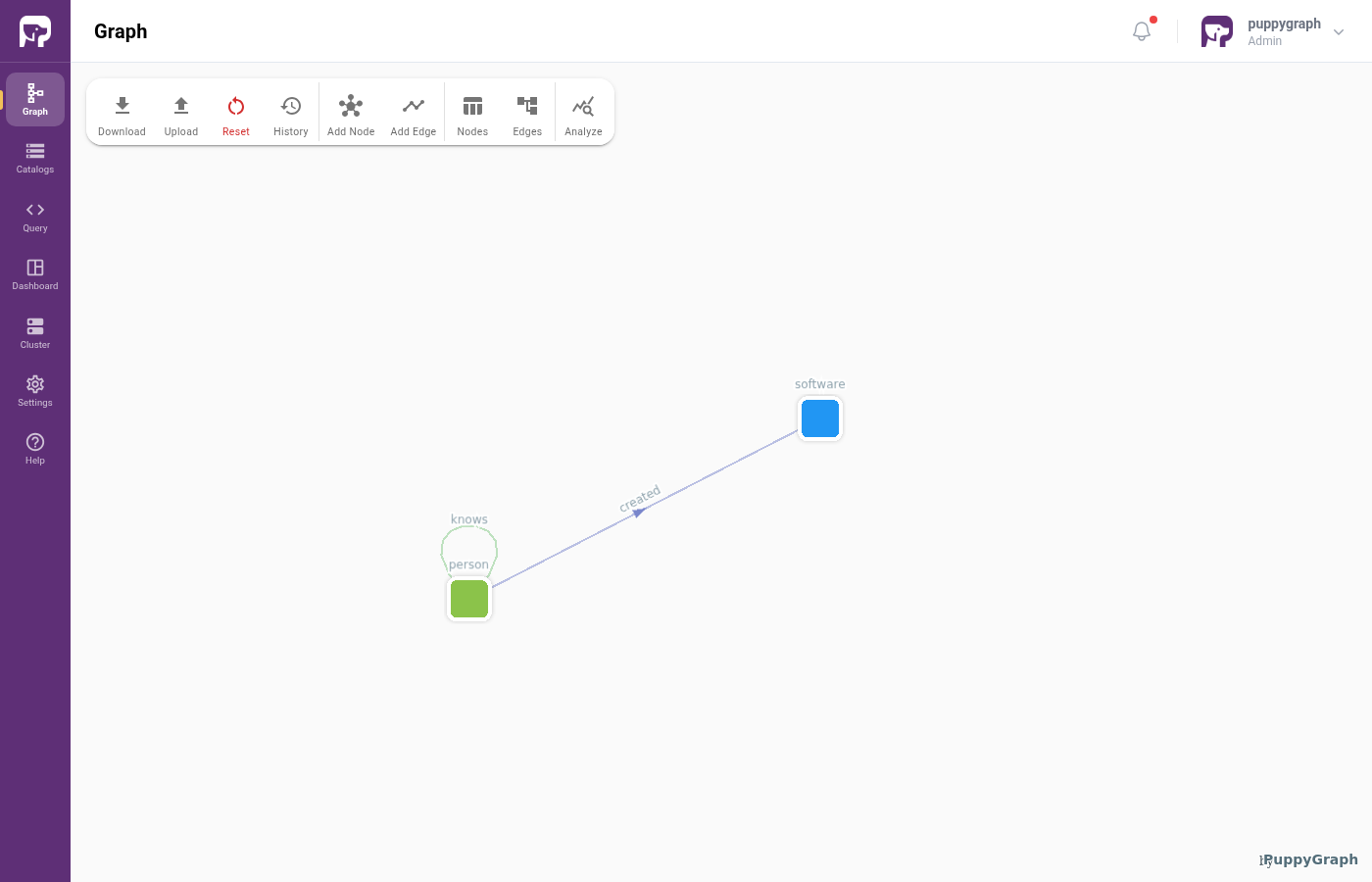
We model the data as the TinkerPop modern graph: two node types (person, software) and two edge types (knows, created).
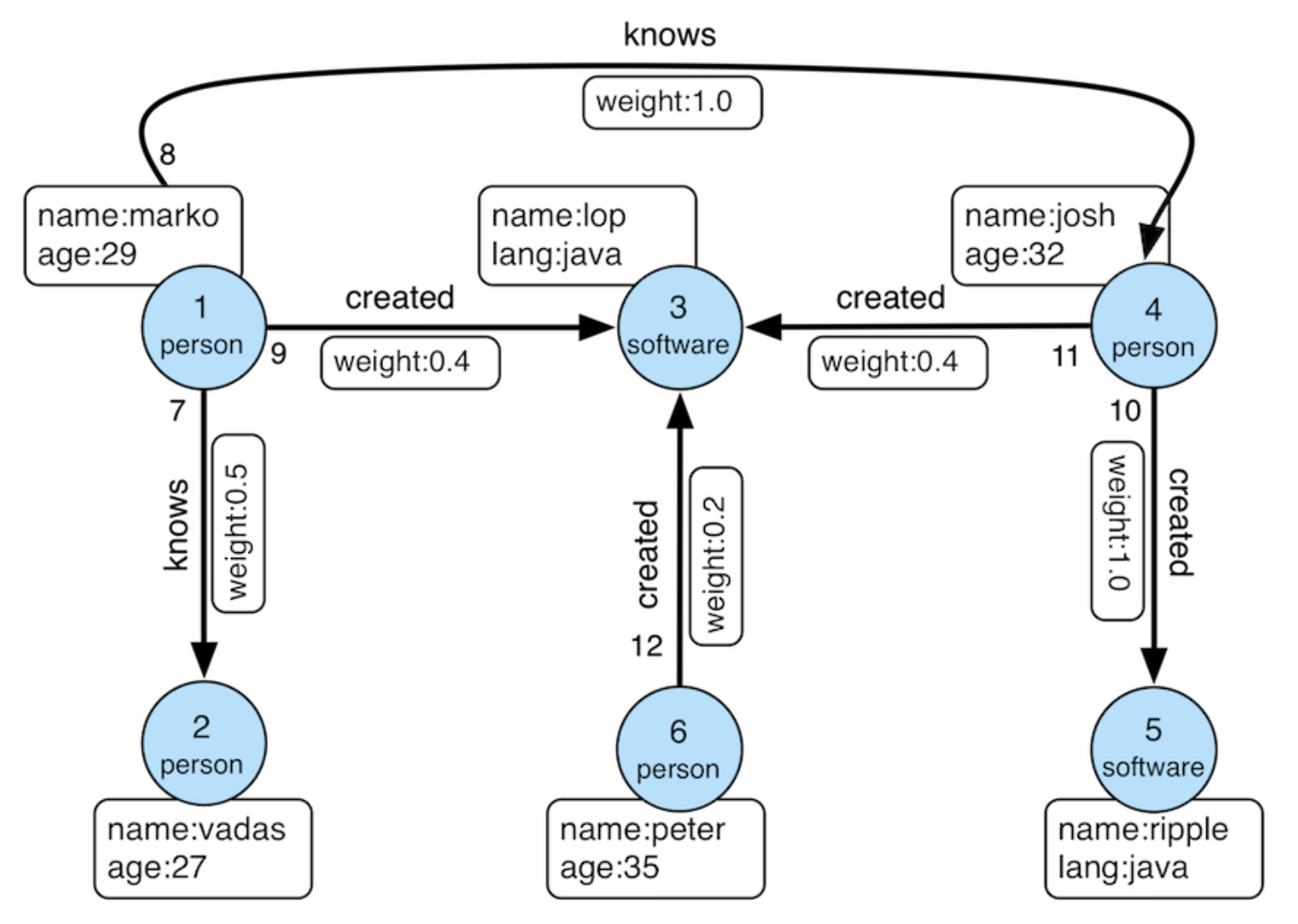
First, log into the PuppyGraph Web UI at http://localhost:8081 with the credentials configured above:
| Field | Value |
|---|---|
| Username | puppygraph |
| Password | puppygraph123 |
There are two ways to define the schema in PuppyGraph: build it interactively in the Schema Builder, or upload a JSON file directly. Pick whichever you prefer; both produce the same graph.
Build the graph in the Schema Builder
The Schema Builder is the visual editor in the PuppyGraph Web UI for adding catalogs, nodes, and edges step by step. It's the recommended path when you're modeling a graph for the first time or want to inspect what each click produces. For a deeper visual walkthrough of every dialog and field, see Modeling a Graph through the Schema Builder. The summary below covers what's needed to build the modern graph against this tutorial's Oracle data.
Connecting to Oracle
Click Create Catalog, then expand SQL Databases and pick Oracle.
Fill in the connection form:
| Field | Value |
|---|---|
| Catalog name | oracle_data |
| Username | MODERN |
| Password | modern_password |
| JDBC Connection String | jdbc:oracle:thin:@oracle-db:1521/FREEPDB1 |
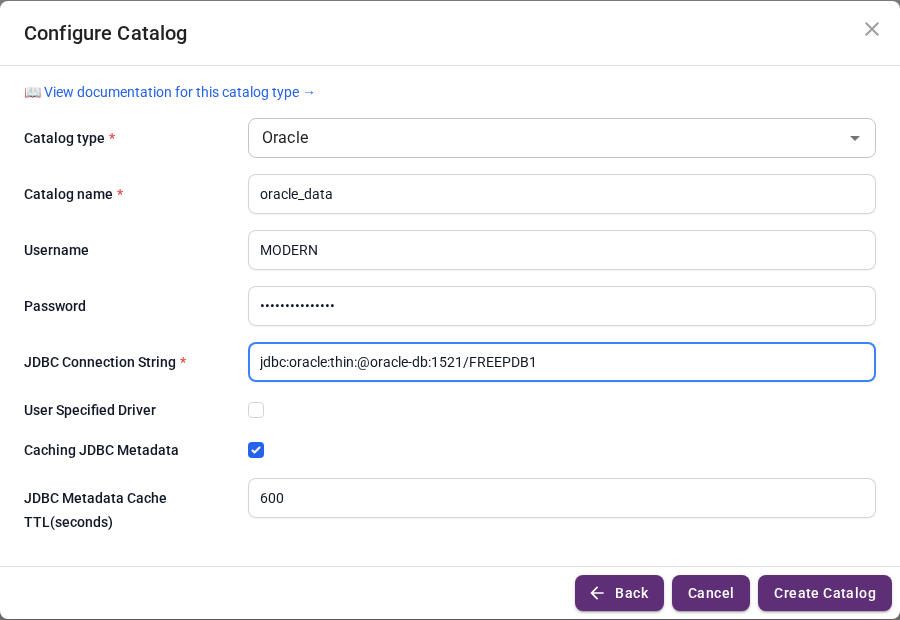
Click Create Catalog.
Adding nodes
Click Add Node in the toolbar. The Select Table for Node dialog opens. Expand oracle_data then MODERN, pick SOFTWARE, then click Next.
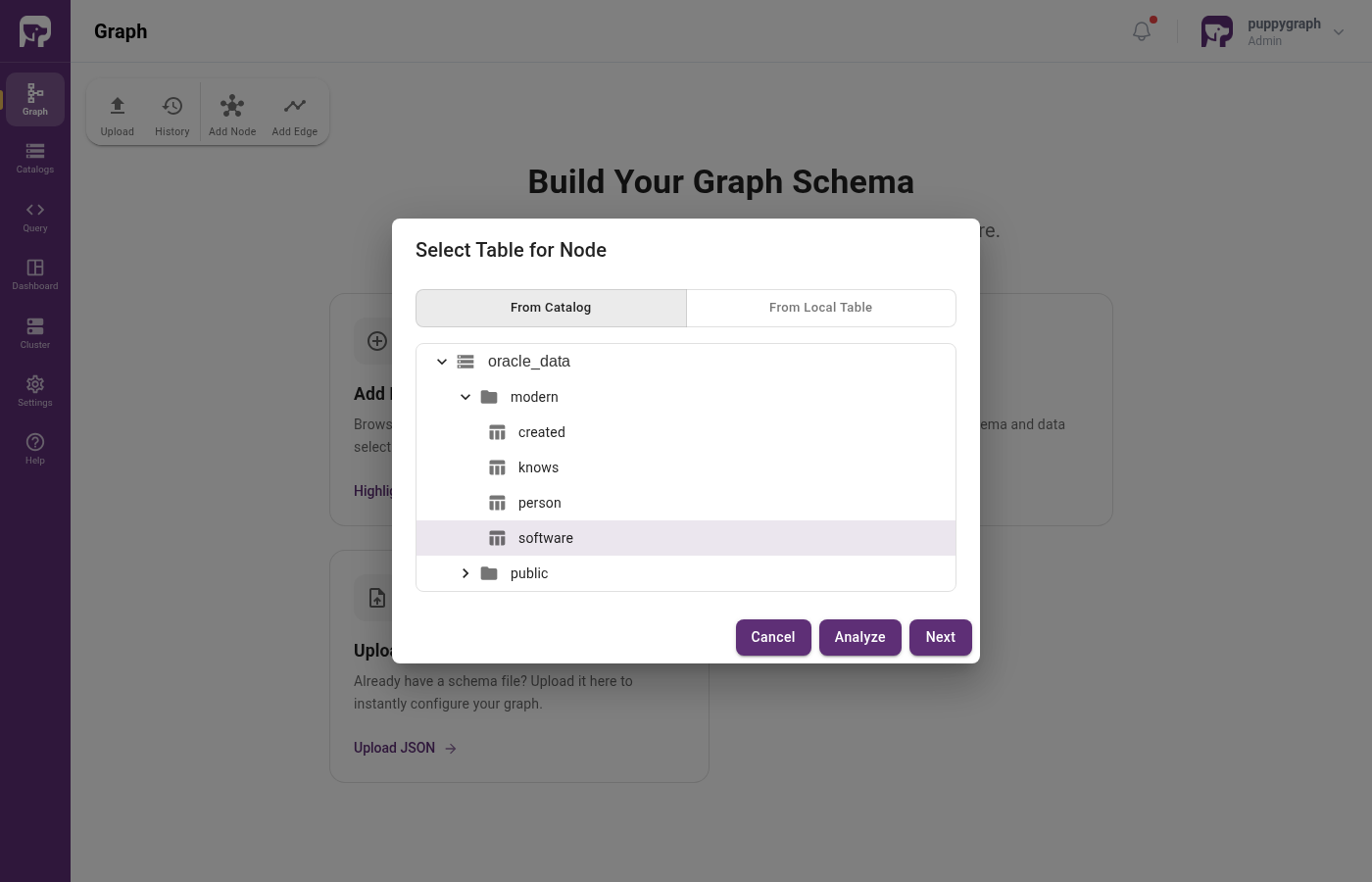
In the Add Node wizard, click Add to ID and select ID from the dropdown. The wizard moves ID into ID Columns, leaving NAME and LANG as attributes. Use each row's three-dot menu to rename the columns to lowercase (id, name, lang) so graph queries can use lowercase property names. Click Next, leave Enable Local Replication off, then click Add Node.
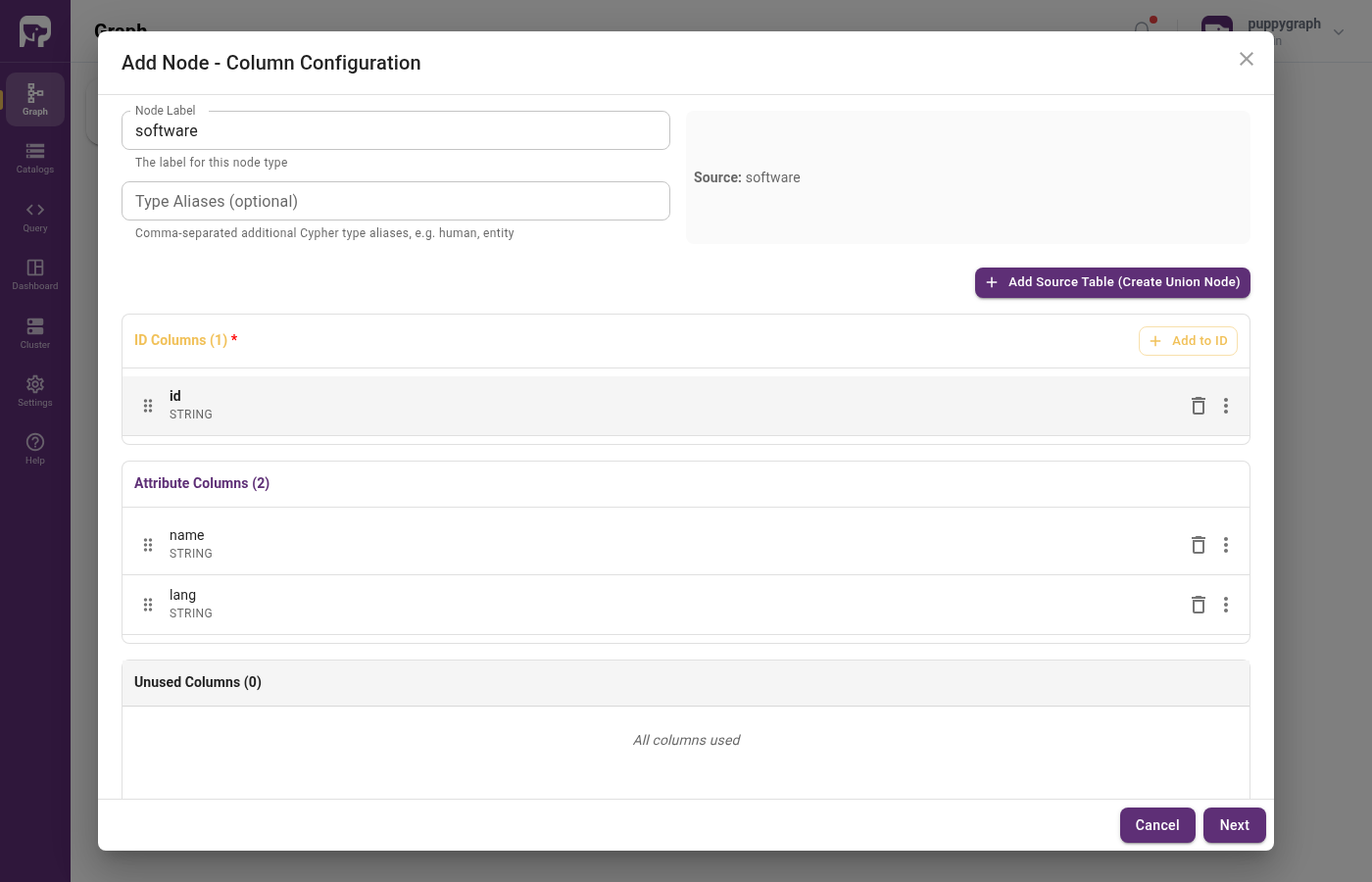
Repeat for PERSON, renaming ID, NAME, AGE to lowercase.
Adding edges
Click Add Edge in the toolbar, pick CREATED from the catalog tree, then click Next.
In the Add Edge wizard, set:
| Field | Value |
|---|---|
| From Node | person |
| To Node | software |
FROM Select Column |
FROM_ID |
TO Select Column |
TO_ID |
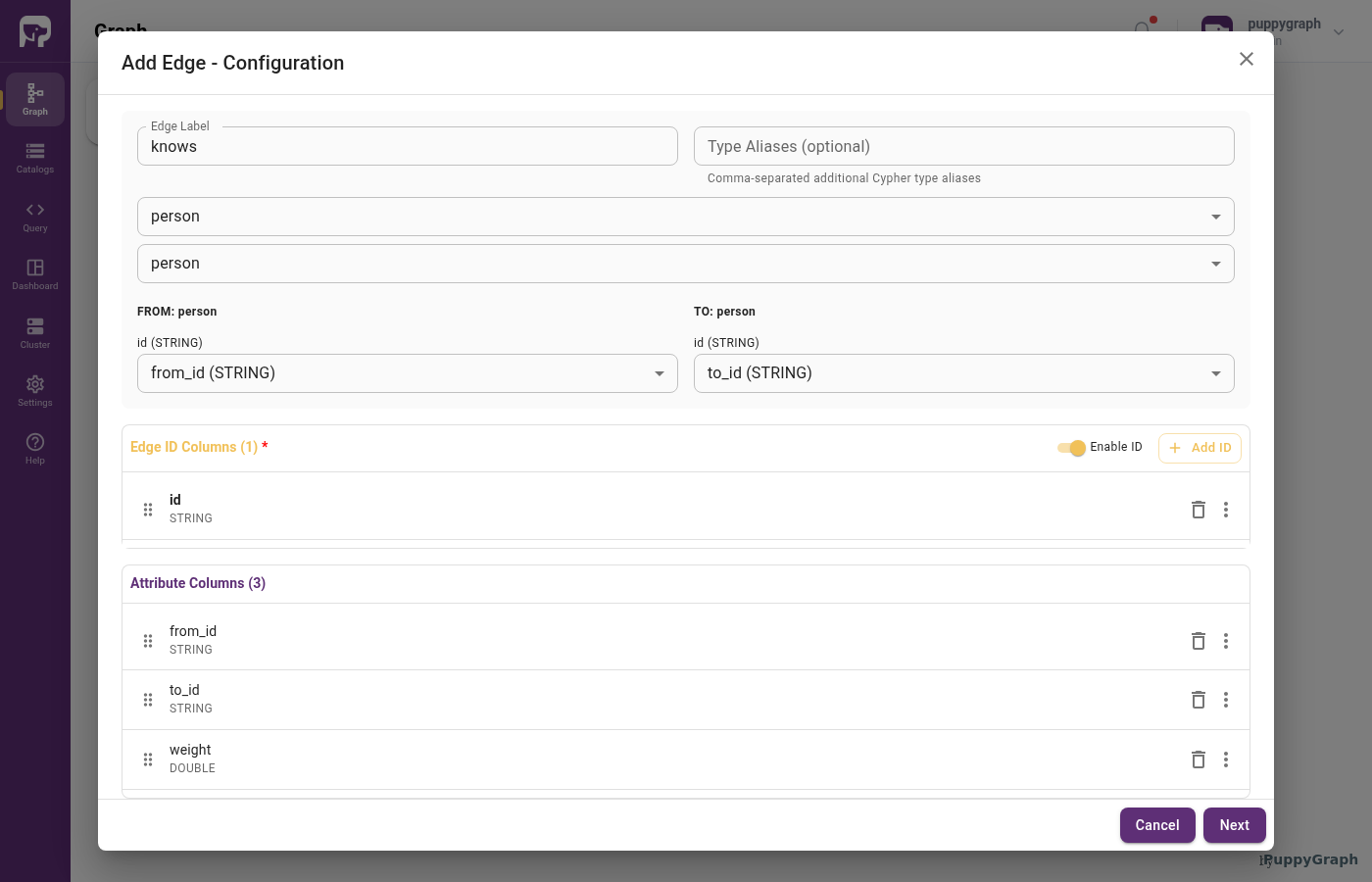
Click Add to ID and select ID to set the edge identifier. Rename the edge columns to lowercase (id, from_id, to_id, weight). Click Next, leave Enable Local Replication off, then click Add Edge.
Repeat for KNOWS with both From Node and To Node set to person. The other settings are identical to CREATED.
Upload a schema file
If you've already built the graph in the Schema Builder above, you can skip this section. The resulting schema is the same.
This method writes the full schema to a JSON file and uploads it directly. It's useful when you already have a schema for an environment and want to recreate it elsewhere (e.g. for CI, scripted setup, or copy-pasting between PuppyGraph instances).
Create a file schema.json with the following content. The mappedField blocks rename the uppercase Oracle columns to lowercase graph properties.
schema.json
{
  "catalog": [
    {
      "name": "oracle_data",
      "type": "oracle",
      "jdbc": {
        "username": "MODERN",
        "password": "modern_password",
        "jdbcUri": "jdbc:oracle:thin:@oracle-db:1521/FREEPDB1"
      }
    }
  ],
  "node": [
    {
      "label": "software",
      "dataSourceGroup": {
        "externalDataSource": {
          "enabled": true,
          "catalog": "oracle_data",
          "schema": "MODERN",
          "table": "SOFTWARE",
          "mappedField": [
            { "sourceFieldName": "ID",   "targetFieldName": "id"   },
            { "sourceFieldName": "NAME", "targetFieldName": "name" },
            { "sourceFieldName": "LANG", "targetFieldName": "lang" }
          ]
        }
      },
      "id":        [{ "name": "id",   "type": "STRING" }],
      "attribute": [
        { "name": "name", "type": "STRING" },
        { "name": "lang", "type": "STRING" }
      ]
    },
    {
      "label": "person",
      "dataSourceGroup": {
        "externalDataSource": {
          "enabled": true,
          "catalog": "oracle_data",
          "schema": "MODERN",
          "table": "PERSON",
          "mappedField": [
            { "sourceFieldName": "ID",   "targetFieldName": "id"   },
            { "sourceFieldName": "NAME", "targetFieldName": "name" },
            { "sourceFieldName": "AGE",  "targetFieldName": "age"  }
          ]
        }
      },
      "id":        [{ "name": "id",   "type": "STRING" }],
      "attribute": [
        { "name": "name", "type": "STRING" },
        { "name": "age",  "type": "INT"    }
      ]
    }
  ],
  "edge": [
    {
      "label":         "created",
      "fromNodeLabel": "person",
      "toNodeLabel":   "software",
      "dataSourceGroup": {
        "externalDataSource": {
          "enabled": true,
          "catalog": "oracle_data",
          "schema": "MODERN",
          "table": "CREATED",
          "mappedField": [
            { "sourceFieldName": "ID",      "targetFieldName": "id"      },
            { "sourceFieldName": "FROM_ID", "targetFieldName": "from_id" },
            { "sourceFieldName": "TO_ID",   "targetFieldName": "to_id"   },
            { "sourceFieldName": "WEIGHT",  "targetFieldName": "weight"  }
          ]
        }
      },
      "id":        [{ "name": "id",      "type": "STRING" }],
      "fromKey":   [{ "name": "from_id", "type": "STRING" }],
      "toKey":     [{ "name": "to_id",   "type": "STRING" }],
      "attribute": [
        { "name": "from_id", "type": "STRING" },
        { "name": "to_id",   "type": "STRING" },
        { "name": "weight",  "type": "DOUBLE" }
      ]
    },
    {
      "label":         "knows",
      "fromNodeLabel": "person",
      "toNodeLabel":   "person",
      "dataSourceGroup": {
        "externalDataSource": {
          "enabled": true,
          "catalog": "oracle_data",
          "schema": "MODERN",
          "table": "KNOWS",
          "mappedField": [
            { "sourceFieldName": "ID",      "targetFieldName": "id"      },
            { "sourceFieldName": "FROM_ID", "targetFieldName": "from_id" },
            { "sourceFieldName": "TO_ID",   "targetFieldName": "to_id"   },
            { "sourceFieldName": "WEIGHT",  "targetFieldName": "weight"  }
          ]
        }
      },
      "id":        [{ "name": "id",      "type": "STRING" }],
      "fromKey":   [{ "name": "from_id", "type": "STRING" }],
      "toKey":     [{ "name": "to_id",   "type": "STRING" }],
      "attribute": [
        { "name": "from_id", "type": "STRING" },
        { "name": "to_id",   "type": "STRING" },
        { "name": "weight",  "type": "DOUBLE" }
      ]
    }
  ]
}
In the Web UI, click Graph in the sidebar, then Upload Schema, and select schema.json.
Upload via CLI
You can also POST the schema directly:
Querying the Graph
In the PuppyGraph Web UI, click Query in the sidebar. You can run graph queries in either Cypher or Gremlin.
The following query answers "What software was created by people that marko knows?"
There are two paths in the result: marko knows josh, who created lop and ripple.
Cleanup
Shut down and remove the containers: