Building a Graph with PuppyGraph AI
Summary
In this tutorial, you will:
- Start PuppyGraph alongside a PostgreSQL container preloaded with 18 real-world sample databases.
- Connect one of those databases as a catalog.
- Ask PuppyGraph AI to explore the data and design a graph schema.
- Approve the proposed vertices and edges, then query the result.
This walkthrough uses news, a news-personalization dataset with 8 tables (users, articles, sessions, interactions, recommendations, devices, and more). Once you've worked through it, you can swap in any of the other 17 sample databases listed at the end of this page.
No schema-writing required
PuppyGraph AI surveys your tables, samples real rows, probes foreign-key relationships, and drafts the graph for you. You review and approve each proposed vertex and edge before it goes live.
For a shorter feature overview, see PuppyGraph AI. For external application patterns, see AI Integrations.
Prerequisites
- Docker with Docker Compose v2. Verify with
docker compose version. See https://docs.docker.com/compose/install/ for installation instructions. - An Anthropic API key. This walkthrough uses Claude to reason about your data. Calls to Anthropic are billed to your account at standard rates. Based on our internal testing, a single graph build against
newscosts roughly $0.30-$0.60 on Claude Opus; your actual cost may vary depending on data size and the number of tables PuppyGraph AI needs to explore. Get a key at https://console.anthropic.com/ if you don't have one.
Using a different AI API
PuppyGraph AI also works with the OpenAI Chat Completions API and with any API that implements it, including Google Gemini's compatibility endpoint. See Use OpenAI instead below for the environment block to substitute, and Configure the Model Endpoint for the full set of options.
Setup
Start the stack
 Create a file
 docker-compose.yaml with the following content:
docker-compose.yaml
# Try PuppyGraph AI against a sample dataset.
#
# Starts PuppyGraph alongside a Postgres image that comes preloaded with 18
# small, real-world sample databases (news personalization, credit profiles,
# museum artifacts, polar research equipment, ...). Once both are up, the
# PuppyGraph AI in the web UI can browse the data and build a graph schema
# for you.
#
# Quick start:
#   export ANTHROPIC_API_KEY=sk-ant-...
#   docker compose up -d
#
# Open http://localhost:8081 and log in (puppygraph / puppygraph123).
#
# Required:
#   ANTHROPIC_API_KEY     -- your Anthropic API key for PuppyGraph AI
#                           (https://console.anthropic.com/)
# Optional:
#   AI_MODELS             -- comma-separated model IDs shown in the AI model
#                           selector; the first one is the default
#   PUPPYGRAPH_IMAGE      -- defaults to puppygraph/puppygraph:latest;
#                           use 1.15.0 or later
services:
  puppygraph:
    image: ${PUPPYGRAPH_IMAGE:-puppygraph/puppygraph:latest}
    pull_policy: always
    container_name: ai-agent-puppygraph
    environment:
      PUPPYGRAPH_USERNAME: puppygraph
      PUPPYGRAPH_PASSWORD: puppygraph123
      AI_ENABLED: "true"
      AI_MODELS: ${AI_MODELS:-claude-opus-5-5,claude-sonnet-5,claude-haiku-4-5-20251001}
      AI_API_KEY: ${ANTHROPIC_API_KEY:?Set ANTHROPIC_API_KEY for PuppyGraph AI}
    ports:
      - "8081:8081"   # Web UI
      - "8182:8182"   # Gremlin
      - "7687:7687"   # Bolt (Neo4j-compatible)
    networks:
      - ai-agent-net
  postgres:
    # Sample databases from the LiveSQLBench-Base-Lite benchmark (livesqlbench.ai).
    image: shawnxxh/bird-interact-postgresql:latest
    container_name: ai-agent-postgres
    hostname: postgres
    environment:
      - POSTGRES_USER=root
      - POSTGRES_PASSWORD=123123
      # Required by the image's initialization scripts.
      - TZ=Asia/Hong_Kong
    # No host port mapping -- PuppyGraph reaches Postgres internally over
    # ai-agent-net. Skipping the mapping avoids collision with a Postgres
    # already running on the host's 5432.
    volumes:
      - sample_data:/var/lib/postgresql/data
    networks:
      - ai-agent-net

networks:
  ai-agent-net:
    name: ai-agent-net

volumes:
  sample_data:
    name: ai_agent_sample_data
Default passwords
The compose file ships with default passwords for convenience. Change the PUPPYGRAPH_USERNAME and PUPPYGRAPH_PASSWORD environment variables before running on a publicly accessible machine.
Export your Anthropic API key and start the stack:
If port 8081 is already in use, see Already have something on port 8081? below.
Use OpenAI instead
To run this walkthrough against OpenAI, replace the AI_* variables in the
compose file with:
      AI_ENABLED: "true"
      AI_API_STRUCTURE: openai_style
      AI_MODELS: ${AI_MODELS:-gpt-5.6}
      AI_API_KEY: ${OPENAI_API_KEY:?Set OPENAI_API_KEY for PuppyGraph AI}
Then export OPENAI_API_KEY instead of ANTHROPIC_API_KEY before starting the
stack. Set AI_MODELS whenever you switch, because its default value lists
Anthropic models. The rest of the walkthrough is identical, though the exact
wording and the order in which PuppyGraph AI explores tables will differ.
The same approach points PuppyGraph AI at an OpenAI-compatible endpoint of your
own by adding AI_BASE_URL. See
Configure the Model Endpoint.
To run the walkthrough with Google Gemini models, use the settings in
Using Gemini with PuppyGraph AI.
Wait for initialization
On the very first start, the Postgres image initializes all 18 sample databases (approximately 175 tables total). This takes about 90 seconds. Watch the progress with:
Subsequent starts reuse the volume and come up in seconds.
Wait for PuppyGraph to finish booting (up to about a minute after compose up). This one-liner polls the readiness endpoint, which answers 200 once PuppyGraph can accept a graph schema and serve queries, and prints PuppyGraph is ready.:
until curl -sf -o /dev/null http://localhost:8081/readyz; do
  sleep 3
done
echo "PuppyGraph is ready."
/readyz needs PuppyGraph 1.15.0 or later. On an older image the loop keeps waiting: pull the latest image and recreate the container (docker compose pull && docker compose up -d), then run the loop again.
If it never completes, run docker compose logs puppygraph | tail -50 to check for errors.
Step 1 - Log in to the web UI
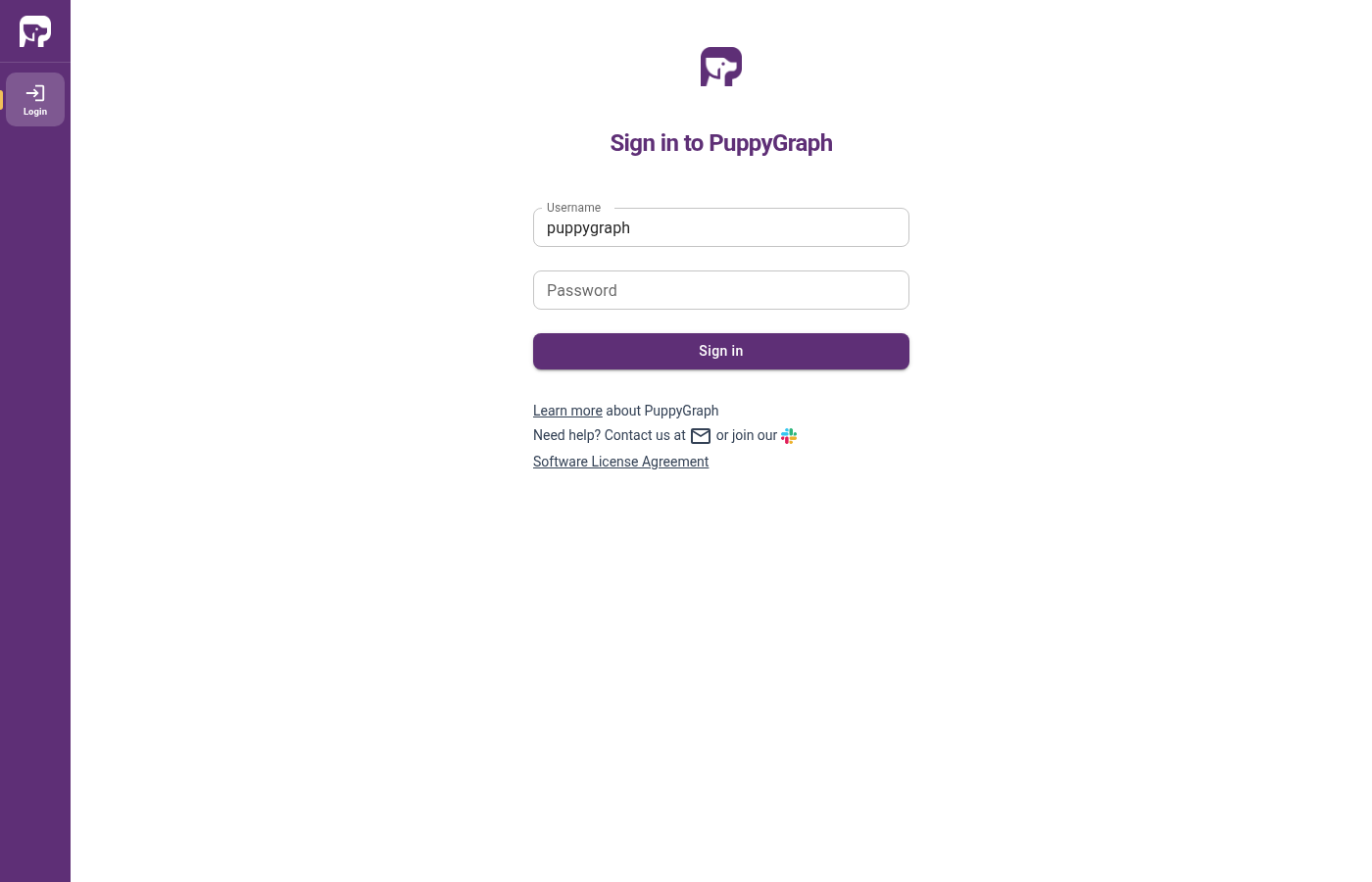
Open http://localhost:8081 and sign in:
| Field | Value |
|---|---|
| Username | puppygraph |
| Password | puppygraph123 |
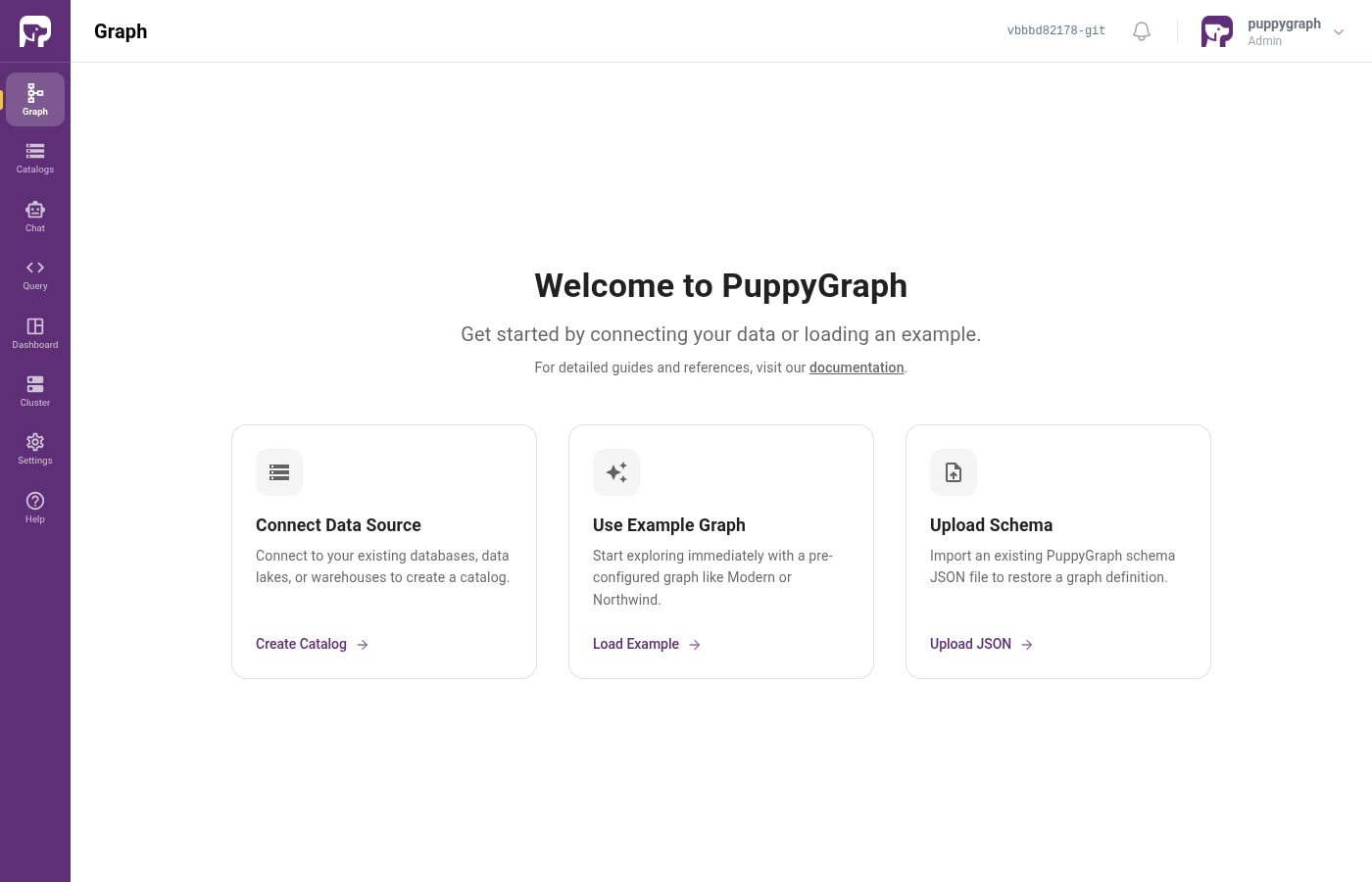
You'll land on the Graph page. It's empty: no graph schema yet, and no data sources connected.
Step 2 - Connect the sample database
PuppyGraph needs to know where your tabular data lives before it can model it as a graph.
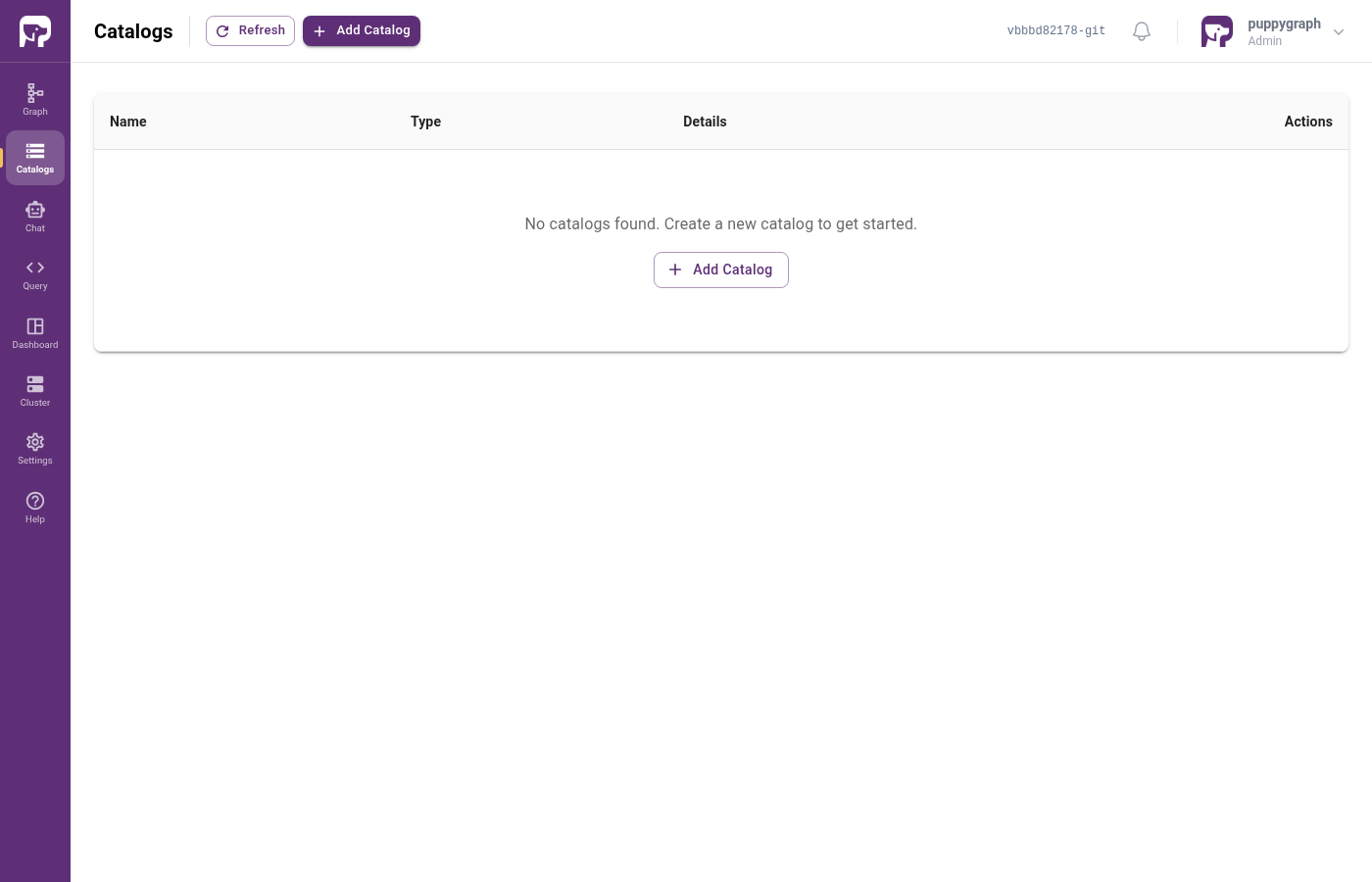
Click Catalogs in the left nav. The list is empty:
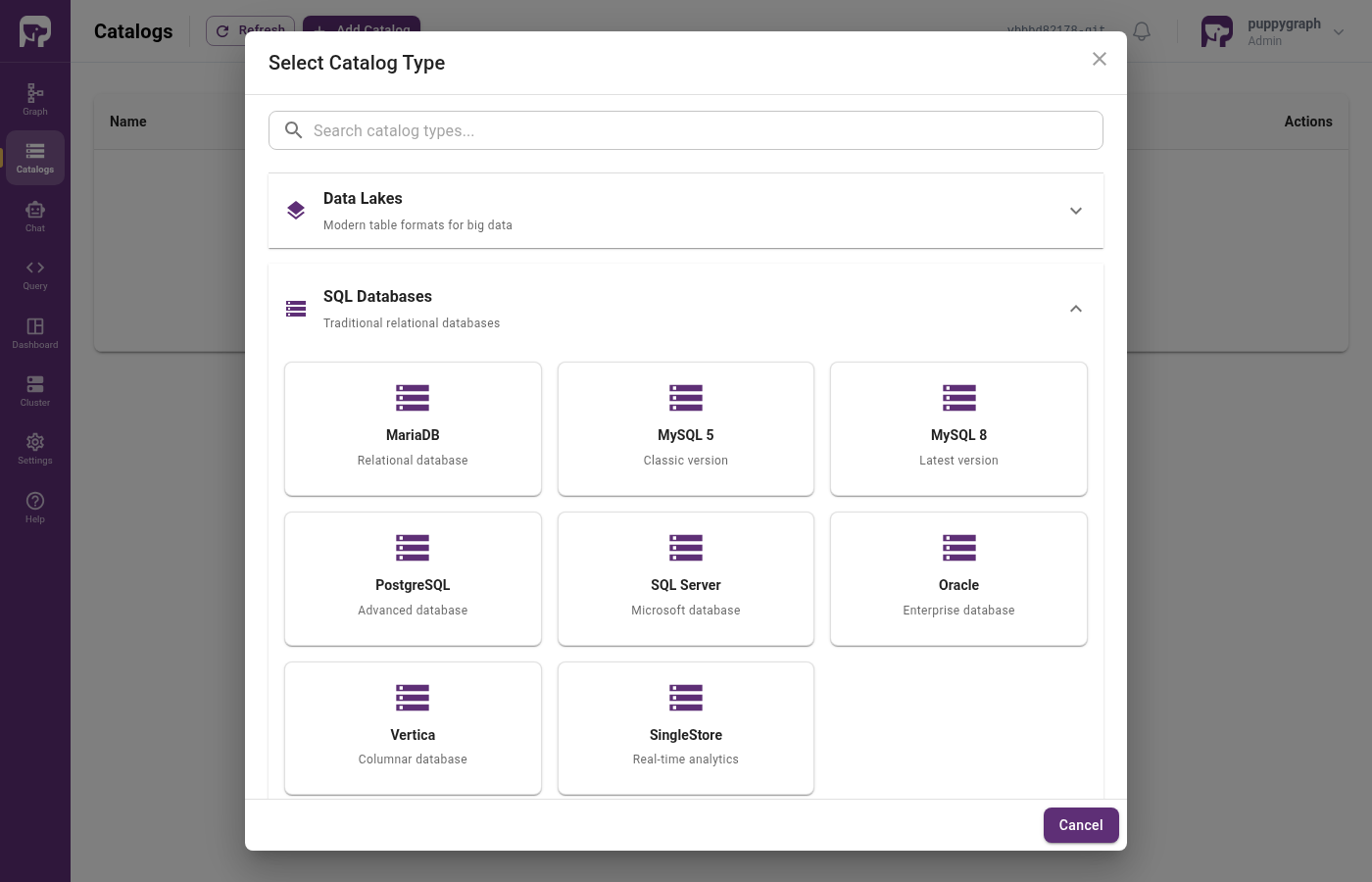
Click + Add Catalog. A "Select Catalog Type" picker opens. Expand SQL Databases and choose PostgreSQL:
Fill in the connection details:
| Field | Value |
|---|---|
| Catalog name | news |
| Authentication | Username and password |
| Username | root |
| Password | 123123 |
| JDBC Connection String | jdbc:postgresql://postgres:5432/news_template |
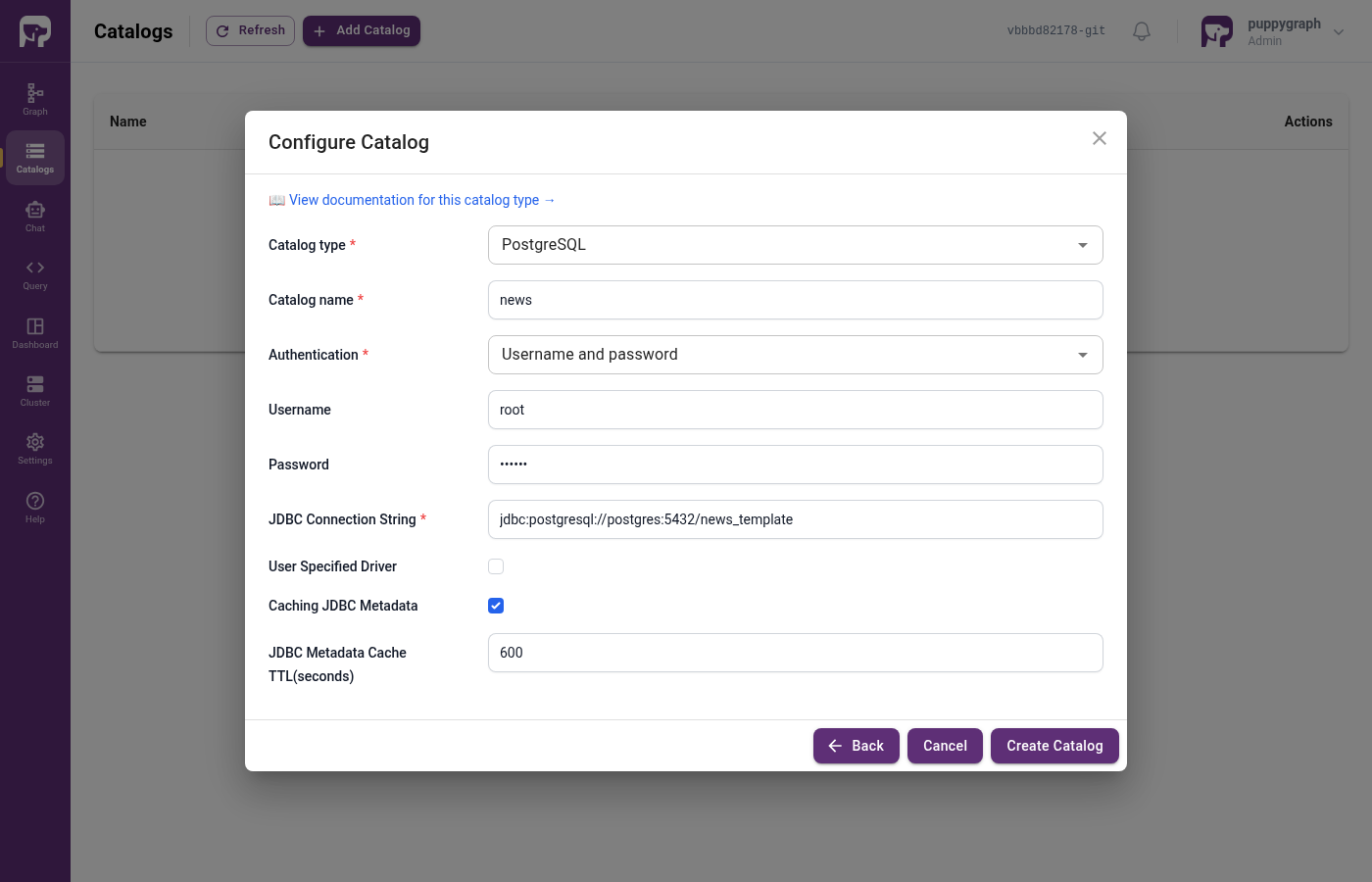
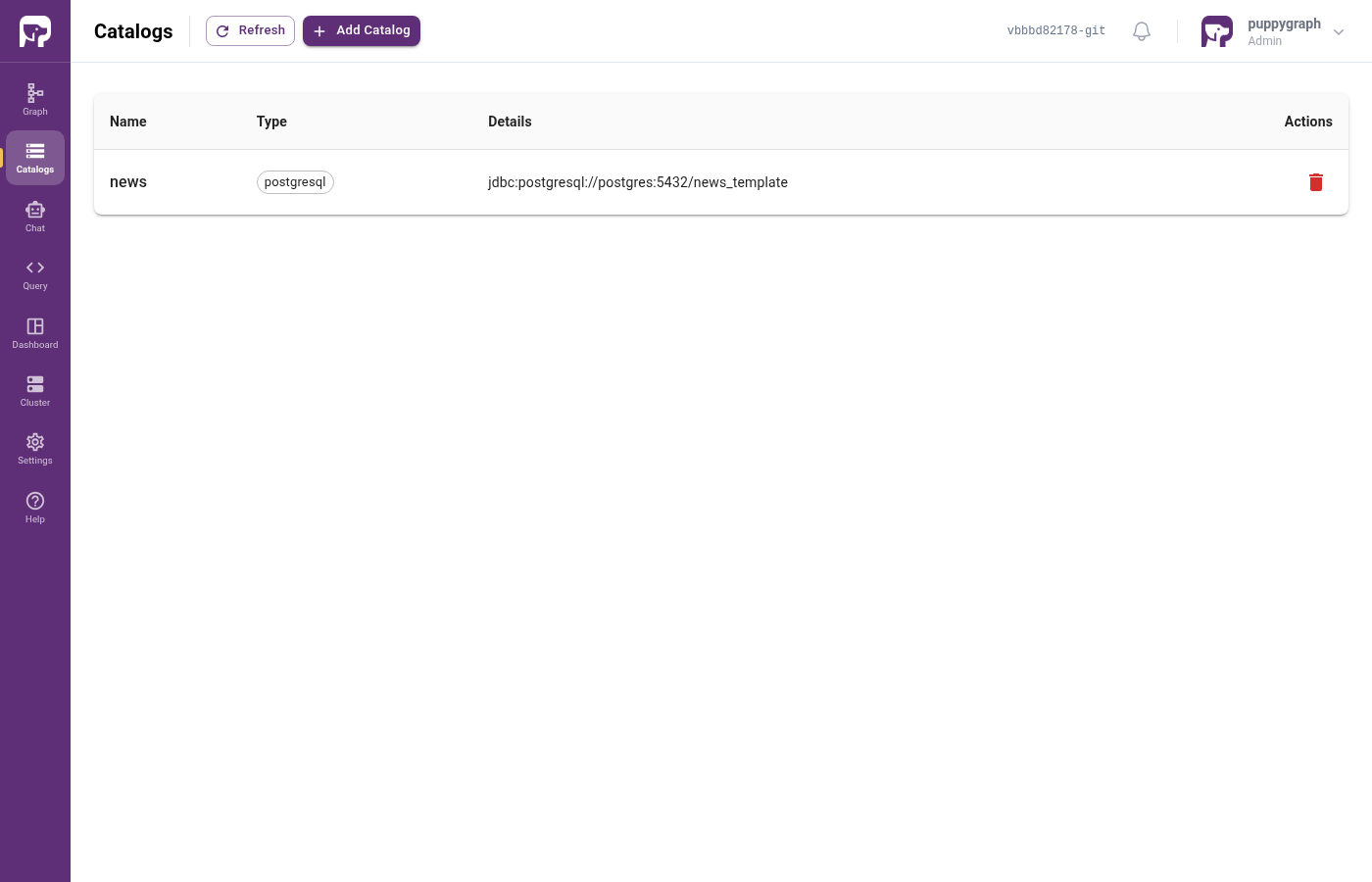
Click Create Catalog. The catalog list now shows news with its 8 source tables:
Prefer the terminal?
You can register the same catalog via the REST API:
curl -u puppygraph:puppygraph123 -H 'Content-Type: application/json' \
  -X POST http://localhost:8081/schema -d '{
    "catalog":[{
      "name":"news","type":"postgresql",
      "jdbc":{
        "jdbcUri":"jdbc:postgresql://postgres:5432/news_template",
        "username":"root","password":"123123",
        "driverClass":"org.postgresql.Driver"
      }
    }],
    "node":[],"edge":[],"localTable":[]
  }'
Step 3 - Open PuppyGraph AI
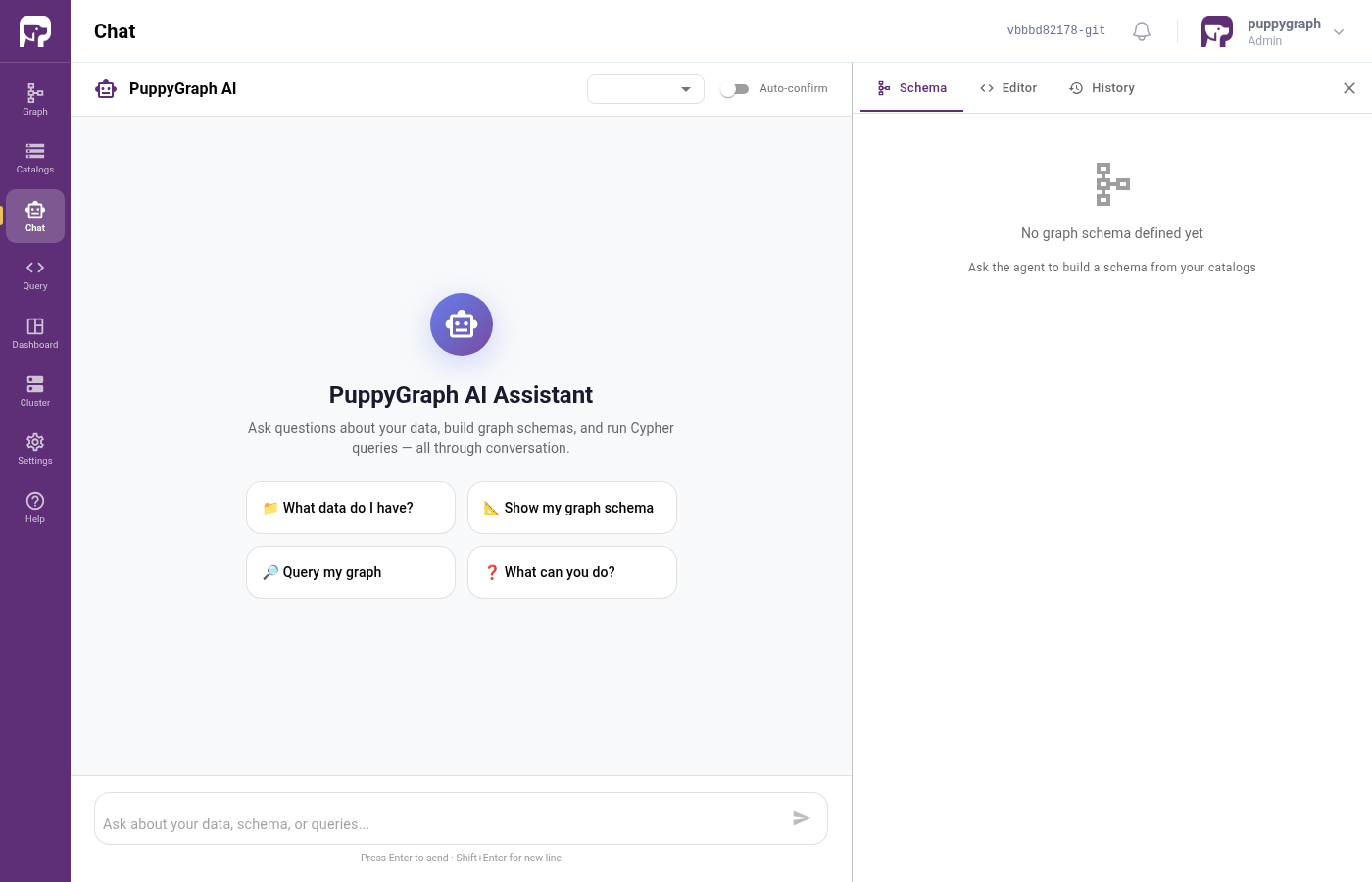
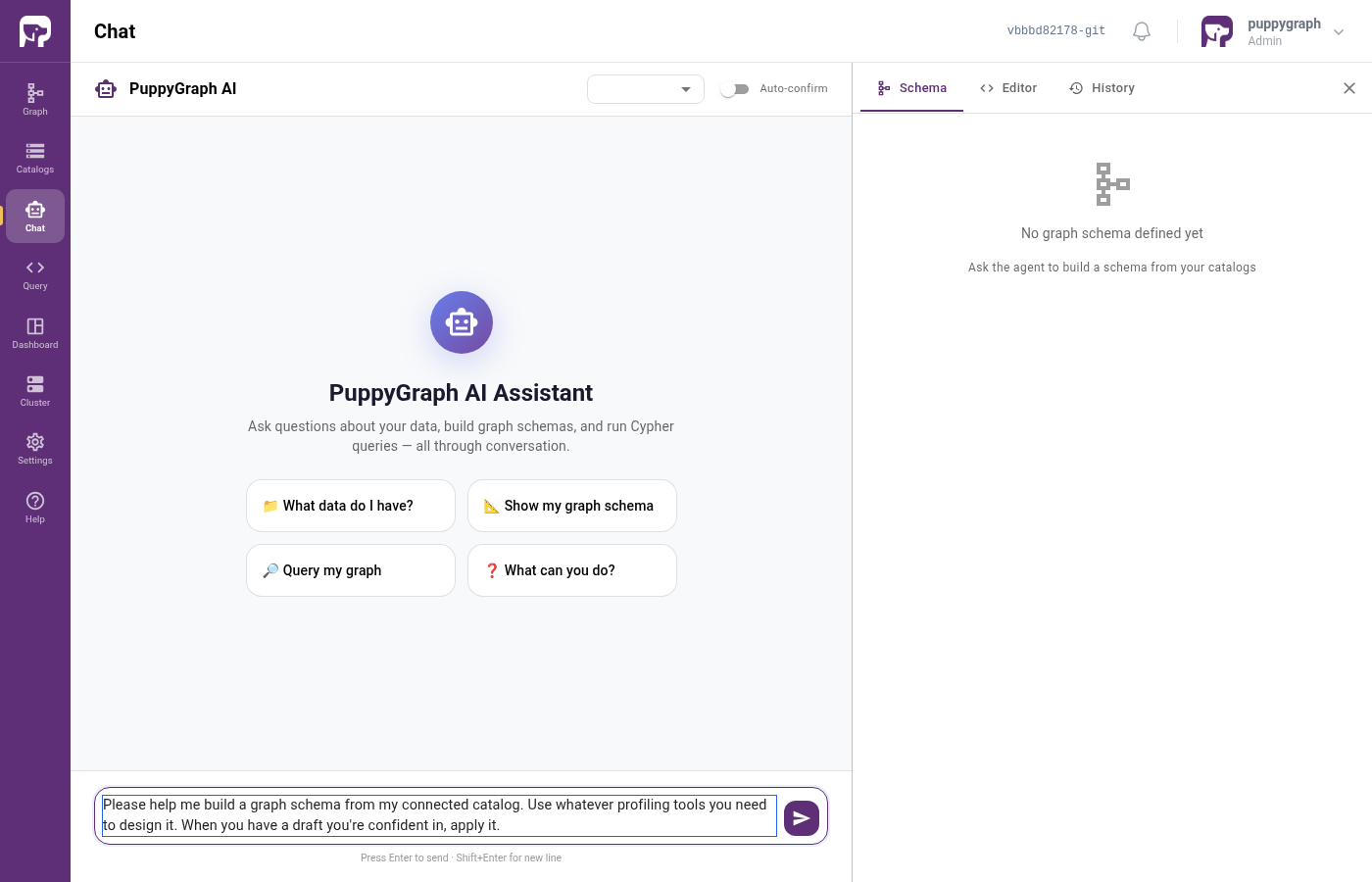
Click AI in the left nav. PuppyGraph AI introduces itself with a few suggested prompts:
Auto-confirm toggle
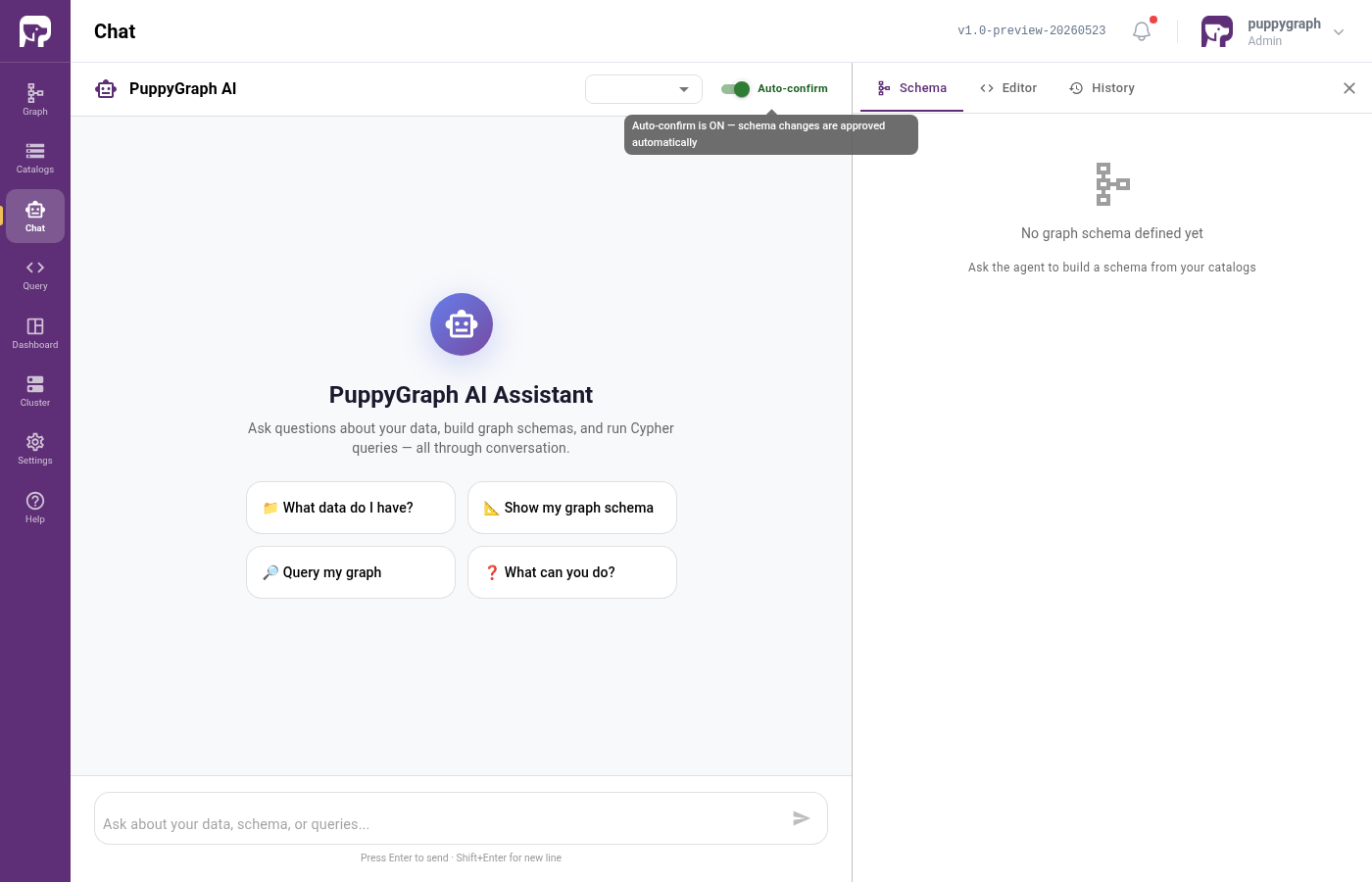
At the top of the chat panel you'll see an Auto-confirm toggle. When PuppyGraph AI proposes a vertex or edge, it normally asks you to approve each one. Leave Auto-confirm off to inspect every proposal; switch it on to let PuppyGraph AI complete the whole graph uninterrupted.
For this walkthrough, leave it off so you can see what gets proposed. You can flip it on at any point to speed things up.
Step 4 - Ask for a graph
Paste this into the message box and click Send:
Please help me build a graph schema from my connected catalog. Use
whatever profiling tools you need to design it. When you have a draft
you're confident in, apply it.
Step 5 - Watch PuppyGraph AI work
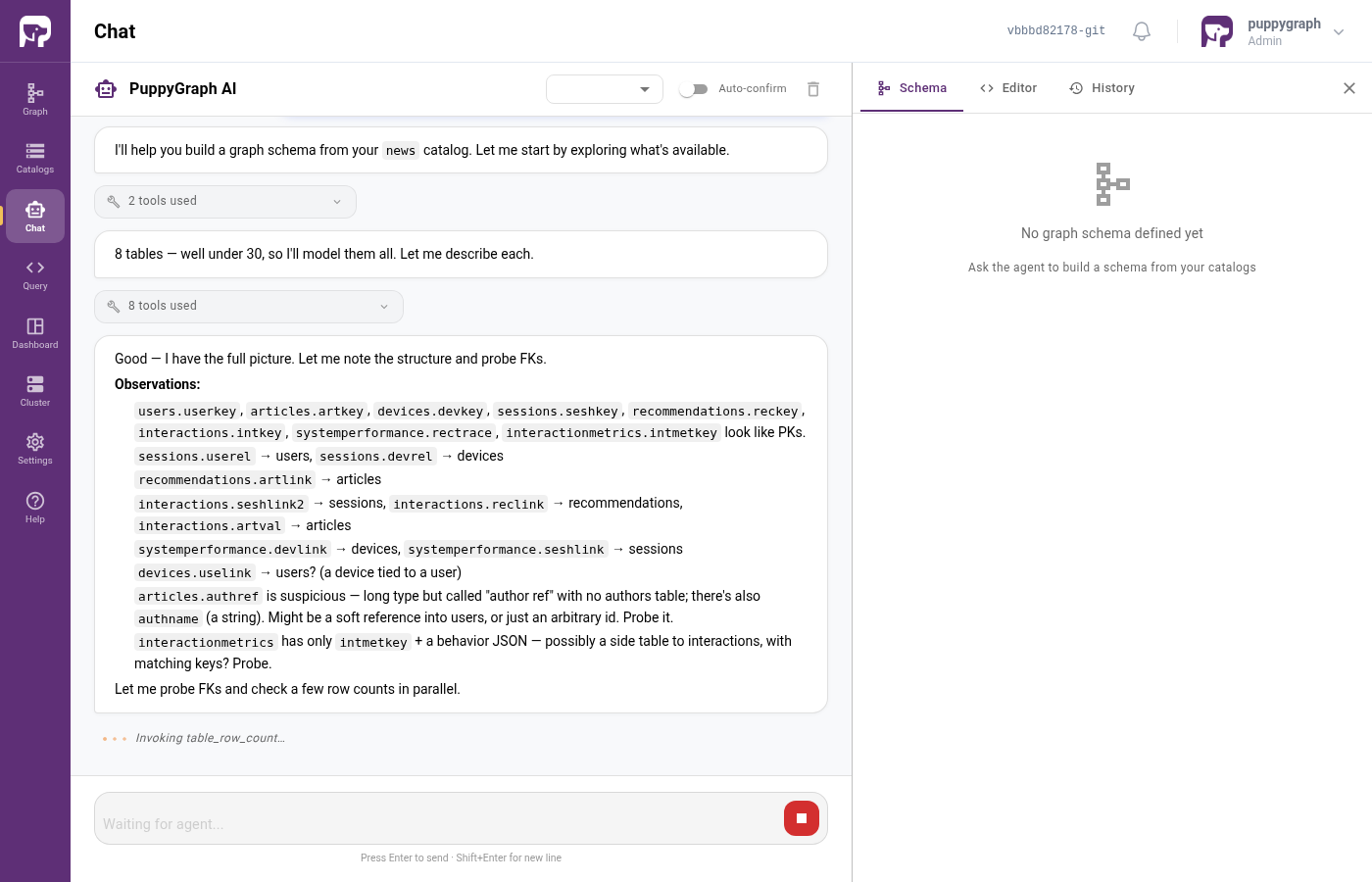
PuppyGraph AI doesn't guess. It actively explores your data:
- Surveys the catalog: which tables exist, what columns they have, what their types are.
- Samples real rows and profiles columns to spot ID-shaped values, enums, free-text, and timestamps.
- Probes foreign-key relationships: for every candidate pair of tables, it tries the join against real data to measure the hit rate.
- Drafts a graph schema: which tables become vertices, which become edges, what the key columns are.
- Proposes each vertex and edge to you one at a time.
- Verifies each label can return rows once applied.
You'll see all of this stream live in the chat. For news, expect 2-6 minutes wall-clock time and 50-100 individual steps.
Step 6 - Approve the proposals
Each proposed vertex and edge appears as a card with Approve / Reject buttons. The card spells out exactly what PuppyGraph AI wants to add: source table, ID column, attribute mappings, and (for edges) the two endpoints.
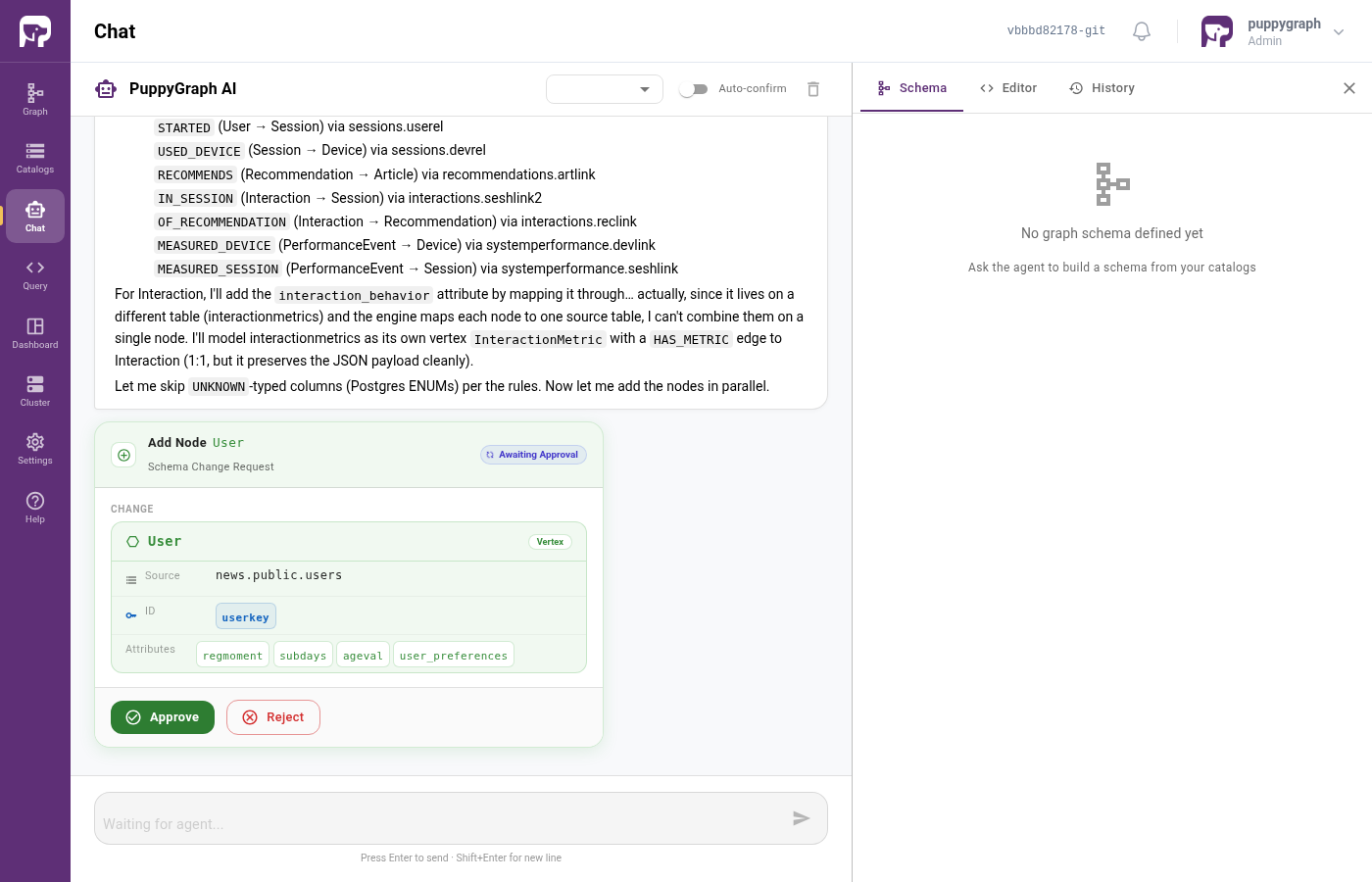
For news you'll see approximately 8 vertex cards and 10 edge cards. Approve them in order, or flip the Auto-confirm toggle on to let PuppyGraph AI proceed without interruption.
If something looks wrong, click Reject and tell PuppyGraph AI what to change (for example, "use userkey as the ID for User, not userid"). It will revise and re-propose.
Step 7 - Your graph
When PuppyGraph AI finishes, the right-hand Schema panel shows the graph it built. For news you should see something like:
- Vertices:
User,Device,Article,Session,Recommendation,Interaction,InteractionMetrics,SystemPerformance - Edges: users own devices, sessions start with devices, articles get recommended, interactions belong to sessions, and so on.
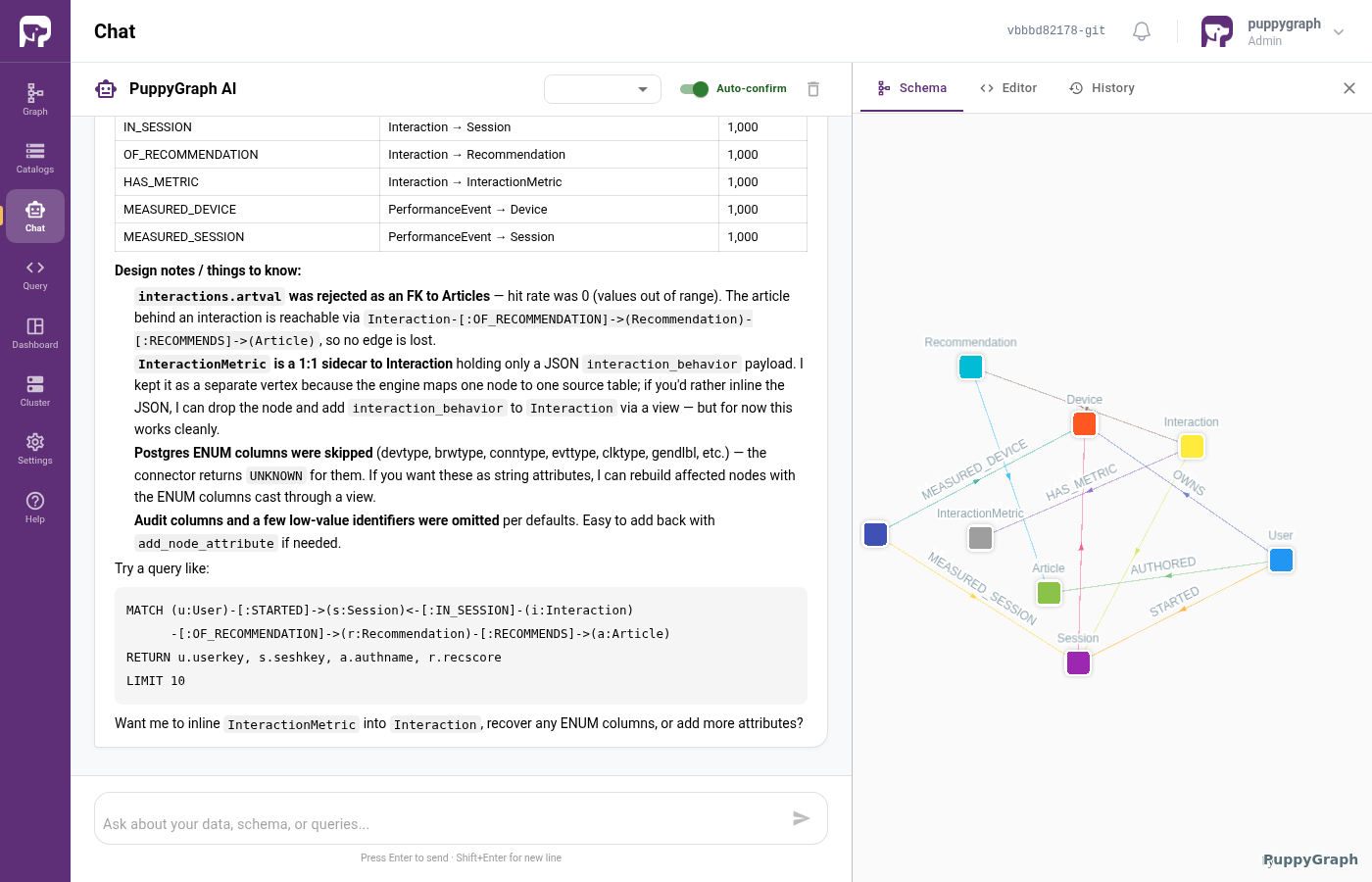
Click Graph in the left nav for a full-page view:
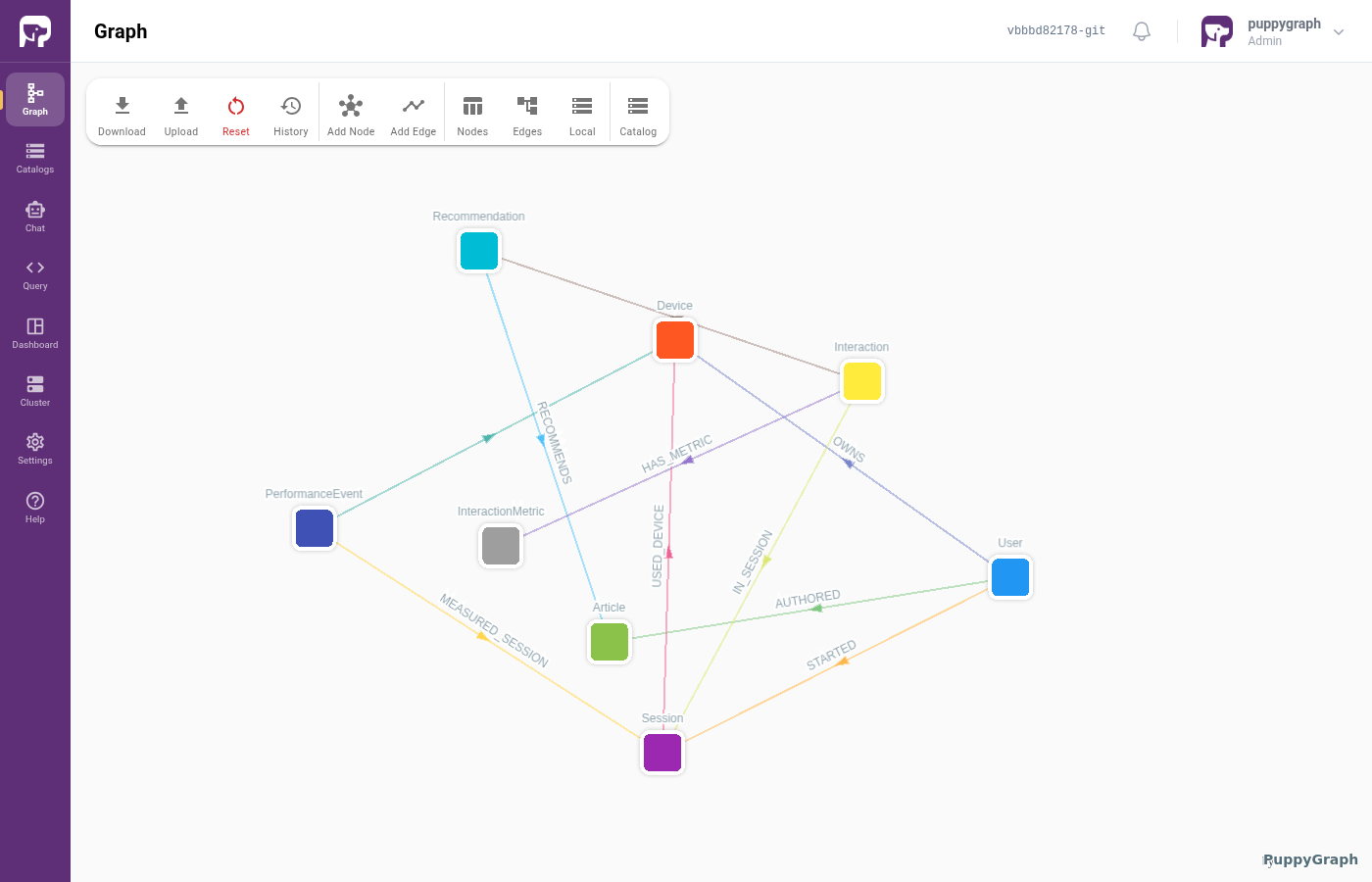
The exact set of labels and edges varies slightly run-to-run. PuppyGraph AI uses its judgment, and more than one reasonable graph can be derived from a given dataset.
Step 8 - Query it
Click Query. The data lives on Postgres; PuppyGraph translates Cypher or Gremlin queries into joins and runs them against the underlying tables, so there's no ETL step and every query sees fresh data.
Try a one-hop traversal:
Or a longer path: which articles did each user end up reading after a recommendation?
MATCH (u:User)-[:OWNS]->(d:Device)-[:STARTED]->(s:Session)
     -[:RECOMMENDS]->(r:Recommendation)-[:OF_RECOMMENDATION]->(a:Article)
RETURN u.userkey, a.authname, a.pubtime
LIMIT 10
Adjust the labels and edge names to match what PuppyGraph AI actually built. The Schema panel in the chat has the authoritative list. PuppyGraph AI also accepts natural-language questions like "show me users who clicked recommended articles in the last week" and will translate them into Cypher for you.
Try another dataset
PuppyGraph already sees all 18 sample databases. To try a different domain, add a new catalog from Catalogs > + Add Catalog with JDBC URI jdbc:postgresql://postgres:5432/<name>_template:
| Domain | Catalog name | Tables |
|---|---|---|
| SETI / signal analysis | alien |
11 |
| Archaeological 3D scanning | archeology |
14 |
| Credit / financial profiles | credit |
6 |
| Data flow / compliance management | cross_db |
7 |
| Crypto exchange trading | crypto |
10 |
| Illicit marketplace monitoring | cybermarket |
9 |
| Disaster relief logistics | disaster |
10 |
| Fake-account / abuse detection | fake |
9 |
| Gaming peripherals / devices | gaming |
8 |
| Insider trading surveillance | insider |
7 |
| Mental health assessments | mental |
9 |
| Museum artifact conservation | museum |
14 |
| News personalization | news |
8 |
| Polar research equipment | polar |
14 |
| Industrial robot telemetry | robot |
10 |
| Solar plant performance | solar |
8 |
| Vaccine cold-chain logistics | vaccine |
7 |
| Virtual-idol fan communities | virtual |
14 |
The datasets come from the public LiveSQLBench-Base-Lite benchmark: each is a realistic schema with foreign keys, enums, and numeric measures drawn from a different industry.
Use your own data
To point PuppyGraph AI at your own PostgreSQL, MySQL, Snowflake, Databricks, or Iceberg data, add another catalog through the same Catalogs > + Add Catalog flow with your connection details. PuppyGraph AI works the same way against any catalog PuppyGraph can read.
For the full catalog reference (every supported source type and its configuration options) see the Connecting section.
Cleaning up
To stop the containers but keep the sample data for next time:
To stop the containers and delete the sample-data volume (Postgres will re-initialize on the next compose up):
To start fresh against the same data without reloading Postgres, clear the live graph and start over from Step 2:
Troubleshooting
Postgres takes a while on first start
It's loading approximately 175 tables across 18 databases. Give it about 90 seconds. Watch the progress with:
If you try to register a catalog before its database has finished initializing, you'll get a 500 error. Wait a moment and retry.
ANTHROPIC_API_KEY is required on docker compose up
The compose file refuses to start without an API key. Either export it in your shell before running docker compose up:
Or put it in a local .env file next to docker-compose.yaml:
If you followed Use OpenAI instead, the same applies to
OPENAI_API_KEY.
PuppyGraph AI pauses and nothing happens
If Auto-confirm is off, every schema change waits for your approval. Scroll the chat to find the latest Schema Change Request card and click Approve (or Reject with a note if you want it revised).
Closing the browser tab also pauses PuppyGraph AI: the proposal cards need a live browser session to receive your clicks. Reopen the tab and the conversation picks up where it left off.
Already have something on port 8081?
Edit the ports: section of docker-compose.yaml to map a different host port (for example, "18081:8081"), then visit http://localhost:18081.
How do I inspect the underlying data?
The Postgres container doesn't publish its port to the host, but you can open a shell directly:
docker exec -it ai-agent-postgres psql -U root -d news_template
\dt           -- list tables
SELECT * FROM users LIMIT 5;
Substitute <name>_template for any of the 18 sample databases.