Querying Google Spanner Data as a Graph
Summary
In this tutorial, you will:
- Create a Google Spanner database, load example data, and define a property graph (
FinGraph) on top. - Start a PuppyGraph container and connect it to Spanner over JDBC.
- Run Cypher and Gremlin queries against the Spanner data as a graph.
Requires a real Spanner instance
This tutorial points at a Spanner database in your own GCP project. PuppyGraph connects via the official Spanner JDBC driver; a service-account key file is mounted into the container so the driver can authenticate. See Connecting to Spanner for the connection reference.
Prerequisites
dockeris available on the host where you'll run PuppyGraph.- A GCP project with the Cloud Spanner API enabled, plus permission to create instances and databases.
- A service account with
roles/spanner.databaseReader(or higher) on the database, and a downloaded JSON key file.
Setup
Create a service-account key file
 In the GCP console, create or pick a service account, grant it
 roles/spanner.databaseReader on the Spanner instance, then generate a new JSON key and save it locally as key.json. This is the file the PuppyGraph container will read.
Data Preparation
In the GCP console, create or pick a Cloud Spanner instance, then create a database with the Google Standard SQL dialect.
Open Spanner Studio, paste the following SQL into the editor, and run it to create tables, define a property graph, and insert sample data.
fingraph.sql
CREATE TABLE Person (
  id        INT64 NOT NULL,
  name      STRING(MAX),
  birthday  TIMESTAMP,
  country   STRING(MAX),
  city      STRING(MAX),
) PRIMARY KEY (id);

CREATE TABLE Account (
  id           INT64 NOT NULL,
  create_time  TIMESTAMP,
  is_blocked   BOOL,
  nick_name    STRING(MAX),
) PRIMARY KEY (id);

CREATE TABLE PersonOwnAccount (
  id          INT64 NOT NULL,
  account_id  INT64 NOT NULL,
  create_time TIMESTAMP,
  FOREIGN KEY (account_id) REFERENCES Account (id)
) PRIMARY KEY (id, account_id),
  INTERLEAVE IN PARENT Person ON DELETE CASCADE;

CREATE TABLE AccountTransferAccount (
  id           INT64 NOT NULL,
  to_id        INT64 NOT NULL,
  amount       FLOAT64,
  create_time  TIMESTAMP NOT NULL,
  order_number STRING(MAX),
  FOREIGN KEY (to_id) REFERENCES Account (id)
) PRIMARY KEY (id, to_id, create_time),
  INTERLEAVE IN PARENT Account ON DELETE CASCADE;

CREATE OR REPLACE PROPERTY GRAPH FinGraph
  NODE TABLES (Account, Person)
  EDGE TABLES (
    PersonOwnAccount
      SOURCE KEY (id) REFERENCES Person (id)
      DESTINATION KEY (account_id) REFERENCES Account (id)
      LABEL Owns,
    AccountTransferAccount
      SOURCE KEY (id) REFERENCES Account (id)
      DESTINATION KEY (to_id) REFERENCES Account (id)
      LABEL Transfers
  );

INSERT INTO Account (id, create_time, is_blocked, nick_name) VALUES
  (7,  '2020-01-10 06:22:20.222', false, 'Vacation Fund'),
  (16, '2020-01-27 17:55:09.206', true,  'Vacation Fund'),
  (20, '2020-02-18 05:44:20.655', false, 'Rainy Day Fund');

INSERT INTO Person (id, name, birthday, country, city) VALUES
  (1, 'Alex', '1991-12-21 00:00:00', 'Australia',      'Adelaide'),
  (2, 'Dana', '1980-10-31 00:00:00', 'Czech_Republic', 'Moravia'),
  (3, 'Lee',  '1986-12-07 00:00:00', 'India',          'Kollam');

INSERT INTO PersonOwnAccount (id, account_id, create_time) VALUES
  (1, 7,  '2020-01-10 06:22:20.222'),
  (2, 20, '2020-01-27 17:55:09.206'),
  (3, 16, '2020-02-18 05:44:20.655');

INSERT INTO AccountTransferAccount (id, to_id, amount, create_time, order_number) VALUES
  (7,  16, 300, '2020-08-29 15:28:58.647', '304330008004315'),
  (7,  16, 100, '2020-10-04 16:55:05.342', '304120005529714'),
  (16, 20, 300, '2020-09-25 02:36:14.926', '103650009791820'),
  (20, 7,  500, '2020-10-04 16:55:05.342', '304120005529714'),
  (20, 16, 200, '2020-10-17 03:59:40.247', '302290001255747');
Start PuppyGraph
Start the PuppyGraph container. Mount key.json into the container so the Spanner JDBC driver can read it:
docker run -d --name puppygraph \
  -p 8081:8081 -p 8182:8182 -p 7687:7687 \
  -e PUPPYGRAPH_USERNAME=puppygraph \
  -e PUPPYGRAPH_PASSWORD=puppygraph123 \
  -e GOOGLE_APPLICATION_CREDENTIALS=/keys/key.json \
  -v "$(pwd)/key.json:/keys/key.json:ro" \
  --pull=always puppygraph/puppygraph:latest
Default password
Change PUPPYGRAPH_PASSWORD before running on a publicly accessible machine.
Modeling a Graph
We model the data as two node labels (Person, Account) and two edge labels (Owns, Transfers).
Log into the PuppyGraph Web UI at http://localhost:8081 with puppygraph / puppygraph123.
Build the graph in the Schema Builder
Click Create Catalog, then expand Cloud Data Warehouses and pick Cloud Spanner.
Fill in the connection form (replace placeholders with your Spanner project/instance/database):
| Field | Value |
|---|---|
| Catalog name | spanner_data |
| JDBC Connection String | jdbc:cloudspanner:/projects/<project-id>/instances/<instance>/databases/<database> |
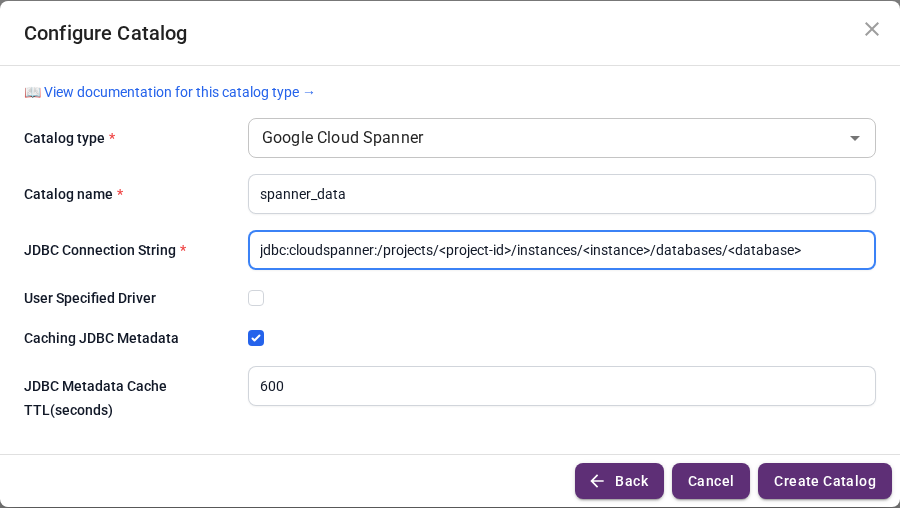
The built-in Spanner driver picks up the credential path from the GOOGLE_APPLICATION_CREDENTIALS env variable you set on docker run.
Click Create Catalog.
Add the Person and Account nodes, then the Owns and Transfers edges. The Spanner schema sits under the database's default schema ("").
Upload a schema file
Create a file schema.json with the following content. Replace the JDBC URI with your Spanner database:
schema.json
{
  "catalog": [
    {
      "name": "spanner_data",
      "type": "spanner",
      "jdbc": {
        "username": "",
        "password": "",
        "jdbcUri": "jdbc:cloudspanner:/projects/<project-id>/instances/<instance>/databases/<database>",
        "driverClass": "com.google.cloud.spanner.jdbc.JdbcDriver"
      }
    }
  ],
  "node": [
    {
      "label": "Person",
      "dataSourceGroup": {
        "externalDataSource": {
          "enabled": true,
          "catalog": "spanner_data",
          "schema": "",
          "table": "Person",
          "mappedField": [
            { "sourceFieldName": "id",      "targetFieldName": "id"      },
            { "sourceFieldName": "name",    "targetFieldName": "name"    },
            { "sourceFieldName": "country", "targetFieldName": "country" },
            { "sourceFieldName": "city",    "targetFieldName": "city"    }
          ]
        }
      },
      "id":        [{ "name": "id", "type": "LONG" }],
      "attribute": [
        { "name": "name",    "type": "STRING" },
        { "name": "country", "type": "STRING" },
        { "name": "city",    "type": "STRING" }
      ]
    },
    {
      "label": "Account",
      "dataSourceGroup": {
        "externalDataSource": {
          "enabled": true,
          "catalog": "spanner_data",
          "schema": "",
          "table": "Account",
          "mappedField": [
            { "sourceFieldName": "id",         "targetFieldName": "id"         },
            { "sourceFieldName": "nick_name",  "targetFieldName": "nick_name"  },
            { "sourceFieldName": "is_blocked", "targetFieldName": "is_blocked" }
          ]
        }
      },
      "id":        [{ "name": "id", "type": "LONG" }],
      "attribute": [
        { "name": "nick_name",  "type": "STRING"  },
        { "name": "is_blocked", "type": "BOOLEAN" }
      ]
    }
  ],
  "edge": [
    {
      "label":         "Owns",
      "fromNodeLabel": "Person",
      "toNodeLabel":   "Account",
      "dataSourceGroup": {
        "externalDataSource": {
          "enabled": true,
          "catalog": "spanner_data",
          "schema": "",
          "table": "PersonOwnAccount",
          "mappedField": [
            { "sourceFieldName": "id",         "targetFieldName": "id"         },
            { "sourceFieldName": "account_id", "targetFieldName": "account_id" }
          ]
        }
      },
      "id":        [{ "name": "id",         "type": "LONG" }],
      "fromKey":   [{ "name": "id",         "type": "LONG" }],
      "toKey":     [{ "name": "account_id", "type": "LONG" }],
      "attribute": []
    },
    {
      "label":         "Transfers",
      "fromNodeLabel": "Account",
      "toNodeLabel":   "Account",
      "dataSourceGroup": {
        "externalDataSource": {
          "enabled": true,
          "catalog": "spanner_data",
          "schema": "",
          "table": "AccountTransferAccount",
          "mappedField": [
            { "sourceFieldName": "id",          "targetFieldName": "id"          },
            { "sourceFieldName": "to_id",       "targetFieldName": "to_id"       },
            { "sourceFieldName": "create_time", "targetFieldName": "create_time" },
            { "sourceFieldName": "amount",      "targetFieldName": "amount"      }
          ]
        }
      },
      "id": [
        { "name": "id",          "type": "LONG"      },
        { "name": "to_id",       "type": "LONG"      },
        { "name": "create_time", "type": "TIMESTAMP" }
      ],
      "fromKey":   [{ "name": "id",     "type": "LONG" }],
      "toKey":     [{ "name": "to_id",  "type": "LONG" }],
      "attribute": [
        { "name": "create_time", "type": "TIMESTAMP" },
        { "name": "amount",      "type": "DOUBLE"    }
      ]
    }
  ]
}
The Transfers edge uses Spanner's full composite primary key (id, to_id, create_time) as its edge ID. The sample data has two transfers with (id=7, to_id=16) and different create_time values, so keying on id alone would collapse them into one edge.
In the Web UI, click Graph in the sidebar, then Upload Schema, and select schema.json.
Upload via CLI
Querying the Graph
In the PuppyGraph Web UI, click Query in the sidebar. You can run graph queries in either Cypher or Gremlin.
The following query traces Person-to-Person transfer paths through owned Accounts:
Cleanup
Stop the PuppyGraph container:
Drop the Spanner database (or the whole instance) from the GCP console when you're done.