Query UI
The Query page runs Cypher and Gremlin queries against the active graph. It combines a query editor, timeout controls, multiple result views, and query history on one page.
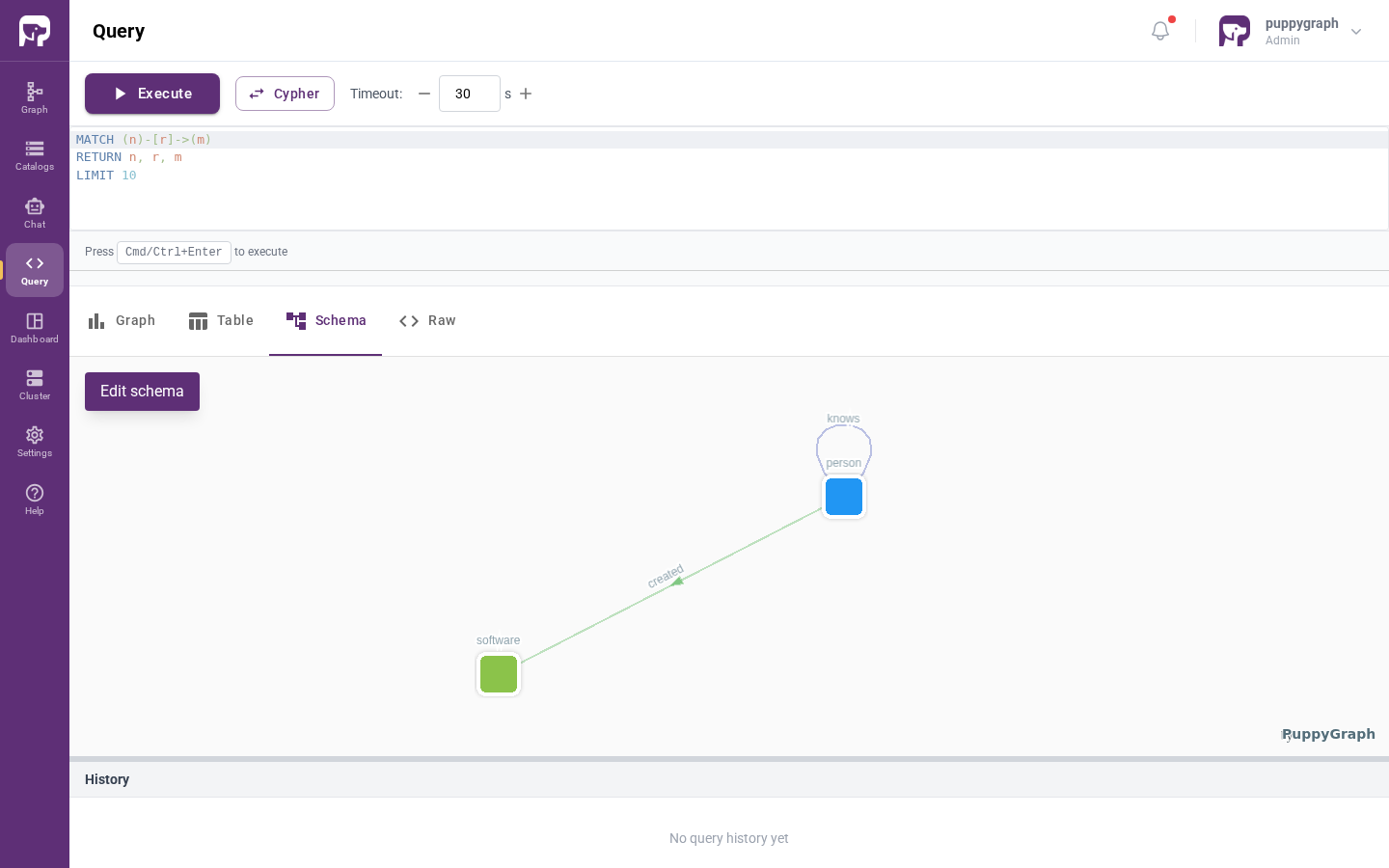
Run a query
- Open Query from the left navigation.
- Use the language selector to choose Cypher or Gremlin.
- Enter a query in the editor.
- Adjust the timeout with the controls next to the language selector if needed.
- Click Execute, or press Cmd+Enter on macOS or Ctrl+Enter on Windows and Linux.
Each execution is added to the history panel at the bottom of the page.
Result views
The result area provides four views. The available content depends on the shape of the query result.
| View | Purpose |
|---|---|
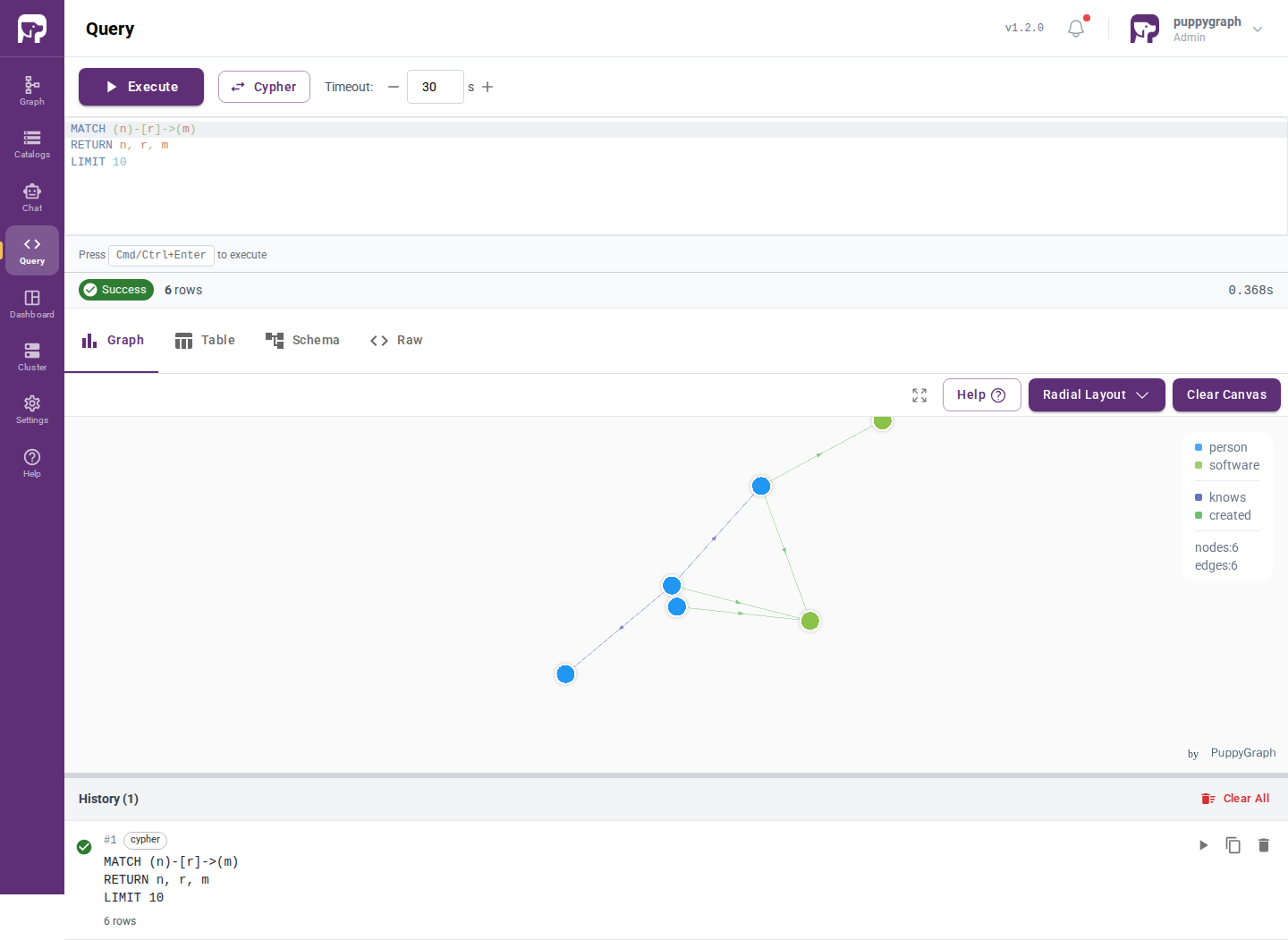
| Graph | Visualize returned nodes, edges, and paths. |
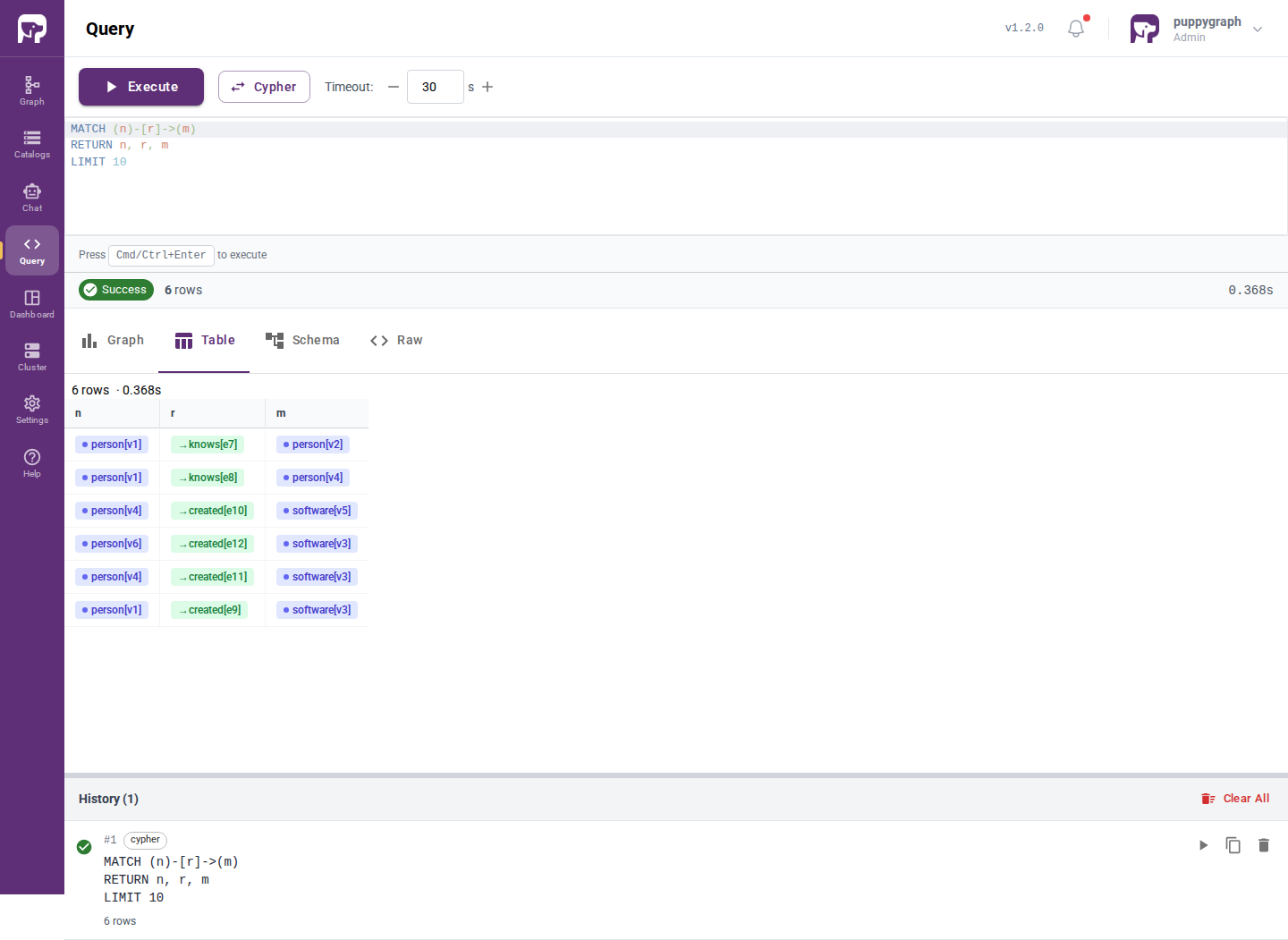
| Table | Inspect returned values as rows and columns. |
| Schema | View the active graph schema. Click Edit schema to open it on the Graph page. |
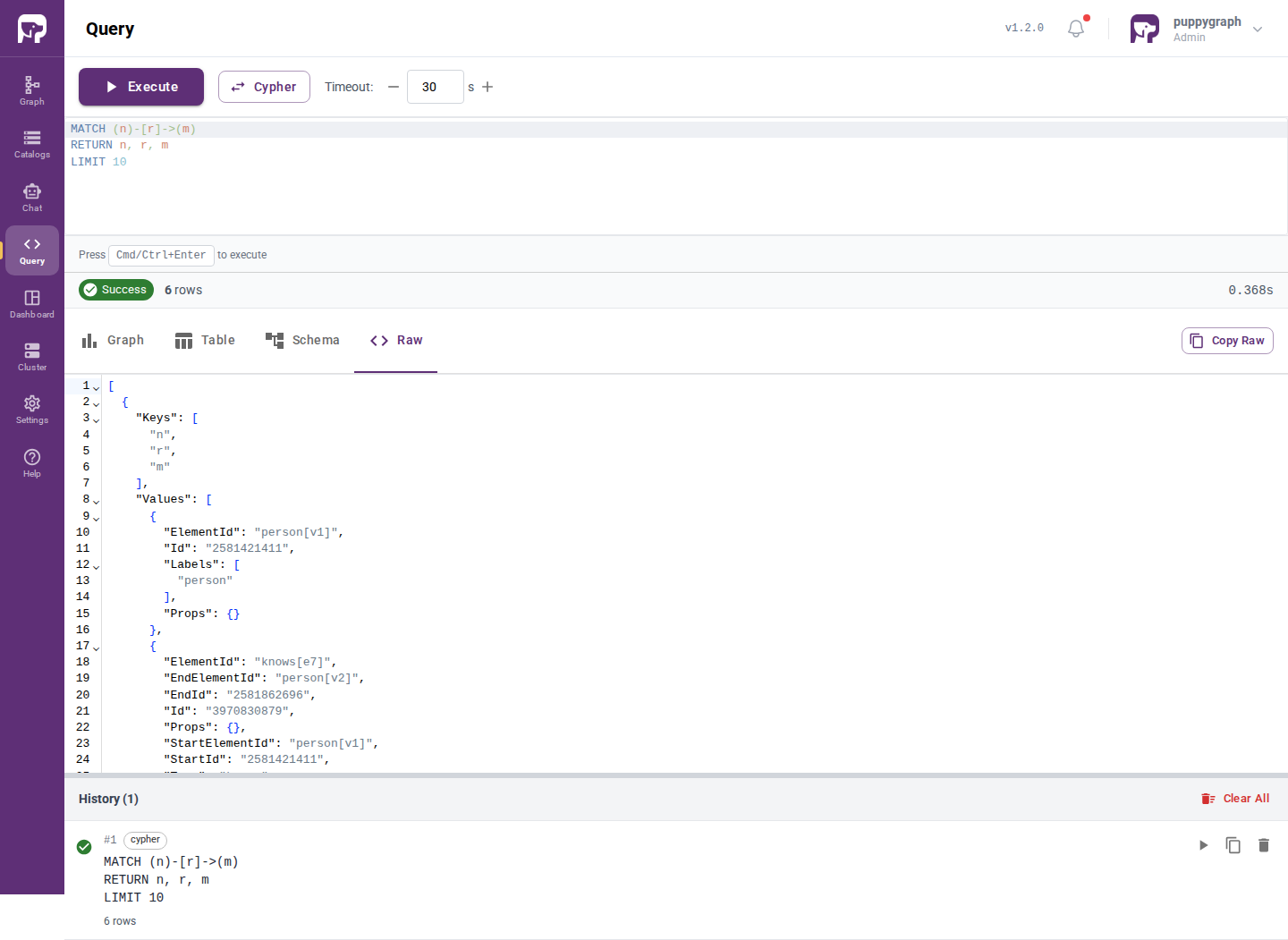
| Raw | Inspect the unformatted response. |
The following screenshots show the same query result in the Graph, Table, and Raw views:
Graph view
When a result contains visualizable graph elements, open Graph to explore them on a canvas.
Layout
Choose a layout based on the shape of the result:
- Radial places starting nodes near the center and arranges paths outward.
- Vertical places starting nodes on the left and arranges paths from left to right.
- Force treats edges as spring-like forces and spaces connected nodes automatically.
Drag the canvas background to pan, use the mouse wheel to zoom, and drag a node to reposition it. Use Clear Canvas to remove the current visualization.
Inspect and expand results
- Select a node or edge to inspect its properties.
- Open a node's context menu to access actions that expand or inspect the graph around it.
- Open the canvas context menu for canvas-wide actions.
- Use Help on the graph canvas for the complete list of available interactions and shortcuts.
Colors, labels, and property search
Use the graph legend to change the color and label format for a node or edge type. Label formats can include property placeholders in braces, for example ID: {id} name: {name}.
Property search requires the canvas to fetch the relevant properties first. Enable search from the canvas controls, wait for the fetch to finish, and then enter a property filter in the search field.
Other query interfaces
- For language-specific client and notebook examples, see Querying using openCypher and Querying using Gremlin.
- For an interactive Gremlin terminal, use the PuppyGraph CLI.