Exporting Query Results
PuppyGraph exports Cypher, Gremlin, and graph algorithm results to CSV or Parquet files. An administrator registers an export location with its storage settings and credentials; queries reference that location and a directory under its base path. Queries can also reuse a registered catalog to export files or create Iceberg and Hive tables.
Upgrading from PuppyGraph 1.9.0 or earlier
This page describes the latest PuppyGraph release. In PuppyGraph 1.9.0 and earlier, export queries supplied their own storage settings, such as storageType, endpoint, identifier, credential, region, or cloud identity options, in EXPORT TO ... PROPERTIES or Gremlin .with() options. PuppyGraph 1.10.0 removed query-supplied storage settings for security reasons, and queries that still supply them fail.
Upgrade to the latest PuppyGraph release, then update your exports:
- An
Adminregisters an export location with the storage settings and credentials. - Query authors change the target to
<location>:<directory>and remove the storage settings from the query. - Exports that use
catalogkeep working. See Export using a registered catalog.
For example, in Cypher:
Supported destinations
| Destination | CSV files | Parquet files | Iceberg / Hive tables |
|---|---|---|---|
| Registered location: Amazon S3, S3-compatible storage such as MinIO AIStor or RustFS, Google Cloud Storage, Azure Data Lake Storage Gen2, or HDFS | ✓ | ✓ | Not supported |
| Registered catalog with compatible storage | ✓ | ✓ | ✓ |
The destination bucket, container, or filesystem must already exist and its credentials must allow writing to it. File export targets are directories, not individual filenames: PuppyGraph writes the result files under the target directory. Table exports also require permission to create tables in the target database.
Register an export location
With RBAC enabled, only an Admin can add, edit, or delete locations (CATALOG:write). Listing requires CATALOG:read, which all built-in roles have; the stored credentials (identifier, credential, and clientSecret) are masked. With RBAC disabled, all authenticated users have Admin permissions. See Role-Based Access Control.
As an Admin, you can register a location or update an existing one:
- Open Settings → Exports.
- Click Add Location.
-
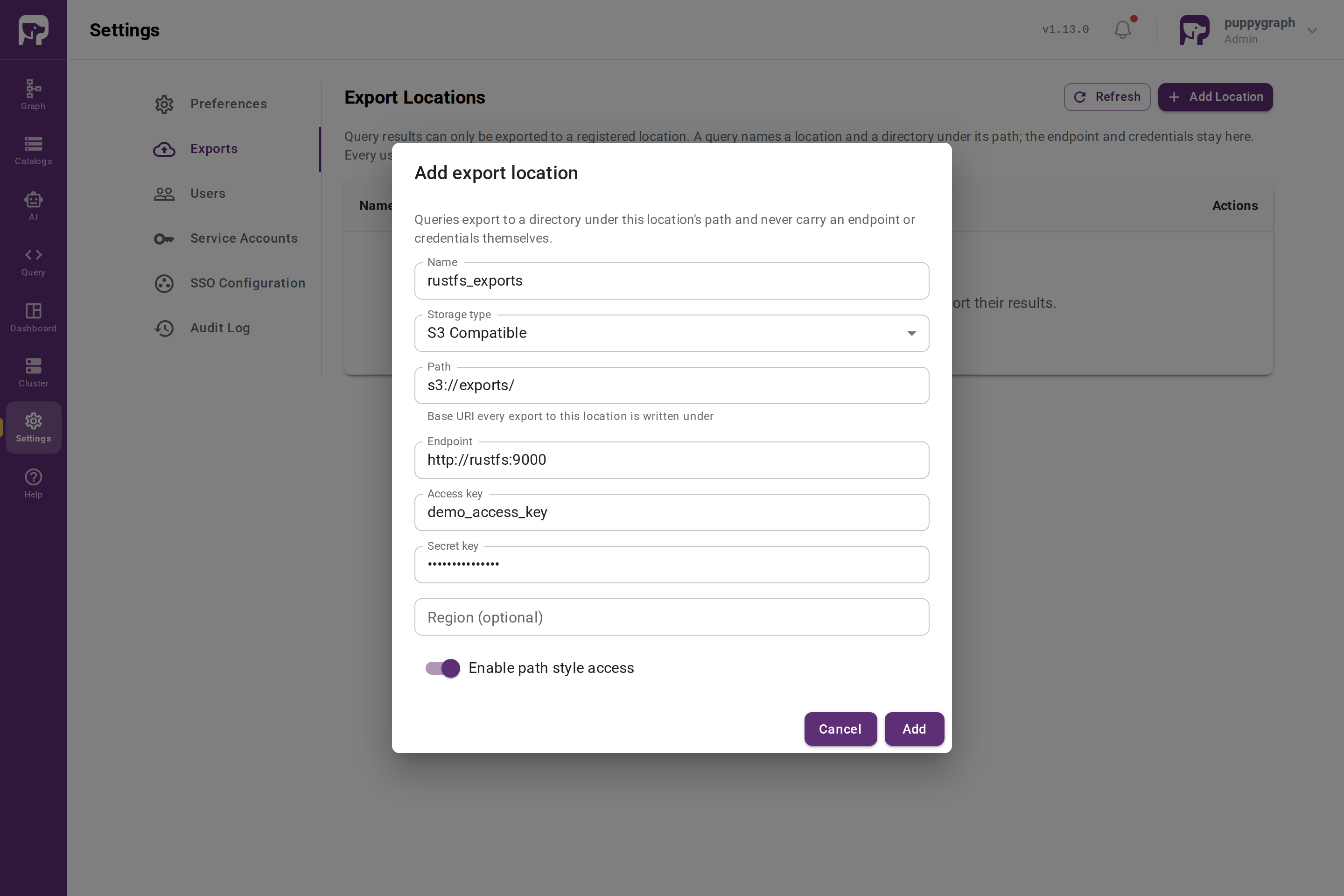
Enter a name, select the storage type, and provide a base path and storage credentials. For example, for a RustFS bucket named
exports:Field Example Name rustfs_exportsStorage type S3 Compatible Path s3://exports/Endpoint http://rustfs:9000(reachable from PuppyGraph)Access key Your RustFS access key Secret key Your RustFS secret key Enable path style access On, the default. See S3-compatible storage. -
Click Add. The location appears in the list.
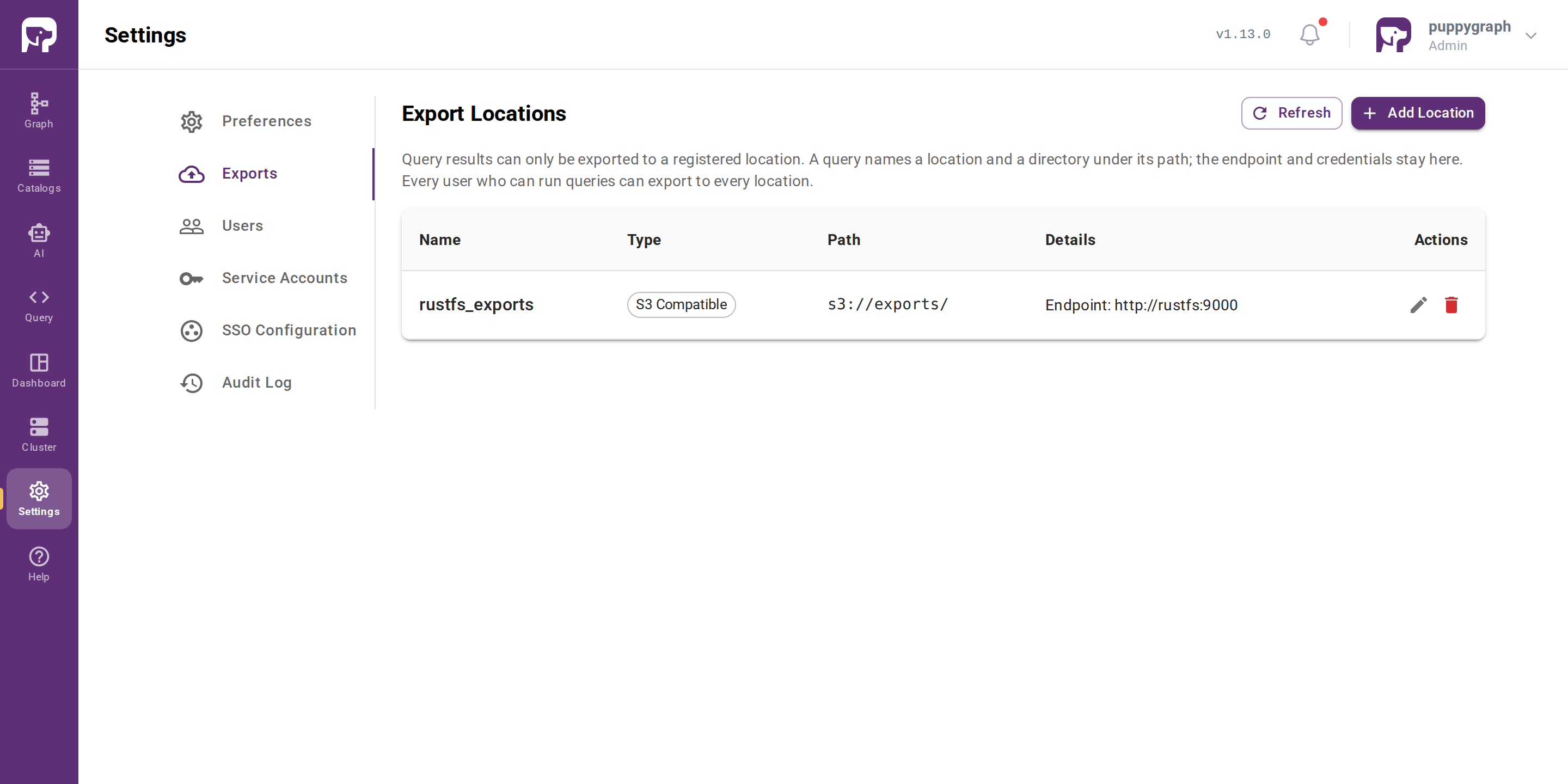
Use the edit or delete icon in Actions to manage a location. When editing, leave a masked value (******) unchanged to keep the stored value. Deleting a location causes subsequent queries that name it to fail.
For REST API, Cypher, and Gremlin examples, see Manage locations through the API.
You can view registered locations, but Add Location and Actions are hidden. To choose a destination:
- Open Settings → Exports.
- Note the Name and Path of a suitable location. Queries use its name, for example
rustfs_exports. - If no suitable location exists, or its path or credentials need changing, ask an
Adminto add or edit it.
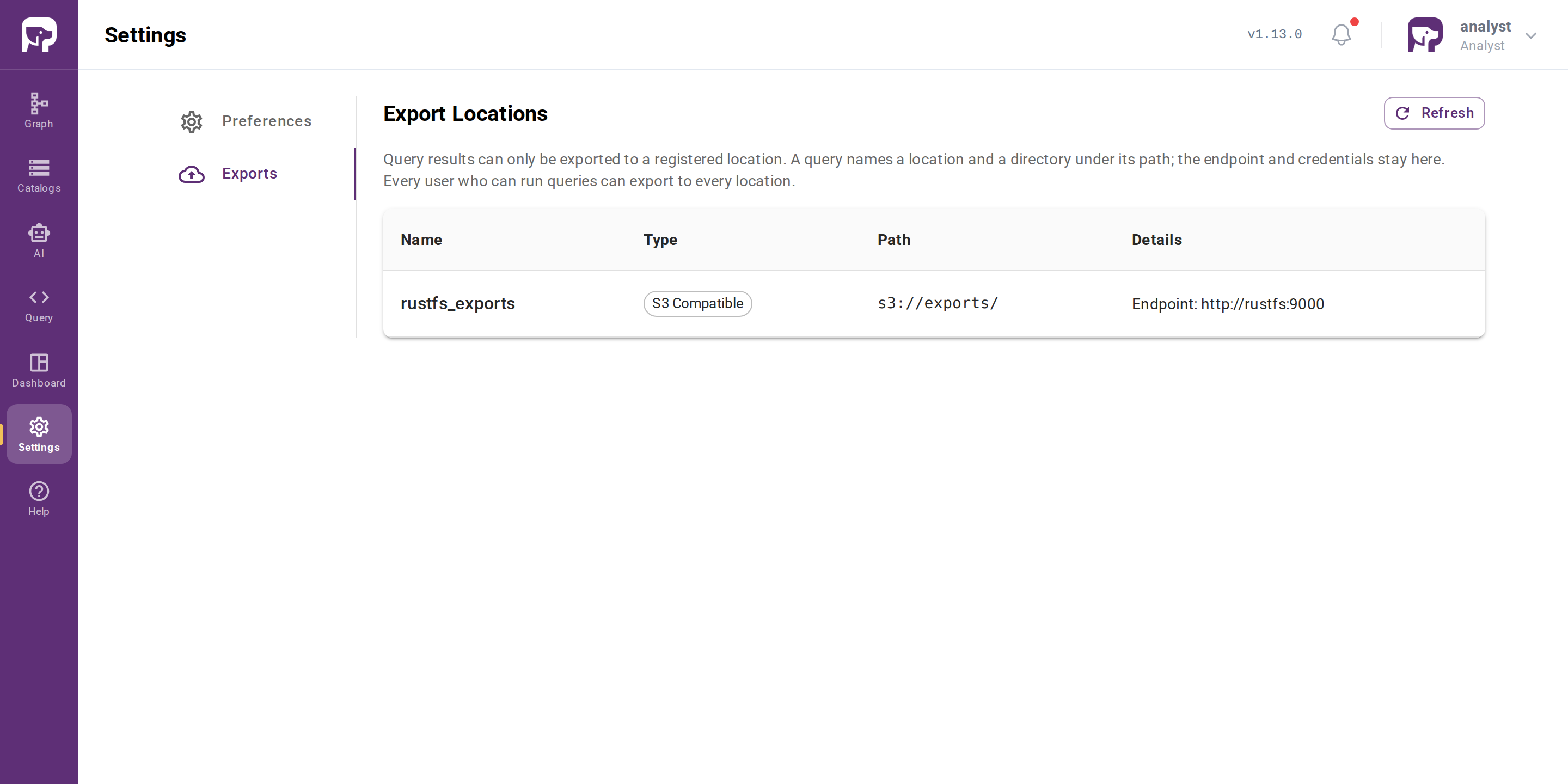
UserAdmin, GraphAdmin, and Analyst users can export to an existing location without its storage credentials. Viewer users can view the list but cannot run export queries.
Location names are case-sensitive, contain at most 64 ASCII letters, digits, underscores, or hyphens, and start with a letter or underscore. The base path must use a scheme supported by the storage type; PuppyGraph adds a trailing / if needed.
Export to a registered location
Exporting requires QUERY:execute: Admin, UserAdmin, GraphAdmin, and Analyst can export to every registered location. Location management permission is not required.
Use <location>:<directory> as the target. For the location above, rustfs_exports:reports/2026 writes under s3://exports/reports/2026/. Replace rustfs_exports in the examples with your registered location's name. These examples use person nodes with a name property, as in the built-in modern graph.
CSV is the default, so no PROPERTIES clause or additional export options are required. For Parquet:
The first : separates the location name from the directory. rustfs_exports: writes directly under the base path. Directories accept Unicode letters and digits plus ., _, -, =, :, and /, so rustfs_exports:dt=2026-09-10T00:00:00Z/ is valid. Spaces, . or .. path segments, and URI targets such as rustfs_exports:s3://other-bucket/ are rejected. A separate location option is not supported.
The response includes TaskName and State. While the state is RUNNING, check progress with CALL db.showExportTask('<TaskName>') in Cypher or graph.showExportTask('<TaskName>') in Gremlin. A finished export is SUCCESS, or FAILED with an ErrorMessage.
Export options
| Key | Description | Default |
|---|---|---|
fileType |
csv or parquet; table requires an Iceberg or Hive catalog |
csv |
catalog |
Registered catalog to use instead of an export location; changes the target to a full URI or database.table |
Unset |
transferSize |
Number of results per transfer batch | 10000 |
timeout |
Export SQL timeout, in seconds | 43200 (12 hours) |
Graph algorithm results
Gremlin graph programs use the same targets and options in submitAndSave:
graph.program(
    PageRankProgram.build()
        .maxIteration(20)
        .vertices("person")
        .edges("knows")
        .create()
).submitAndSave([
    "exportTo": "rustfs_exports:reports/pagerank"
])
For Cypher algorithms, place EXPORT TO before the algorithm query, as in the PageRank export example.
Location settings by storage type
These are registration fields, not query options. Use them in the UI or in the JSON sent to the REST API below.
type |
path scheme |
Authentication and connection fields |
|---|---|---|
S3_COMPATIBLE |
s3:// or s3a:// |
Required: endpoint, identifier (access key), credential (secret key). Optional: region, enablePathStyleAccess. Register MinIO AIStor, RustFS, and other S3-compatible services with this type and their service endpoint; see below. |
S3 |
s3:// or s3a:// |
Required: region, identifier (AWS access key ID), credential (AWS secret access key). No custom endpoint. |
GCS |
gs:// |
Application default credentials, a Compute Engine service account, or a service account key; see below. |
AZURE_DLS2 |
abfs:// or abfss:// |
Storage account key or an identity option; see below. |
HDFS |
hdfs:// |
The path includes the host and port. For simple authentication, provide both identifier and credential. For Kerberos, configure Kerberos authentication. |
S3-compatible storage
Version requirement
The S3_COMPATIBLE type and enablePathStyleAccess are available in PuppyGraph 1.13.0 and later. Earlier versions name this type MINIO and always use path-style requests. PuppyGraph 1.13.0 still accepts MINIO and lists such locations as S3_COMPATIBLE.
enablePathStyleAccess sets where requests put the bucket name:
true, the default when the field is omitted: in the URL path, as inhttp://rustfs:9000/exports/. In the UI, Enable path style access is on.false: in the host name, as inhttp://exports.rustfs:9000/. Use this only for a service that requires virtual-hosted-style requests.
Other storage types reject enablePathStyleAccess.
Google Cloud Storage
Choose one authentication method:
- JSON key file: mount the file and set
GOOGLE_APPLICATION_CREDENTIALSto its path inside PuppyGraph. No credential fields are needed in the location. See Google Cloud authentication. - Attached Compute Engine service account: set
useComputeEngineServicetotrue. The VM must have an attached service account and an access scope that allows storage operations. - Service account key: provide
serviceAccountEmail,identifier(private key ID), andcredential(private key). Optionally setimpersonationServiceAccount.
Azure Data Lake Storage Gen2
Use a path such as abfss://<container>@<account>.dfs.core.windows.net/exports/ and choose one authentication method:
- Storage account key:
identifier(storage account name) andcredential(access key). - Managed identity:
useManagedIdentity: true,tenantId, andclientId. - Workload identity:
useWorkloadIdentity: true,tenantId,clientId, andtokenFile. - Service principal:
clientId,clientSecret, andendpoint(the OAuth2 token URL).
Manage locations through the API
The REST API enforces the same permissions as the UI:
| Operation | Request | Required permission |
|---|---|---|
| Create | POST /ui-api/exportLocation with the location JSON |
CATALOG:write (Admin only) |
| List | GET /ui-api/exportLocation |
CATALOG:read (all built-in roles) |
| Update | PUT /ui-api/exportLocation with the complete location JSON, including its name |
CATALOG:write (Admin only) |
| Delete | DELETE /ui-api/exportLocation?name=<location-name> |
CATALOG:write (Admin only) |
For example, register the RustFS location:
curl -u puppygraph:puppygraph123 \
  -X POST http://localhost:8081/ui-api/exportLocation \
  -H 'Content-Type: application/json' \
  -d '{
    "name": "rustfs_exports",
    "type": "S3_COMPATIBLE",
    "path": "s3://exports/",
    "endpoint": "http://rustfs:9000",
    "identifier": "<rustfs-access-key>",
    "credential": "<rustfs-secret-key>"
  }'
Listing returns a locations array with identifier, credential, and clientSecret masked as ******. Sending a masked value back in an update preserves the stored value. If a mutation returns HTTP 503 with stored: true, the change is saved but has not reached every query engine; PuppyGraph retries delivery automatically.
Cypher and Gremlin require QUERY:execute in addition to the operation's permission above. Viewer users can list locations through Settings → Exports or GET /ui-api/exportLocation.
Run each statement separately, replacing <location JSON> with the same JSON object used by the REST API, encoded as a string:
CALL puppy.schema.addExportLocation('<location JSON>')
YIELD success, error_message

CALL puppy.schema.updateExportLocation('<location JSON>')
YIELD success, error_message

CALL puppy.schema.listExportLocations() YIELD name

CALL puppy.schema.removeExportLocation('rustfs_exports')
YIELD success, error_message
Export using a registered catalog
Set catalog to reuse its storage configuration and credentials. File exports use a full URI compatible with the catalog's storage:
Restrict catalog export paths
By default, a catalog file export can write to any destination the catalog credentials can write to, and PuppyGraph logs a warning at startup. For production, set the GRAPH_FEATURES environment variable on every PuppyGraph node to restrict catalog file exports to an allowed URI prefix. For example, with Docker:
docker run \
  -p 8081:8081 -p 8182:8182 -p 7687:7687 \
  -e PUPPYGRAPH_USERNAME=puppygraph \
  -e PUPPYGRAPH_PASSWORD=puppygraph123 \
  -e GRAPH_FEATURES=feature.engine.exportCatalogAllowedPathPrefixes:s3://my-bucket/exports/ \
  -d --name puppy --rm --pull=always \
  puppygraph/puppygraph:latest
The target must start with the allowed prefix; matching is case-sensitive, and . and .. path segments are rejected. This setting does not restrict registered locations or table exports. GRAPH_FEATURES separates settings with commas, so it accepts a single prefix.
Export as an Iceberg or Hive table
Table export is experimental. Use an Iceberg or Hive catalog and set fileType to table. The target is database.table, and the new table stores results in Parquet format.
For Hive setup, see Connecting to Hive. A Kerberos-enabled cluster also requires Kerberos configuration.