Querying SQL Server Data as a Graph
Summary
In this tutorial, you will:
- Set up a Microsoft SQL Server instance and load it with example data;
- Start a PuppyGraph Docker container and query data stored in SQL Server as a graph.
Prerequisites
Please ensure that docker compose is available. The installation can be verified by running:
See https://docs.docker.com/compose/install/ for Docker Compose installation instructions and https://www.docker.com/get-started/ for more details on Docker.
Accessing the PuppyGraph Web UI requires a browser. However, the tutorial offers alternative instructions for those who wish to exclusively use the CLI.
Deployment
 Create two files
 docker-compose.yaml and setup.sql with the following content.
docker-compose.yaml
services:
  sql-server:
    image: mcr.microsoft.com/mssql/server:2022-latest
    container_name: sql-server
    environment:
      - ACCEPT_EULA=Y
      # The password must be at least 8 characters long and contain characters from three of the following four sets: Uppercase letters, Lowercase letters, Base 10 digits, and Symbols.
      - MSSQL_SA_PASSWORD=StrongPassw0rd
    ports:
      - "1433:1433"
    volumes:
      - ./setup.sql:/setup.sql
    networks:
      mssql_net:
  puppygraph:
    image: puppygraph/puppygraph:stable
    pull_policy: always
    container_name: puppygraph
    environment:
      - PUPPYGRAPH_USERNAME=puppygraph
      - PUPPYGRAPH_PASSWORD=puppygraph123
    ports:
      - "8081:8081"
      - "8182:8182"
      - "7687:7687"
    networks:
      mssql_net:
networks:
  mssql_net:
    name: puppy-mssql
setup.sql
CREATE DATABASE DemoDB;
GO
USE DemoDB;
GO
CREATE LOGIN demouser WITH PASSWORD = 'DemoPassword123';
GO
CREATE USER demouser FOR LOGIN demouser;
GO
ALTER ROLE db_owner ADD MEMBER demouser;
GO
CREATE SCHEMA modern;
GO
CREATE TABLE modern.person (
    id NVARCHAR(50),
    name NVARCHAR(50),
    age INT
);
CREATE TABLE modern.software (
    id NVARCHAR(50),
    name NVARCHAR(50),
    lang NVARCHAR(50)
);
CREATE TABLE modern.knows (
    id NVARCHAR(50),
    from_id NVARCHAR(50),
    to_id NVARCHAR(50),
    weight FLOAT
);
CREATE TABLE modern.created (
    id NVARCHAR(50),
    from_id NVARCHAR(50),
    to_id NVARCHAR(50),
    weight FLOAT
);
GO
INSERT INTO modern.person VALUES
    ('v1', 'marko', 29),
    ('v2', 'vadas', 27),
    ('v4', 'josh', 32),
    ('v6', 'peter', 35);
INSERT INTO modern.software VALUES
    ('v3', 'lop', 'java'),
    ('v5', 'ripple', 'java');
INSERT INTO modern.knows VALUES
    ('e7', 'v1', 'v2', 0.5),
    ('e8', 'v1', 'v4', 1.0);
INSERT INTO modern.created VALUES
    ('e9', 'v1', 'v3', 0.4),
    ('e10', 'v4', 'v5', 1.0),
    ('e11', 'v4', 'v3', 0.4),
    ('e12', 'v6', 'v3', 0.2);
GO
 Warning: Make sure to use strong passwords, especially when your device is publicly accessible.
Then run the following command to start SQL Server and PuppyGraph:
[+] Running 3/3
 ✔ Network puppy-mssql   Created                                           0.1s
 ✔ Container puppygraph  Started                                           0.7s
 ✔ Container sql-server  Started                                           0.8s
Data Preparation
This tutorial is designed to be comprehensive and standalone, so it includes steps to populate data in SQL Server. In practical scenarios, PuppyGraph can query data directly from your existing SQL Server databases.
Wait for the containers to be fully ready (this may take a few minutes), then run the following command to run the SQL script to set up the database and its user and load example data. Note to replace <MSSQL_SA_PASSWORD> with the actual MSSQL_SA_PASSWORD you set in the docker-compose.yaml file. The default value is StrongPassw0rd.
docker exec -it sql-server /opt/mssql-tools18/bin/sqlcmd -S localhost -U sa -P <MSSQL_SA_PASSWORD> -C -i /setup.sql
The above SQL creates the following tables:
| id | name | age |
|---|---|---|
| v1 | marko | 29 |
| v2 | vadas | 27 |
| v4 | josh | 32 |
| v6 | peter | 35 |
| id | name | lang |
|---|---|---|
| v3 | lop | java |
| v5 | ripple | java |
| id | from_id | to_id | weight |
|---|---|---|---|
| e7 | v1 | v2 | 0.5 |
| e8 | v1 | v4 | 1.0 |
| id | from_id | to_id | weight |
|---|---|---|---|
| e9 | v1 | v3 | 0.4 |
| e10 | v4 | v5 | 1.0 |
| e11 | v4 | v3 | 0.4 |
| e12 | v6 | v3 | 0.2 |
Modeling a Graph
We then define a graph on top of the data tables we just created. Actually, this is the "Modern" graph defined by Apache Tinkerpop.

Modern Graph
A schema instructs PuppyGraph on mapping data from the SQL Server into a graph. PuppyGraph offers various methods for schema creation. For this tutorial, we've already prepared a schema to help save time.
Create a PuppyGraph schema file schema.json with the following content. Note that you need to fill the username and password fields in the jdbc section with the actual database username and password you set in the setup.sql file. The default values in this demo are demouser and DemoPassword123 .
schema.json
{
  "catalogs": [
    {
      "name": "mssql_data",
      "type": "sqlserver",
      "jdbc": {
        "username": "demouser",
        "password": "DemoPassword123",
        "jdbcUri": "jdbc:sqlserver://sql-server:1433;databaseName=DemoDB;encrypt=false;",
        "enableMetaCache": "true",
        "metaCacheExpireSec": "600"
      }
    }
  ],
  "graph": {
    "vertices": [
      {
        "label": "person",
        "oneToOne": {
          "tableSource": {
            "catalog": "mssql_data",
            "schema": "modern",
            "table": "person"
          },
          "id": {
            "fields": [
              {
                "type": "STRING",
                "field": "id",
                "alias": "puppy_id_id"
              }
            ]
          },
          "attributes": [
            {
              "type": "STRING",
              "field": "name",
              "alias": "name"
            },
            {
              "type": "INT",
              "field": "age",
              "alias": "age"
            }
          ]
        }
      },
      {
        "label": "software",
        "oneToOne": {
          "tableSource": {
            "catalog": "mssql_data",
            "schema": "modern",
            "table": "software"
          },
          "id": {
            "fields": [
              {
                "type": "STRING",
                "field": "id",
                "alias": "puppy_id_id"
              }
            ]
          },
          "attributes": [
            {
              "type": "STRING",
              "field": "name",
              "alias": "name"
            },
            {
              "type": "STRING",
              "field": "lang",
              "alias": "lang"
            }
          ]
        }
      }
    ],
    "edges": [
      {
        "label": "created",
        "fromVertex": "person",
        "toVertex": "software",
        "tableSource": {
          "catalog": "mssql_data",
          "schema": "modern",
          "table": "created"
        },
        "id": {
          "fields": [
            {
              "type": "STRING",
              "field": "id",
              "alias": "puppy_id_id"
            }
          ]
        },
        "fromId": {
          "fields": [
            {
              "type": "STRING",
              "field": "from_id",
              "alias": "puppy_from_from_id"
            }
          ]
        },
        "toId": {
          "fields": [
            {
              "type": "STRING",
              "field": "to_id",
              "alias": "puppy_to_to_id"
            }
          ]
        },
        "attributes": [
          {
            "type": "STRING",
            "field": "to_id",
            "alias": "to_id"
          },
          {
            "type": "DOUBLE",
            "field": "weight",
            "alias": "weight"
          }
        ]
      },
      {
        "label": "knows",
        "fromVertex": "person",
        "toVertex": "person",
        "tableSource": {
          "catalog": "mssql_data",
          "schema": "modern",
          "table": "knows"
        },
        "id": {
          "fields": [
            {
              "type": "STRING",
              "field": "id",
              "alias": "puppy_id_id"
            }
          ]
        },
        "fromId": {
          "fields": [
            {
              "type": "STRING",
              "field": "from_id",
              "alias": "puppy_from_from_id"
            }
          ]
        },
        "toId": {
          "fields": [
            {
              "type": "STRING",
              "field": "to_id",
              "alias": "puppy_to_to_id"
            }
          ]
        }
      }
    ]
  }
}
Log into PuppyGraph Web UI at http://localhost:8081 with username and password of PuppyGraph.(default username: puppygraph, default password: puppygraph123)
PuppyGraph Login
Upload the schema by choosing the file schema.json in the Upload Graph Schema JSON block and clicking on Upload.
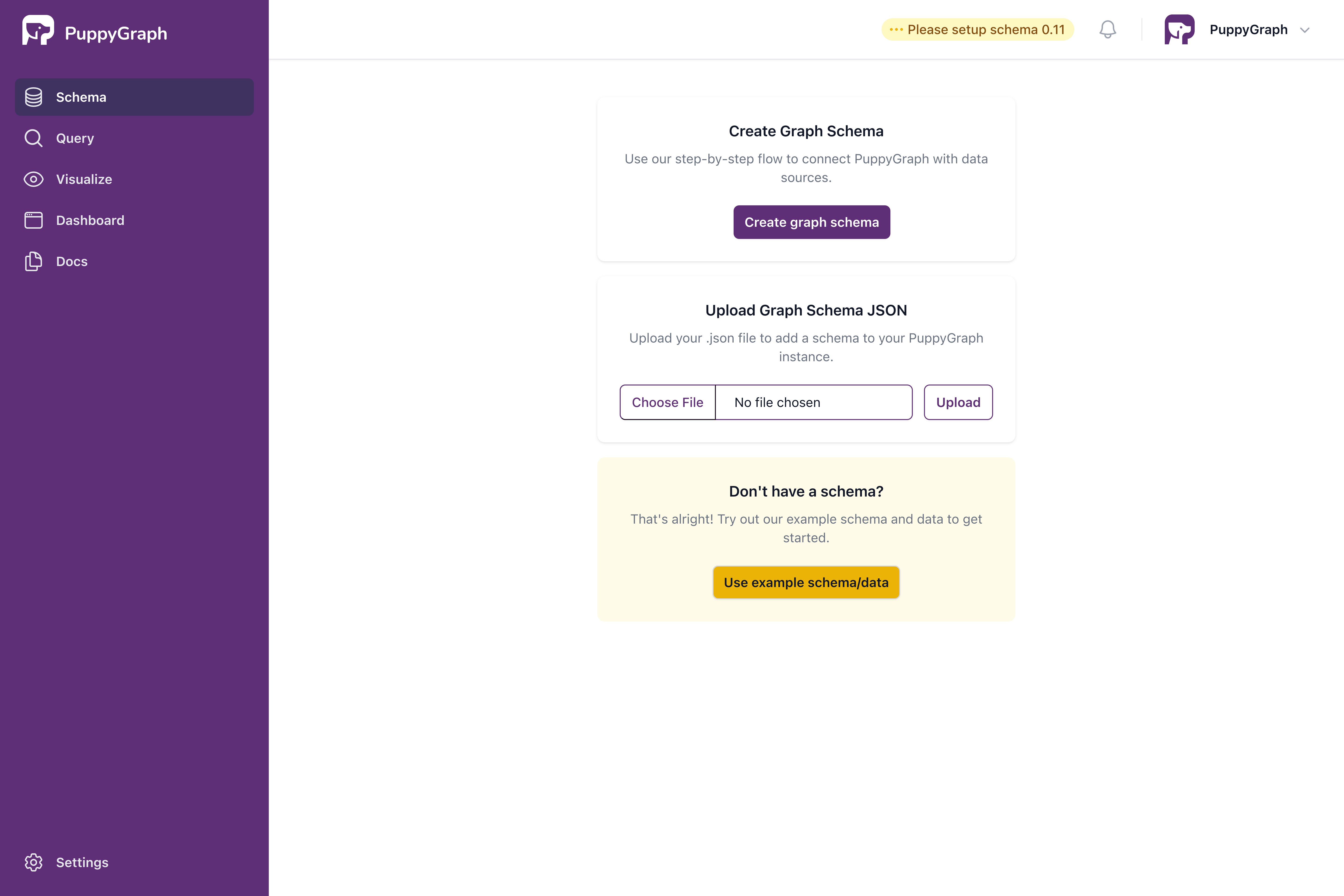
Upload Schema Page
Once the schema is uploaded, the schema page shows the visualized graph schema as follows.
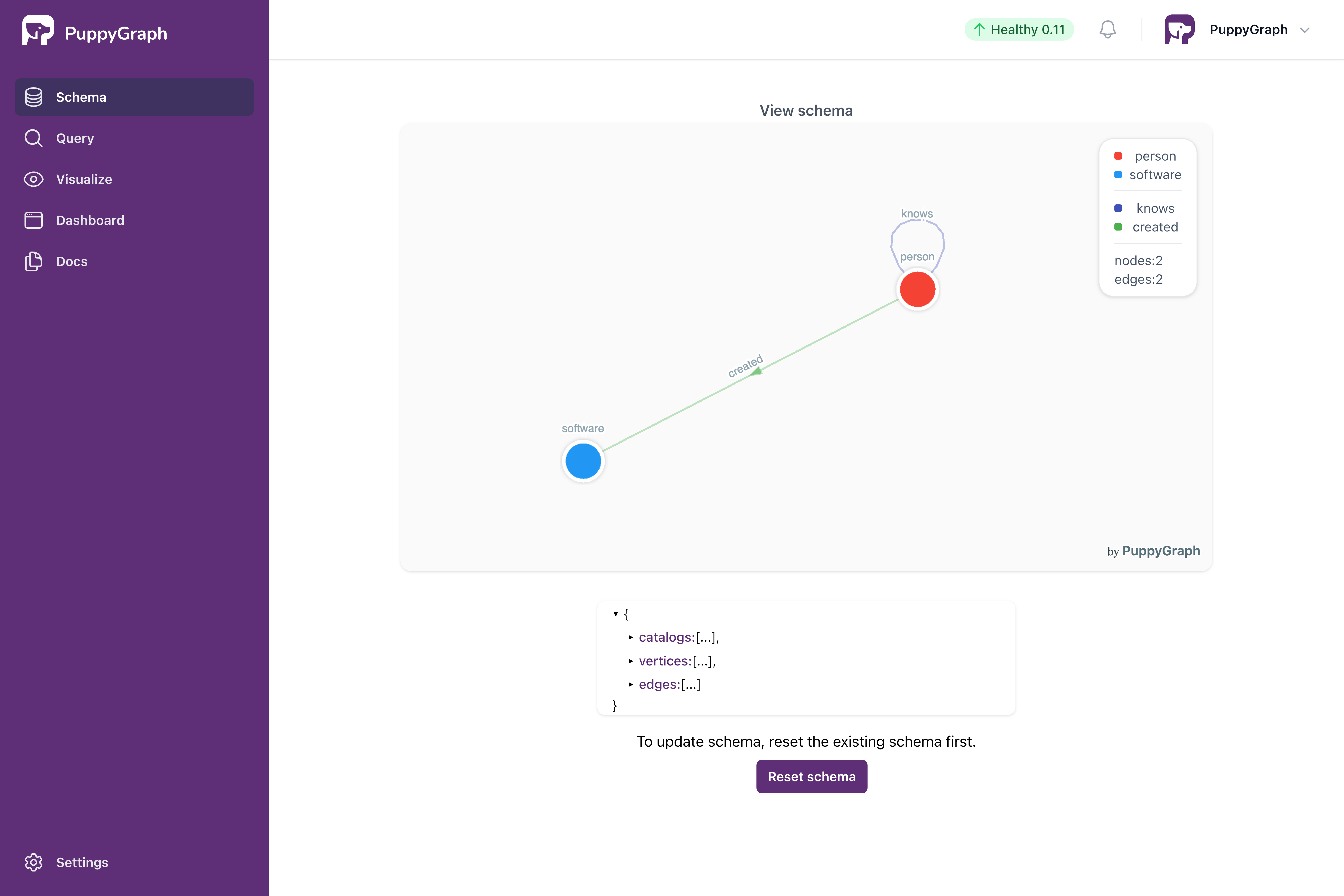
Visualized Schema
Alternative: Schema Uploading via CLI
Alternatively, run the following command to upload the schema file:
curl -XPOST -H "content-type: application/json" --data-binary @./schema.json --user "puppygraph:puppygraph123" localhost:8081/schema
The response shows that graph schema has been uploaded successfully:
Querying the Graph
In this tutorial, we will use the Gremlin and Cypher query languages to interact with the Graph. Gremlin, developed by Apache TinkerPop, and Cypher, designed by Neo4j, are both powerful graph query languages. Prior knowledge of either Gremlin or Cypher is not necessary to follow this tutorial. To learn more about Gremlin, visit https://tinkerpop.apache.org/gremlin.html. For information on Cypher, you can check out https://neo4j.com/product/cypher-graph-query-language/.
Click on the Query panel the left side. The Gremlin Query tab offers an interactive environment for querying the graph using Gremlin.
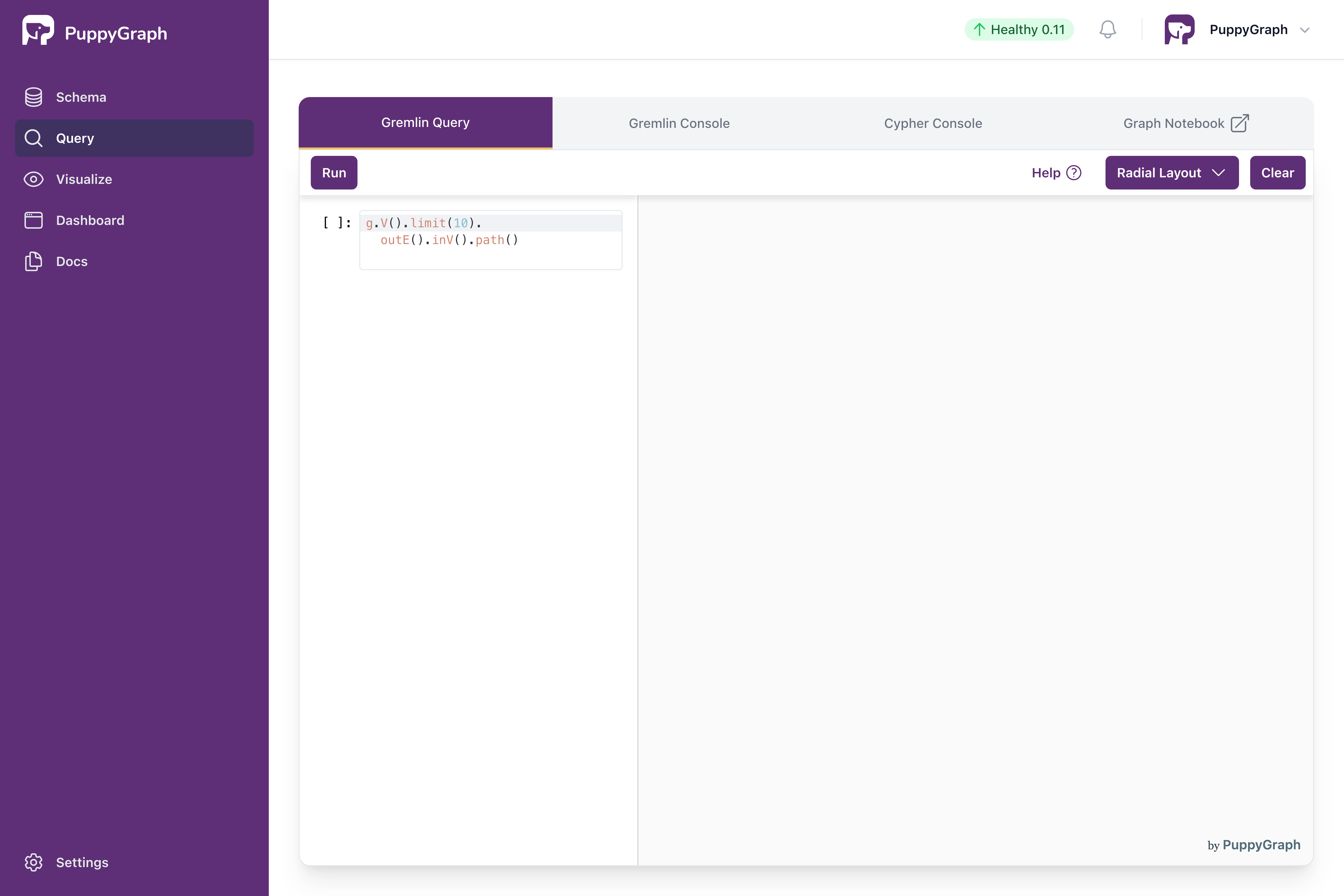
Interactive Gremlin Query Page
Queries are entered on the left side, and the right side displays the graph visualization.
The first query retrieves the property of the person named "marko".
Copy the following query, paste it in the query input, and click on the run button.
The output is plain text like the following:
Now let's also leverage the visualization. The next query gets all the software created by people known to "marko".
Copy the following query, paste it in the query input, and click on the run button.
The output is as follows. There are two paths in the result as "marko" knows "josh" who created "lop" and "ripple".
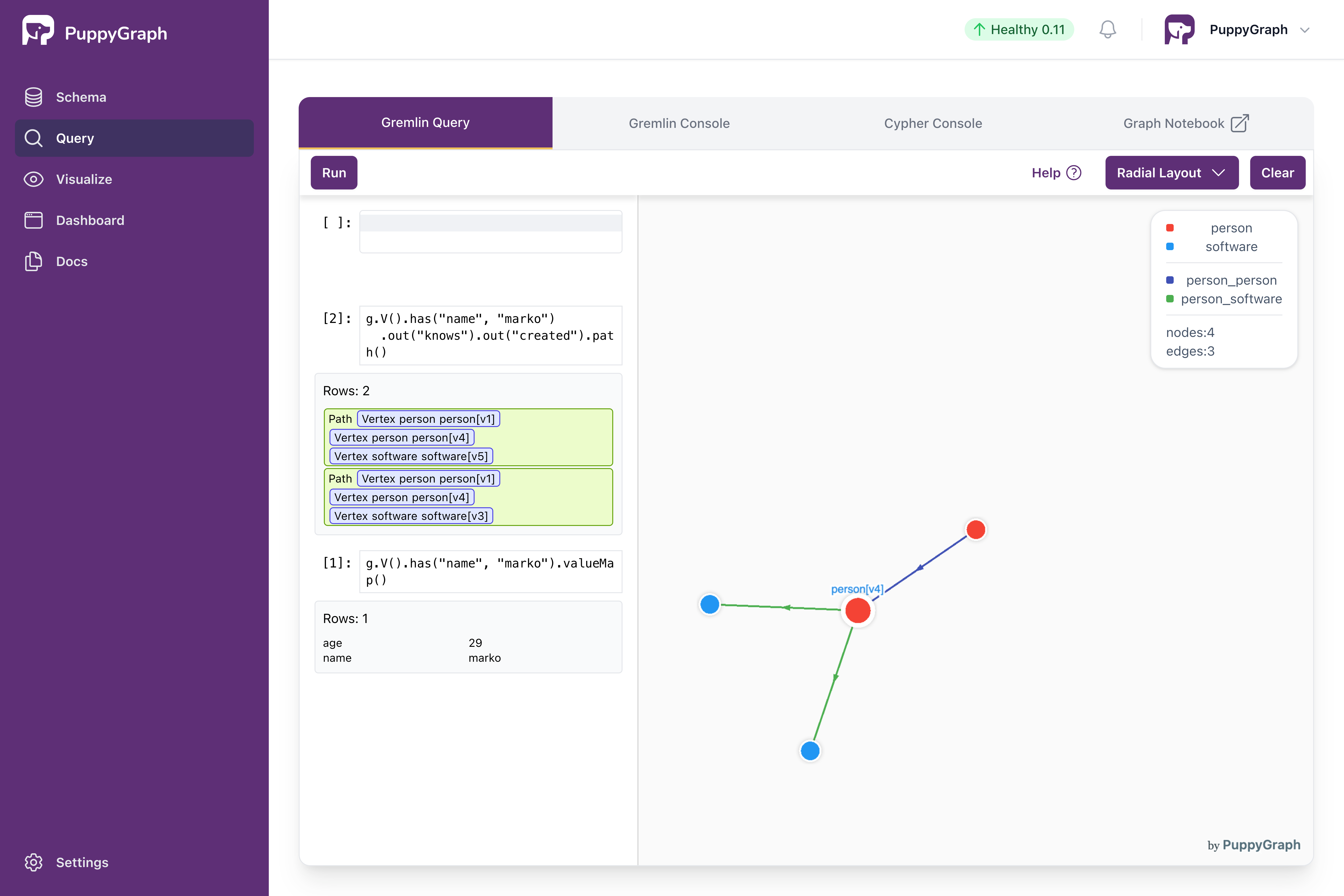
Interactive Query with Results
Alternative: Querying the graph via CLI
Alternatively, we can query the graph via CLI.
Execute the following command to access the PuppyGraph CLI.
The welcome screen appears as follows:
  ____                                     ____                          _
 |  _ \   _   _   _ __    _ __    _   _   / ___|  _ __    __ _   _ __   | |__
 | |_) | | | | | | '_ \  | '_ \  | | | | | |  _  | '__|  / _` | | '_ \  | '_ \
 |  __/  | |_| | | |_) | | |_) | | |_| | | |_| | | |    | (_| | | |_) | | | | |
 |_|      \__,_| | .__/  | .__/   \__, |  \____| |_|     \__,_| | .__/  |_| |_|
                 |_|     |_|      |___/                         |_|
Welcome to PuppyGraph, type help to see the command list
[PuppyGraph]>
               console         access PuppyGraph Gremlin Console
               cypher-console  access PuppyGraph Cypher Console
               groovy          access console to run complex groovy scripts
               exit            exit PuppyGraph
               help            show the command list
Access the PuppyGraph Gremlin Console through the console command.
[PuppyGraph]> console
  ____                                     ____                          _
 |  _ \   _   _   _ __    _ __    _   _   / ___|  _ __    __ _   _ __   | |__
 | |_) | | | | | | '_ \  | '_ \  | | | | | |  _  | '__|  / _` | | '_ \  | '_ \
 |  __/  | |_| | | |_) | | |_) | | |_| | | |_| | | |    | (_| | | |_) | | | | |
 |_|      \__,_| | .__/  | .__/   \__, |  \____| |_|     \__,_| | .__/  |_| |_|
                 |_|     |_|      |___/                         |_|
Welcome to PuppyGraph!
version: 0.11

To Learn more about the graph schema:
- Use graph.show() to list all the node (vertex) and edge labels.
- Use graph.show('$FOO') to list all the node (vertex) and edge labels related to $FOO.
- Use graph.describe('$BAR') to list all the attributes of the label $BAR.

See https://tinkerpop.apache.org/gremlin.html to learn more about the Gremlin query language.
Here are some example queries for exploring the graph:
- Use g.V() to list all the nodes (vertices).
- Use g.E() to list all the edges.
- Use g.V().count() to get the total number of nodes (vertices).
- Use g.E().count() to get the total number of edges.
- Use g.V('$ID').out() to find out nodes (vertices) that are reachable in 1-hop from the node (vertex) $ID. For example, g.V('person[v1]').out() will find out 1-hop reachable nodes (vertices) from 'person[v1]'.
- Use g.V('$ID').out().out() similarly to find out 2-hop reachable nodes (vertices) from the node (vertex) $ID.

puppy-gremlin>
Run the following queries in the console to query the Graph.
Properties of the person named "marko":
Exit Gremlin console by :x and then access Cypher console by cypher-console.
Make sure to initiate Cypher queries using the prefix :>.
puppy-cypher> :> MATCH (v) RETURN count(*)
==>[count(*):6]
puppy-cypher> :> MATCH (v) RETURN v
==>[v:[_type:node,name:peter,_id:person[v6],_label:person,age:35]]
==>[v:[_type:node,name:vadas,_id:person[v2],_label:person,age:27]]
==>[v:[_type:node,name:josh,_id:person[v4],_label:person,age:32]]
==>[v:[_type:node,name:marko,_id:person[v1],_label:person,age:29]]
==>[v:[_type:node,name:ripple,_id:software[v5],lang:java,_label:software]]
==>[v:[_type:node,name:lop,_id:software[v3],lang:java,_label:software]]
Exit Cypher console and the CLI by :x and then exit command.
Cleaning up
Run the following command to shut down and remove the services: